

Nioh 3 PS5, Steam Deck, and ROG Ally full game impressions
Both Nioh and Nioh 2 debuted on PlayStation 4 before seeing PC ports later on. With Nioh 3, Koei Tecmo and Team Ninja are doing a simultaneous launch for both PlayStation 5 and Steam this week. Ahead of its release, I had a chance to play the full Steam and PS5 versions to see how they scale on handhelds and also how the PS5 version feels at launch. I was curious to see if the Steam release would be playable at all on PC handhelds given the system requirements and also whether the base PS5 release delivered a solid experience at 60fps. I'm going to cover both in today's feature, but my focus will be on the Steam release.
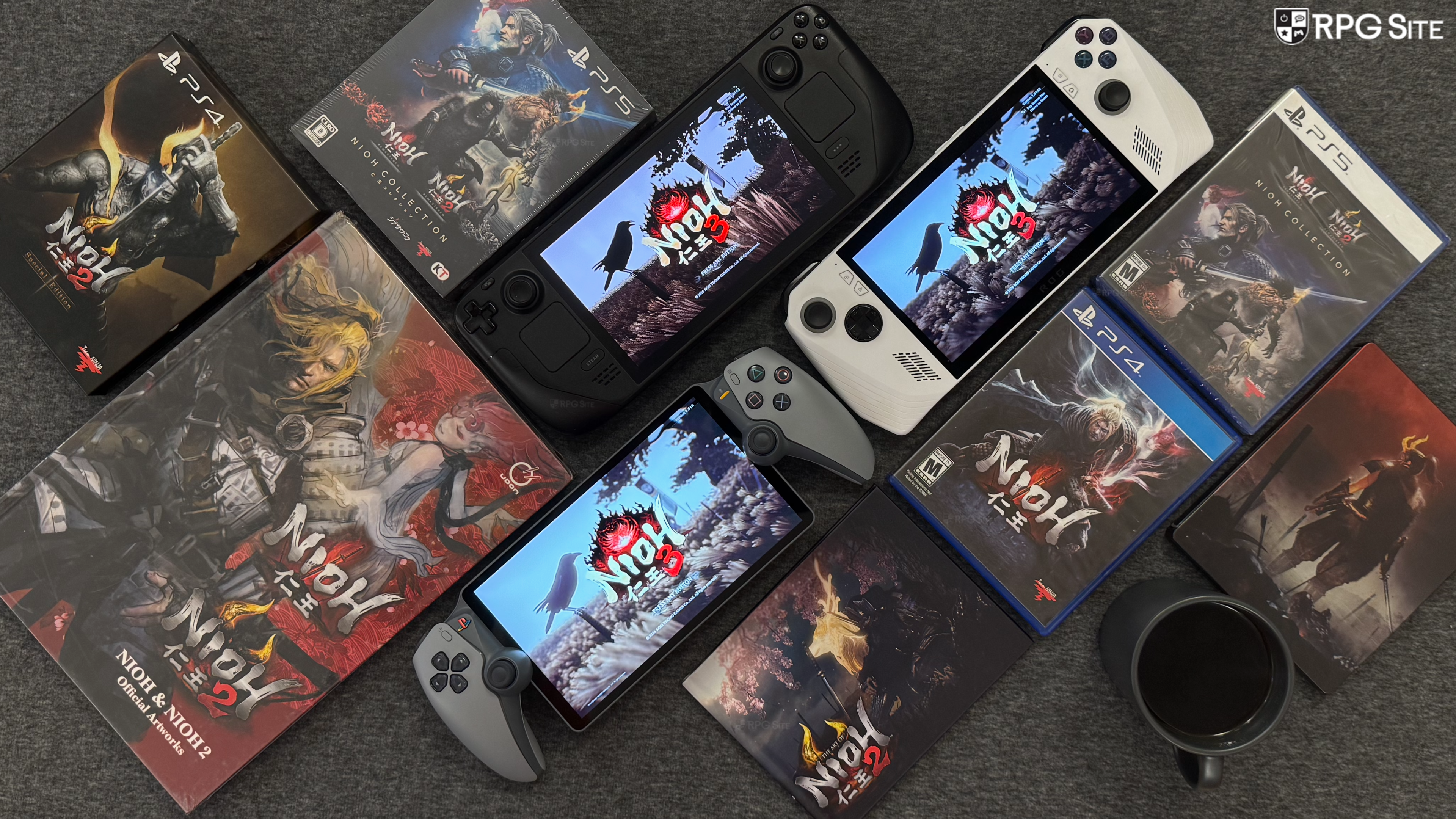
Nioh 3 PC graphics options and features in the final game
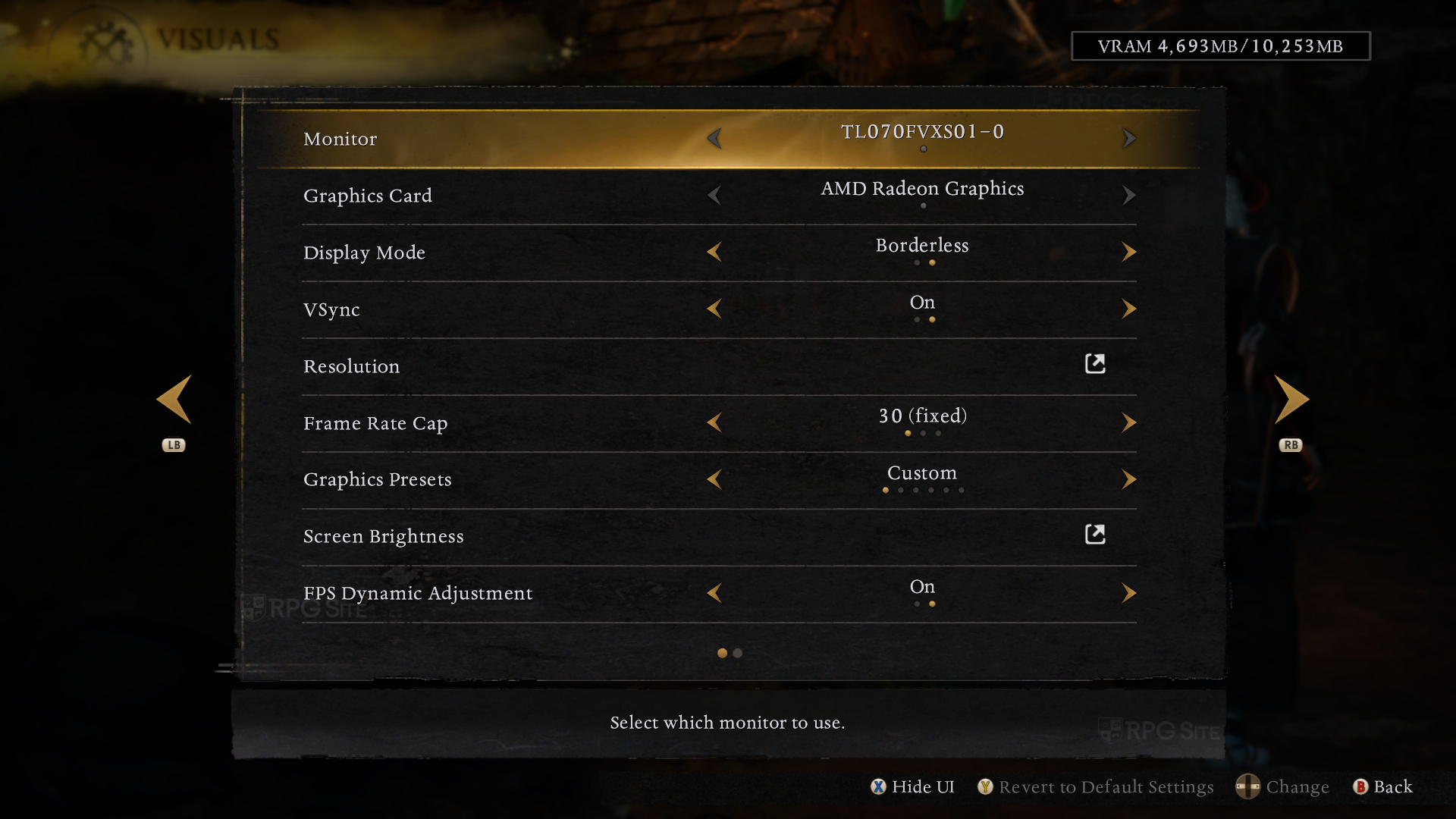
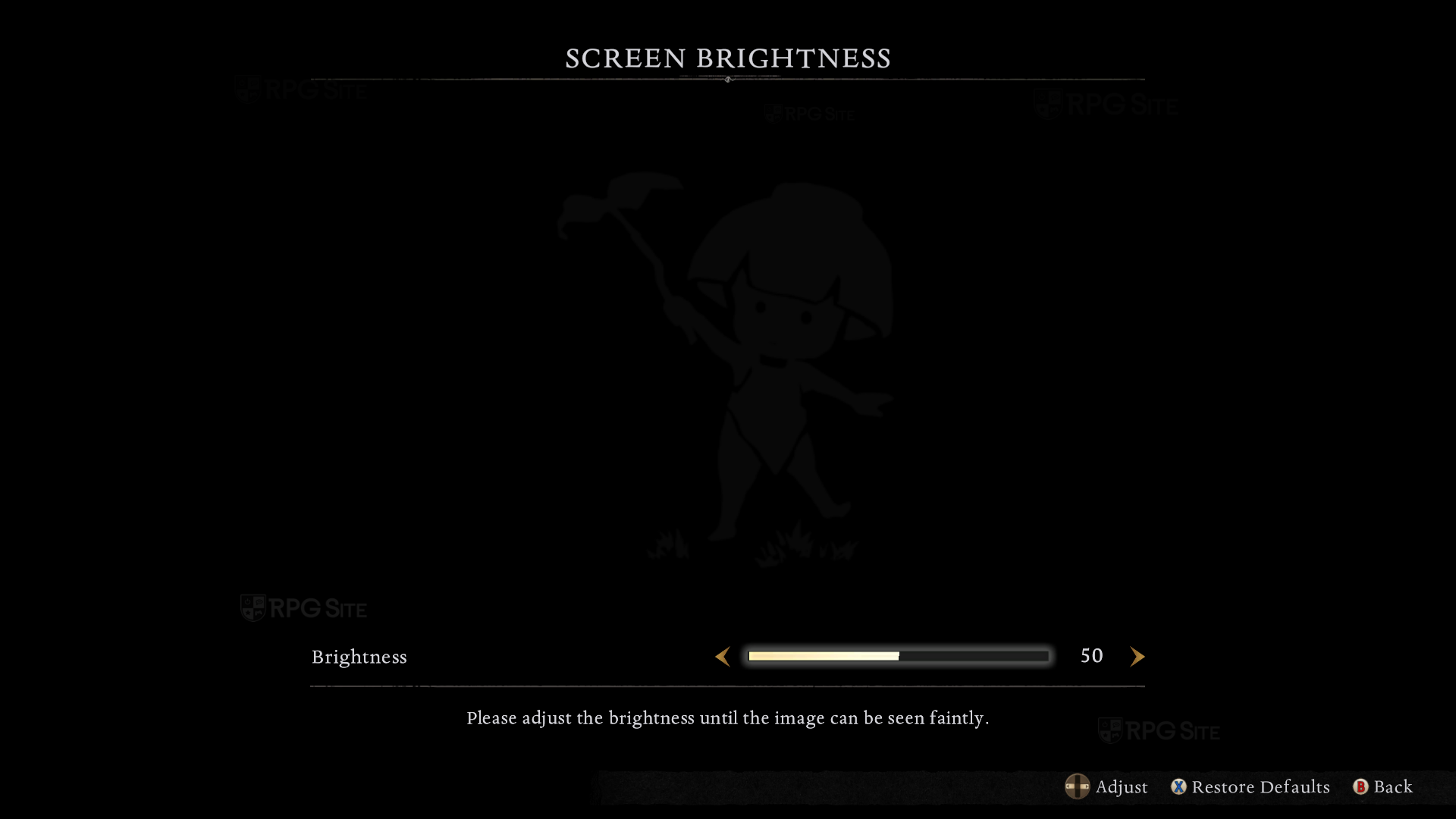
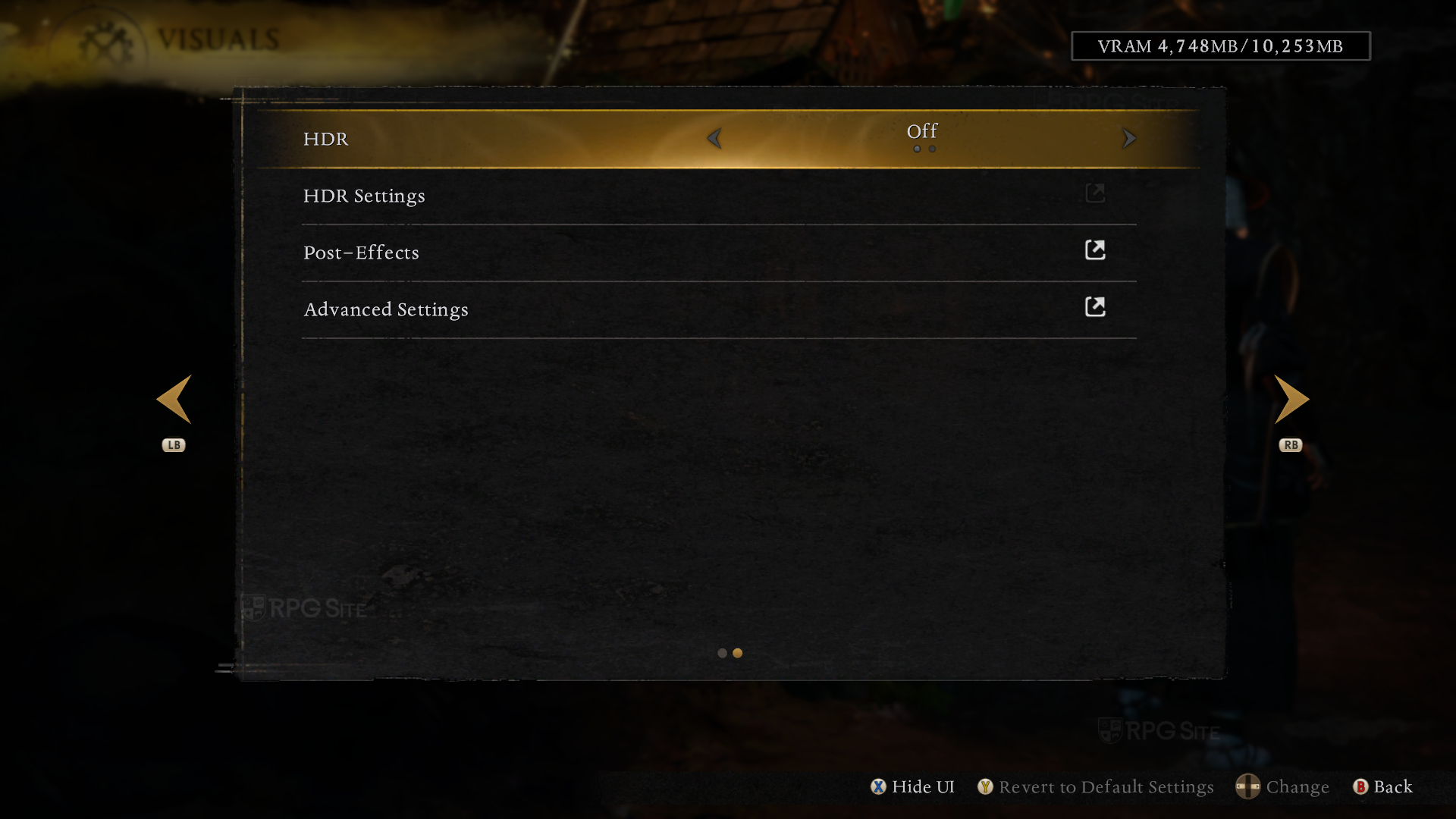
Before getting into the handheld performance, Nioh 3 on PC has quite a few visual options, though they are split up into different menus and tabs rather than intuitive menus. Nioh 3 lets you adjust the graphics and display options from the same Visuals tab in the game's system menu. From here, you can select monitor, display mode (windowed, borderless), toggle v-sync, access the resolution menu (upscaling and more), adjust the frame rate cap (30, 60, 120), adjust graphics preset, adjust screen brightness, enable FPS dynamic adjustment so that the game adjusts the frame rate cap to maintain a stable speed, enable and adjust HDR, adjust post-effects, and adjust advanced visual settings. The top right of the screen will always display the VRAM usage and how much VRAM is available here. You can also hide the UI to see the changes you make to visual settings in real time.
There are a few things to note here. The first is that the frame rate cap in Nioh 3 doesn't work like other games you might be used to playing. If you can't hit the target frame rate, the game appears to slow down. When you boot it up and start a new game, you might have a solid experience, but when you reach the first open zone, the game might slow down if your hardware can't handle the game.
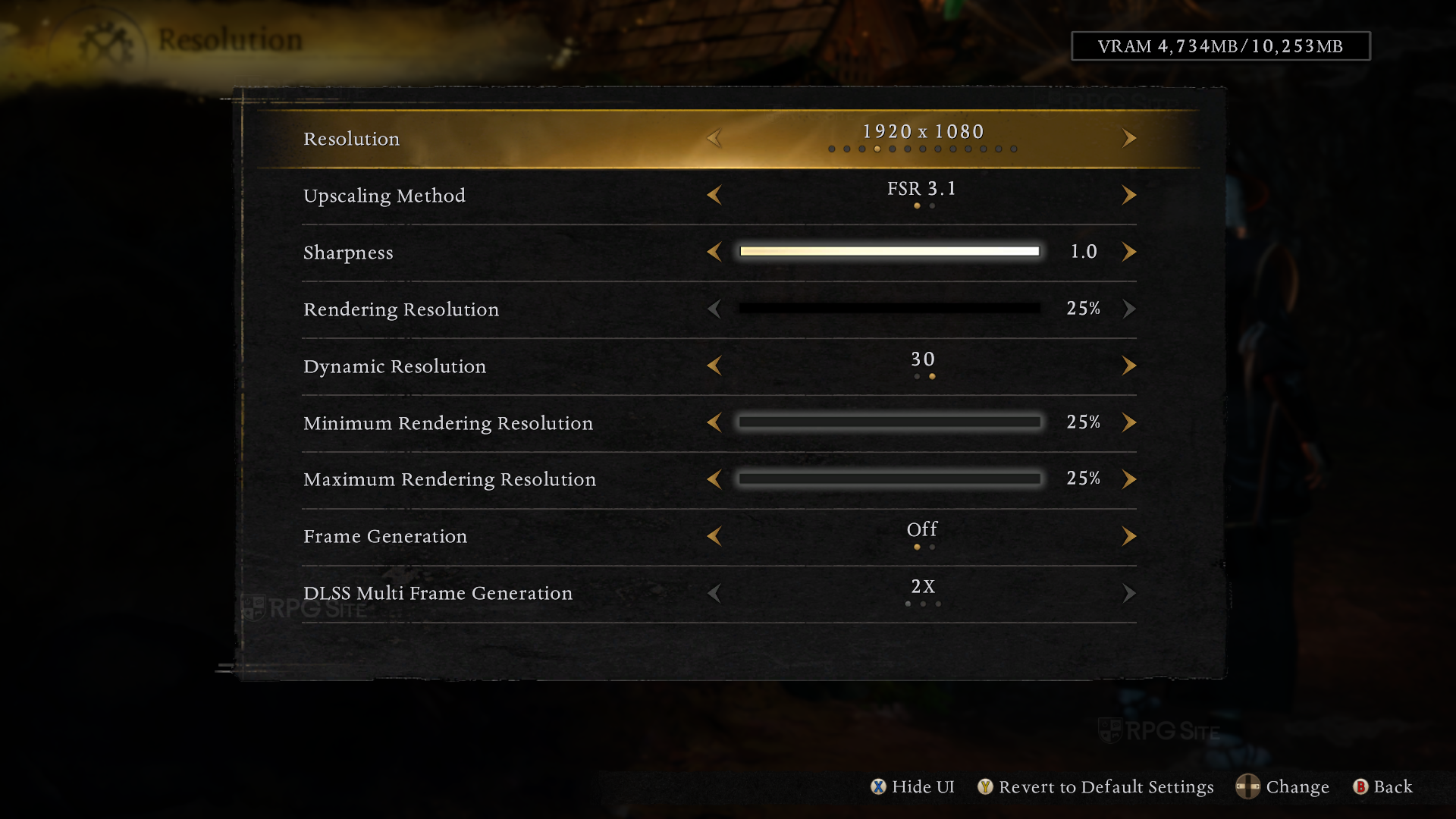
Nioh 3's resolution options let you adjust the game's resolution (720p to 4K with support for both 21:9 and 32:9 aspect ratios across a few resolutions), adjust upscaling method (FSR 3.1, XeSS 2.0, DLSS 4.0), adjust upscaling sharpness, adjust rendering resolution, enable dynamic resolution to maintain FPS, adjust minimum / maximum rendering resolution, toggle frame generation, and enable DLSS Multi Frame Generation.
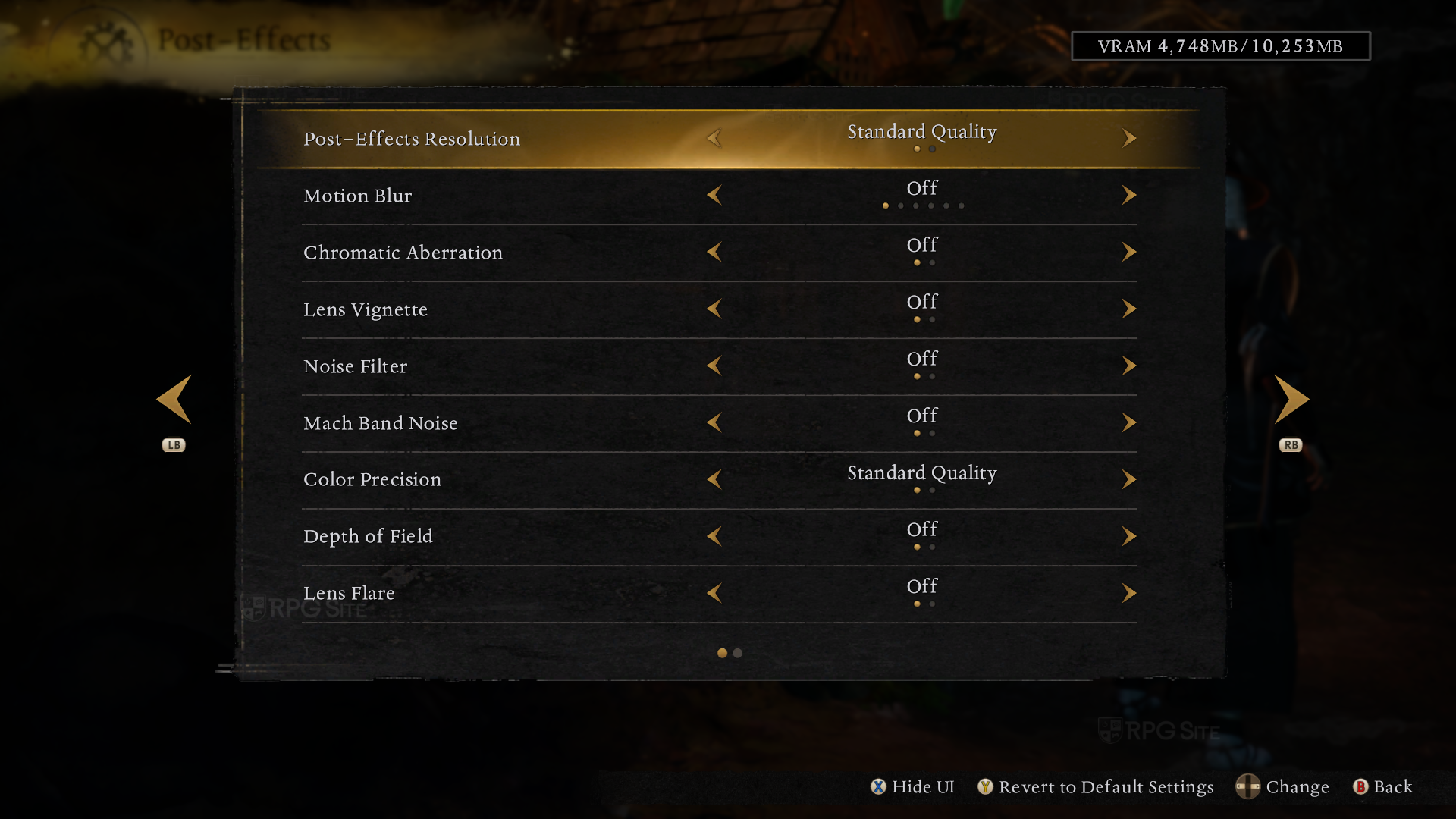
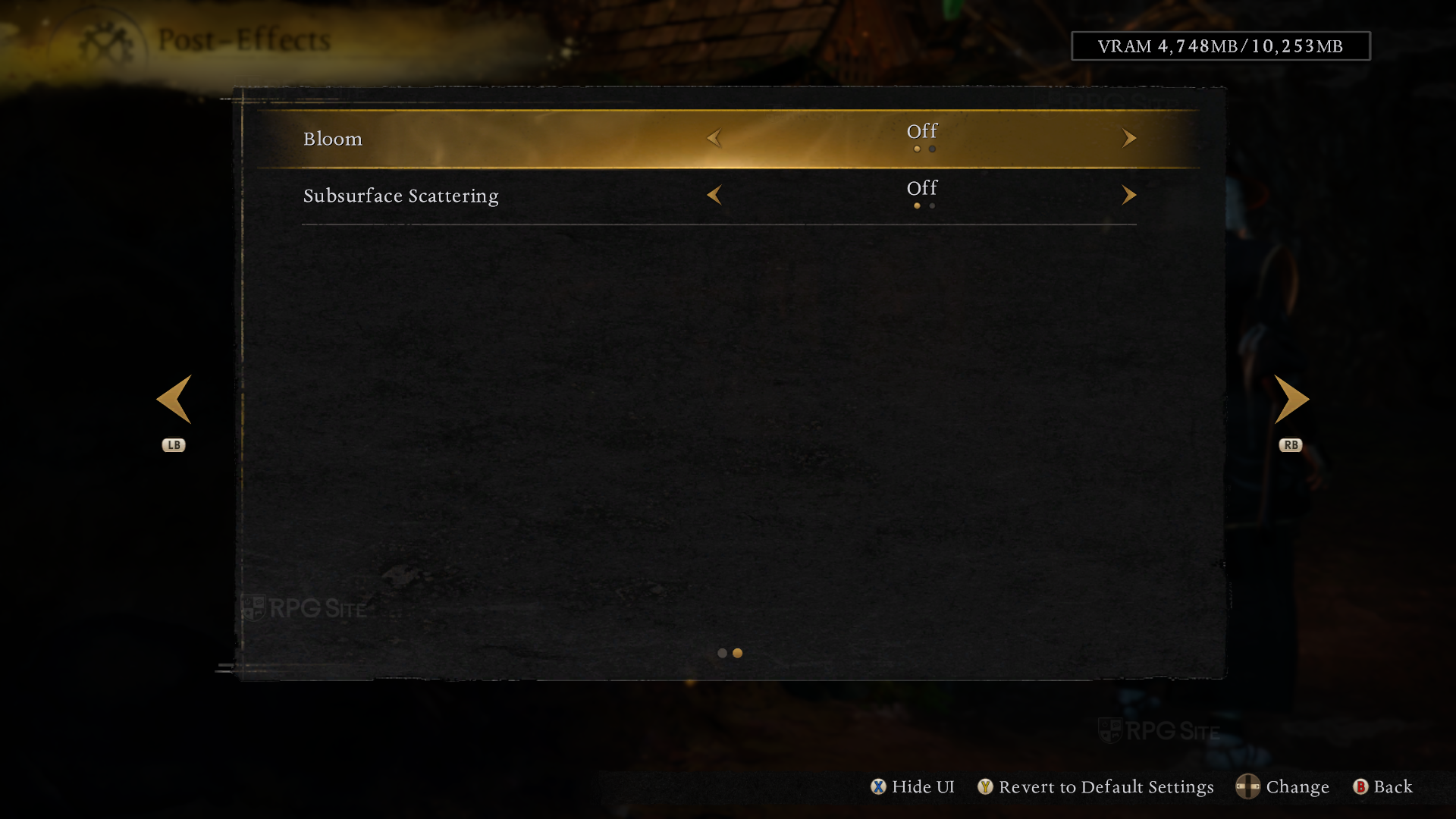
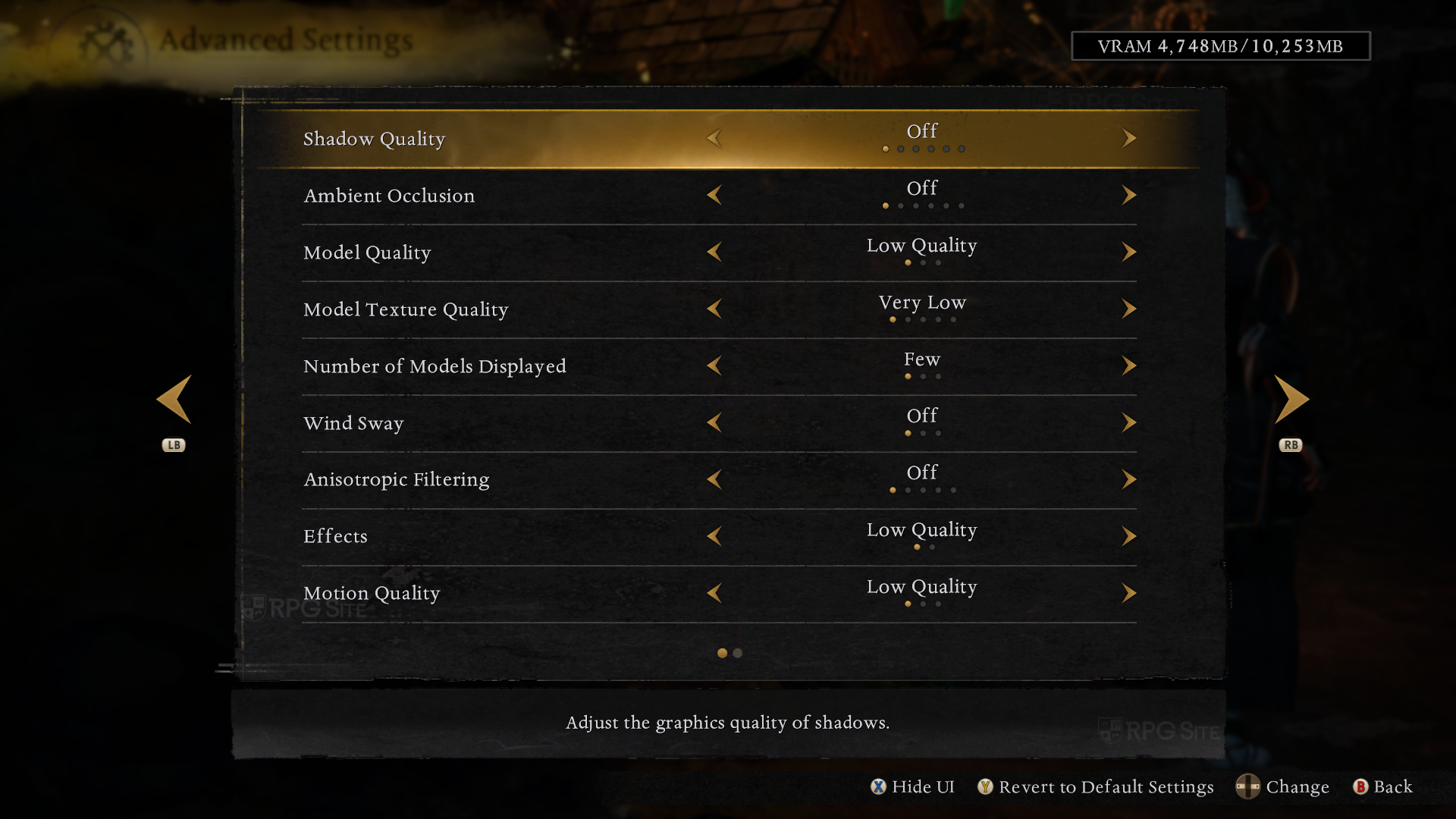
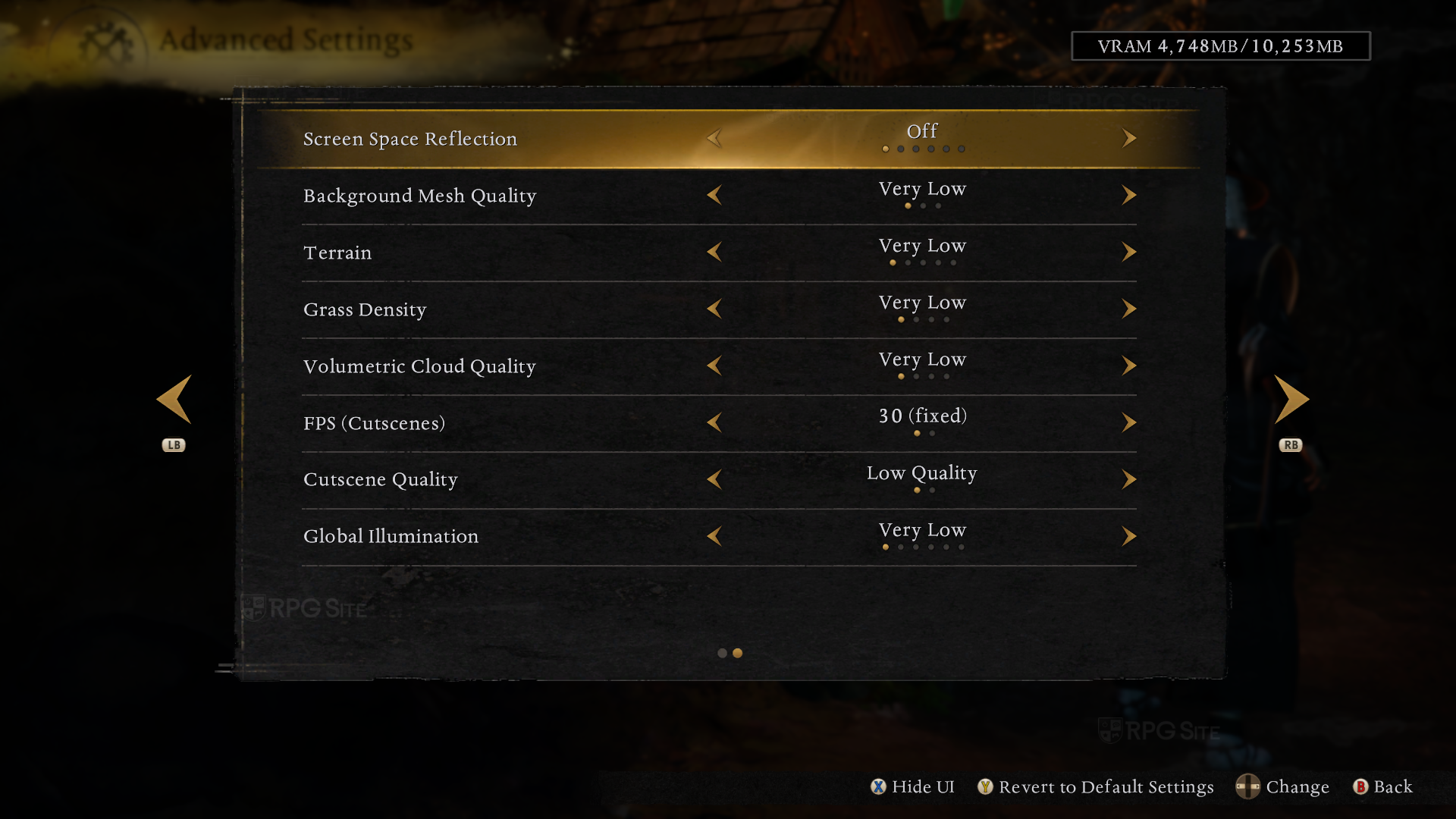
The Post-Effects menu lets you adjust the quality or enable post-effects resolution, motion blur, chromatic aberration, lens vignette, noise filter, mach band noise, color precision, depth of field, lens flare, bloom, and subsurface scattering. The Advanced Settings menu lets you enable or adjust shadow quality, ambient occlusion, model quality, model texture quality, number of models displayed, wind sway, anisotropic filtering, effects quality, motion quality, screen space reflections, background mesh quality, terrain quality, grass density, volumetric cloud quality, cut-scene FPS, cut-scene quality, and global illumination.
Nioh 3 also compiles shaders on initial launch and checks this on each boot after. The initial one takes a bit of time, but subsequent ones are just a few seconds long. While I didn't play Nioh 3 on a proper gaming PC, I can say that I didn't run into the usual shader-related stutter issues on ROG Ally at least.
Nioh 3 Steam Deck full game impressions
Before getting into the impressions, do not enable frame generation in-game if you play on Steam Deck. It will cause the game to crash and refuse to boot up after. The only fix is deleting a configuration file which isn't as easy to do on Steam Deck. You could also delete and re-install it to address this, but that didn't help on one of my Steam Decks. With that out of the way, Nioh 3 is not playable on Steam Deck. It technically does launch, but barely hits 30fps even in the opening tutorial area. This is all before getting into the first open zone. In its current state, I don't recommend wasting time trying to play this on Steam Deck natively. You could stream it from your PC if you'd like, but I don't recommend running it on Steam Deck right now.
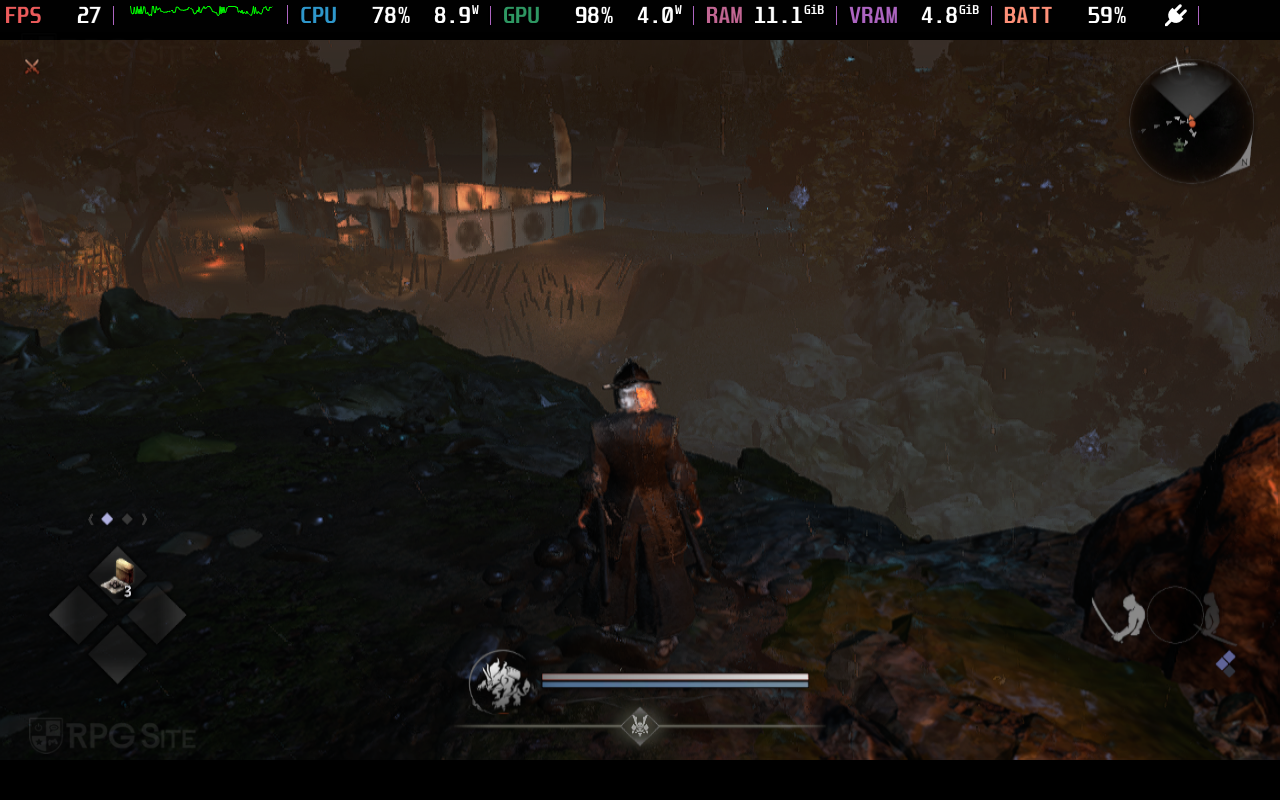
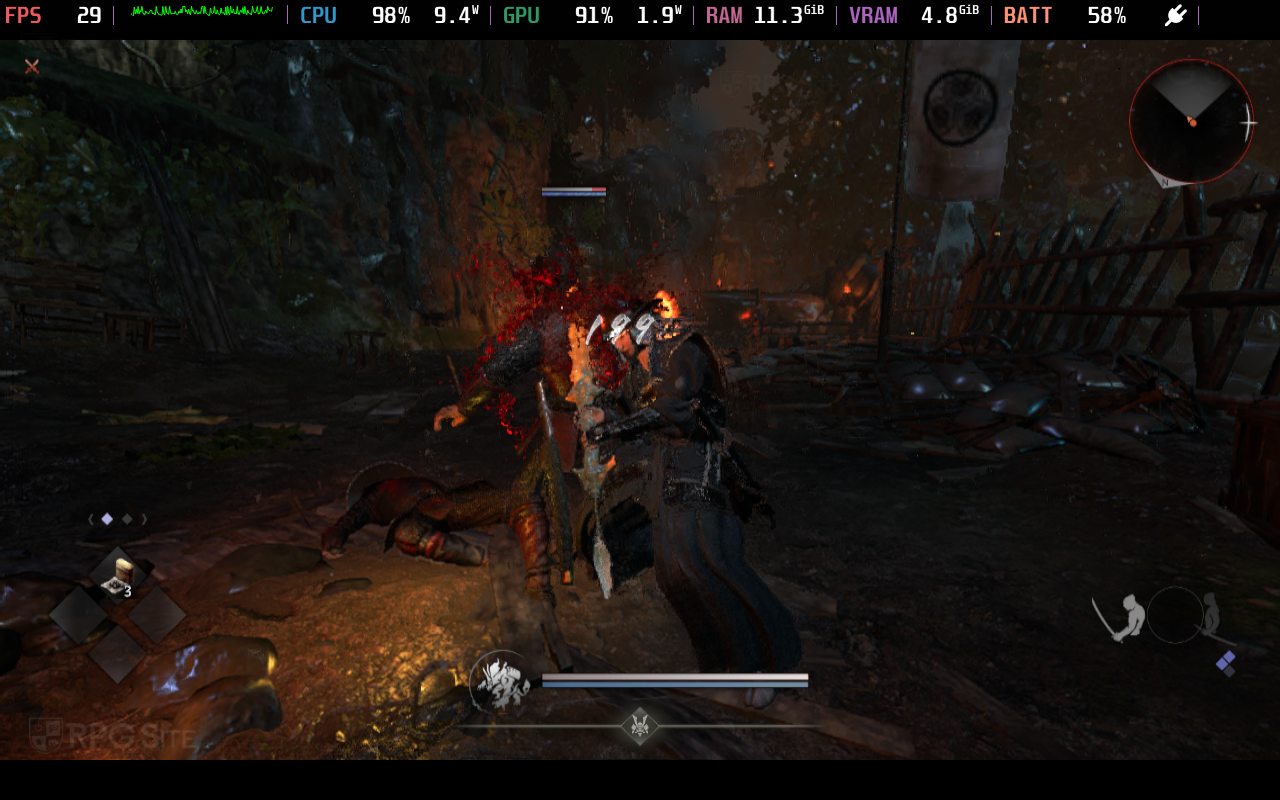
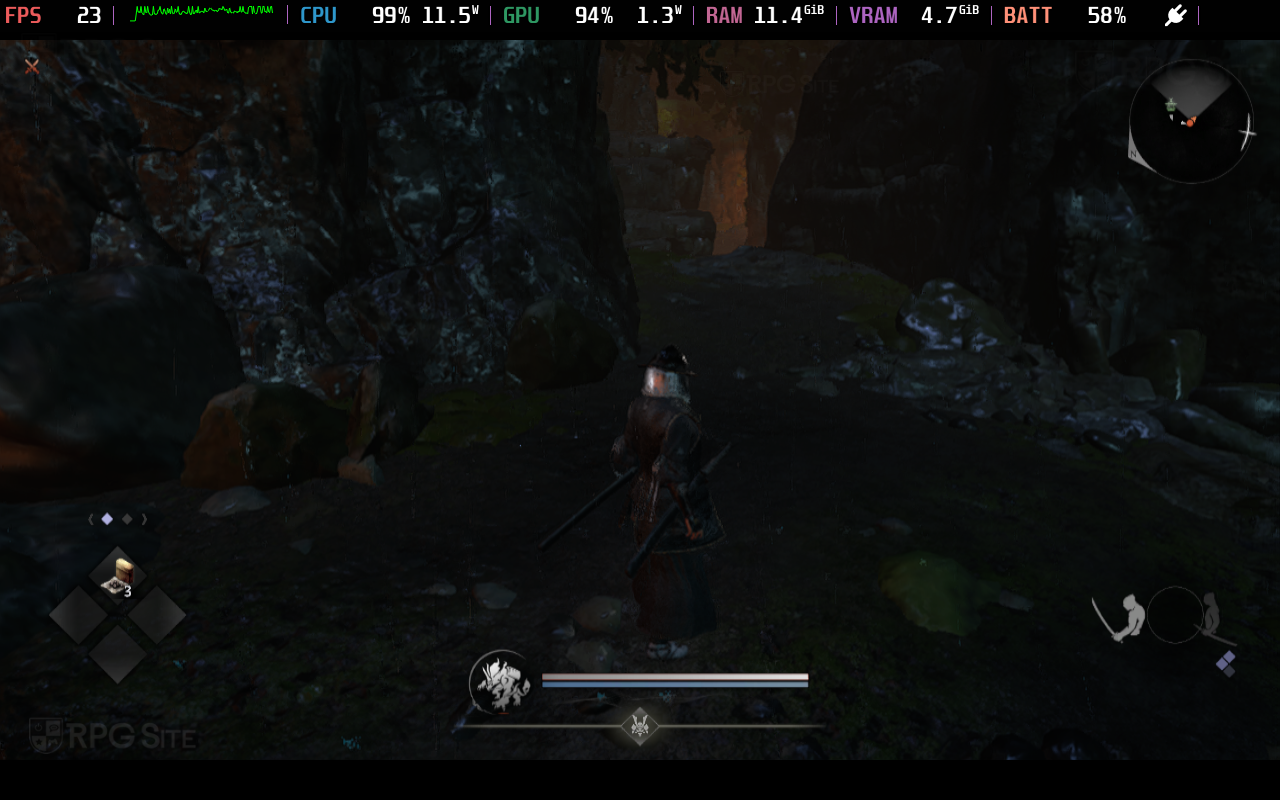
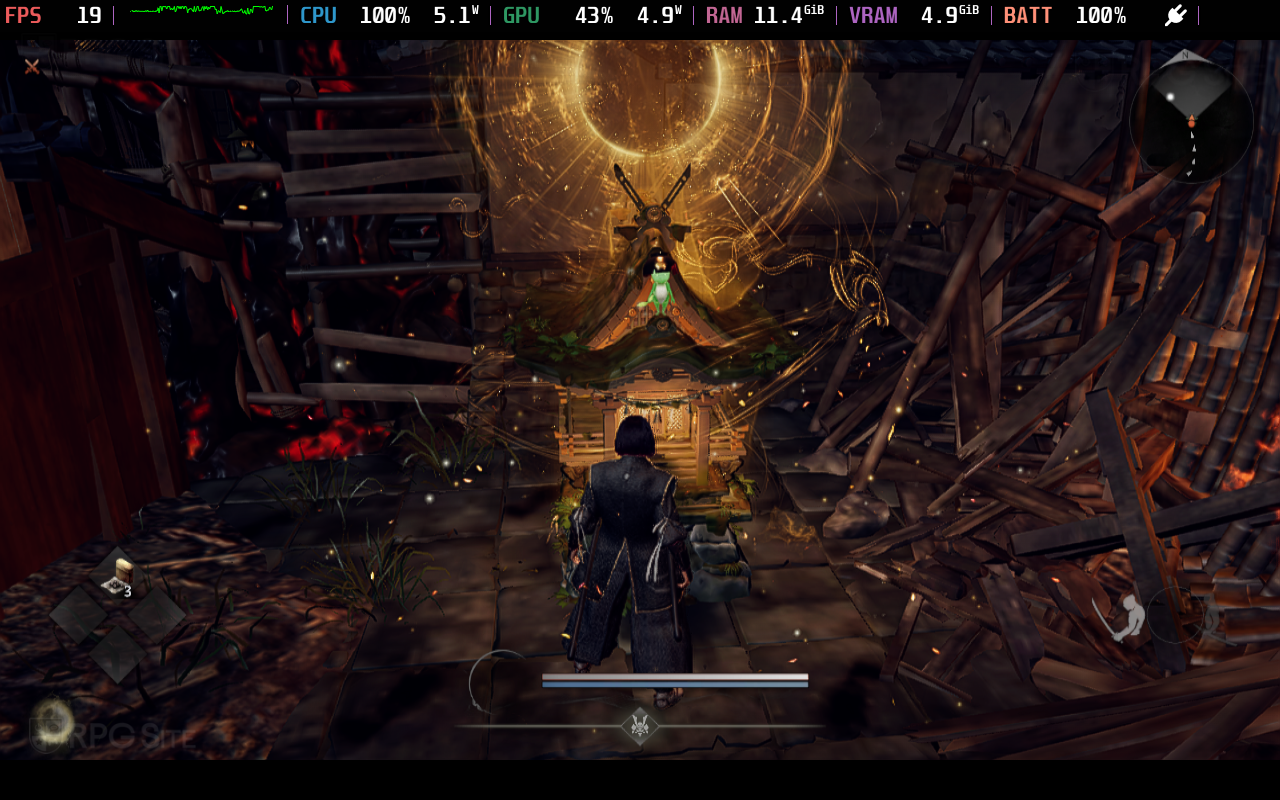
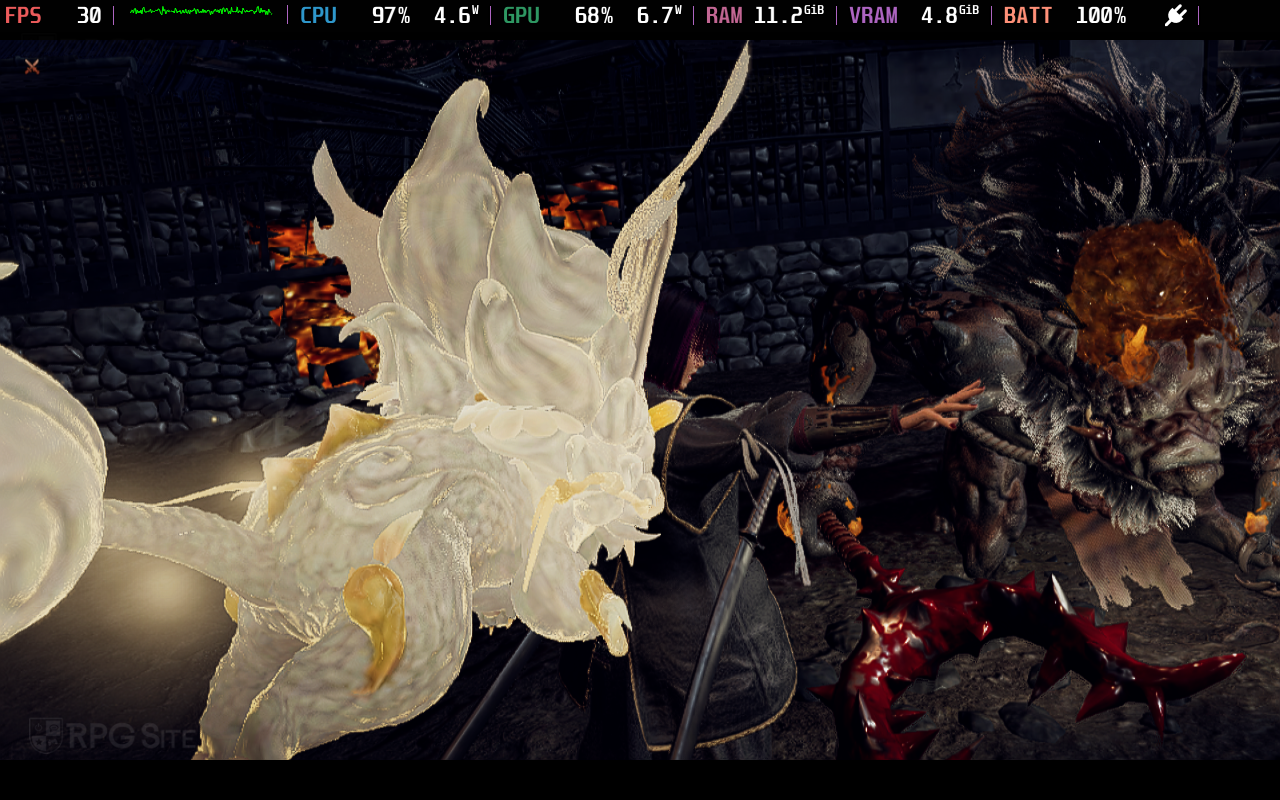
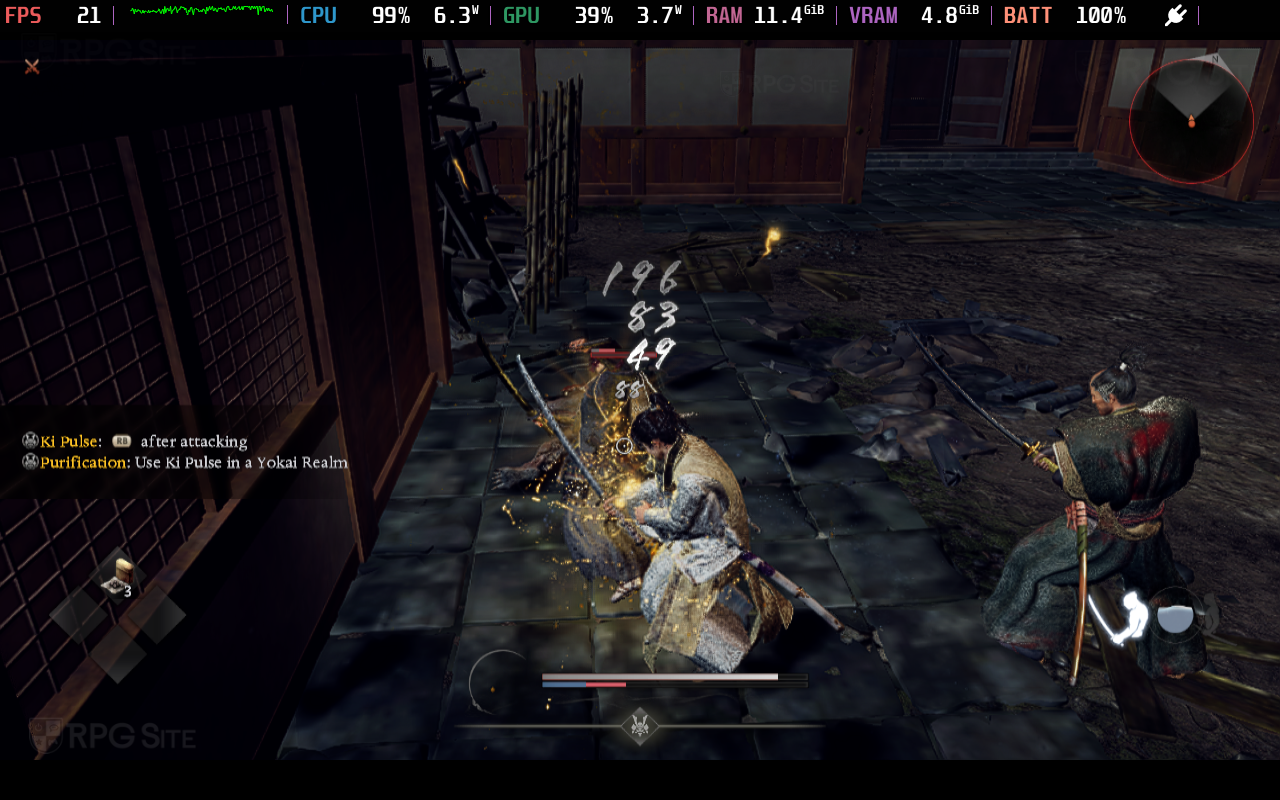
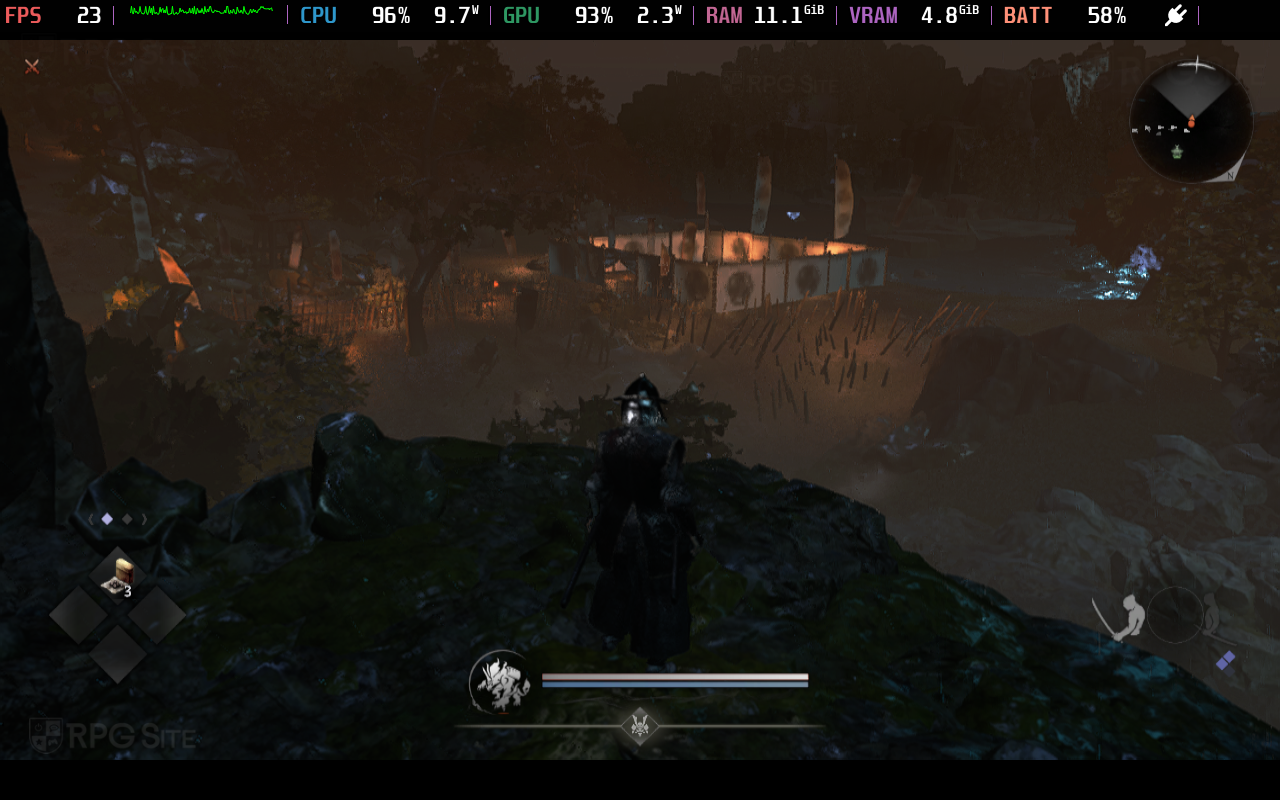
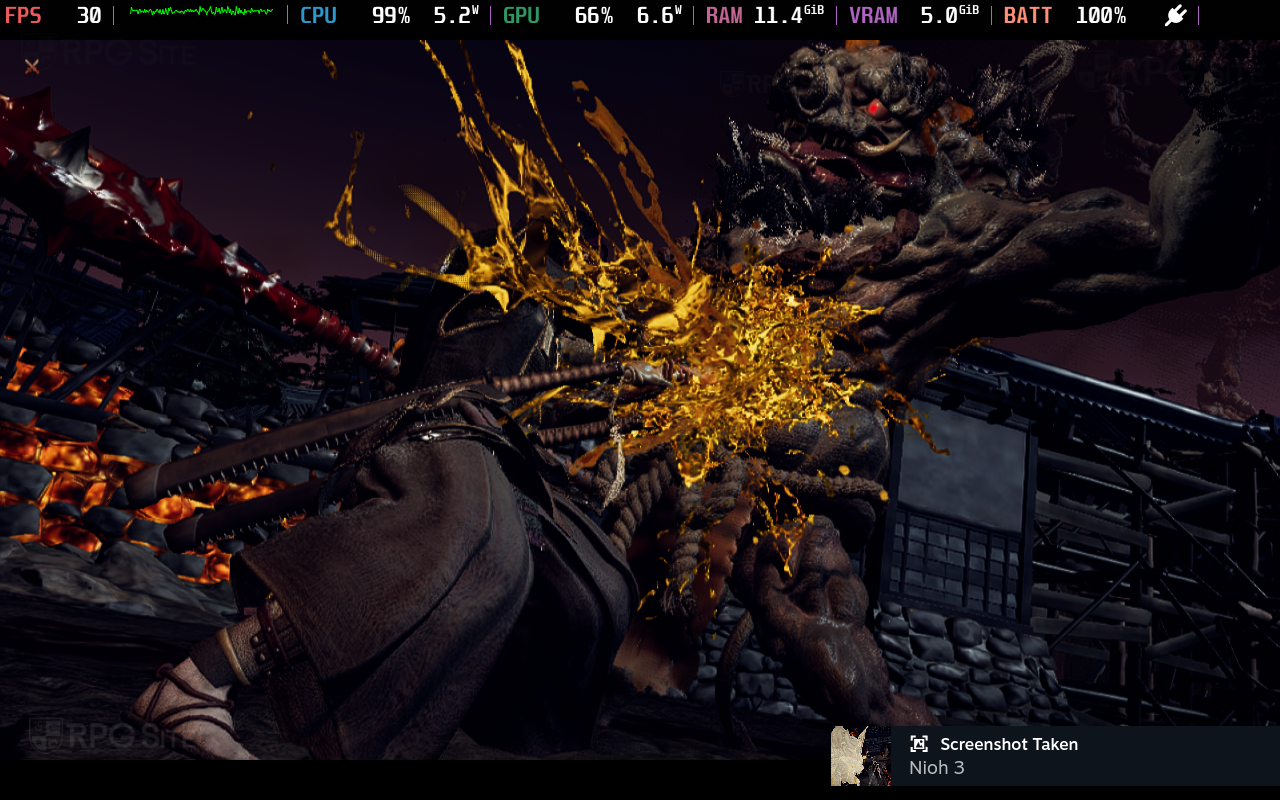
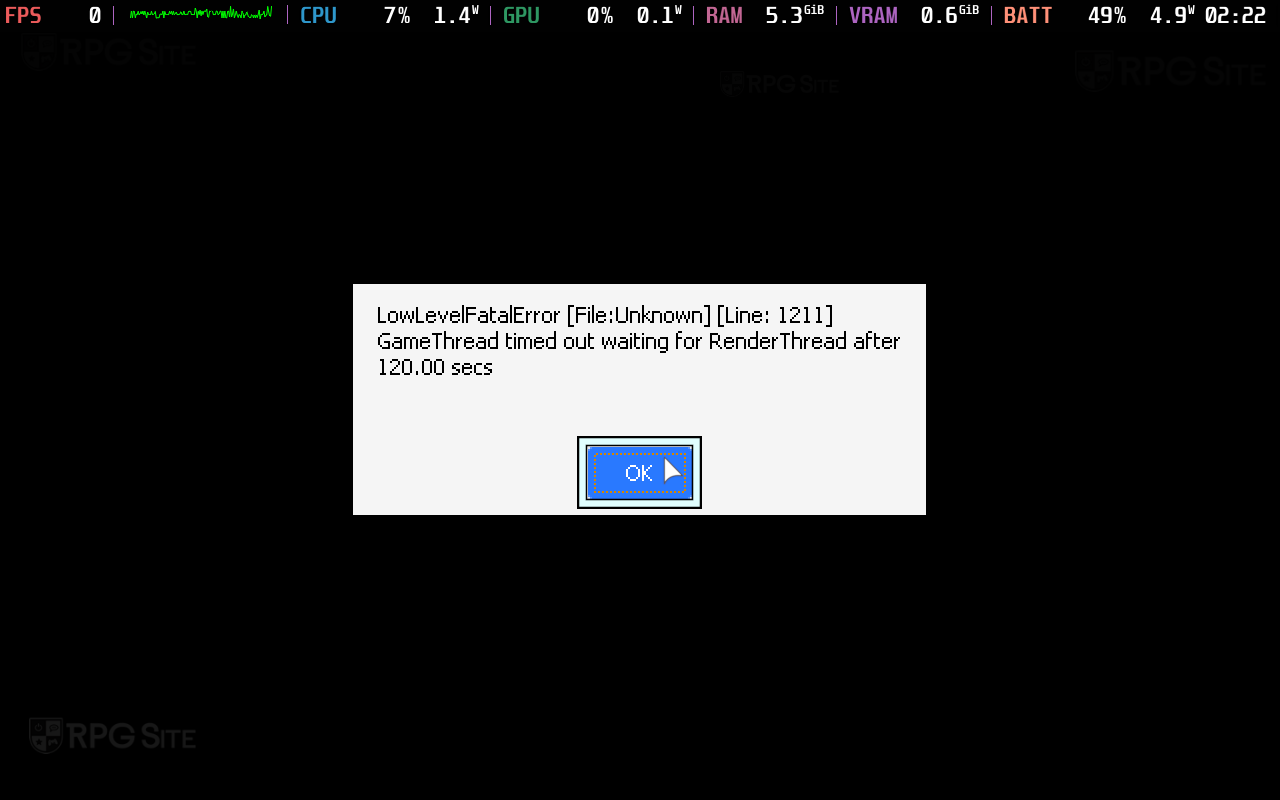
One major issue with Nioh 3 right now is that the game will slow down if it cannot hit the target frame rate. This means that if you opt for 30fps and it runs at around 20fps, the game's speed slows down. This also happens at 60fps if your hardware runs it closer to 30fps in my testing.
This isn't really surprising given the PC system requirements, but I hoped it would hit at least 30fps with heavy upscaling. It cannot even come close to doing that right now and I will not use frame generation in a game like this where the source frame rate is well below 30fps.
Nioh 3 Steam Deck full game recommended settings
Right now, my recommendation is to not bother playing Nioh 3 on Steam Deck. There isn't anything else to say on that front. If the game sees some major updates with optimization for the Steam Deck, I will update this. For now, don't.
Nioh 3 ROG Ally full game impressions — more playable than Steam Deck
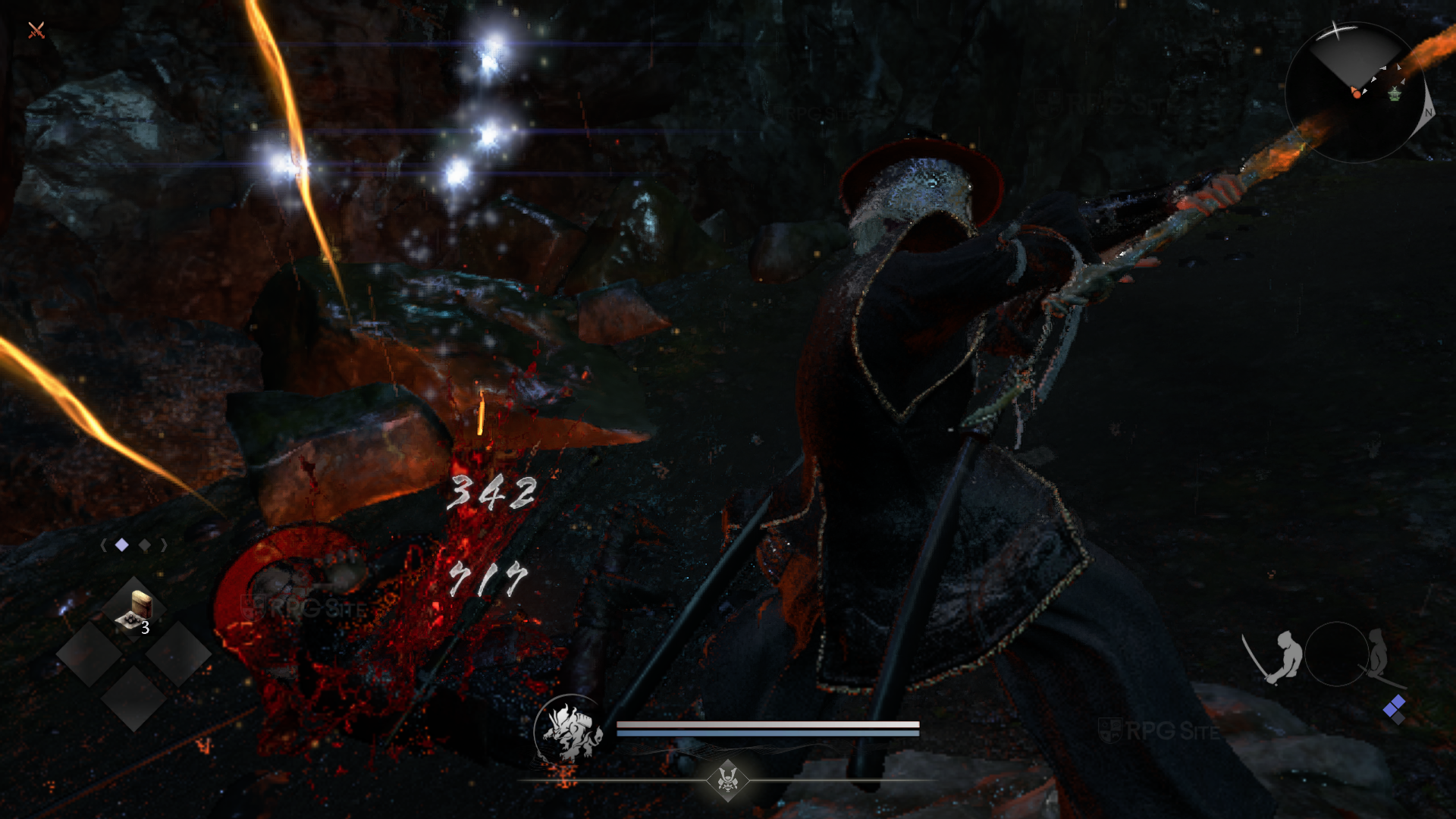
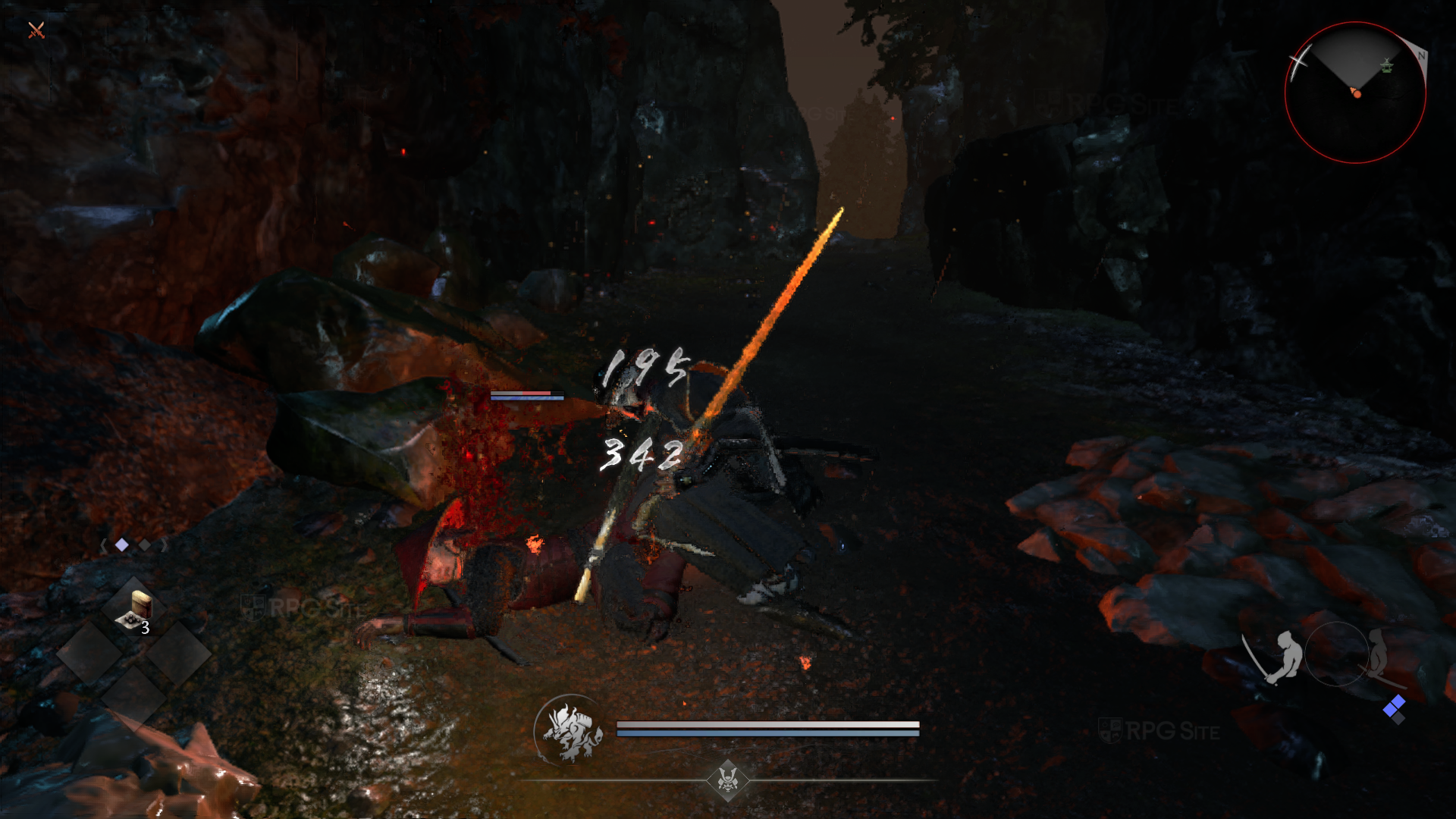
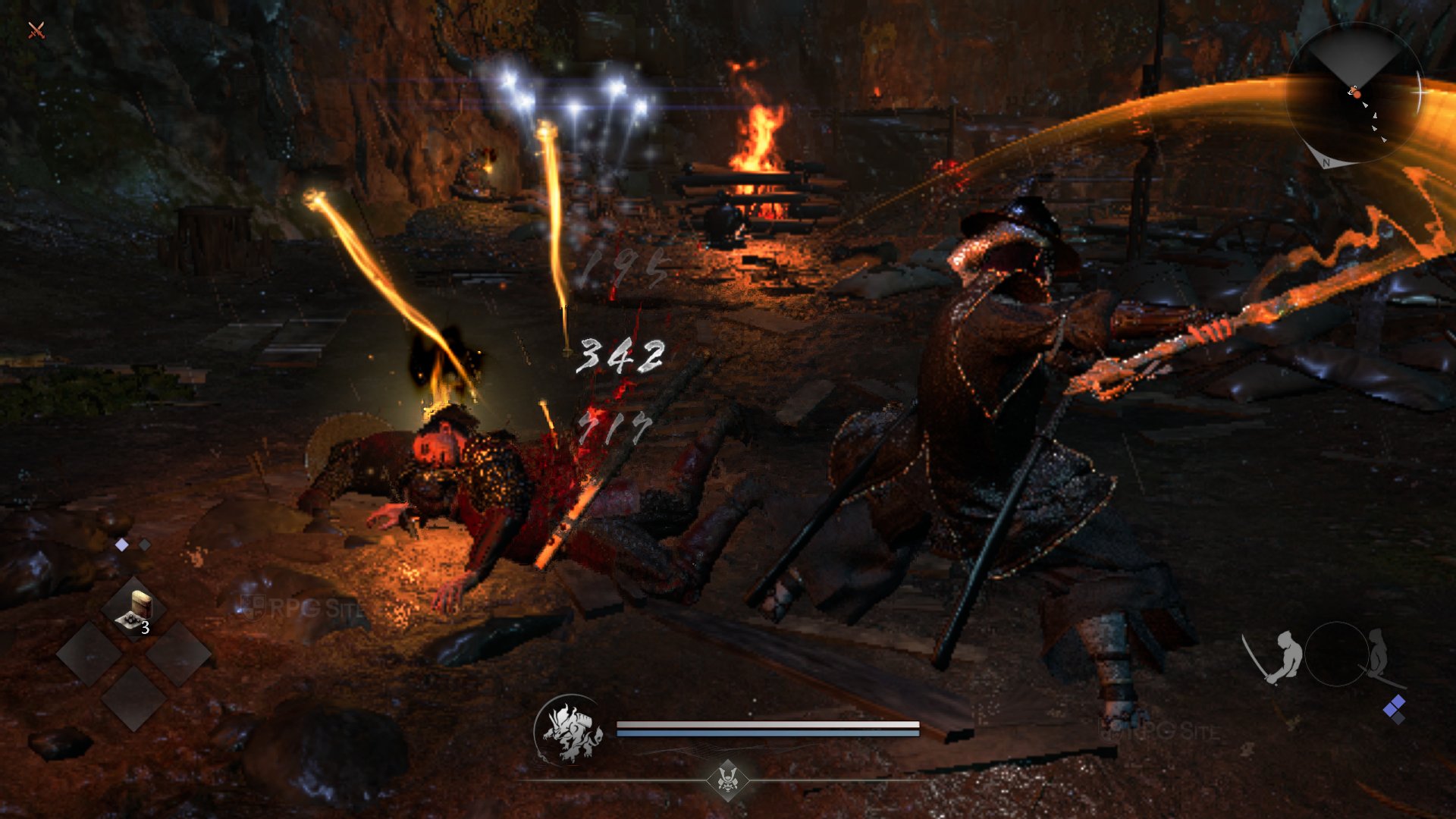
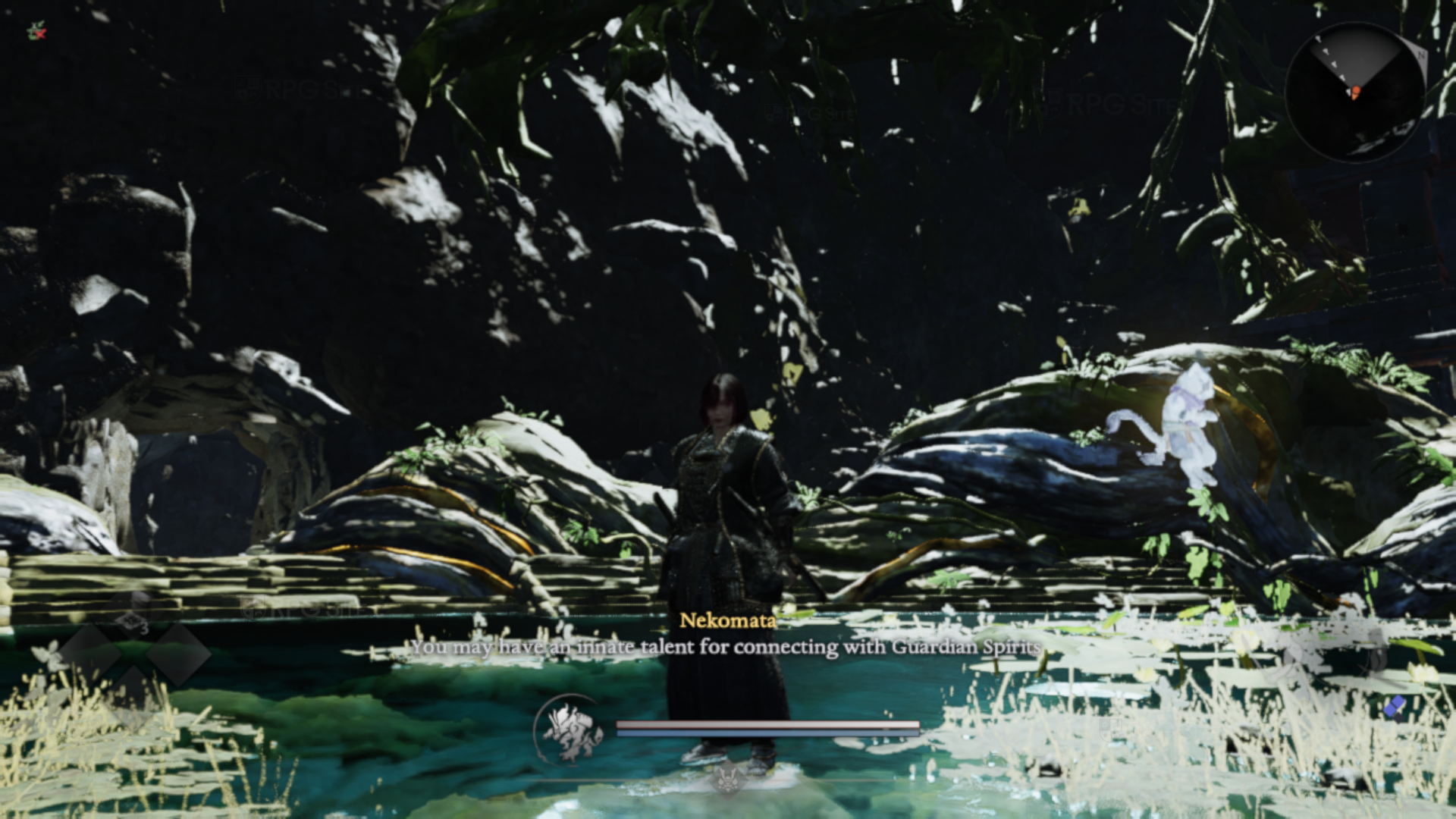
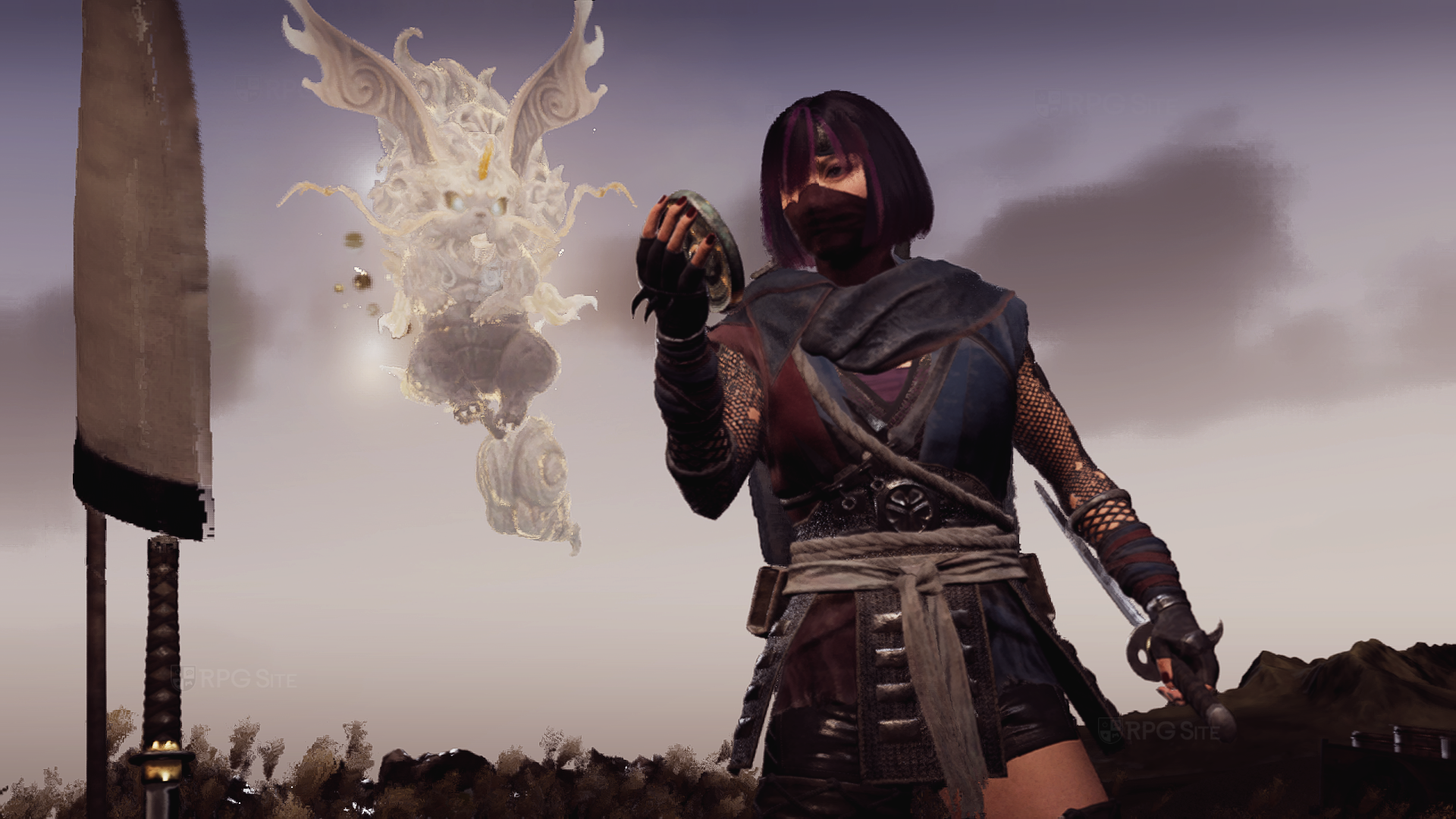
Nioh 3 on my ROG Ally Z1 Extreme model is definitely more playable than Steam Deck out of the box. While it was hitting 40 and 50fps early on, I decided to opt for a more stable experience and capped the frame rate to 30fps. I played using the 25W Turbo Mode as well and set my ROG Ally to use 6GB of memory for the GPU since the game's minimum requirements had 6GB VRAM listed. My Nioh 3 ROG Ally recommended settings are playing at a fixed 30fps frame rate, setting the game to 1080p, FSR 3.1, enabling dynamic resolution, and setting the upper and lower bounds as 25% and 100%. Beyond that, I made sure to set everything in the Advanced Settings and Post-Effects to the lowest possible values. This results in a stable frame rate based on the eight hours I tested, but the only real visual issue is the lighting with these settings. I didn't test the 15W mode because I was barely able to get a stable 30fps with the 25W mode using the lowest settings and acceptable visuals.
If you want to play Nioh 3 on your ROG Ally Z1 Extreme, I recommend downloading the free demo and testing out my settings to see if you find the visuals acceptable or not. Remember that the game opens up more and gets even more demanding after the opening tutorial so do not judge the game until you reach the first open zone. You will get a prompt after the first boss featuring more co-op features being unlocked. When you see that alert, you can get a good idea about how the game actually runs. Before that, it is not too demanding.
Nioh 3 PS5 full game impressions
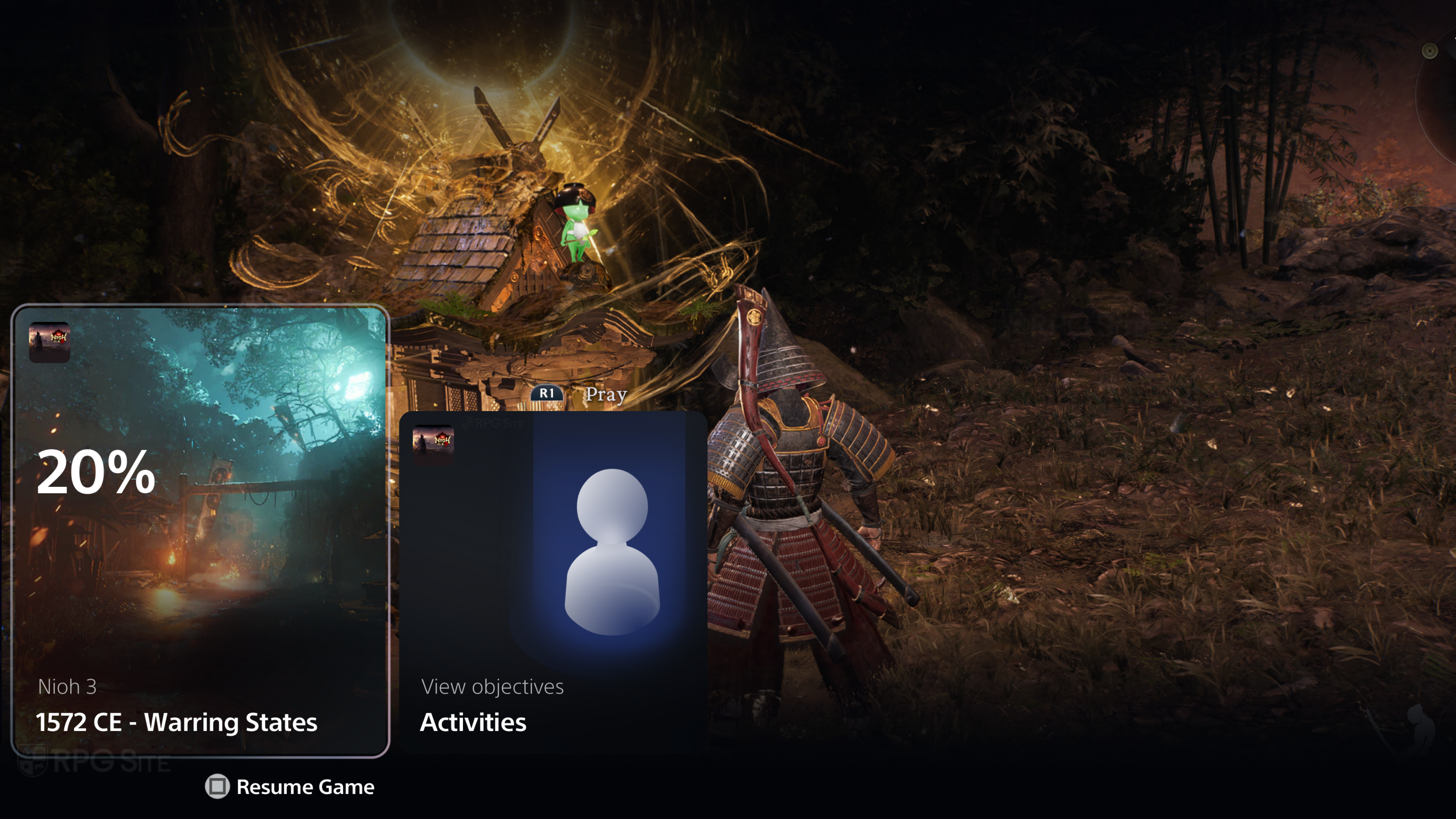
I also had access to Nioh 3 on PS5 (base model) and it was thankfully and unsurprisingly a much better experience than playing on PC handhelds so far. Not only does it run well in the time I put into it using the performance mode, but it also has great DualSense haptics and very fast loading. Nioh 3 on base PS5 has a Prioritize FPS and Prioritize Quality setting. I used the former throughout and while I was happy with the frame rate, there are a lot of cutbacks including NPCs animating at a very low frame rate closer than expected. I played on my 1440p monitor and the image quality was fine, but not amazing. It didn't look blurry, but I just expected a bit more. Given the big open zones and the game engine, this isn't surprising though. I'm glad Team Ninja prioritized delivering a smooth frame rate in this mode.
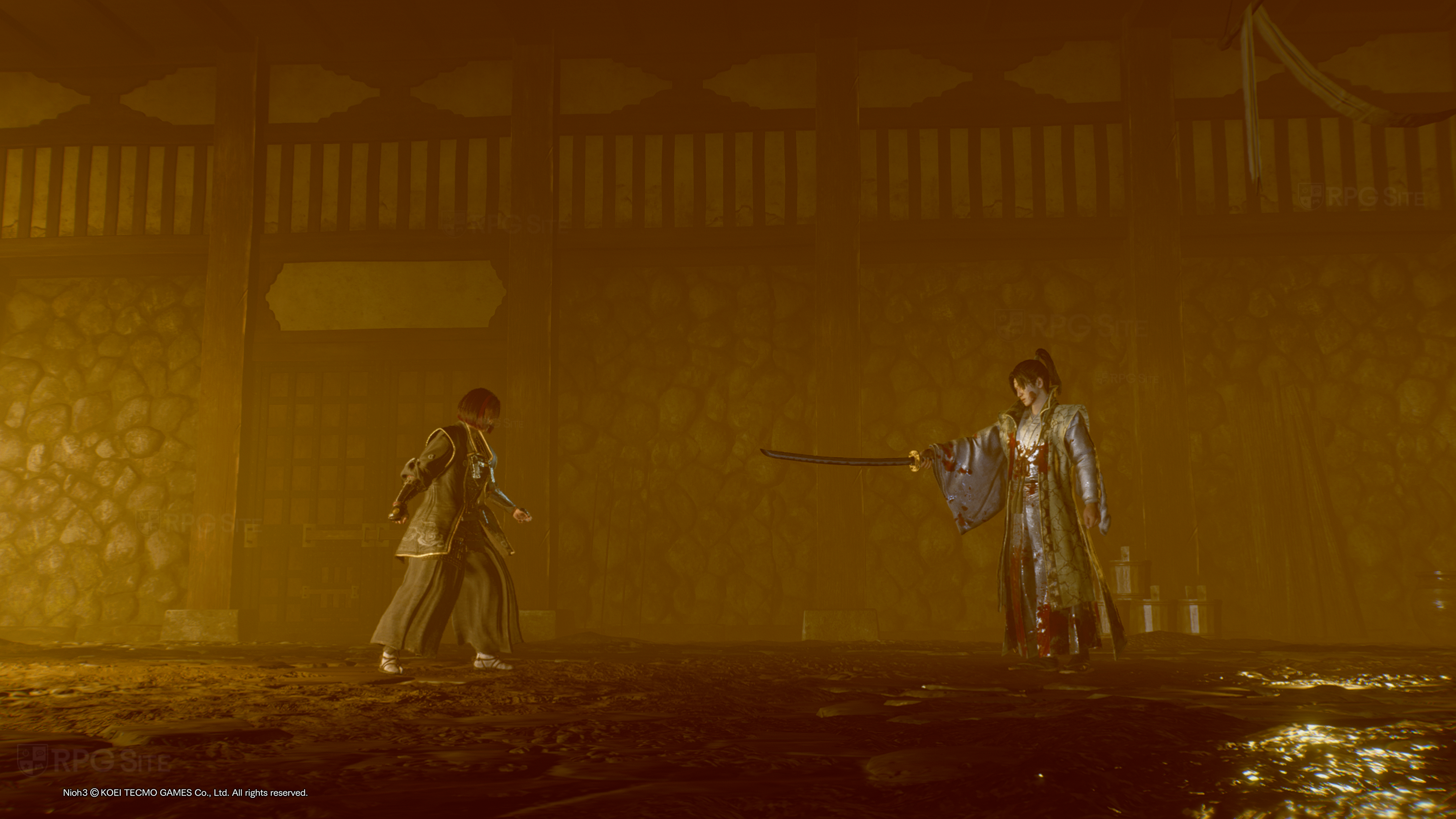
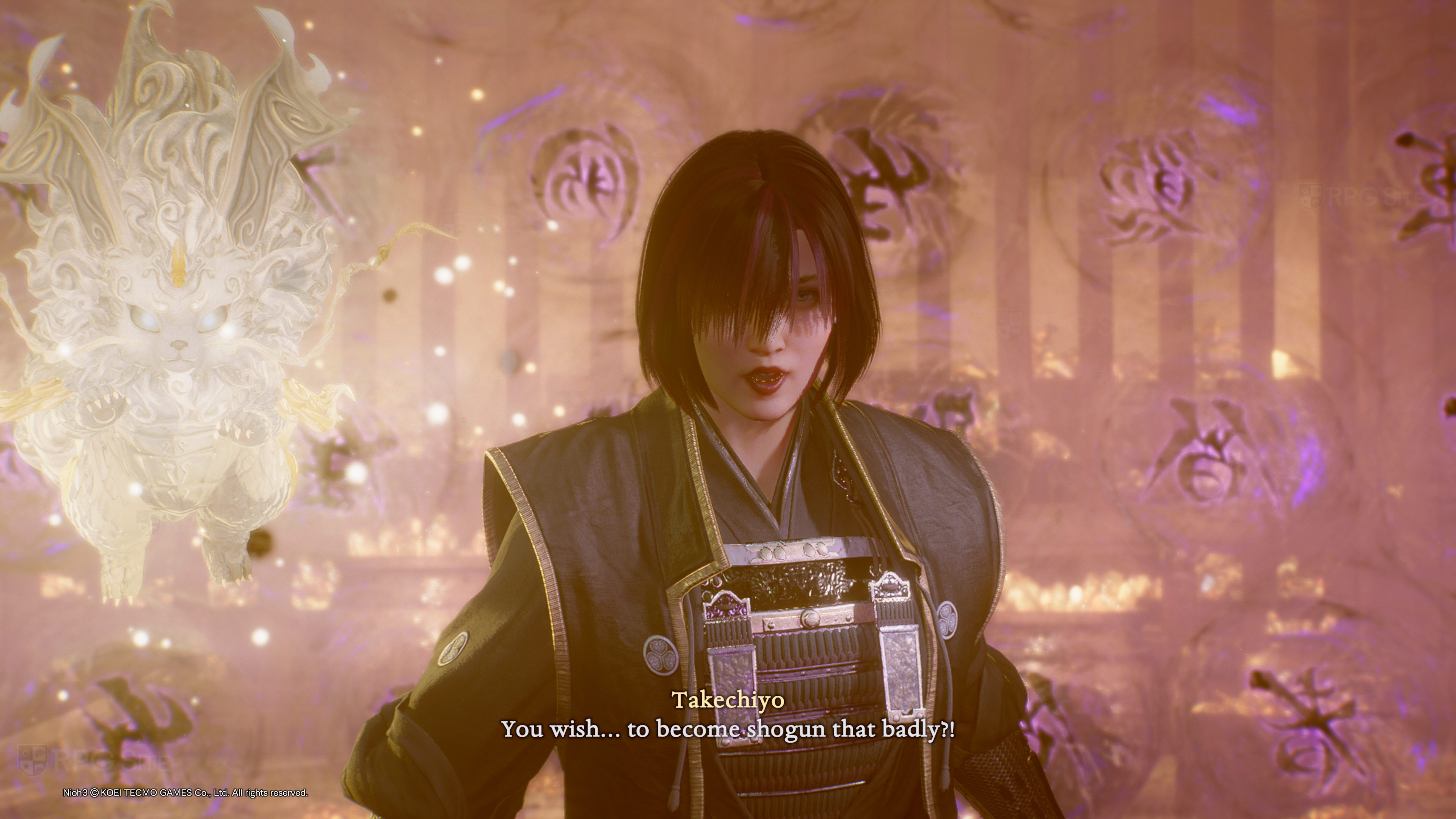

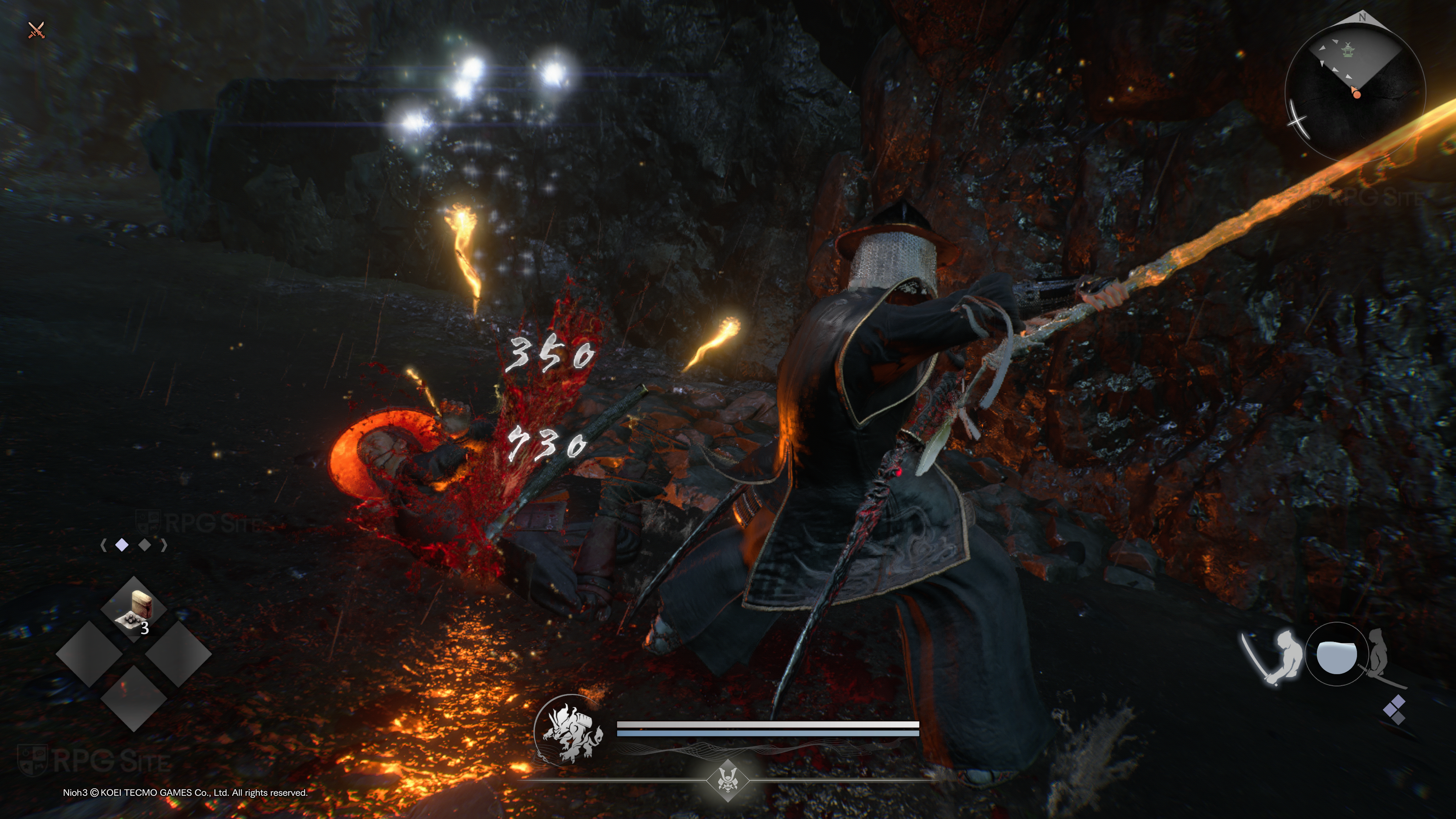
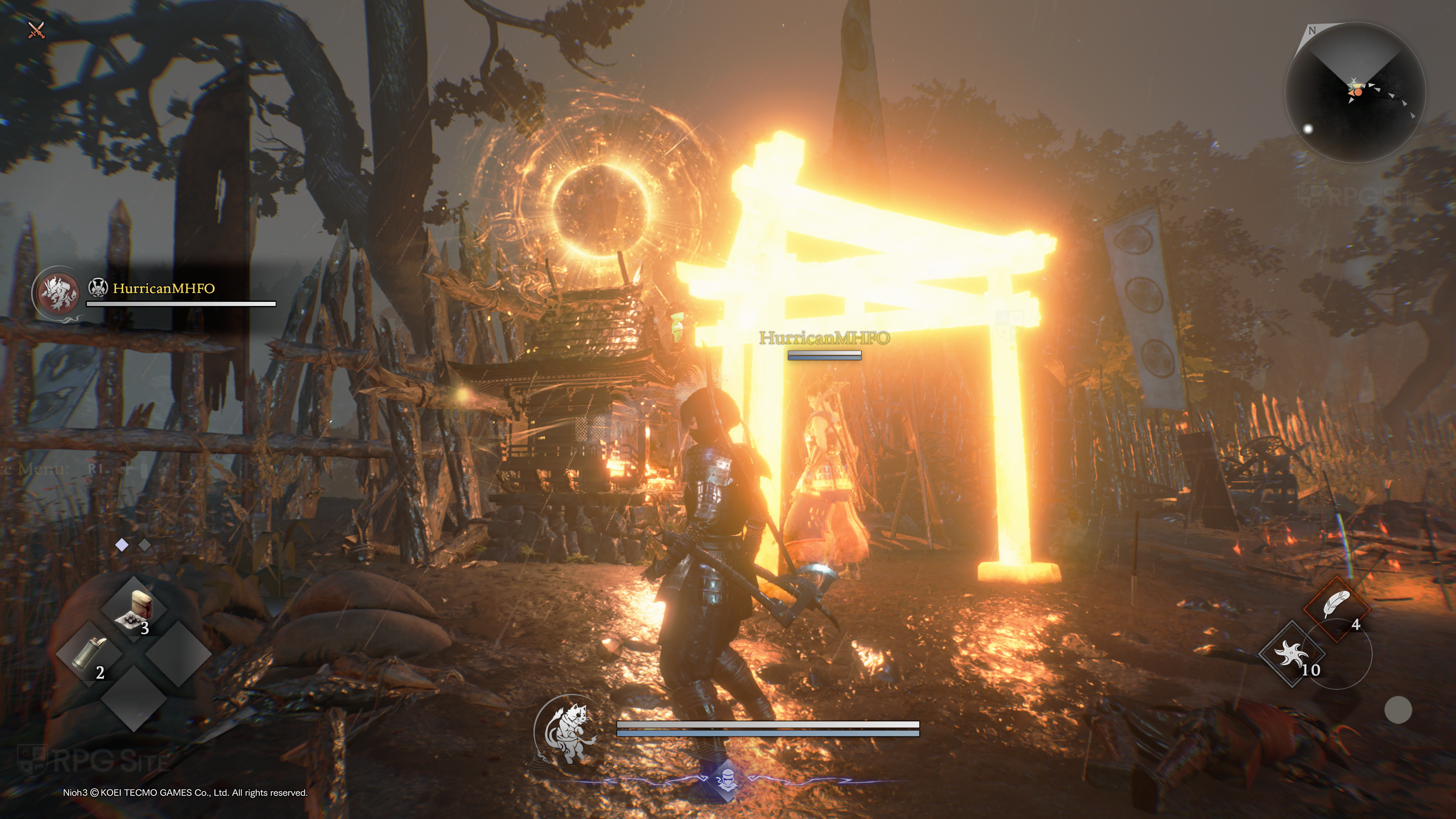
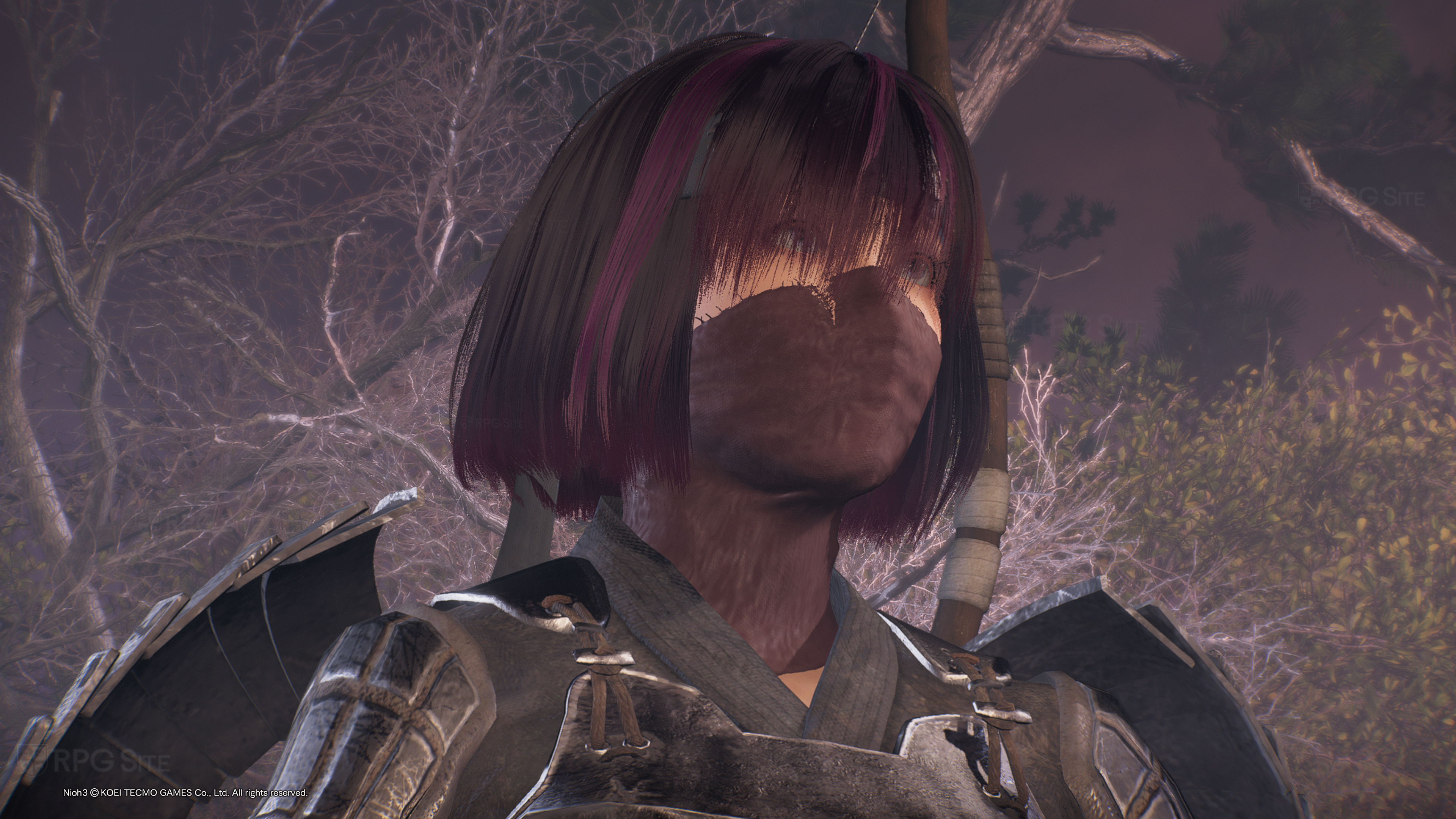
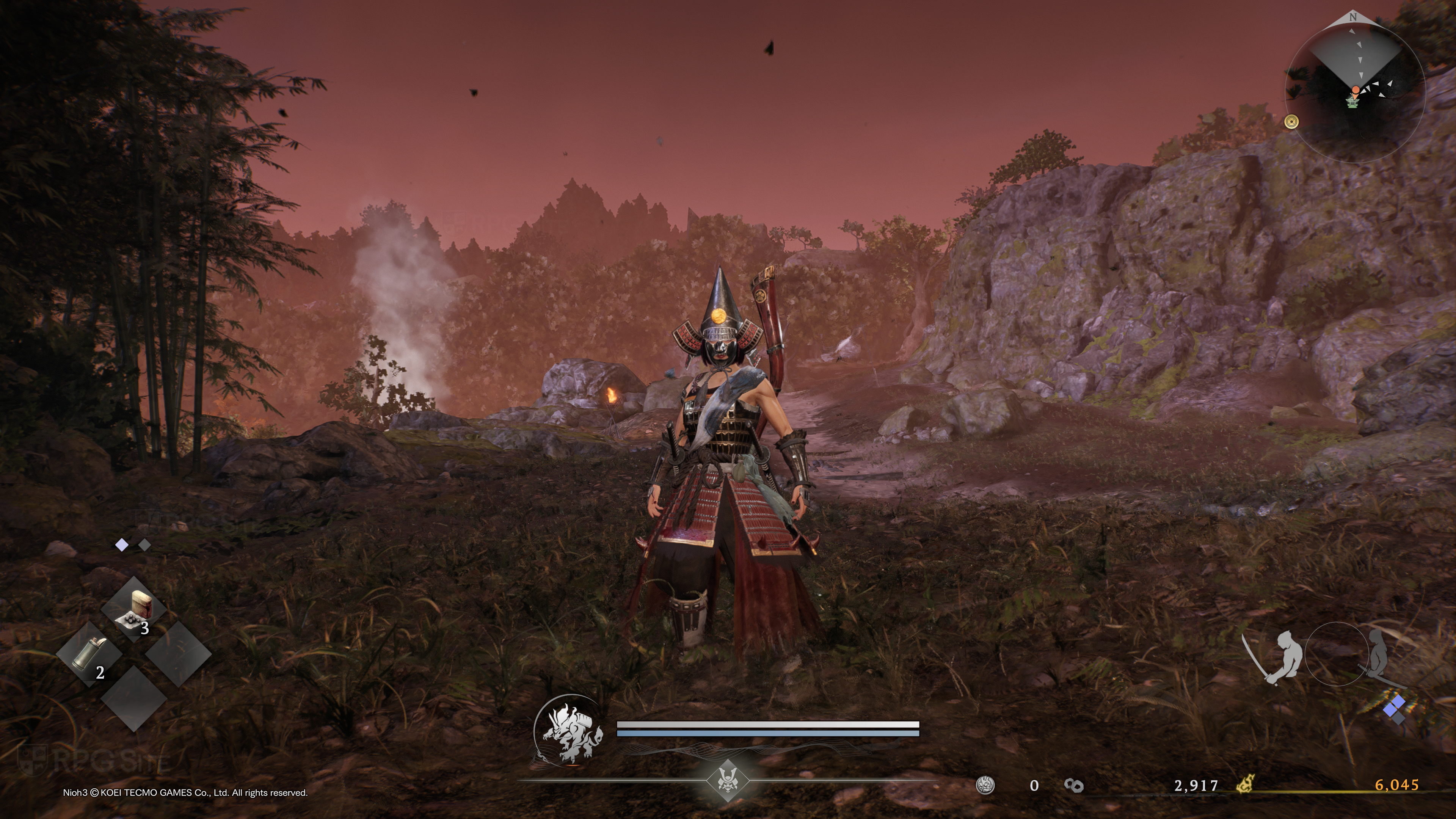
Nioh 3 also has a PS5 demo and if you are curious about the visual difference on your own display, I recommend downloading it to see how you find each mode before deciding if you want to play it on console or potentially on PC. I also want to note that the load times are super fast on PS5. Team Ninja added good haptics when The Nioh Collection was released on PS5 and I'm glad it carries over into this new entry as well. I hope future patches can improve the animation culling in the performance mode though. It is a bit too strong right now on base PS5.