

Clair Obscur: Expedition 33 has improved on Steam Deck, but our recommended settings make it better
Today, Sandfall Interactive released its big 'Thank you' update for Clair Obscur: Expedition 33. While this update brought a lot of improvements and new content to the game for free, it also specifically has handheld PC improvements with it now being Steam Deck Verified by Valve. As someone who has played it completely on Steam Deck and PS5, I wanted to see how much it has improved since launch and how the new Verso's Drafts area looks and feels on Steam Deck.
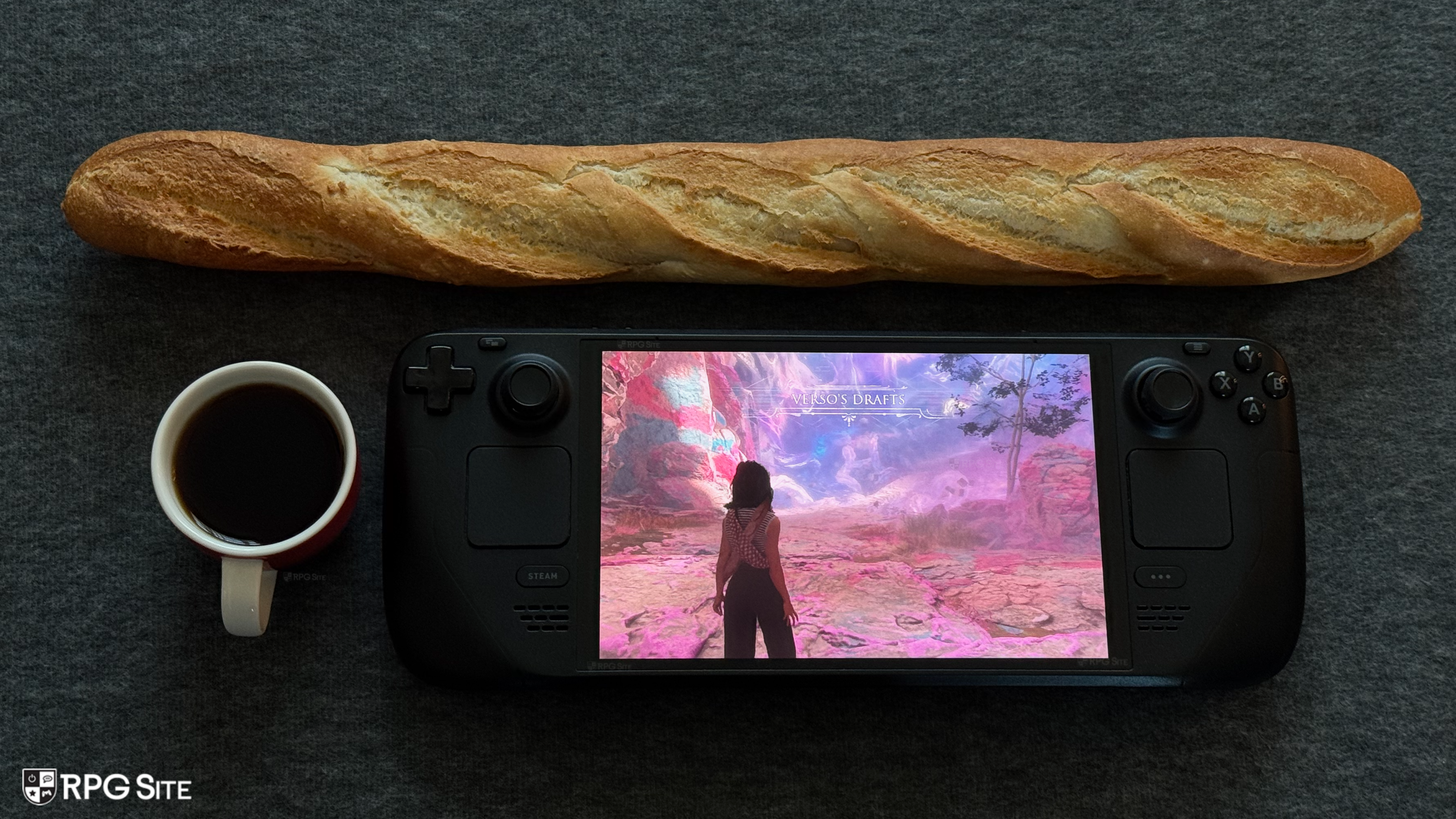
For this, I downloaded Clair Obscur: Expedition 33 to my Steam Deck OLED and Steam Deck LCD. I left the LCD on the default preset, but I used the "SteamDeck=0 %command%" launch option on the Steam Deck OLED. I wanted to see how the default locked preset looked on Steam Deck and also how my original settings hold up today.
Out of the box, Clair Obscur: Expedition 33 on Steam Deck lets you adjust the upscaling type (TSR, FSR, XeSS), scaling quality, resolution scale, and toggle v-sync. You can also toggle the following settings: motion blur, film grain, chromatic aberration, and vignette. Beyond this, you have no control of visuals or graphics options.
When you use the launch command I listed above, you get access to graphics presets, FSR 3 frame generation (not worth using right now), display mode, and screen resolution for display options. You also have access to many rendering quality options like anti-aliasing, shadows, global illumination, reflections, post-processing, texture, visual effects, foliage, and shading.
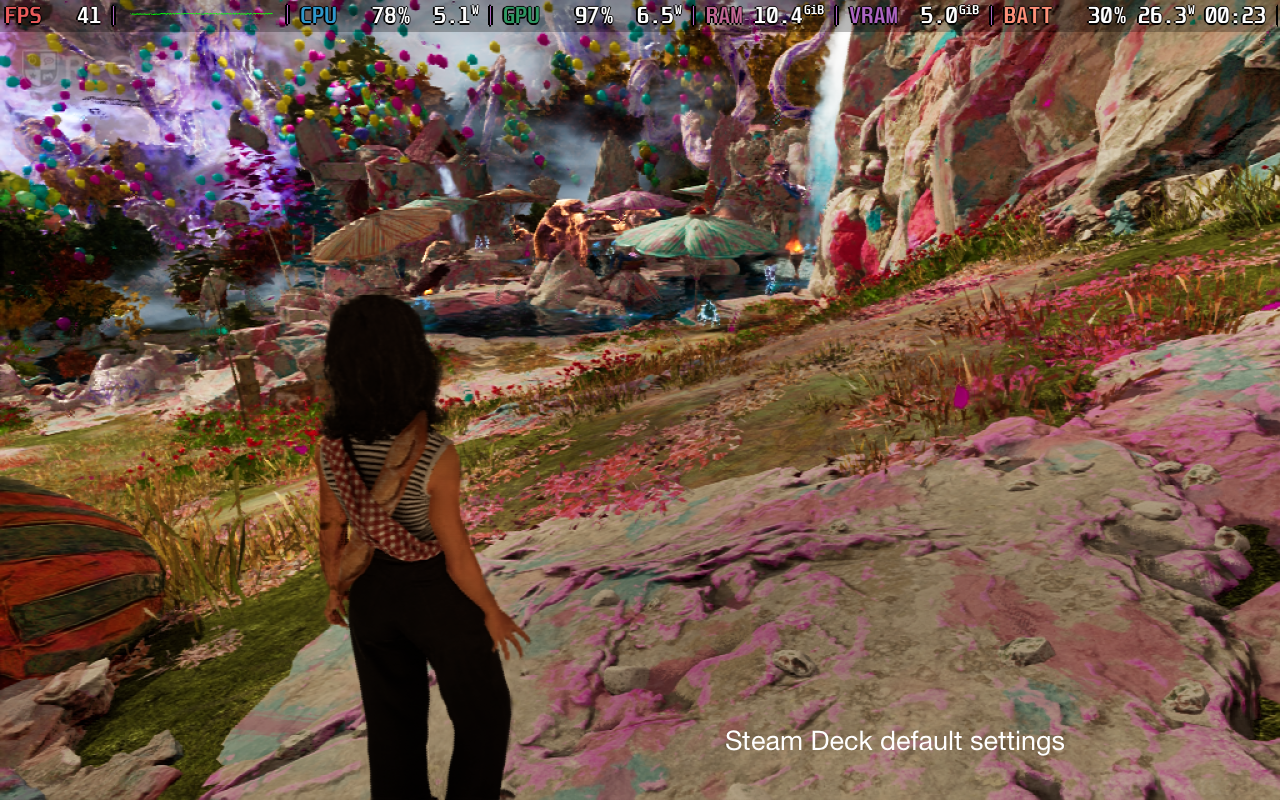
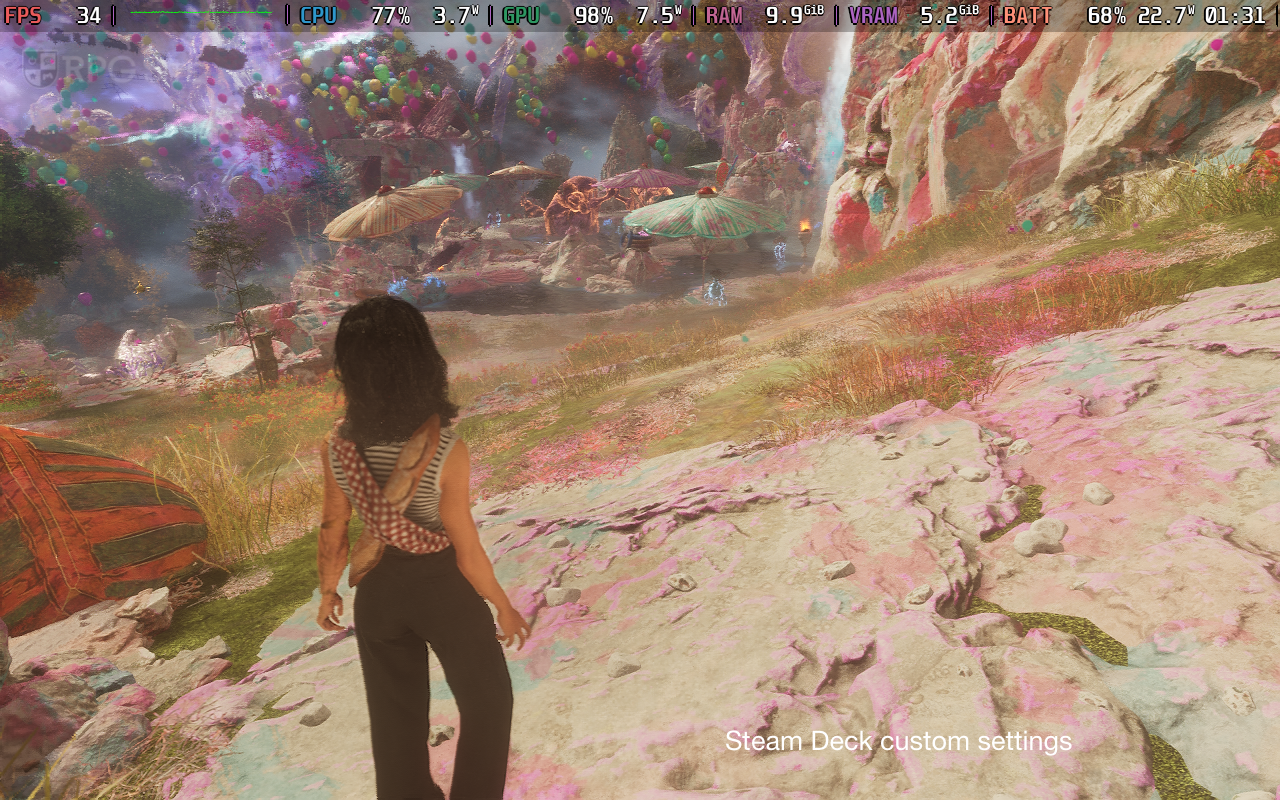
Note that even when playing on Steam Deck on the low preset (after using the launch command), it looks a lot better than the preset Sandfall Interactive defaults to (and locks you into) when you play with the default out of the box experience.
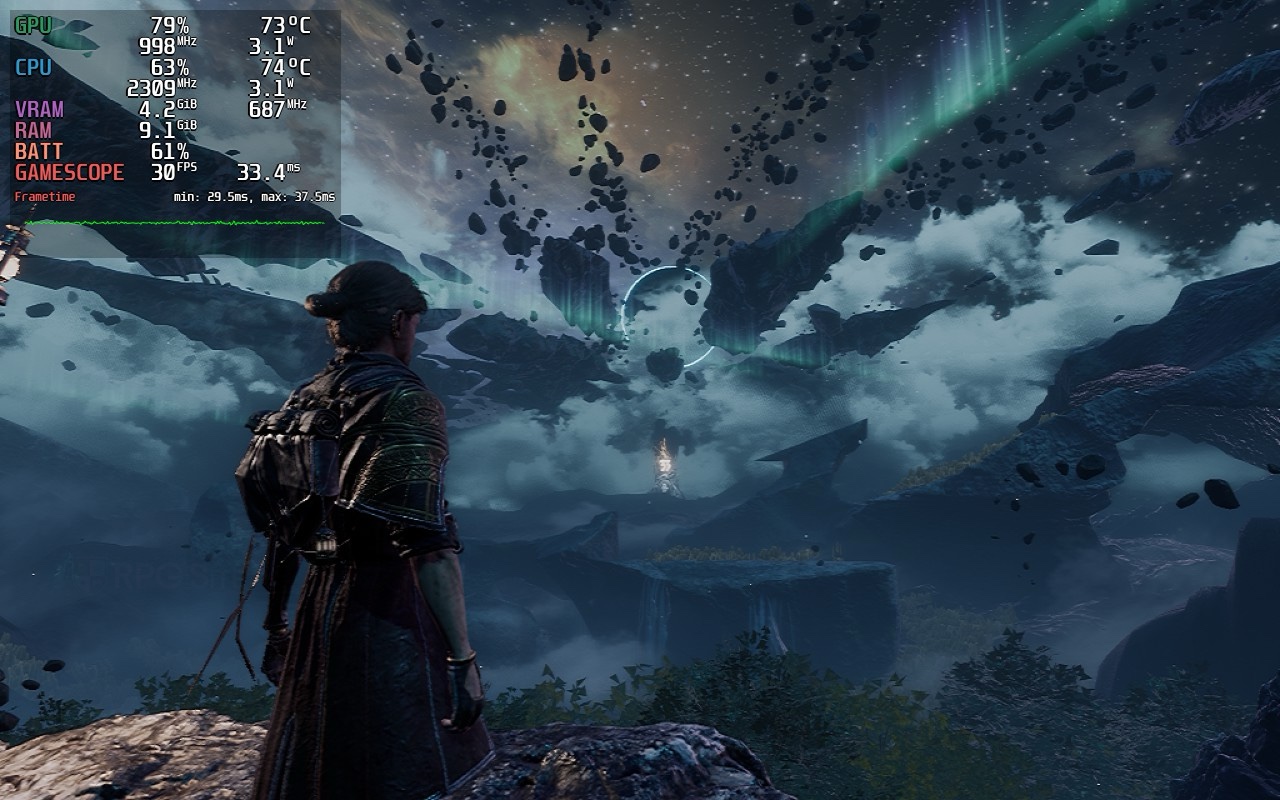
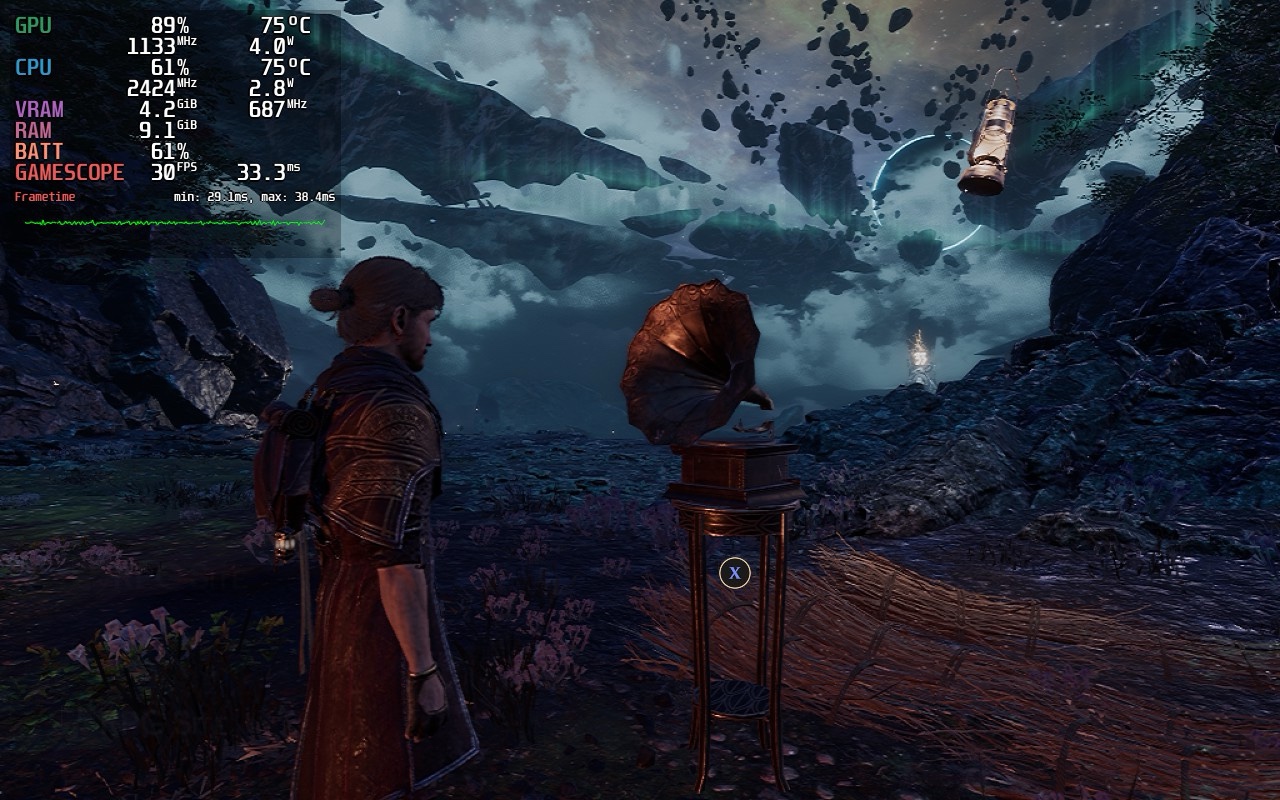
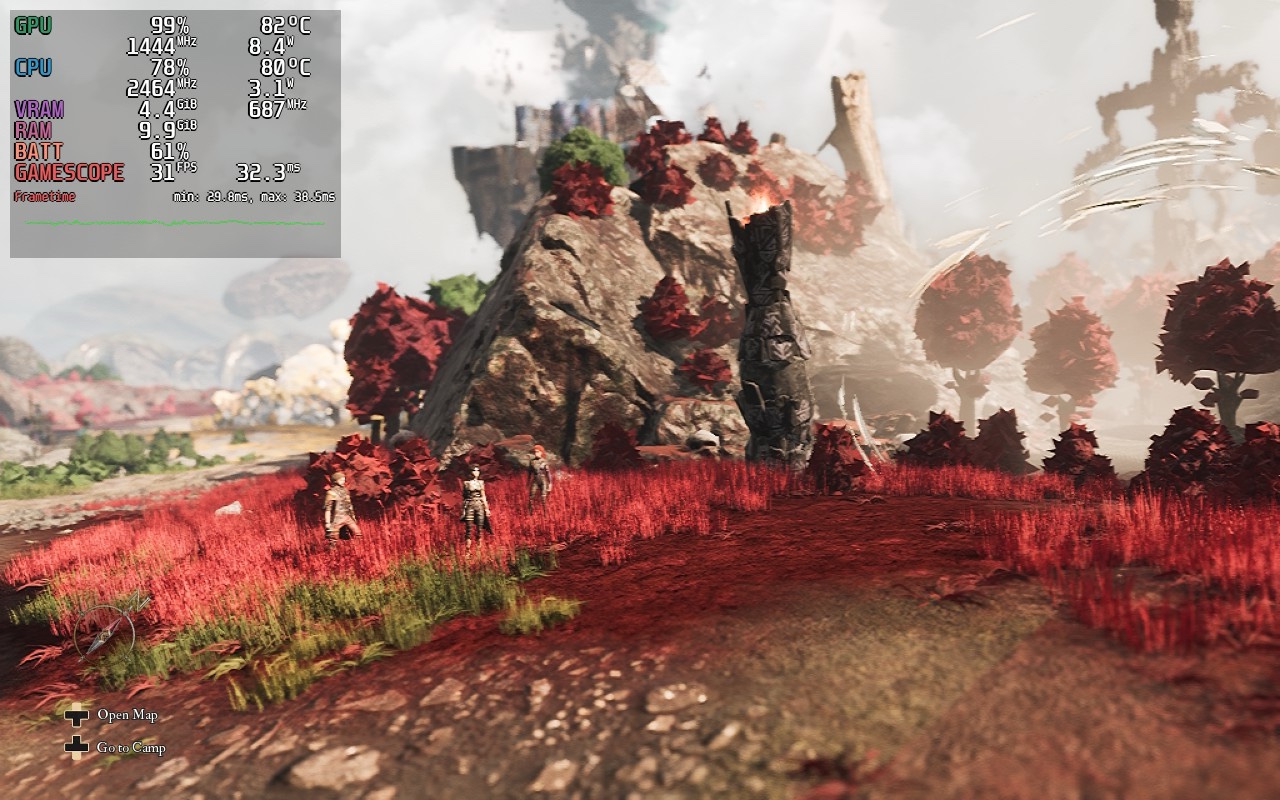
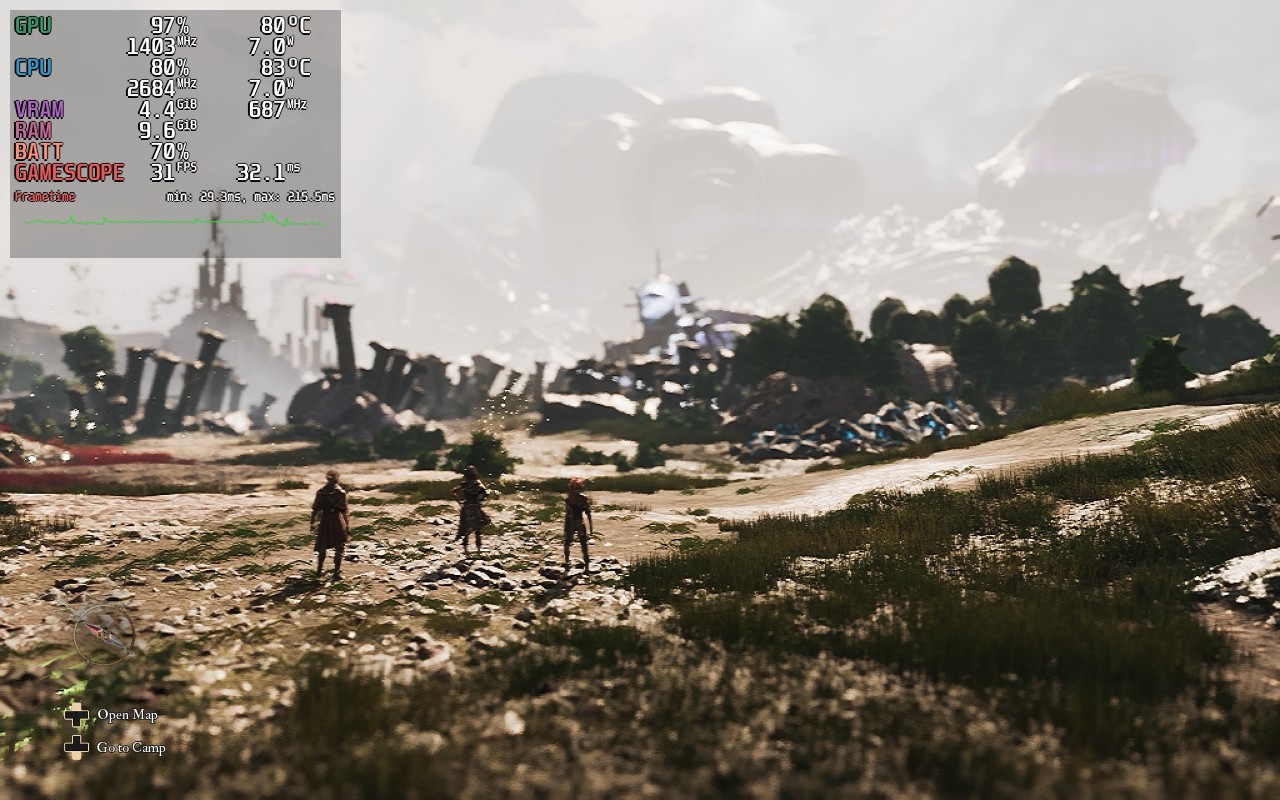
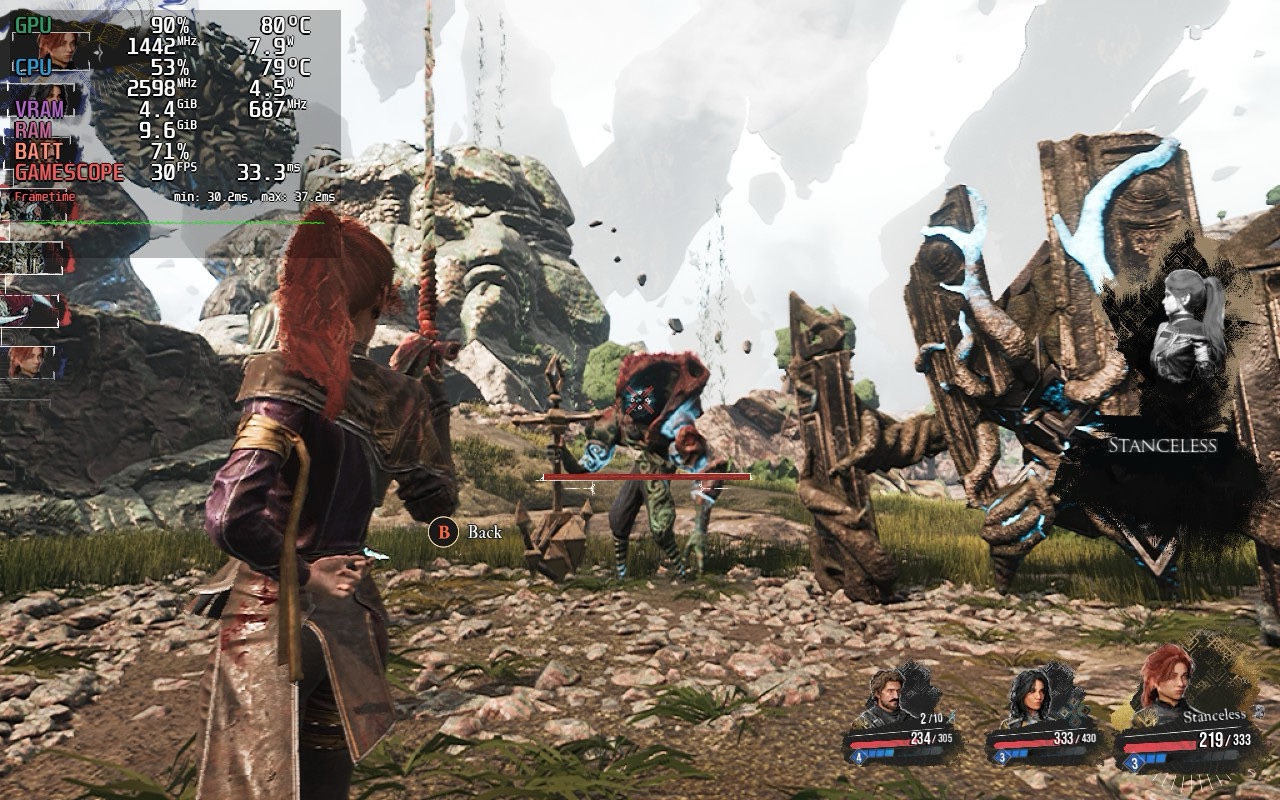
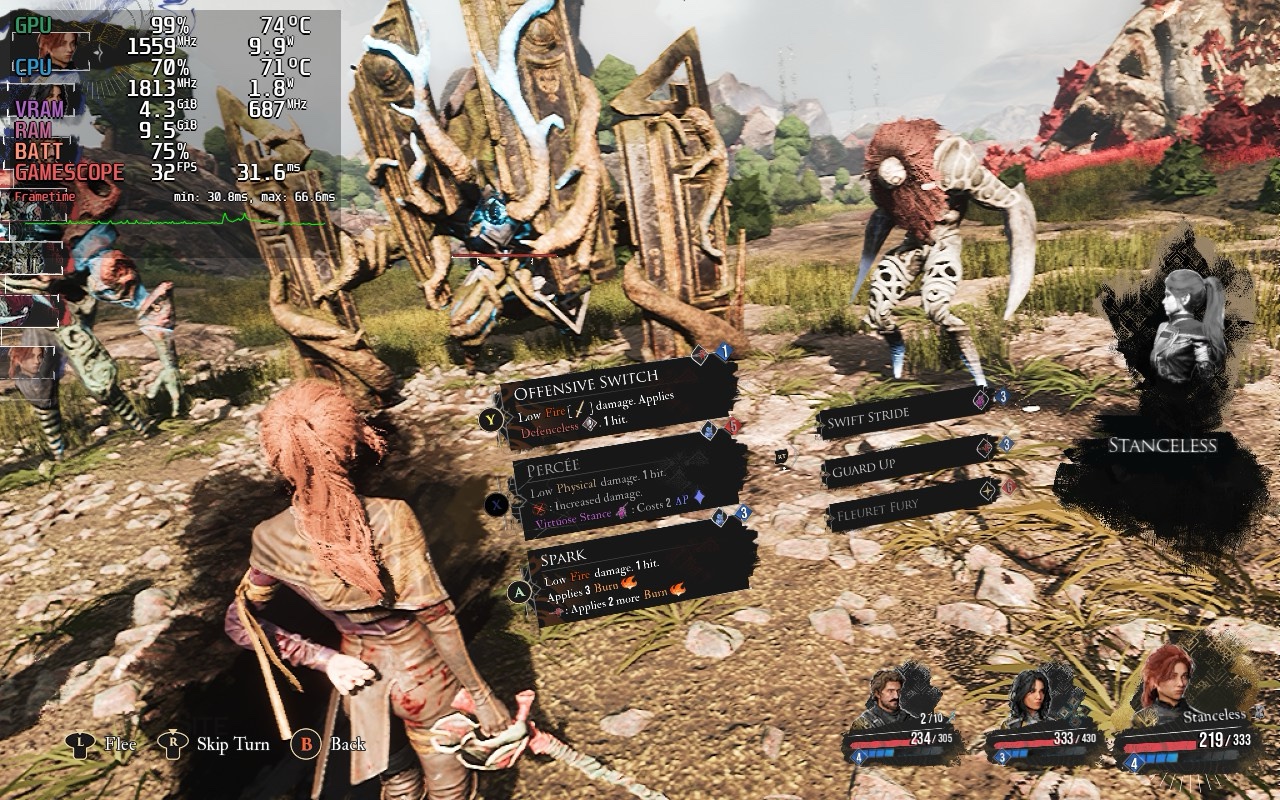
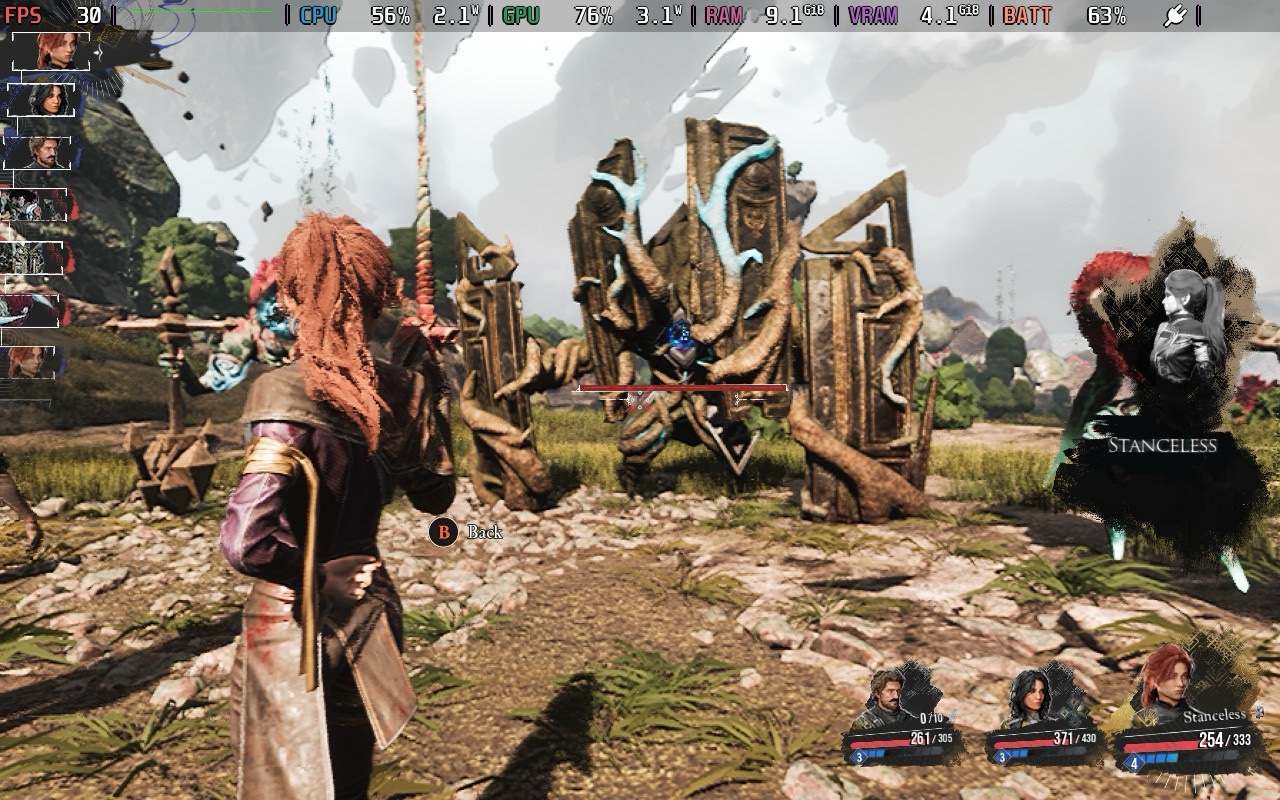
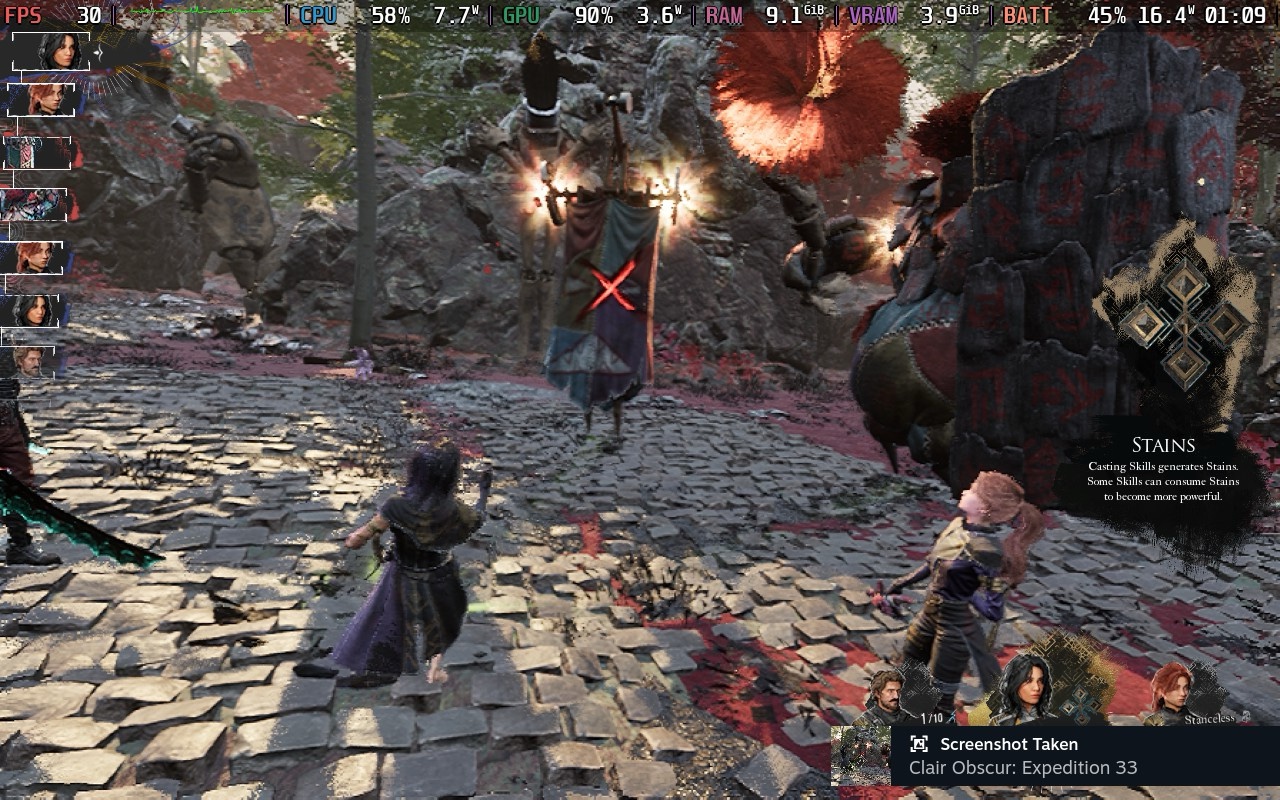
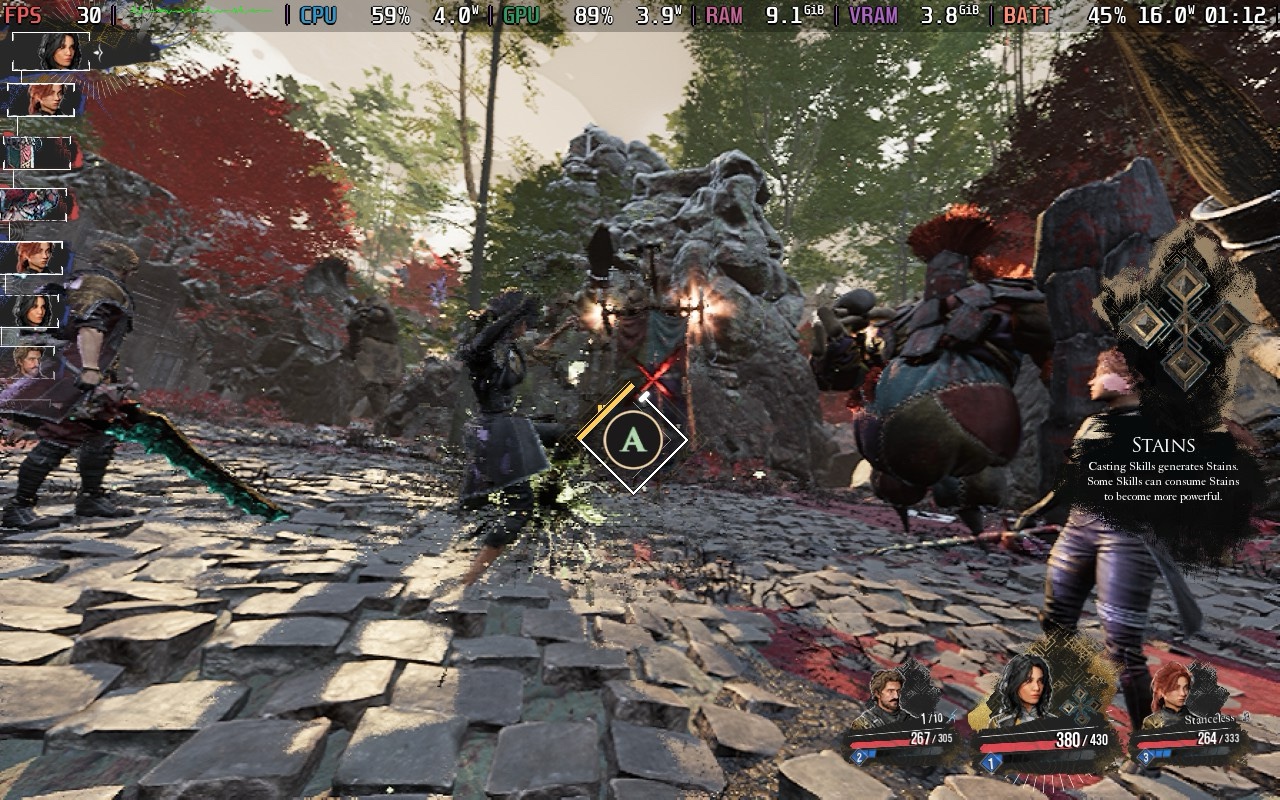
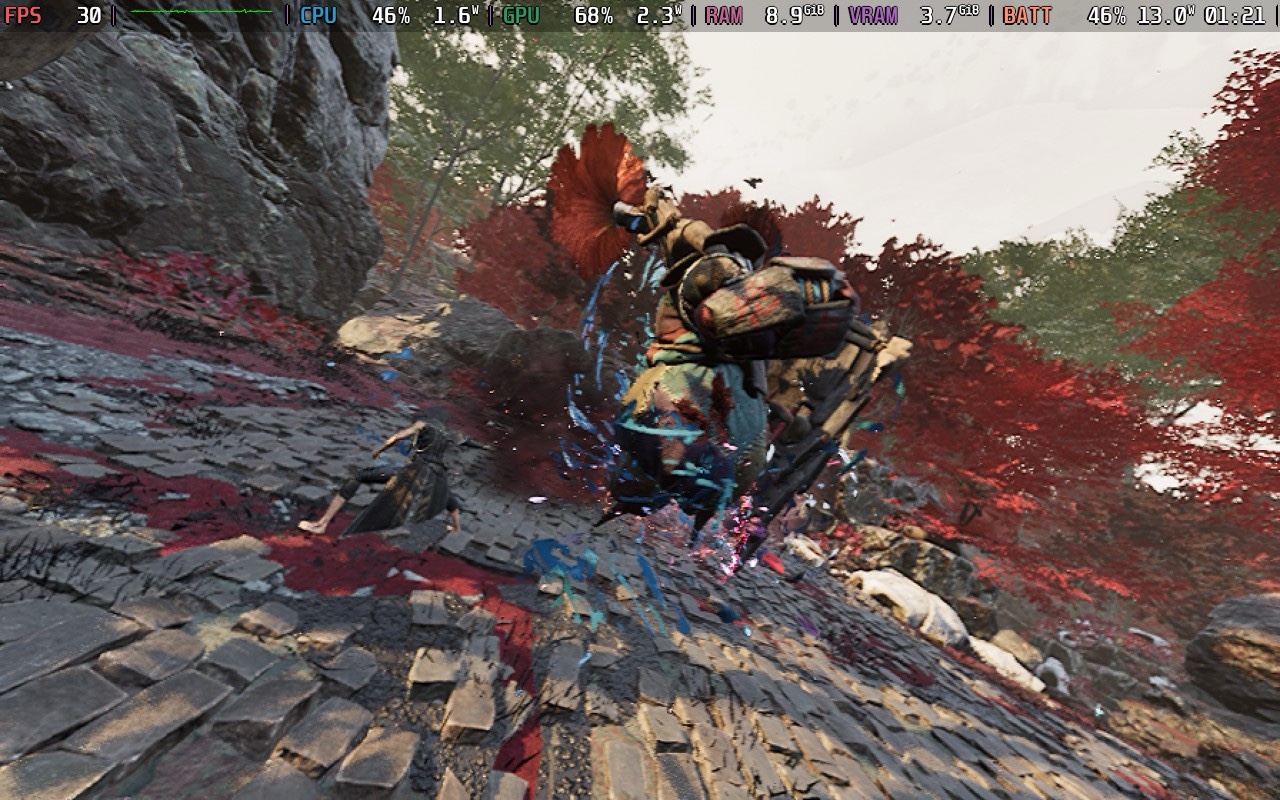
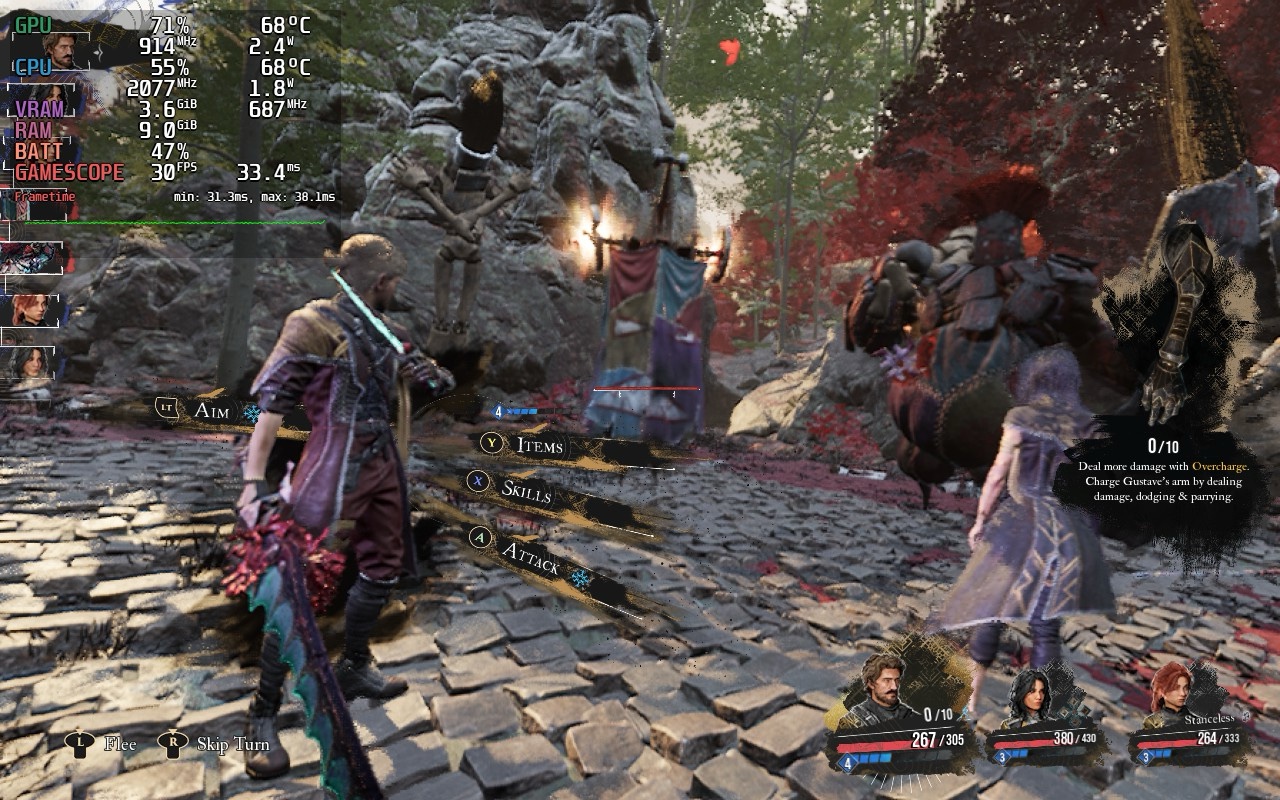
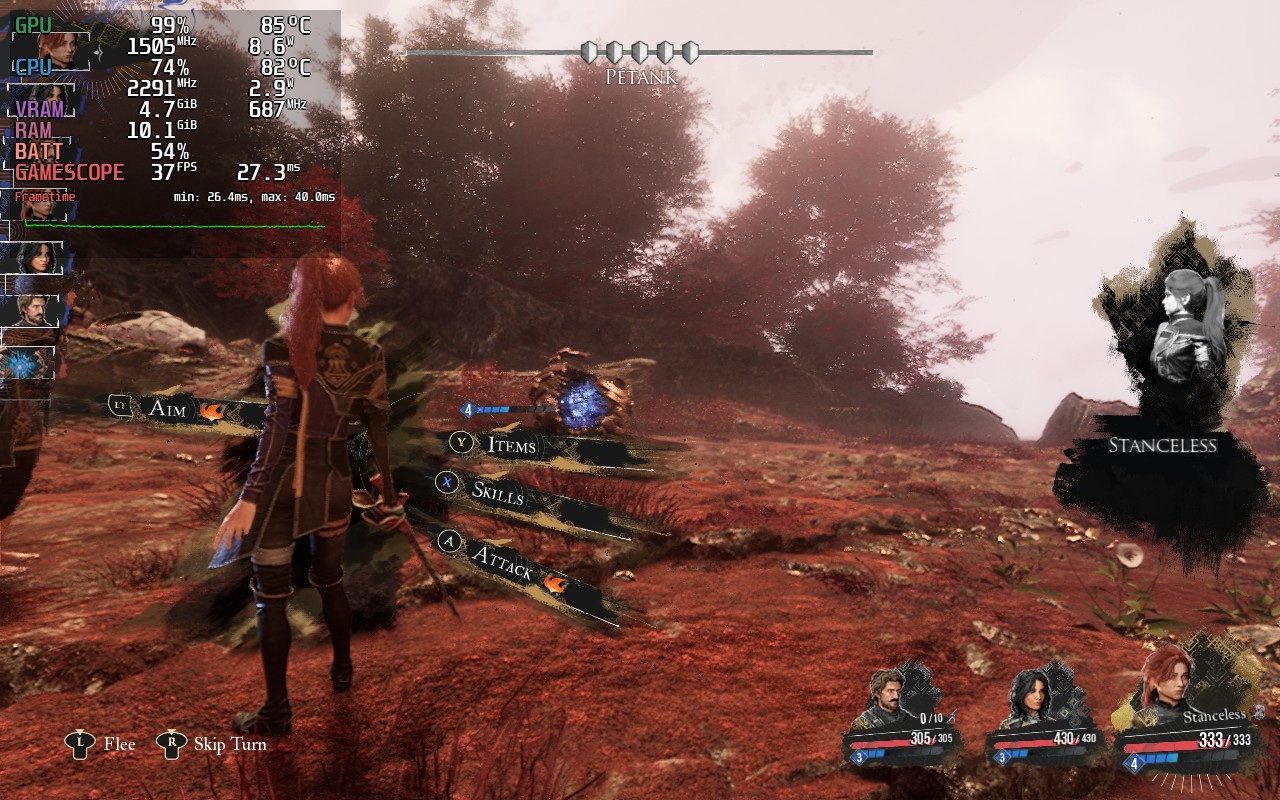
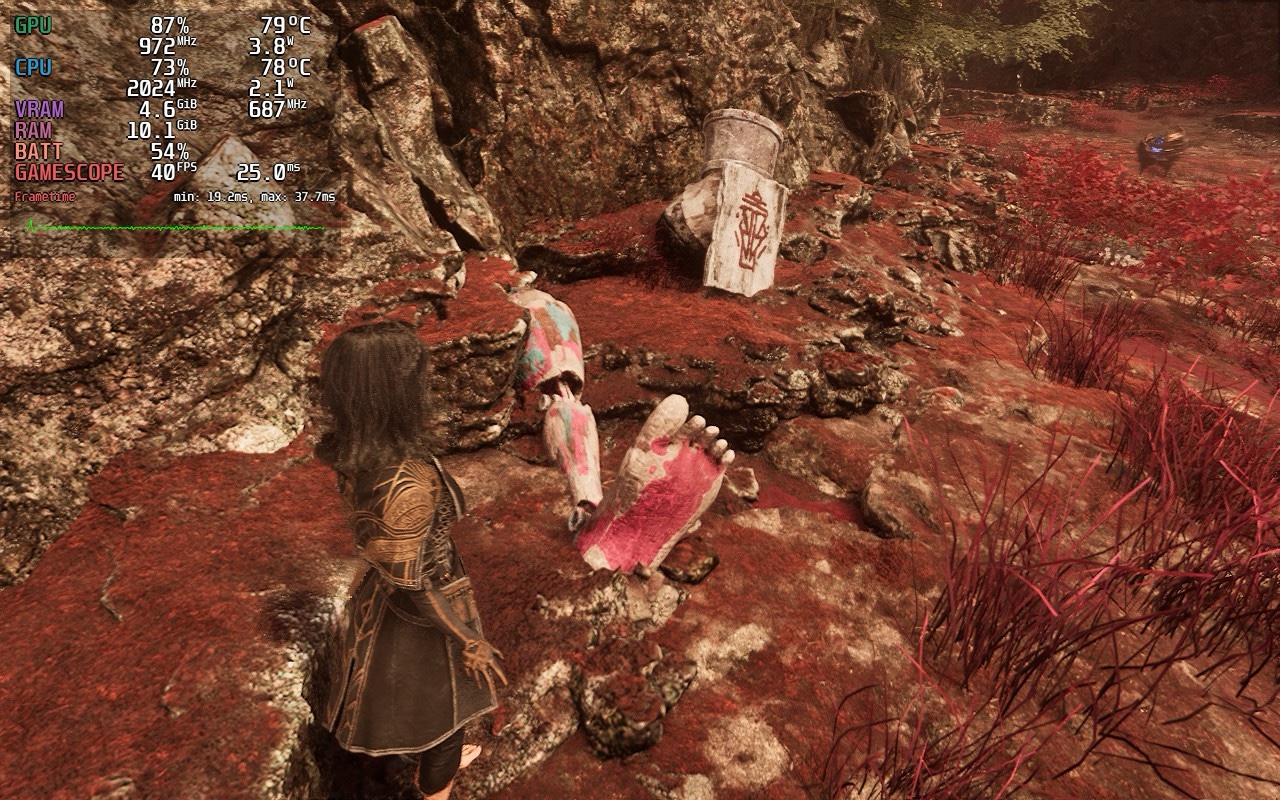
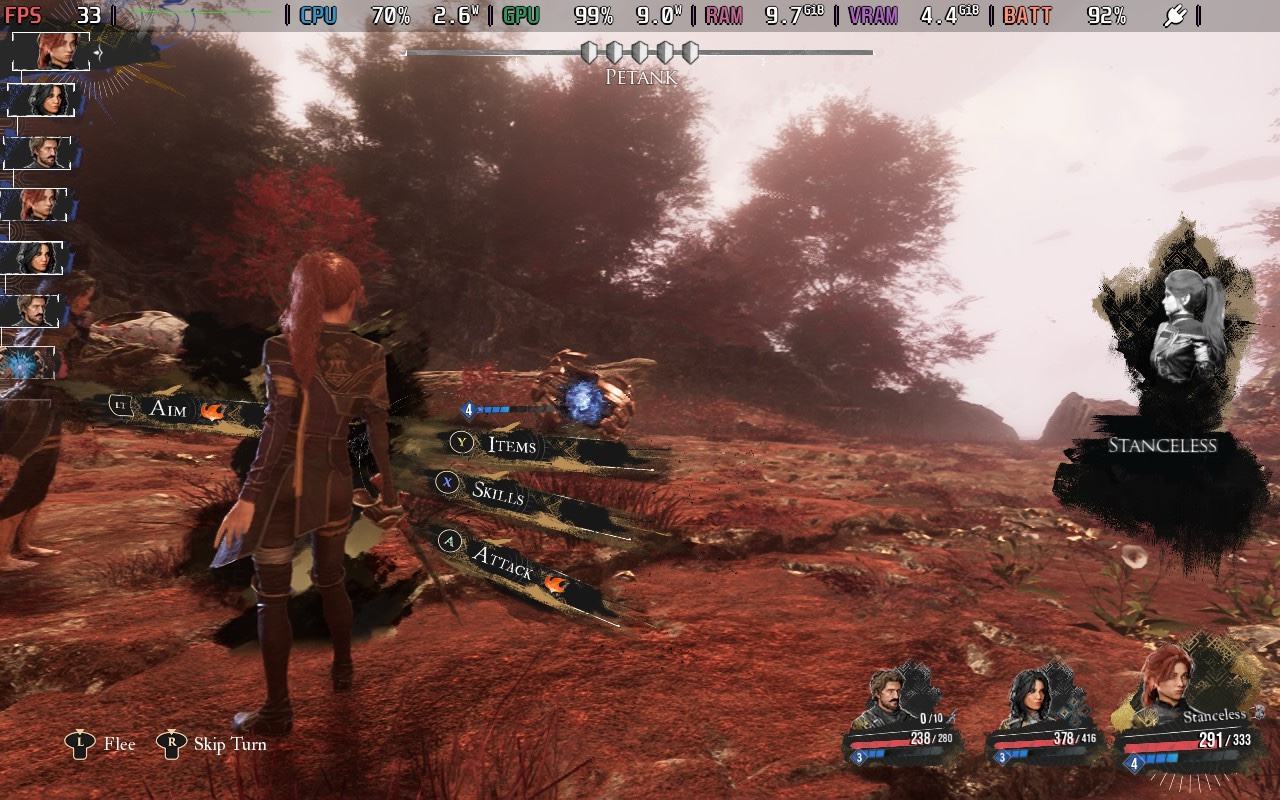
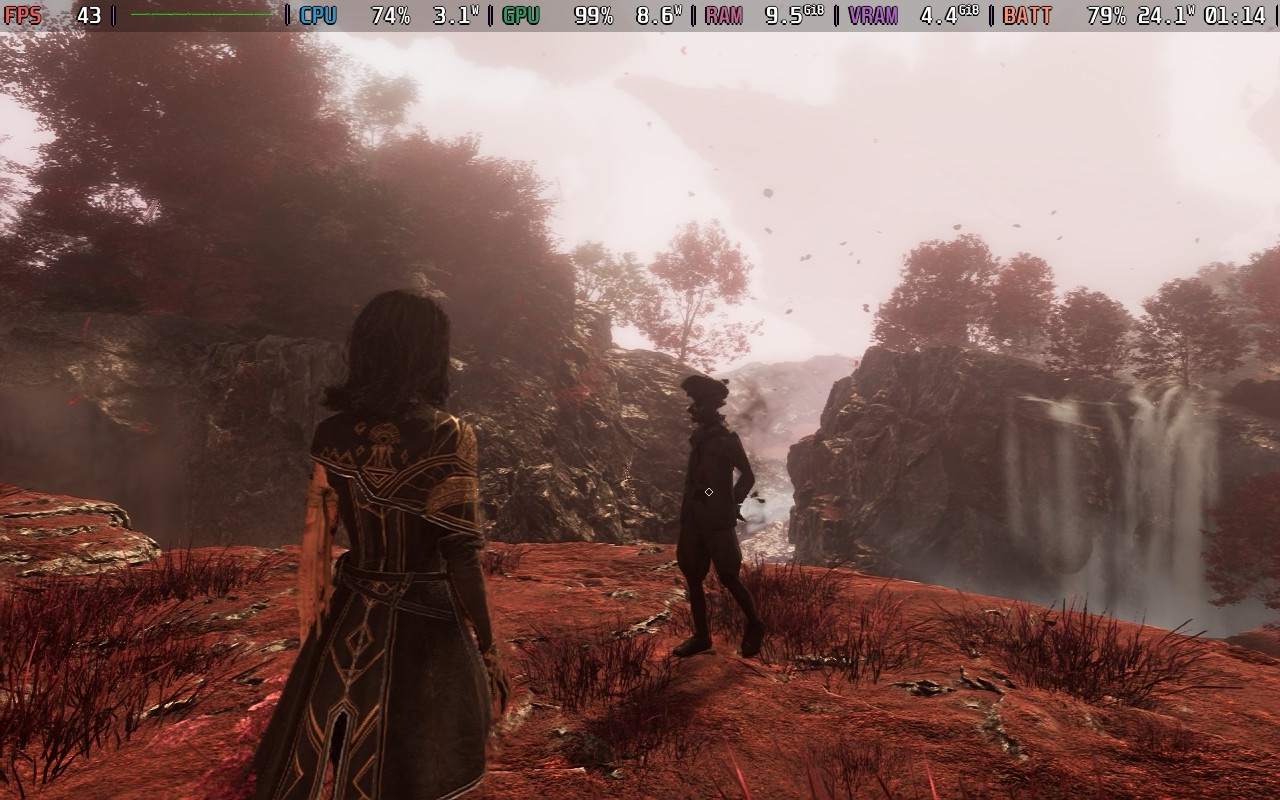
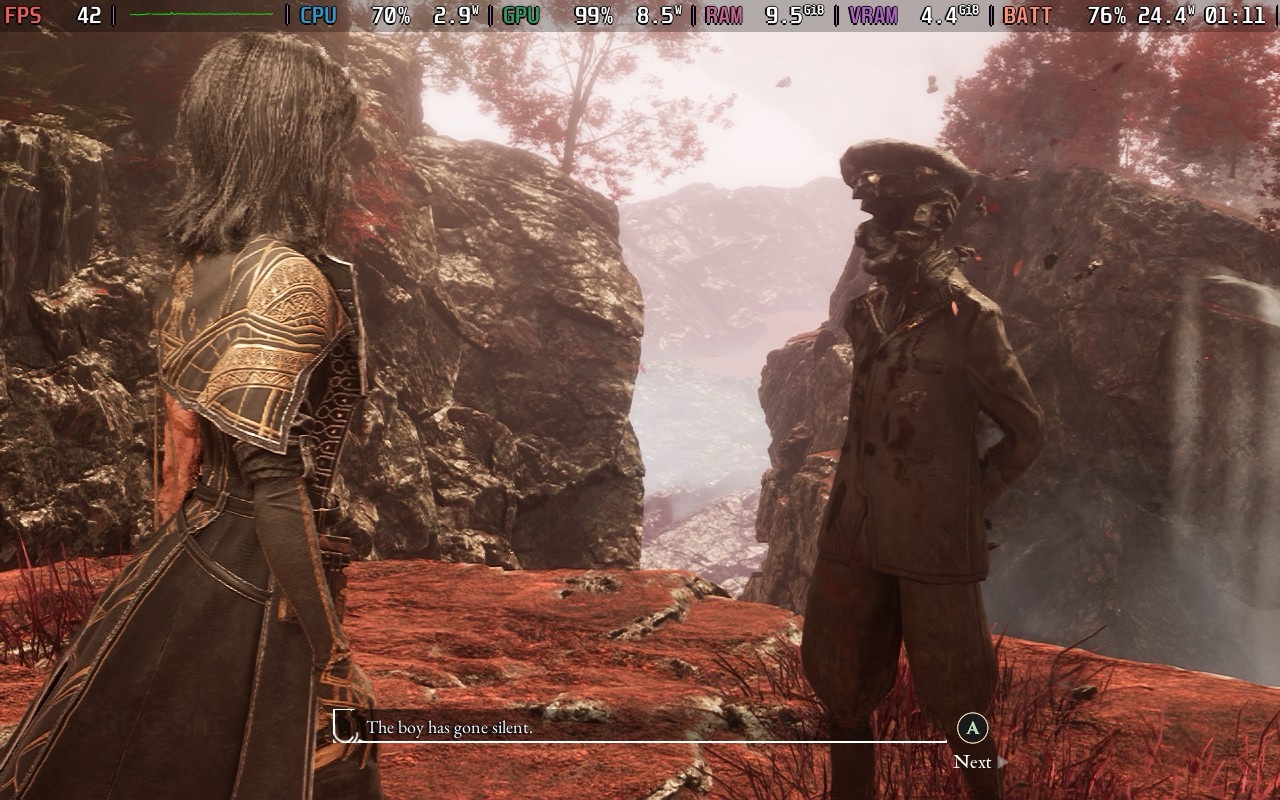
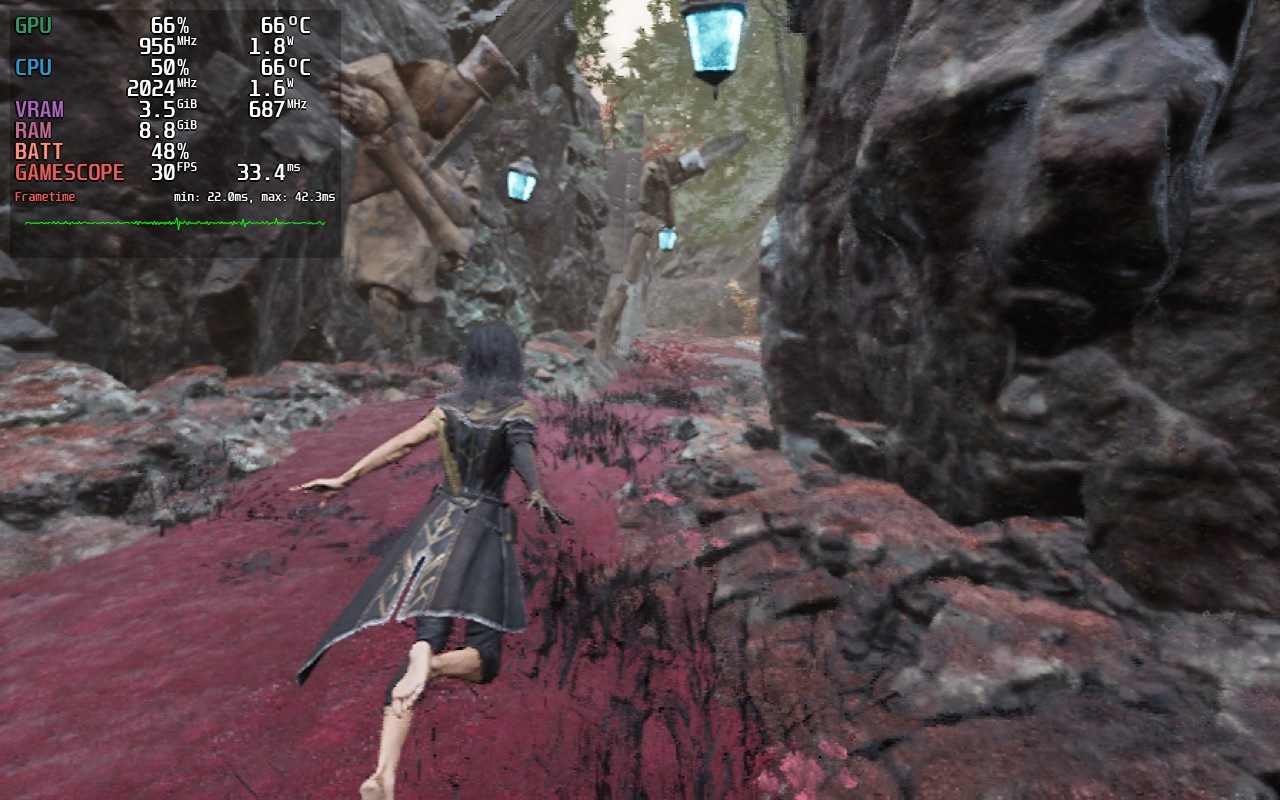
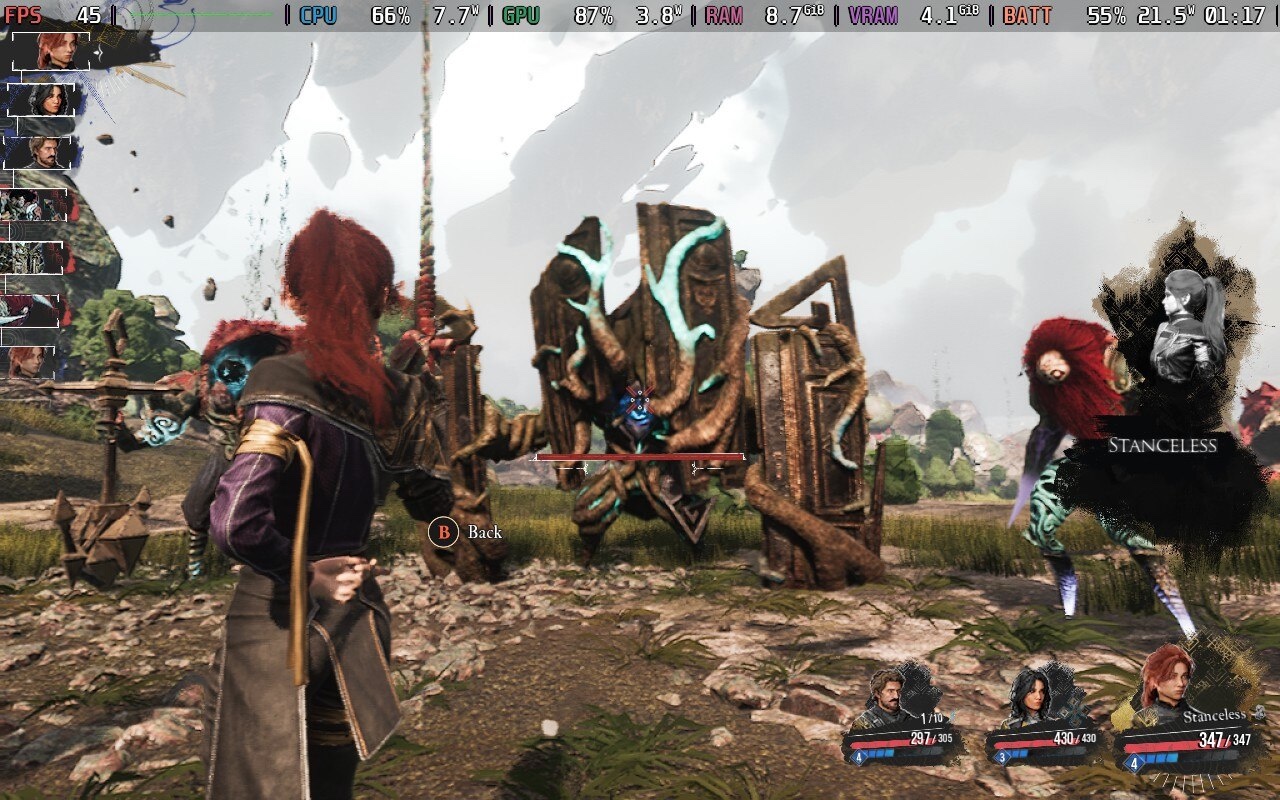
As for performance, the default preset does run better, but it isn't perfect, and the visual downgrades are too much. This is based on the few hours I've tested at different parts of the game including early locations, the world map, the new Verso's Drafts area, and more. On Steam Deck OLED with the custom launch option, I saw a performance penalty of about 5-10fps compared to the locked default preset on the Steam Deck LCD. It is worth noting that I did not see it drop below 30fps outside one area when loading. The Steam Deck LCD with the locked preset that Valve deems Steam Deck Verified can also drop below 30fps for similar loading reasons.
Right now, if you want to play Clair Obscur: Expedition 33 on Steam Deck, you can either opt for massively downgraded visuals and stick to the default preset for about 30-45fps depending on the location (with it even hitting 60 in a few closed areas), or you can get a much better visual experience with the frame rate usually being in the 30-35fps range outdoors. You are not going to get a native 60fps experience on Steam Deck right now regardless of your settings, and I do not count using frame generation as worth it given the latency and other issues it adds when the source frame rate is low.
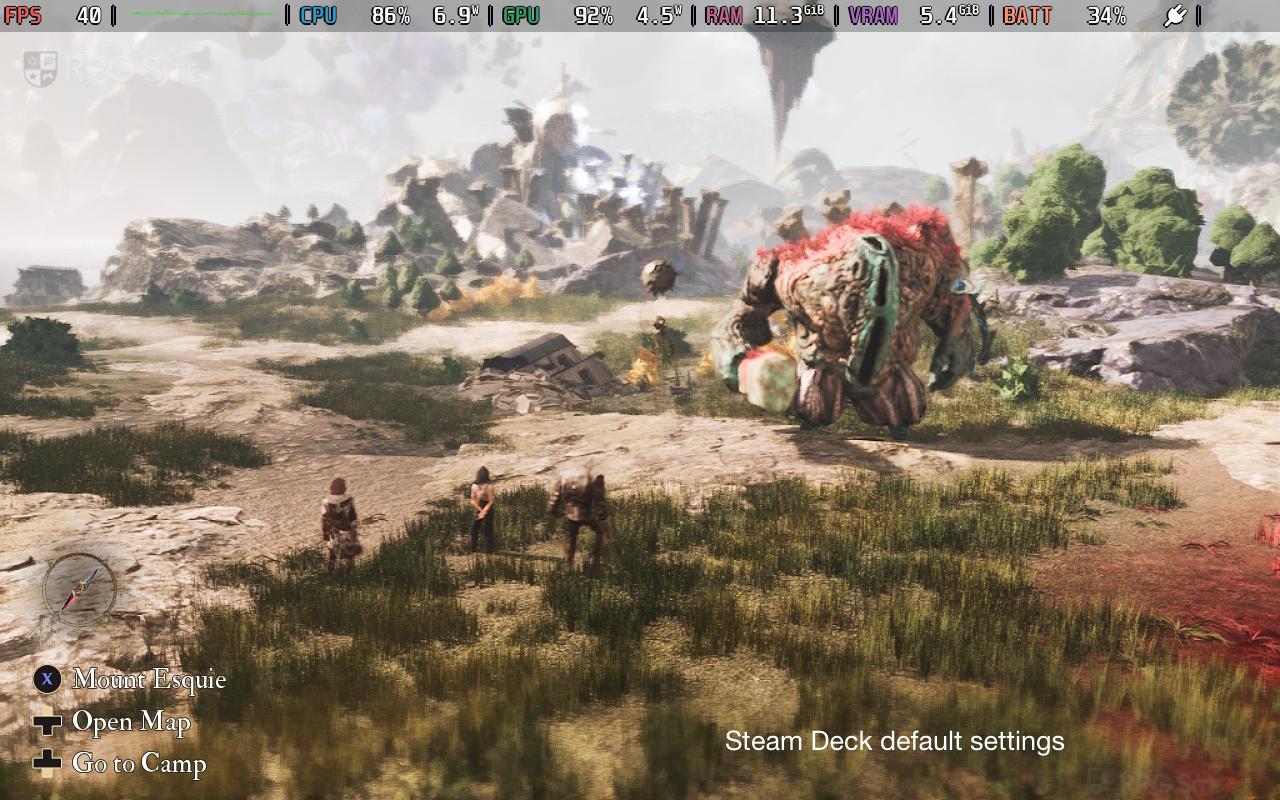
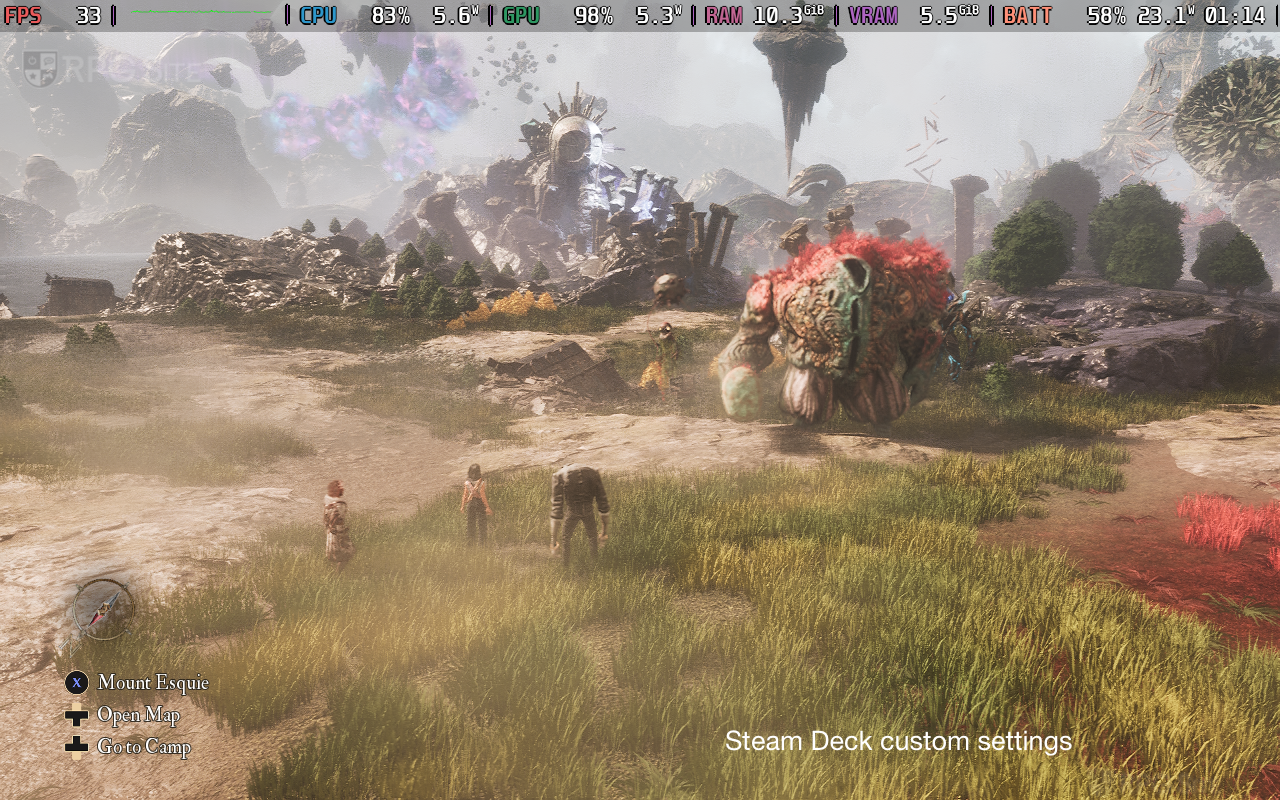
As for my Steam Deck recommended settings for Clair Obscur: Expedition 33 with the Thank You update, I would recommend using TSR on the Low scaling mode. While XeSS on the balanced mode works well for many areas in the game, some endgame locations will see the frame rate drop into the mid 20s even outside combat. TSR on Low provides the best experience since XeSS, while usable at ultra performance for a higher frame rate, doesn't resolve the image well enough and results in a lot of visual issues.
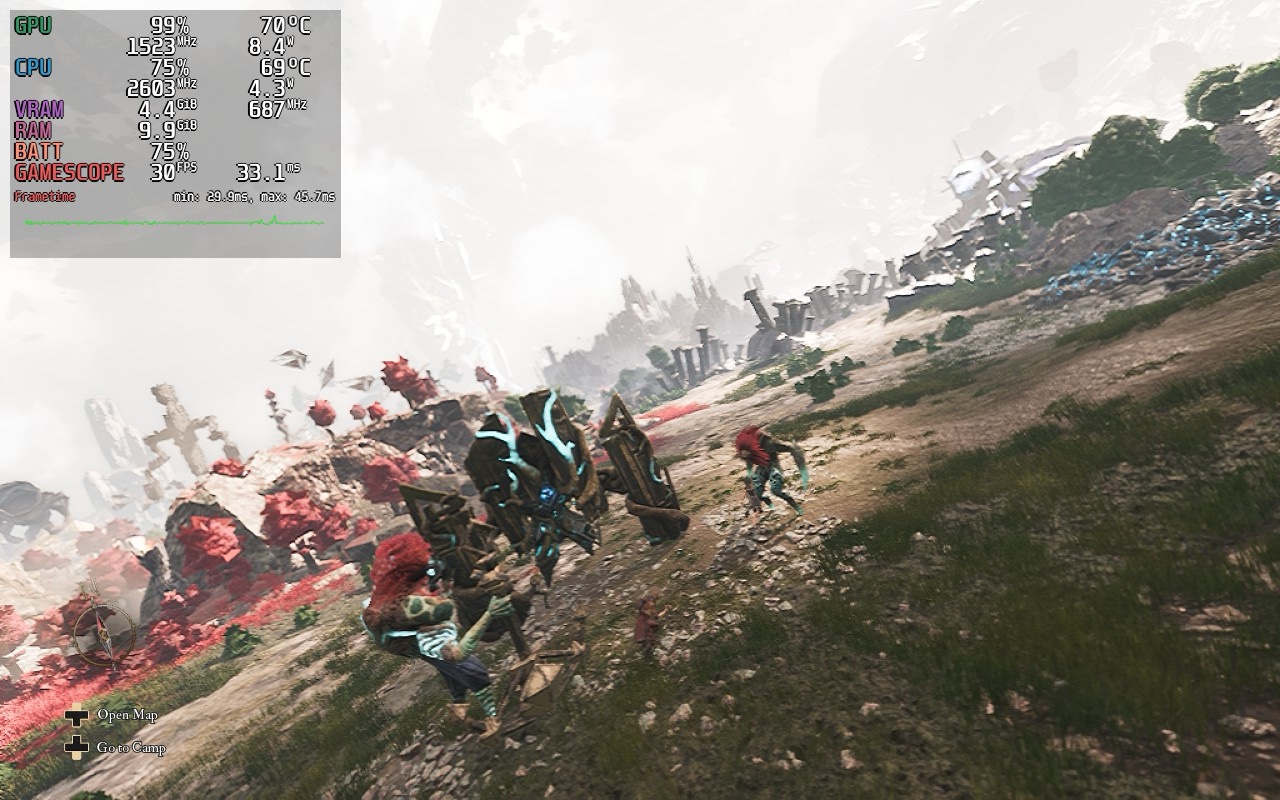
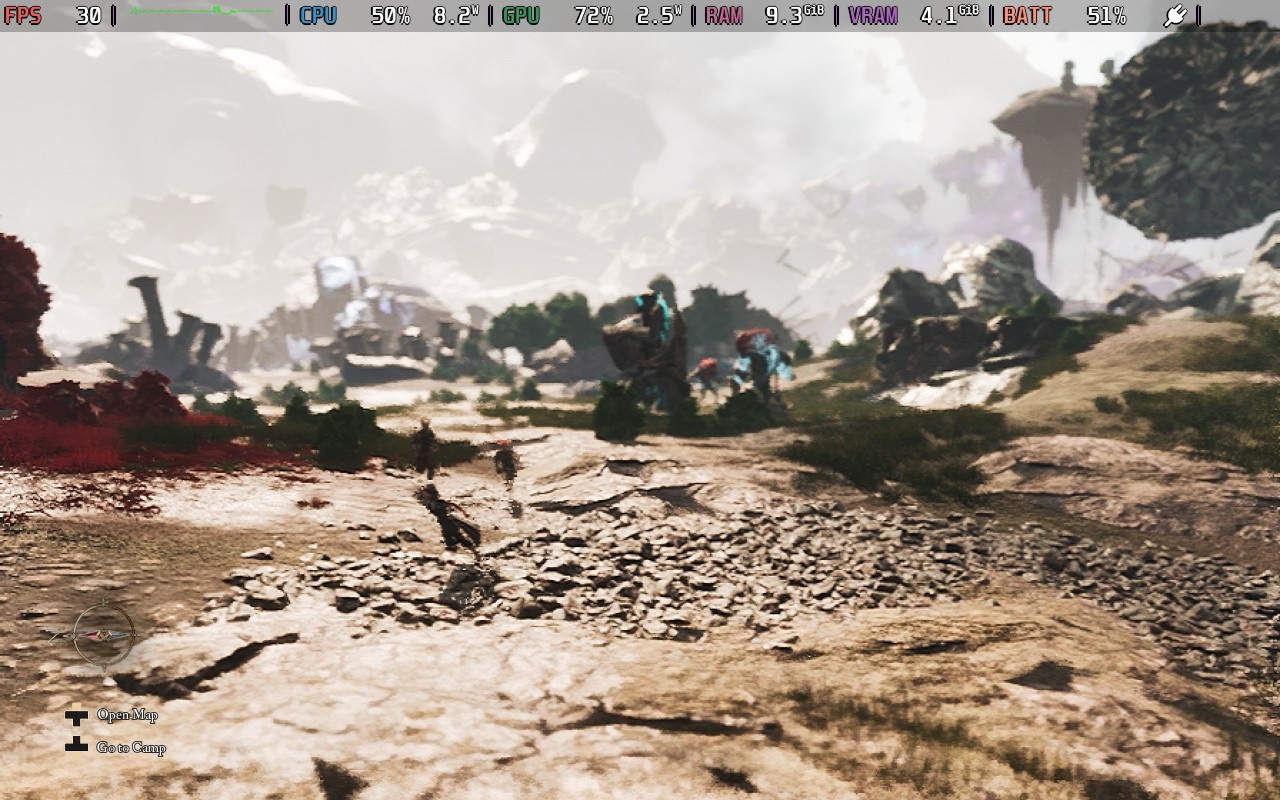
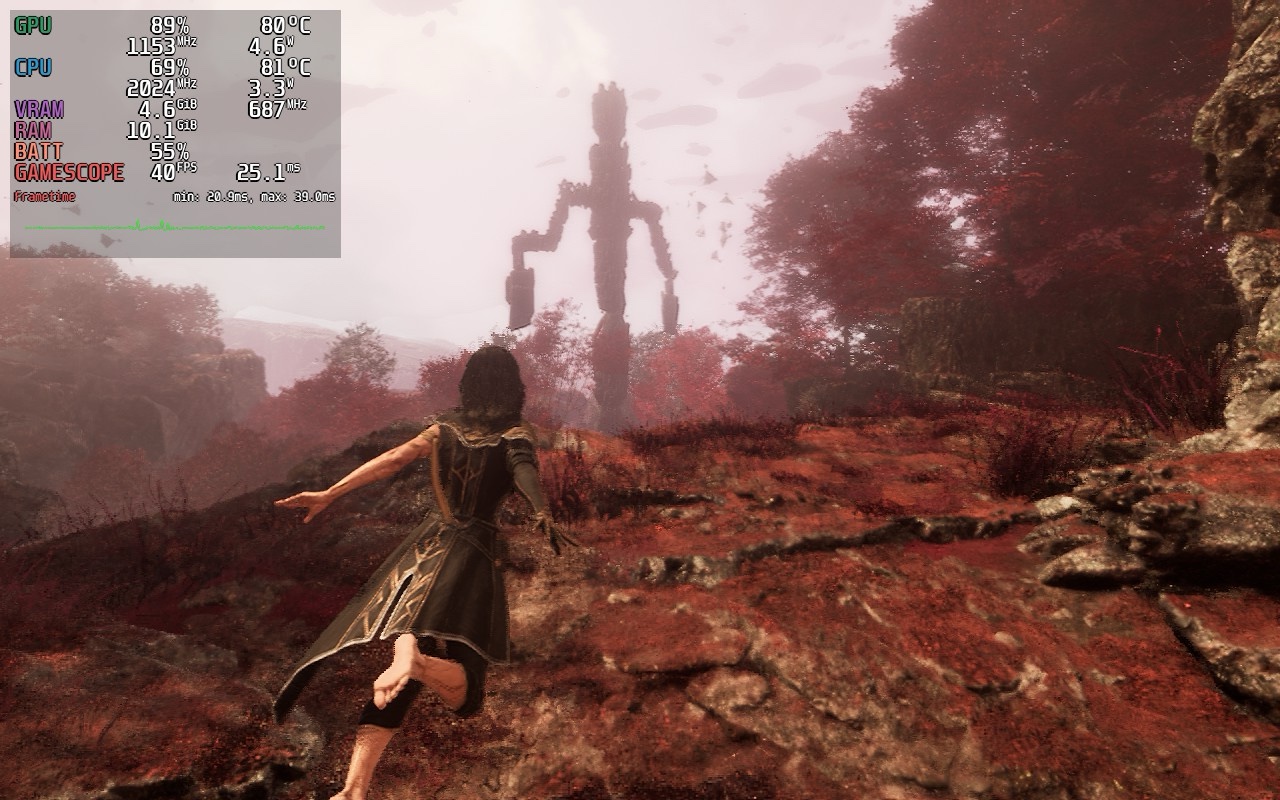
As for the refresh rate, I recommend 30fps at 90hz or you could continue playing it uncapped. I don't like an unstable experience during combat involving parrying so I prefer the 30fps experience on Steam Deck. Using my settings, flying around the world map might see dips below 30fps, but it never dropped below 28-29fps in the areas I tested, and it still looks a lot better than the default locked preset.
Your decision is basically whether you would sacrifice more of the visuals to have the world map exploration and run at about 5fps more, or enjoy the game with a better visual experience that still has the post-processing and other effects intact with some performance penalty right now. As for the worst drops I saw, the custom settings I used when turning the camera fast and flying around saw the world map exploration drop to 25-26fps for a second or two. This isn't ideal of course, but the benefits you get from the visuals in the rest of the game make up for it as far as I'm concerned.
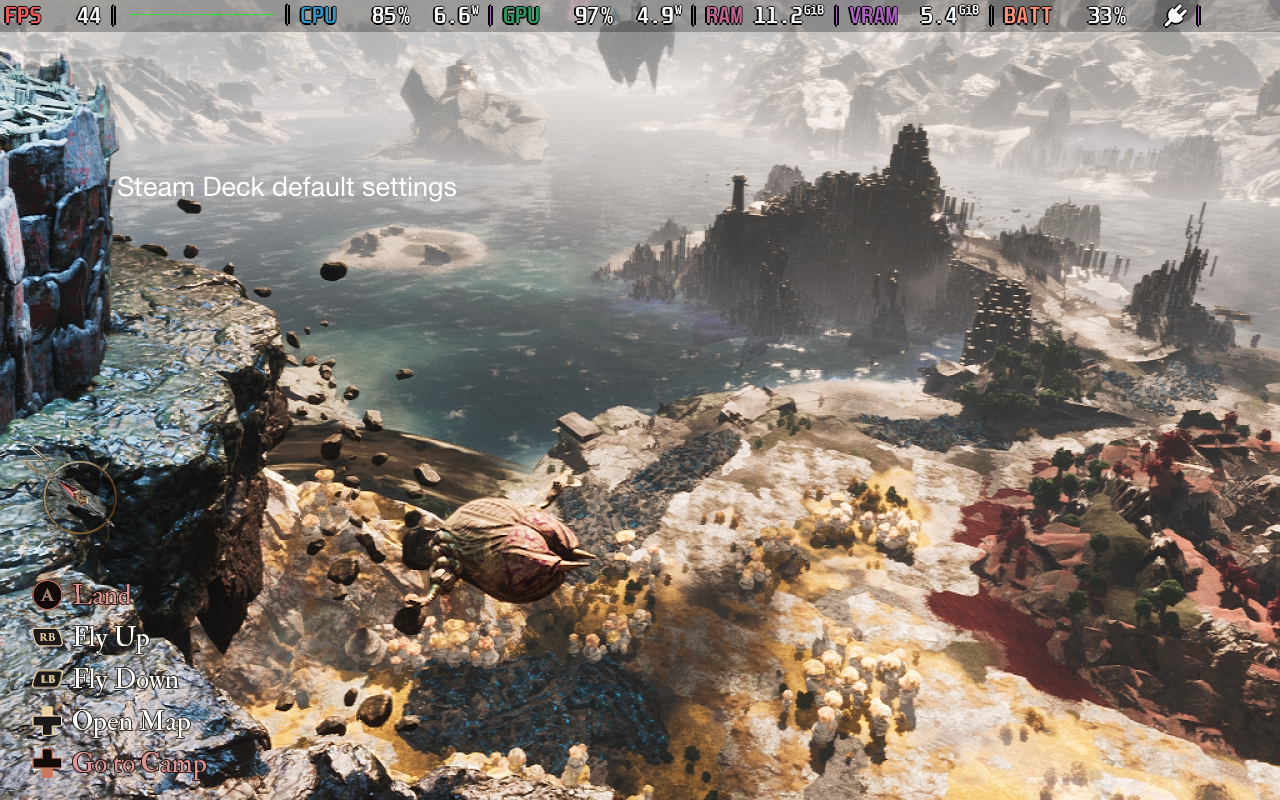
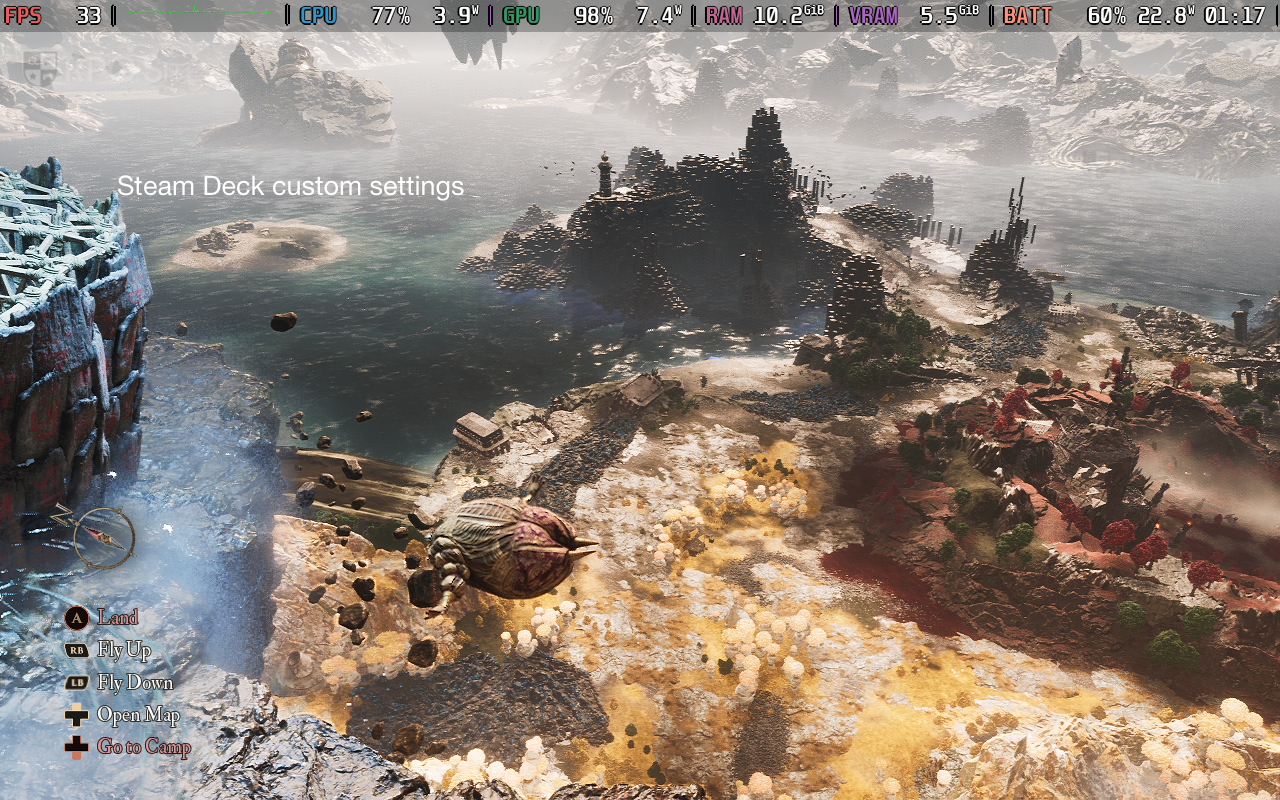
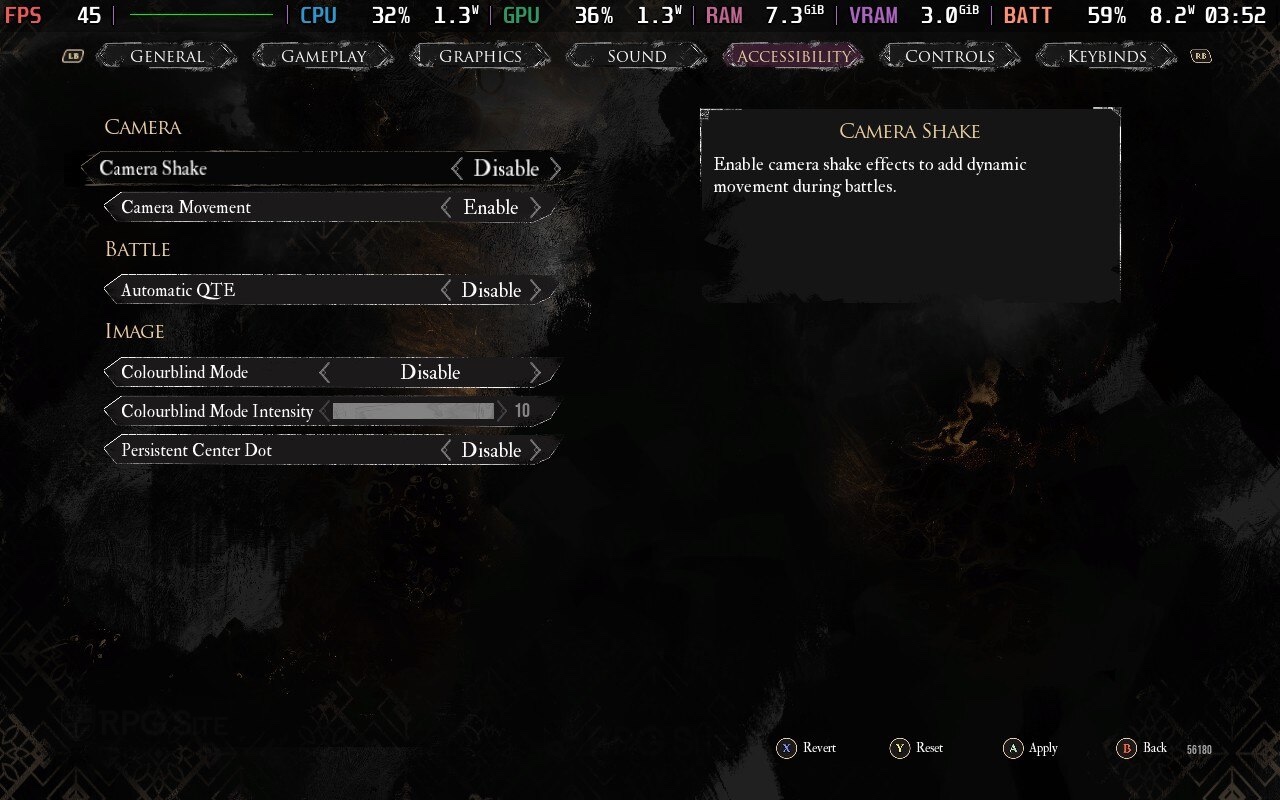
If you do want to use my settings with the launch option, make sure you go into the accessibility settings and adjust the HUD scale to 120% from the default 100%. 120% brings it in line with the Steam Deck default preset which is a lot more readable.
Overall, I think the default and locked Steam Deck experience, while improved for its UI and text, is still very conservative visually and is not worth the visual sacrifice even for whatever small performance boost you get. The custom launch command and my settings deliver a much better experience at the cost of some frames, but you still see other benefits today's patch brings. I will revisit it on ROG Ally in the near future, but I wanted to see how it felt on Steam Deck right now for this update since Valve marked it as Steam Deck Verified and the update specifically had bespoke Steam Deck improvements.
The original launch Clair Obscur: Expedition 33 Steam Deck impressions article is below if you want to see how things were at launch or pre-release.
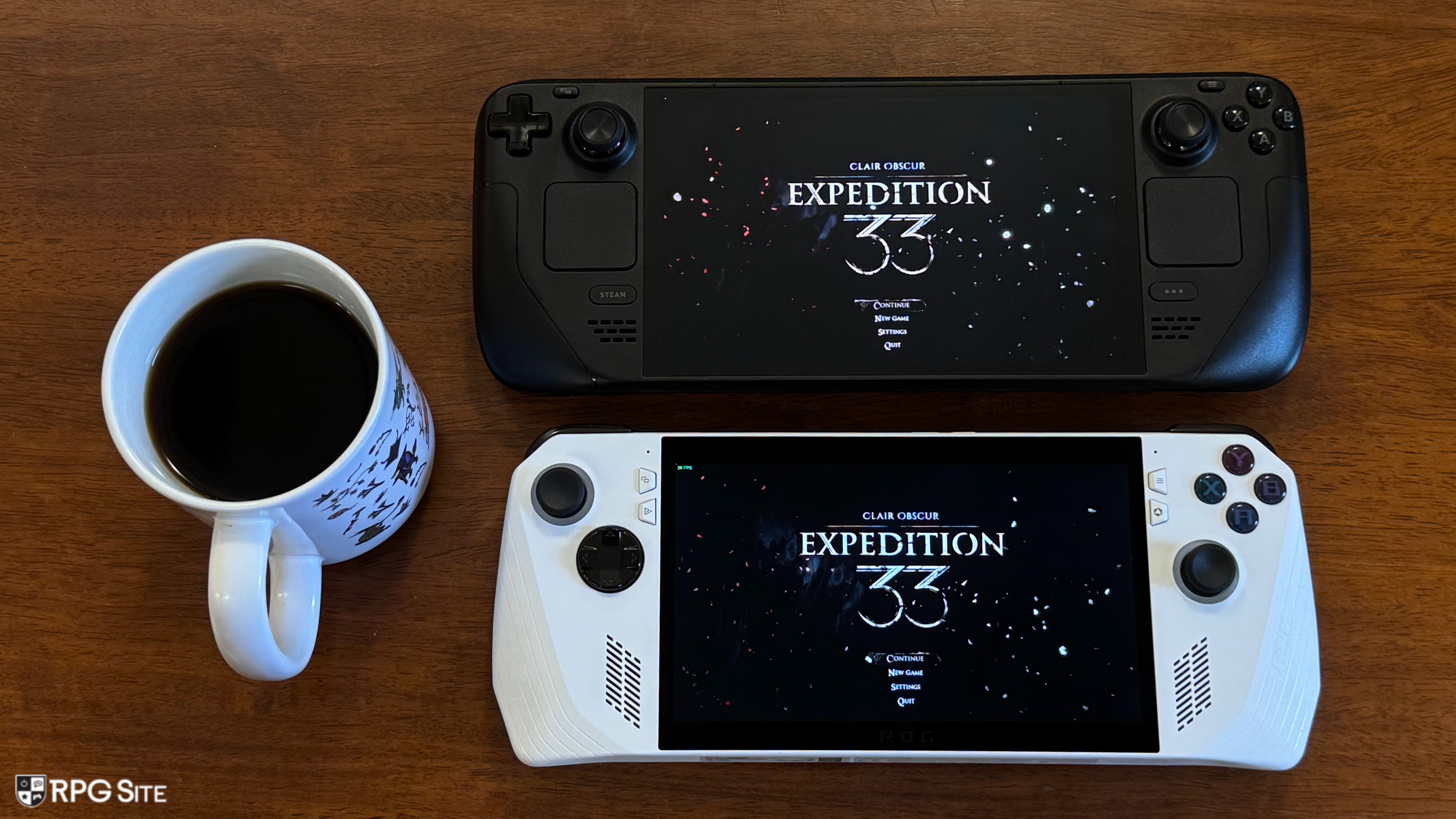
Kepler Interactive and Sandfall Interactive's turn-based RPG Clair Obscur: Expedition 33 is brilliant. You can read our 10/10 review of it here for what Scott thought of the game. I've been playing the Steam version of the game across my Steam Deck LCD, Steam Deck OLED, and my ROG Ally and after over 20 hours of the game played exclusively on Steam Deck with a few more on ROG Ally, I'm impressed with the release, but there are a few things you can do to elevate the experience depending on what handheld you have. This feature will cover Clair Obscur: Expedition 33 PC port features, Steam Deck recommended settings, ROG Ally impressions, thoughts on how the game plays across both LCD and OLED Steam Deck models, and more.
Clair Obscur: Expedition 33 PC port features
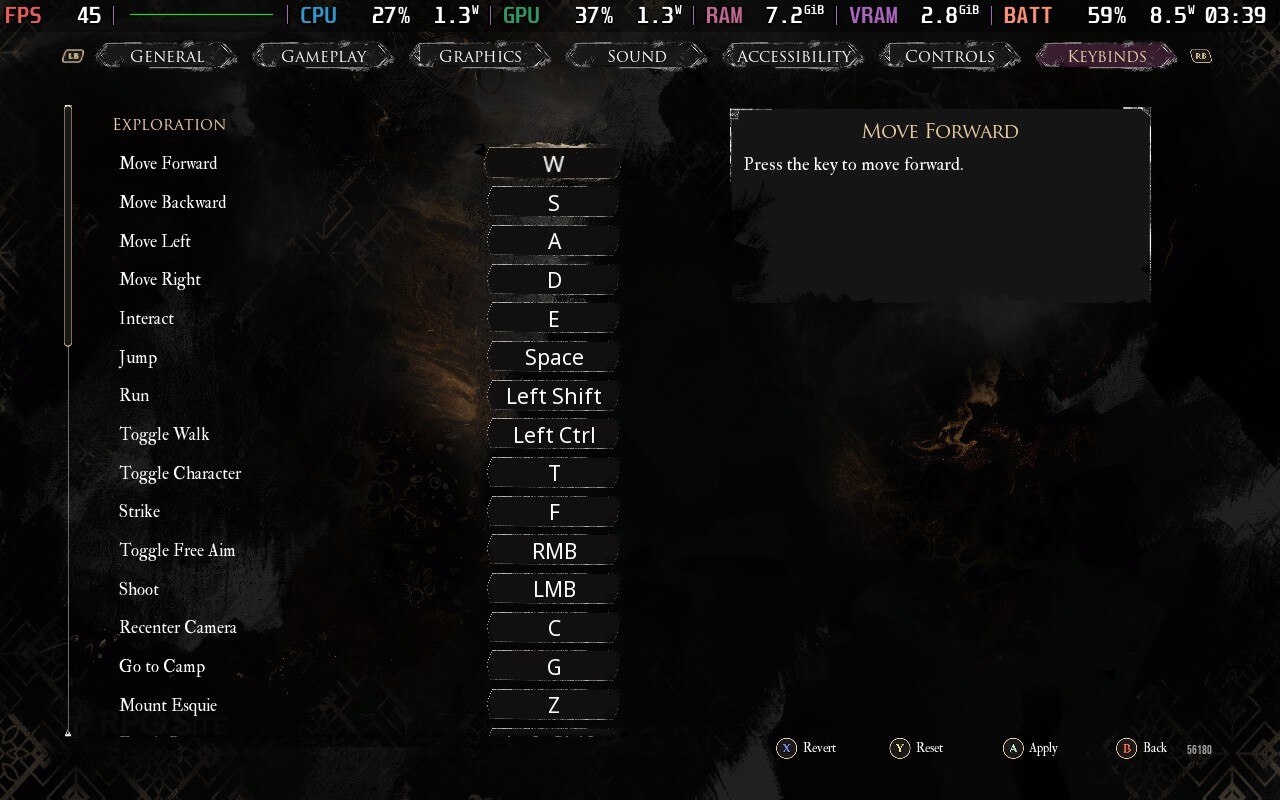
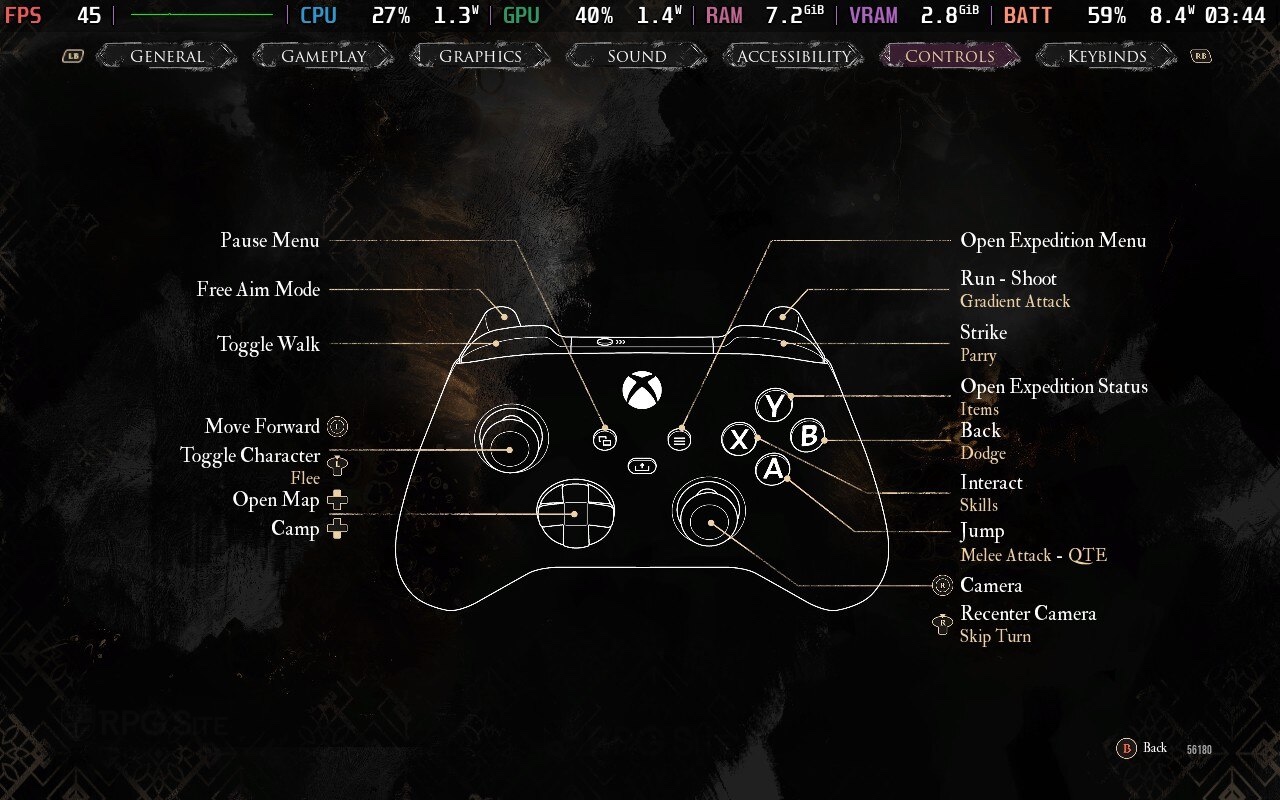
Clair Obscur: Expedition 33 is an Unreal Engine 5 game and that means it is quite demanding on all platforms, especially on handhelds. In fact, when you boot up the game for the first time, it might even install specific UE prerequisites. This happened on all three handhelds for me initially, but it might have changed with the day one patch that just went live a few hours ago as of this writing. The PC version has support for both controller and keyboard mouse input options with rebinding possible for the latter.
On the graphics side, Clair Obscur: Expedition 33 offers a few graphics presets (low, medium, high, epic), upscaling options (XeSS and TSR were the only ones visible on Steam Deck and ROG Ally), upscaling quality (ultra performance to native anti-aliasing), a frame rate cap (30, 60, 120, unlimited), a v-sync toggle, display mode (borderless, windowed, fullscreen), a screen resolution option that doesn't actually list resolution options but does list quality levels, gamma level, contrast level, and brightness level.
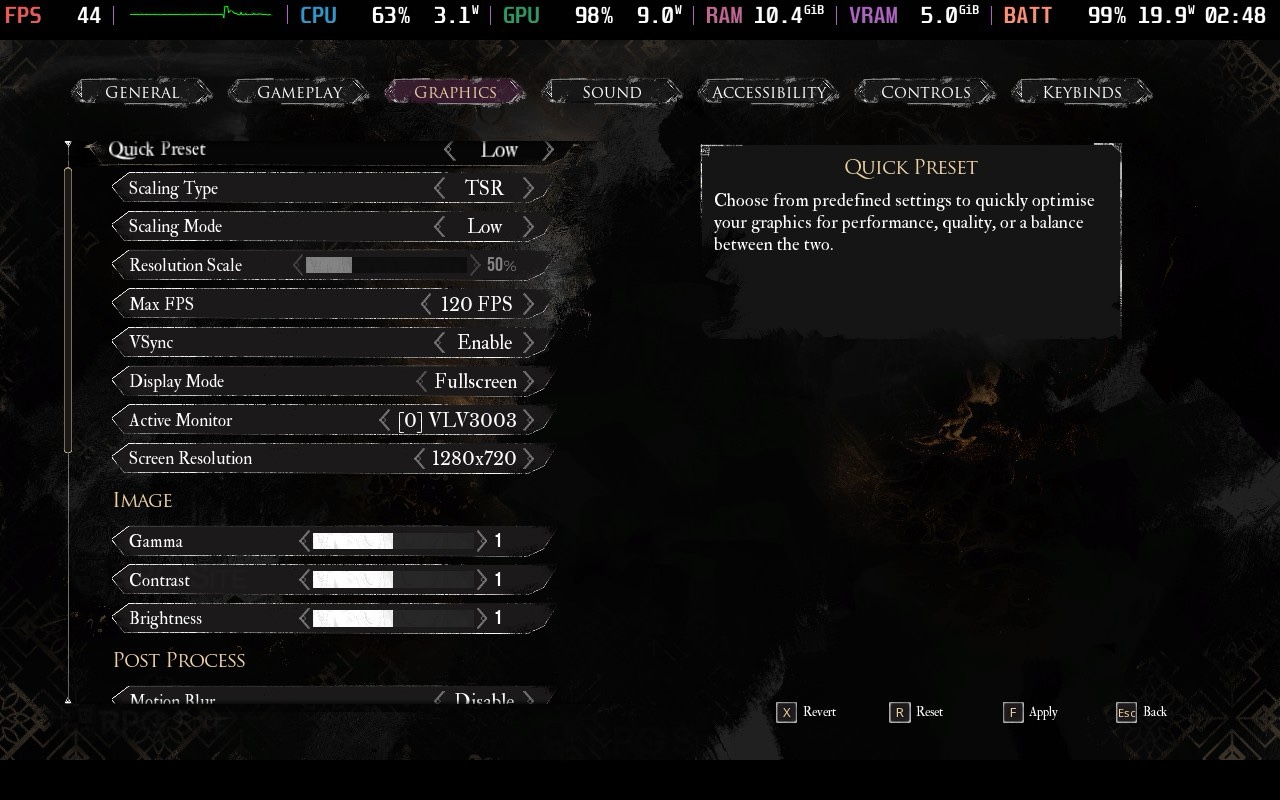
Beyond that, you can adjust post-processing settings like motion blur, film grain, chromatic aberration, and vignette with an option to disable them all as well. The actual options to adjust what normally would be under graphics are under rendering here. These let you adjust the quality for anti-aliasing, shadows, global illumination, reflection, post-processing, textures, visual effects, foliage, and shading. The image below on the left is what the game will let you change on Steam Deck out of the box. The image on the right is the graphics options you get to change after you use the launch option I go over later on in this feature.
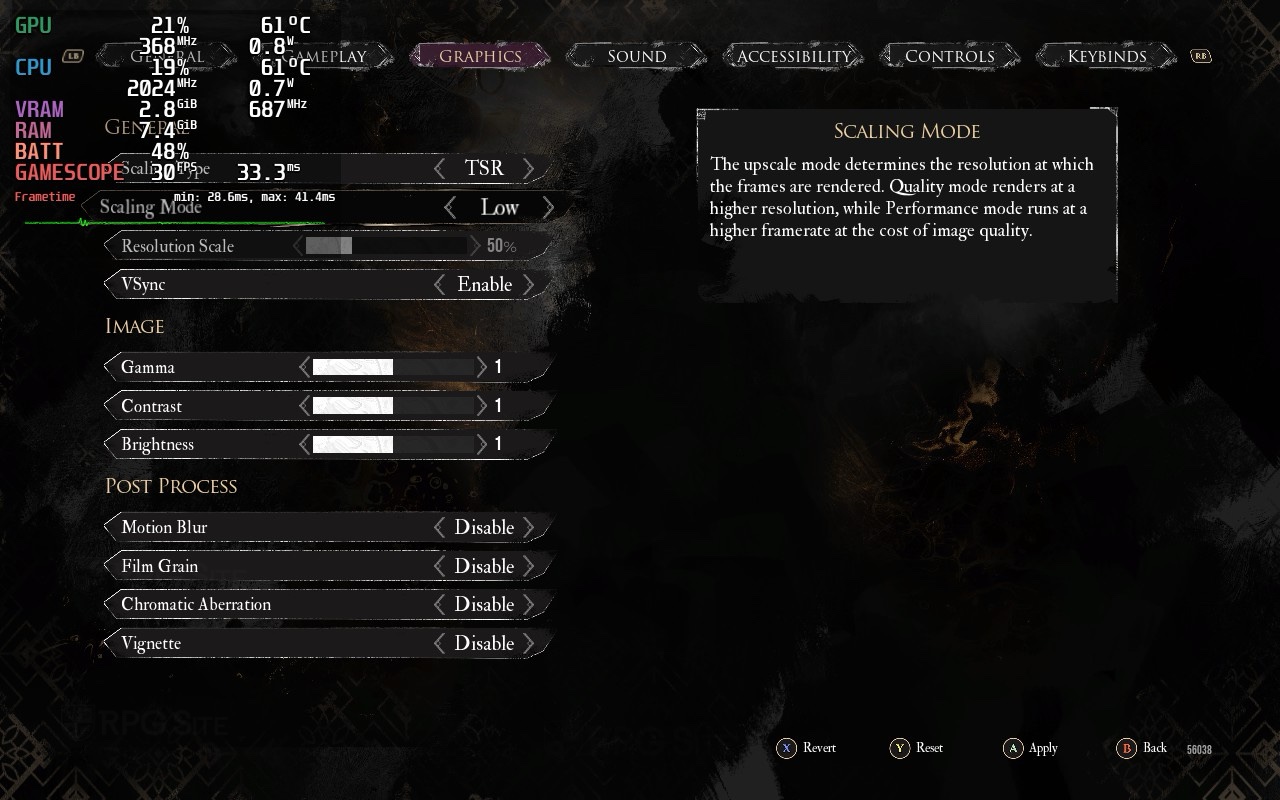
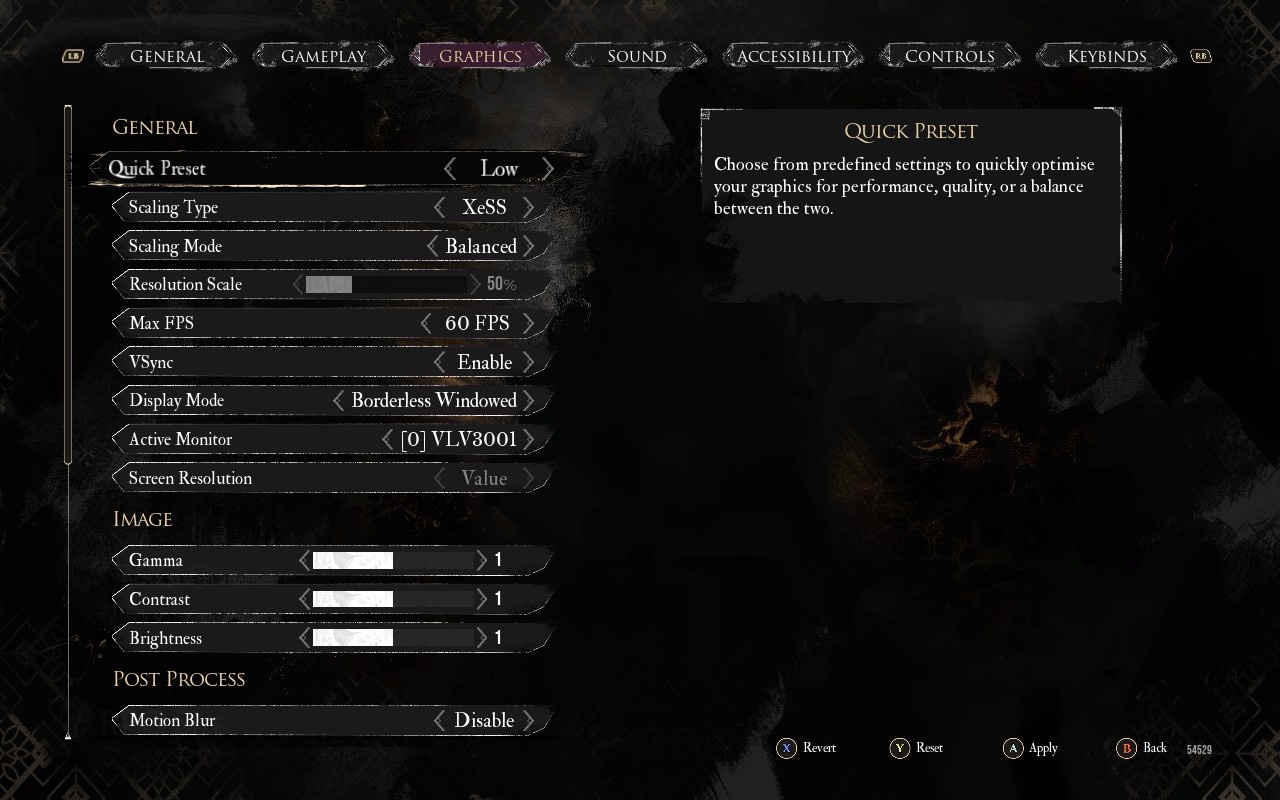
Before the day one patch, all of these options were visible on both Steam Deck and ROG Ally. After the update, the settings are almost all locked down on Steam Deck to deliver much better performance with more cutbacks. I'll get into these when I cover my Clair Obscur: Expedition 33 Steam Deck recommended settings, but for now I just wanted to make a note if you're confused as to why many of the listed options above are not present on Steam Deck for you.
Clair Obscur: Expedition 33 Steam Deck Impressions on both OLED and LCD models
There are two parts to my impressions. The first is how Clair Obscur: Expedition 33 felt before the day one patch when I spent time tweaking settings for the best possible experience and the second is with the day one patch that locks out most of the settings. I did my testing on both the Steam Deck LCD and OLED models here. Since everyone who plays the game at launch on Steam will get the day one patch (or later) experience, I'm including my thoughts on the game pre-patch just as a point of comparison.
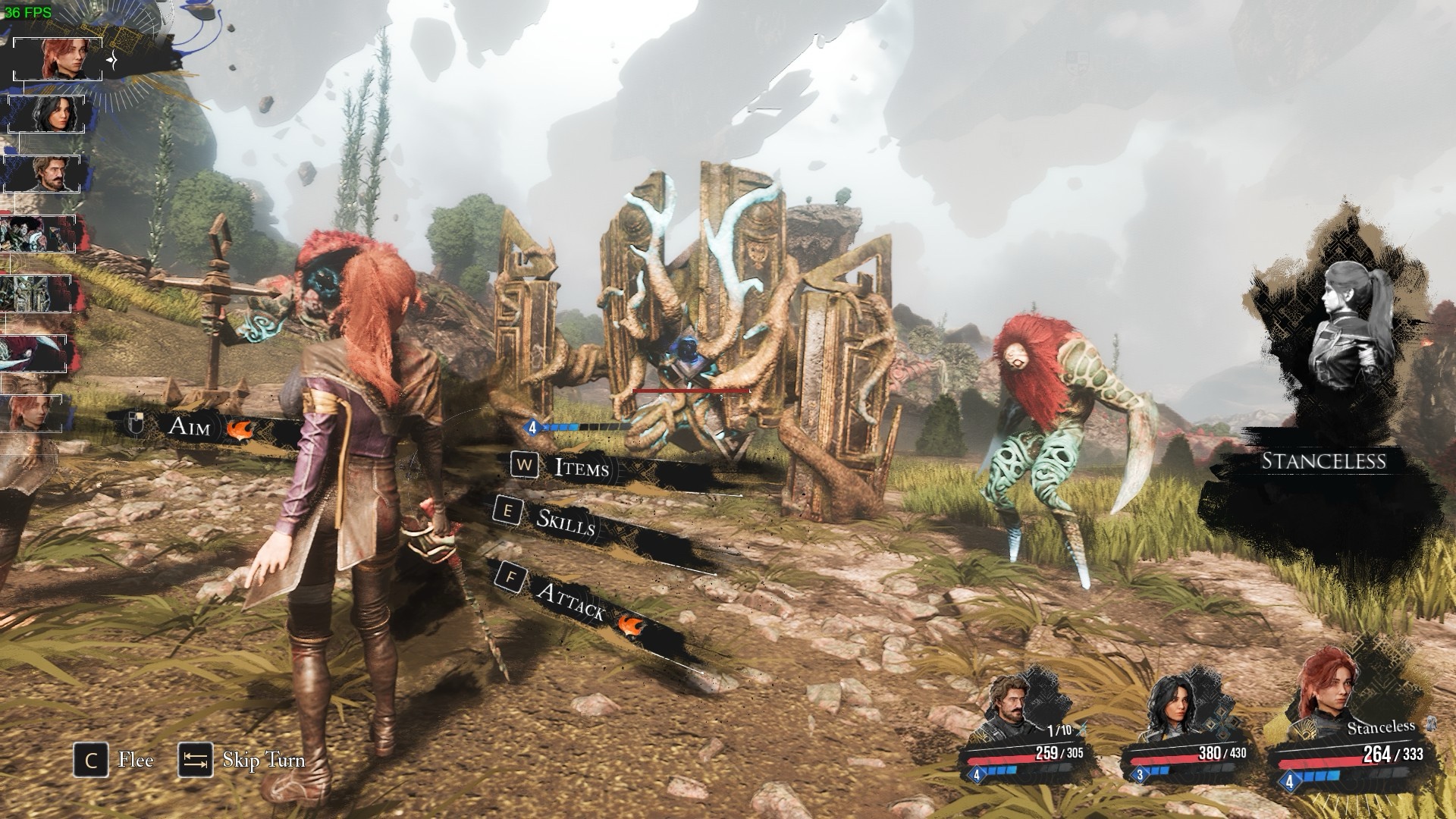
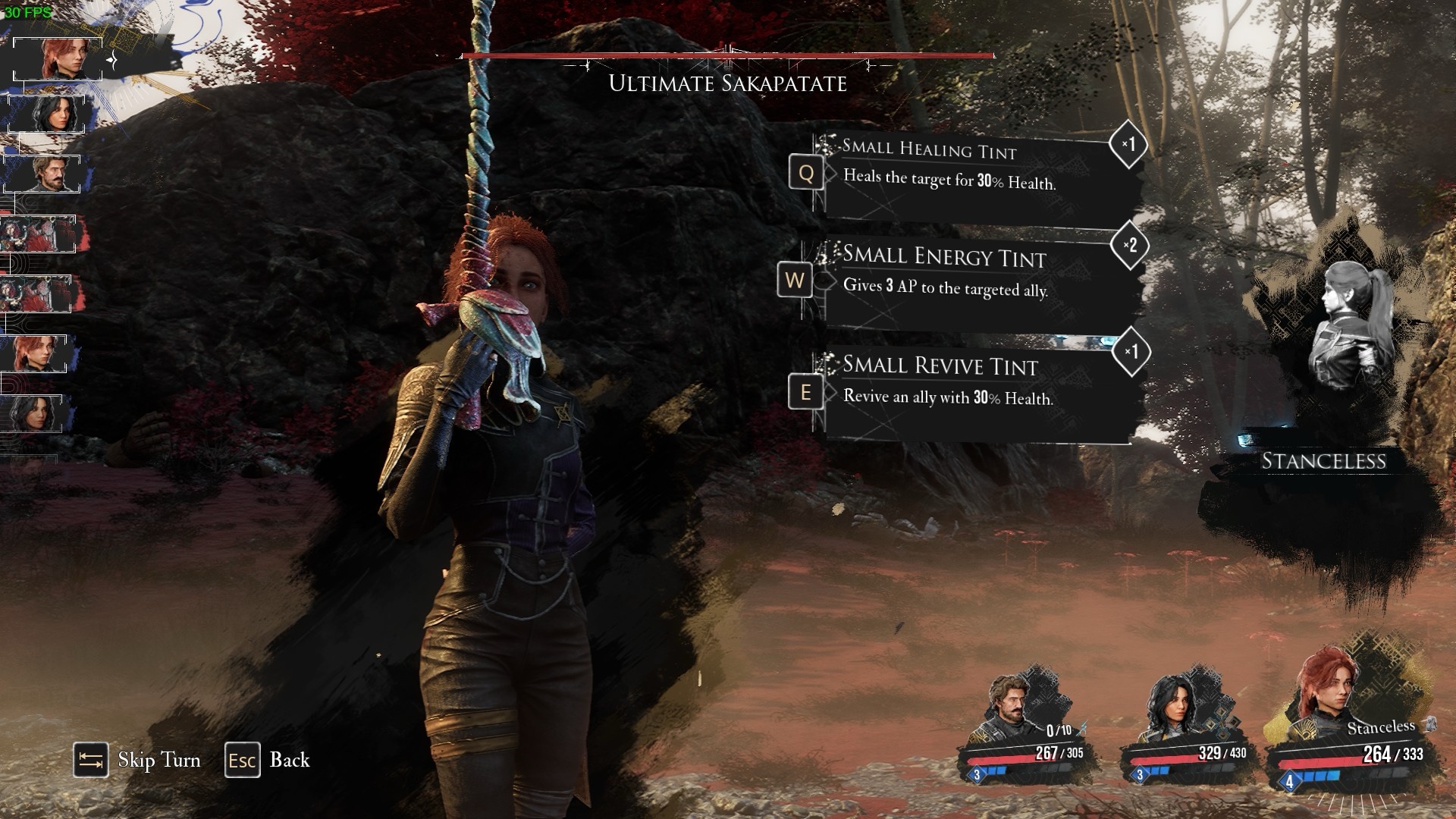
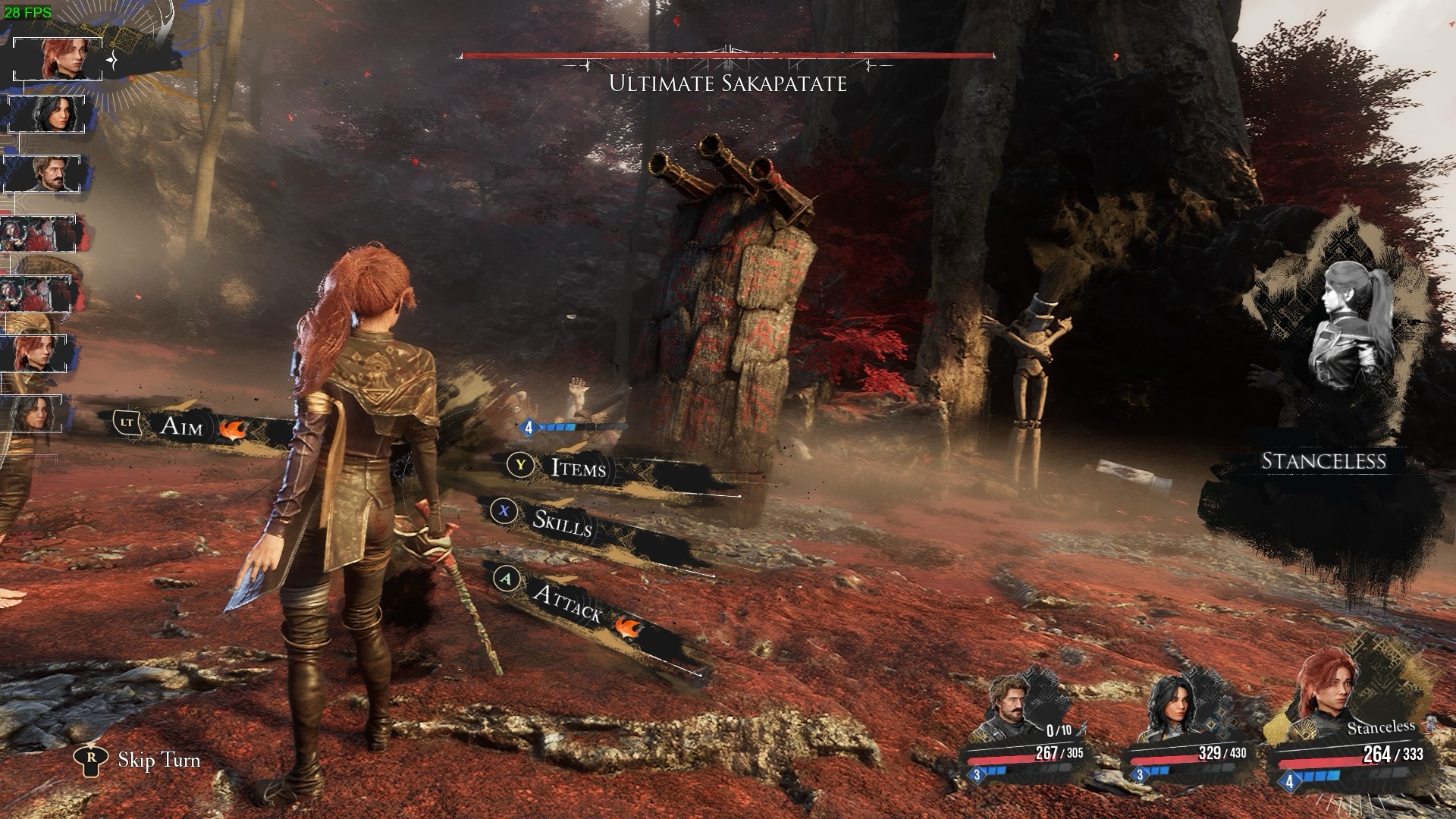
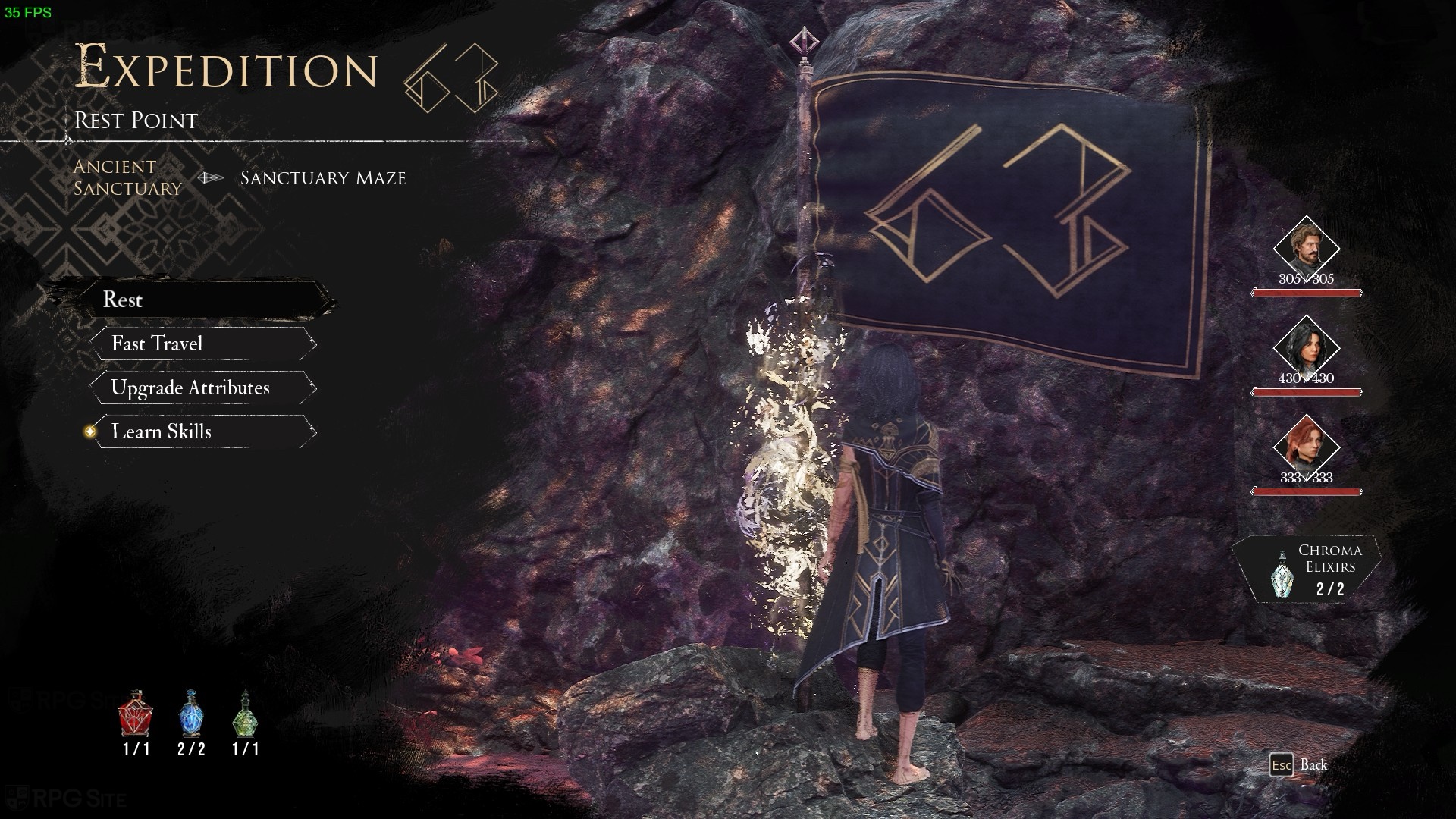
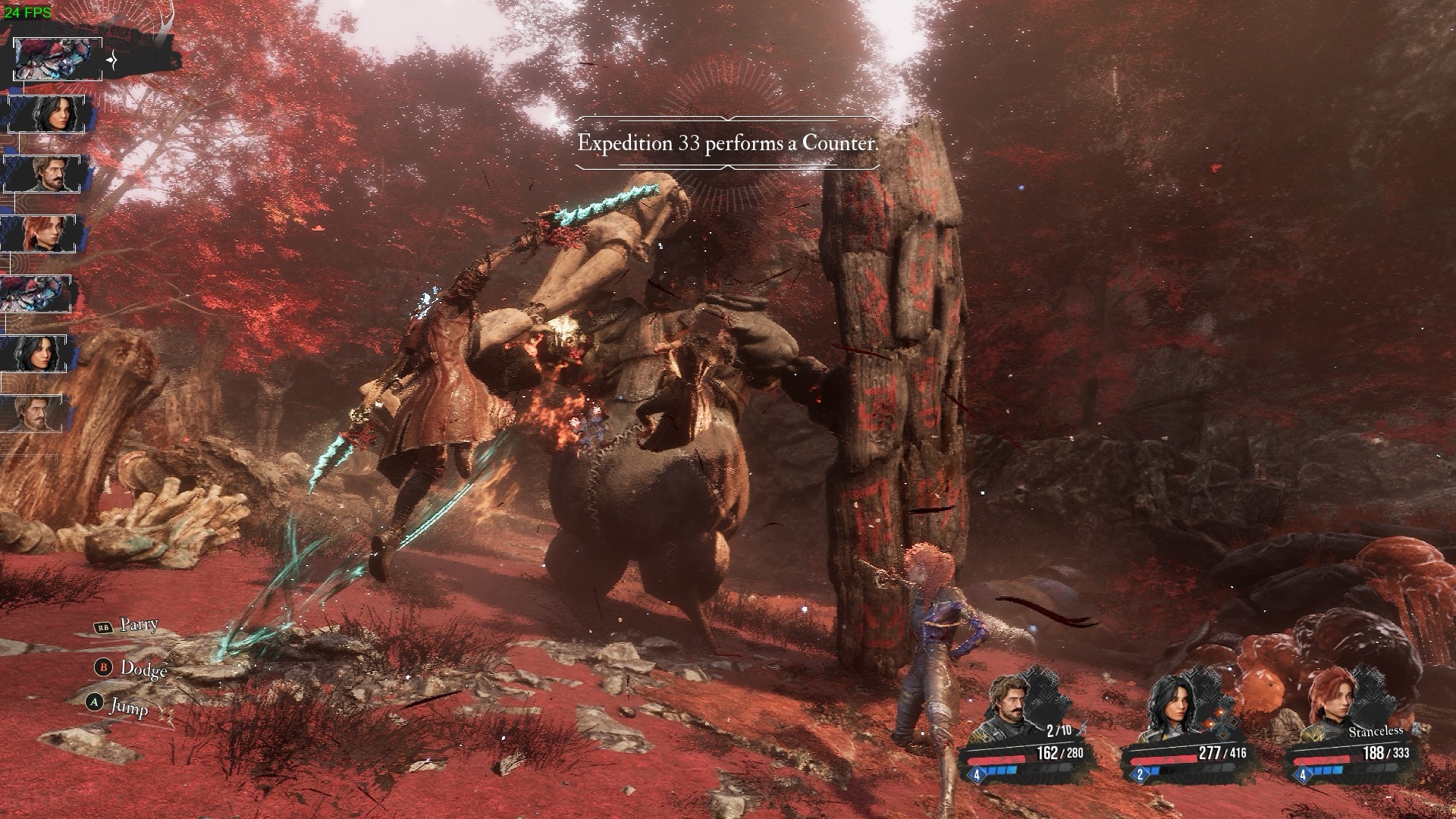
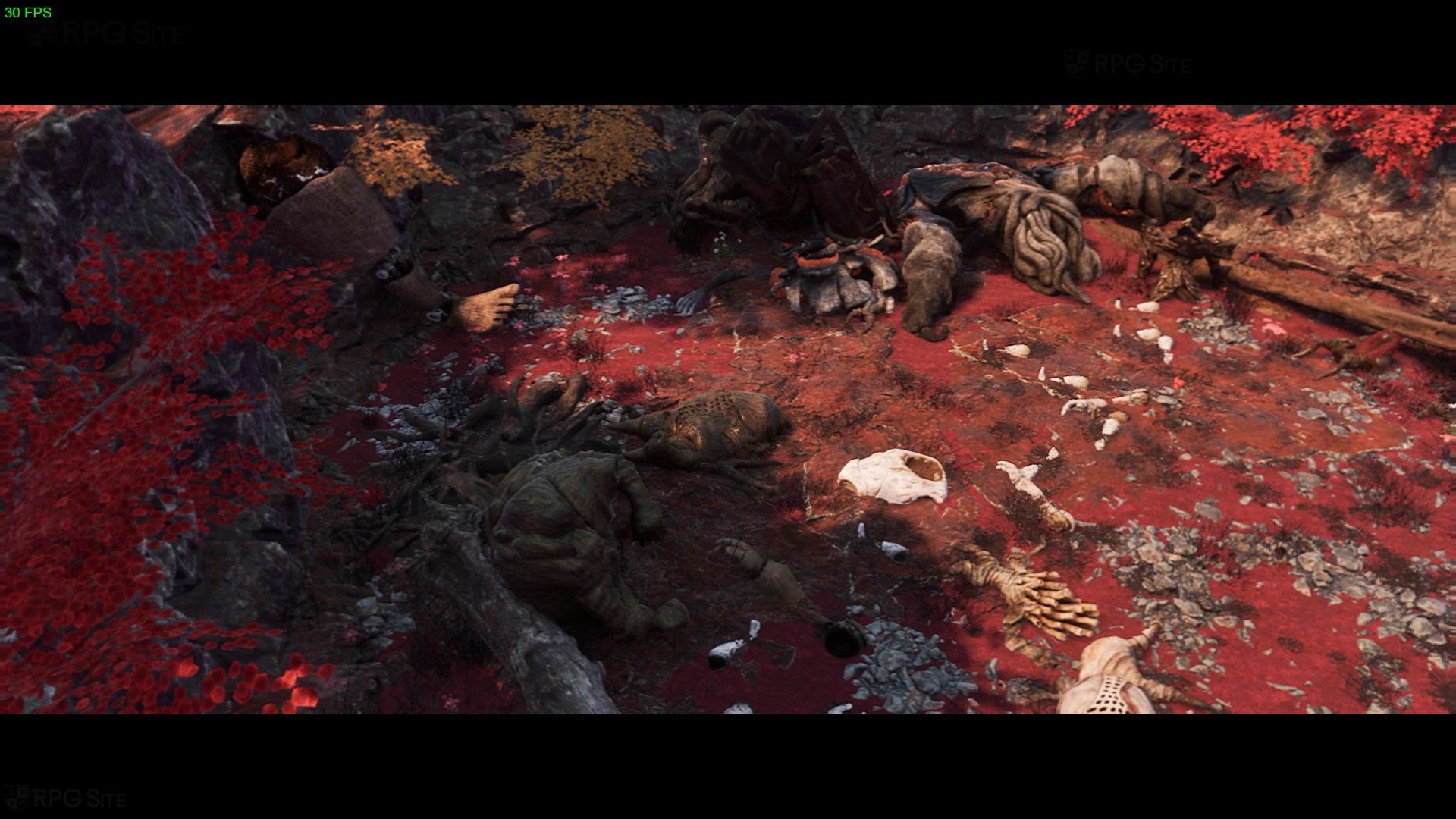
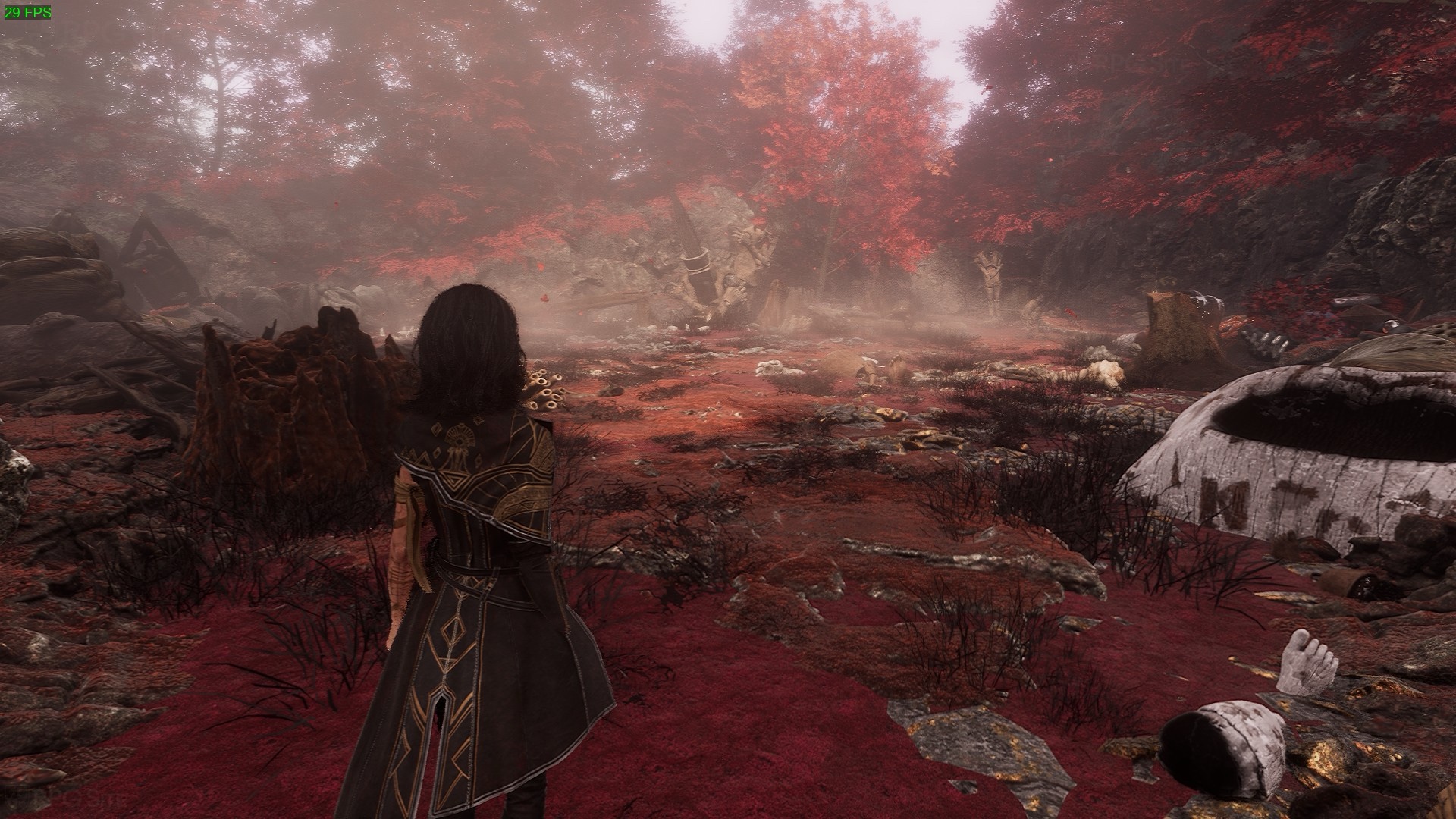
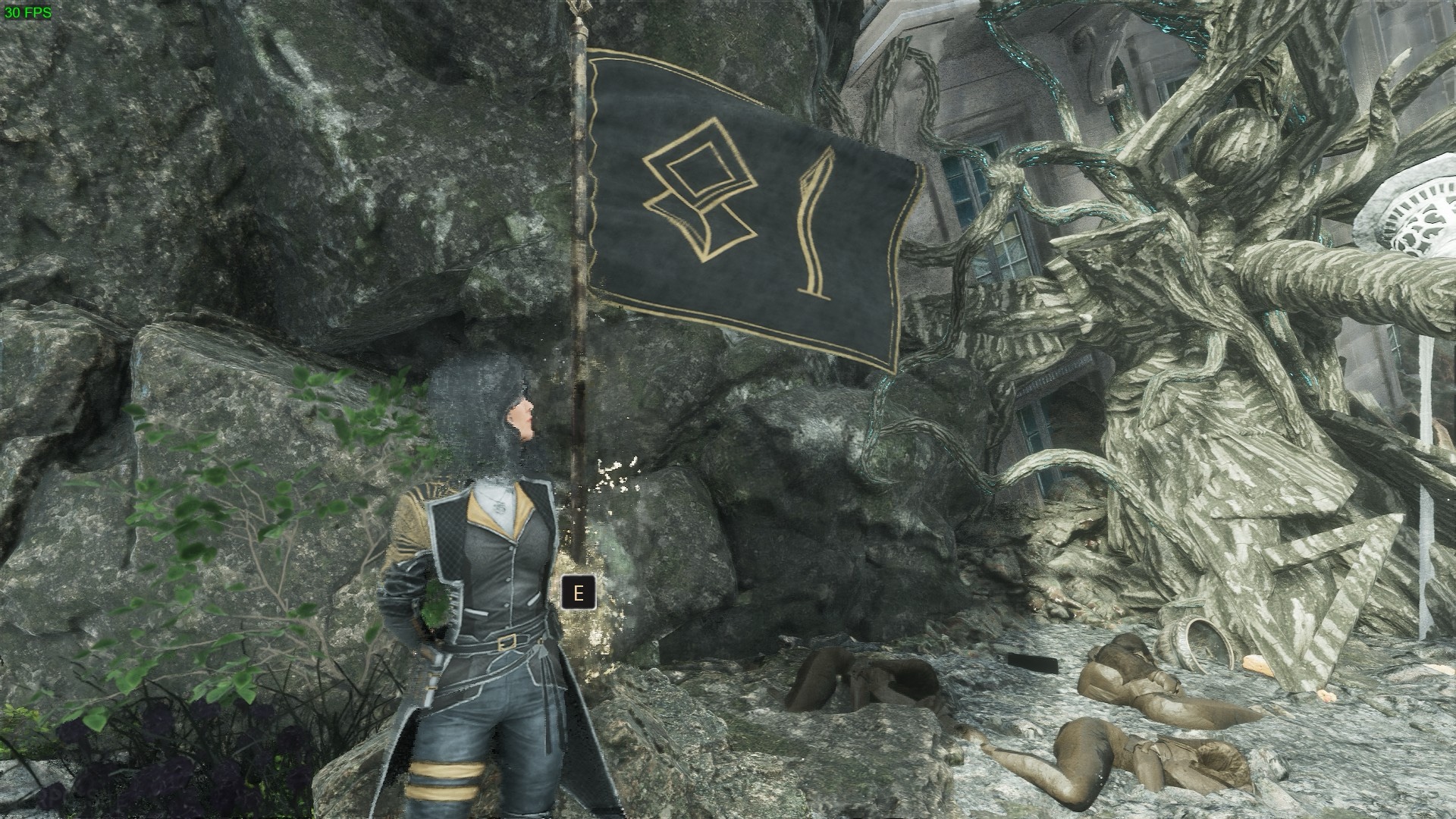
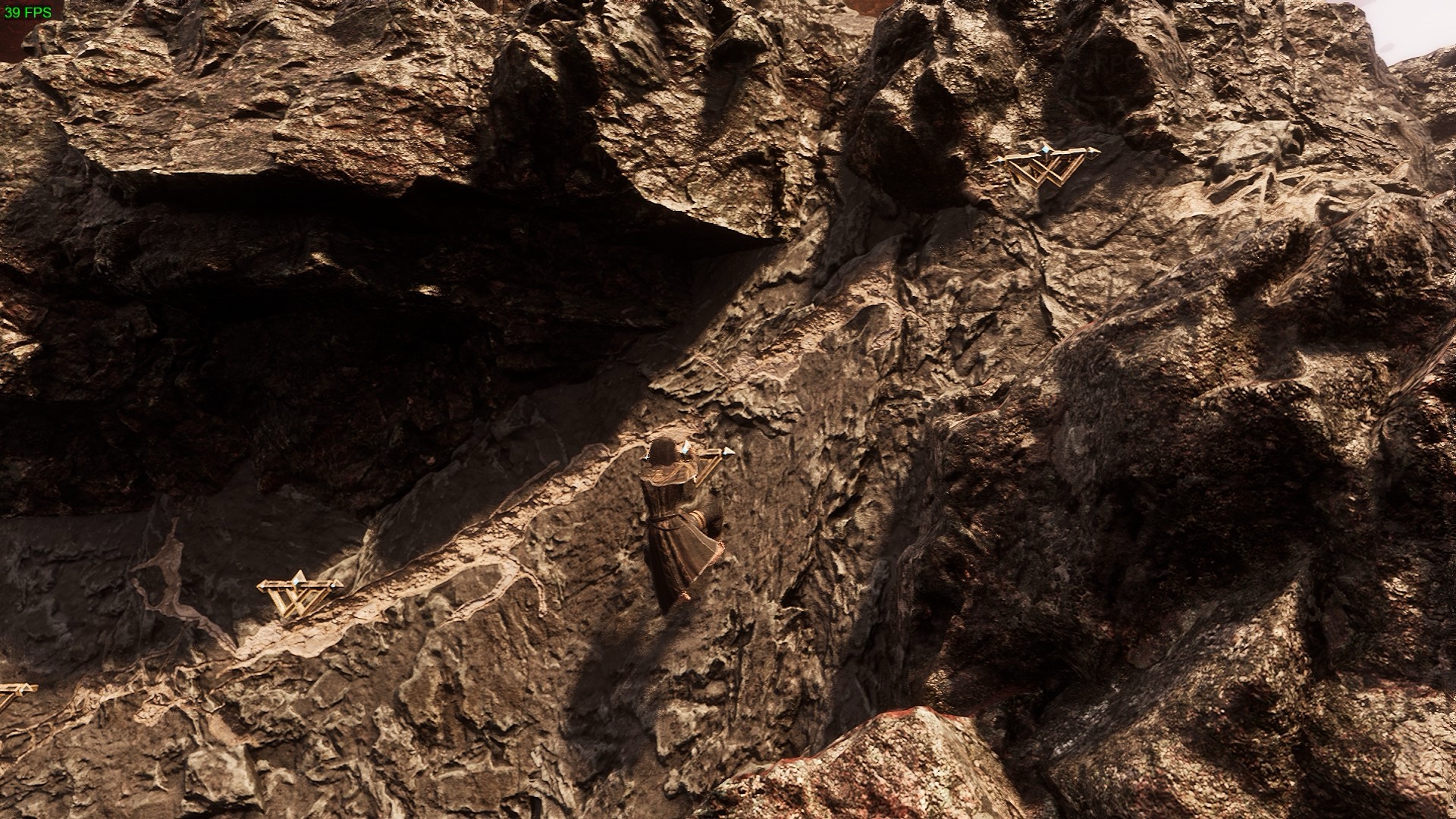
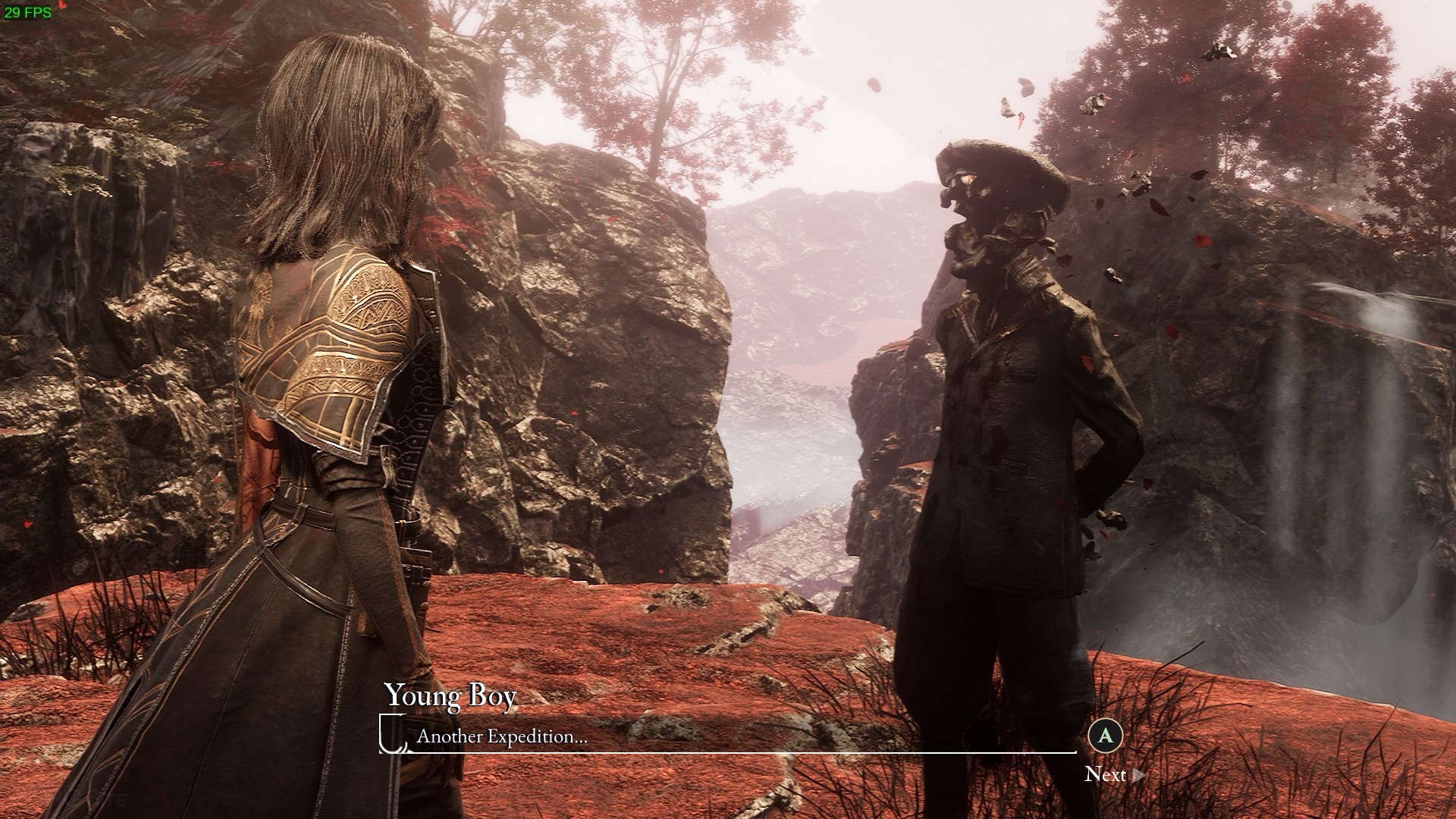
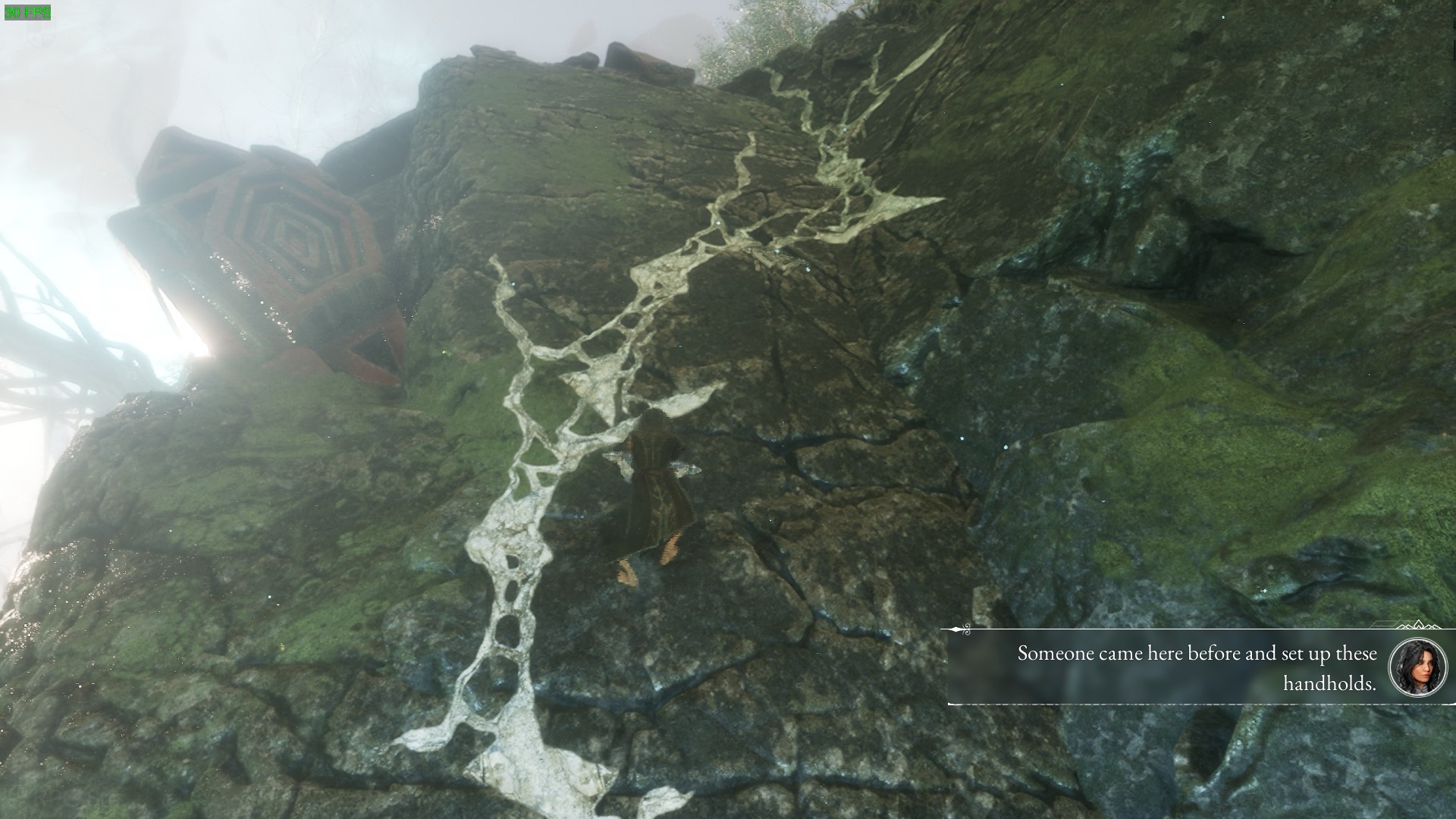
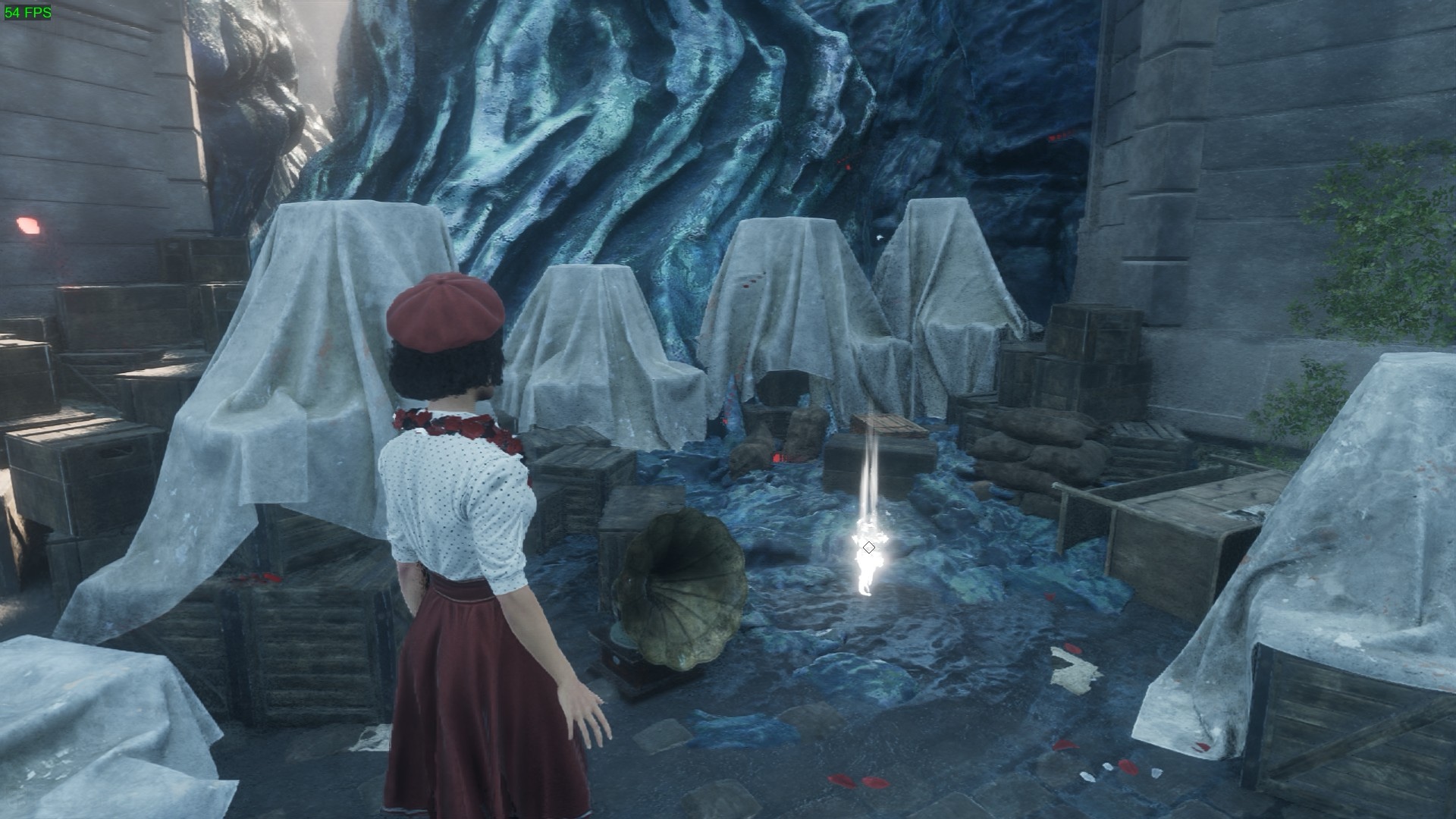
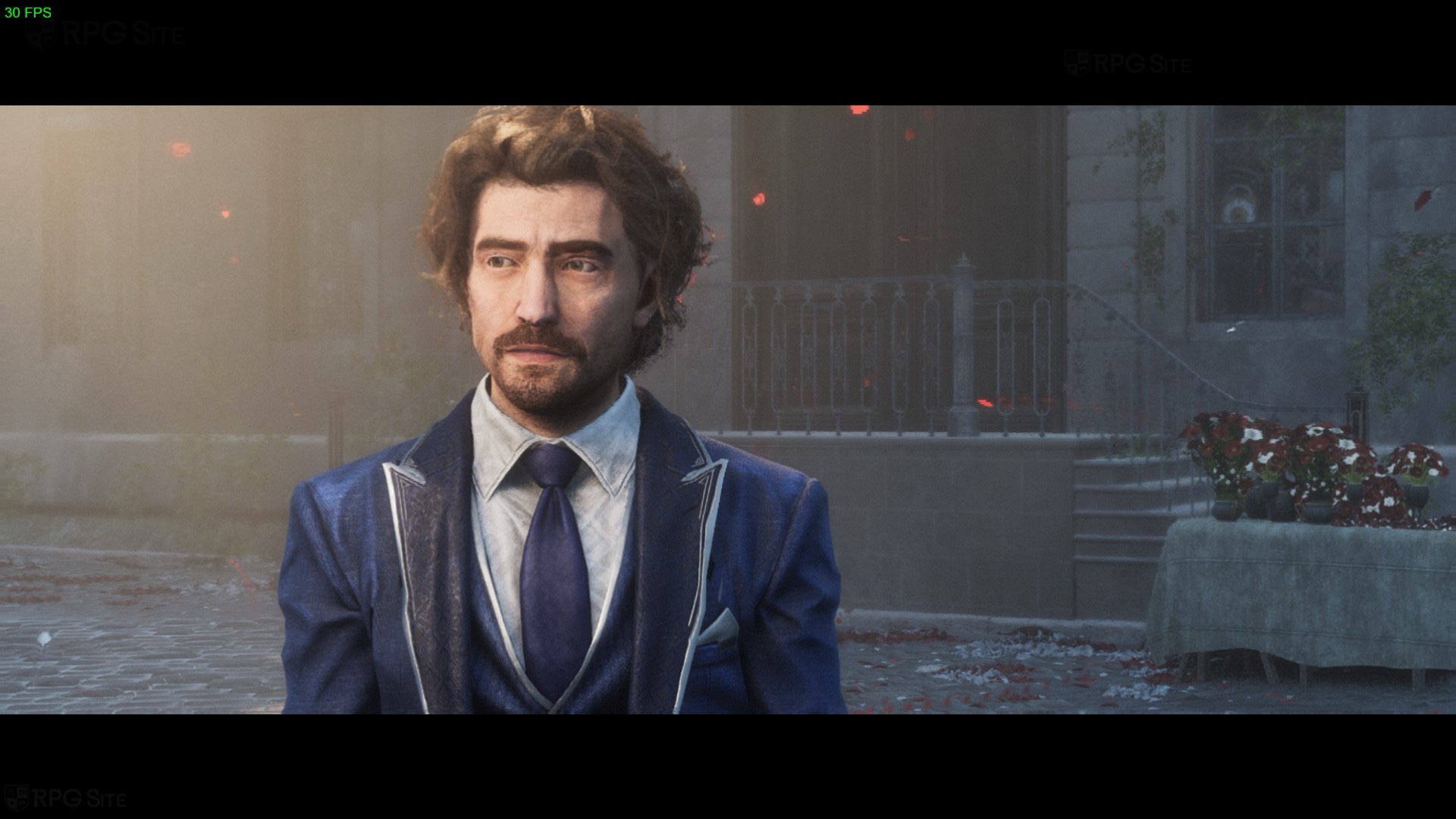
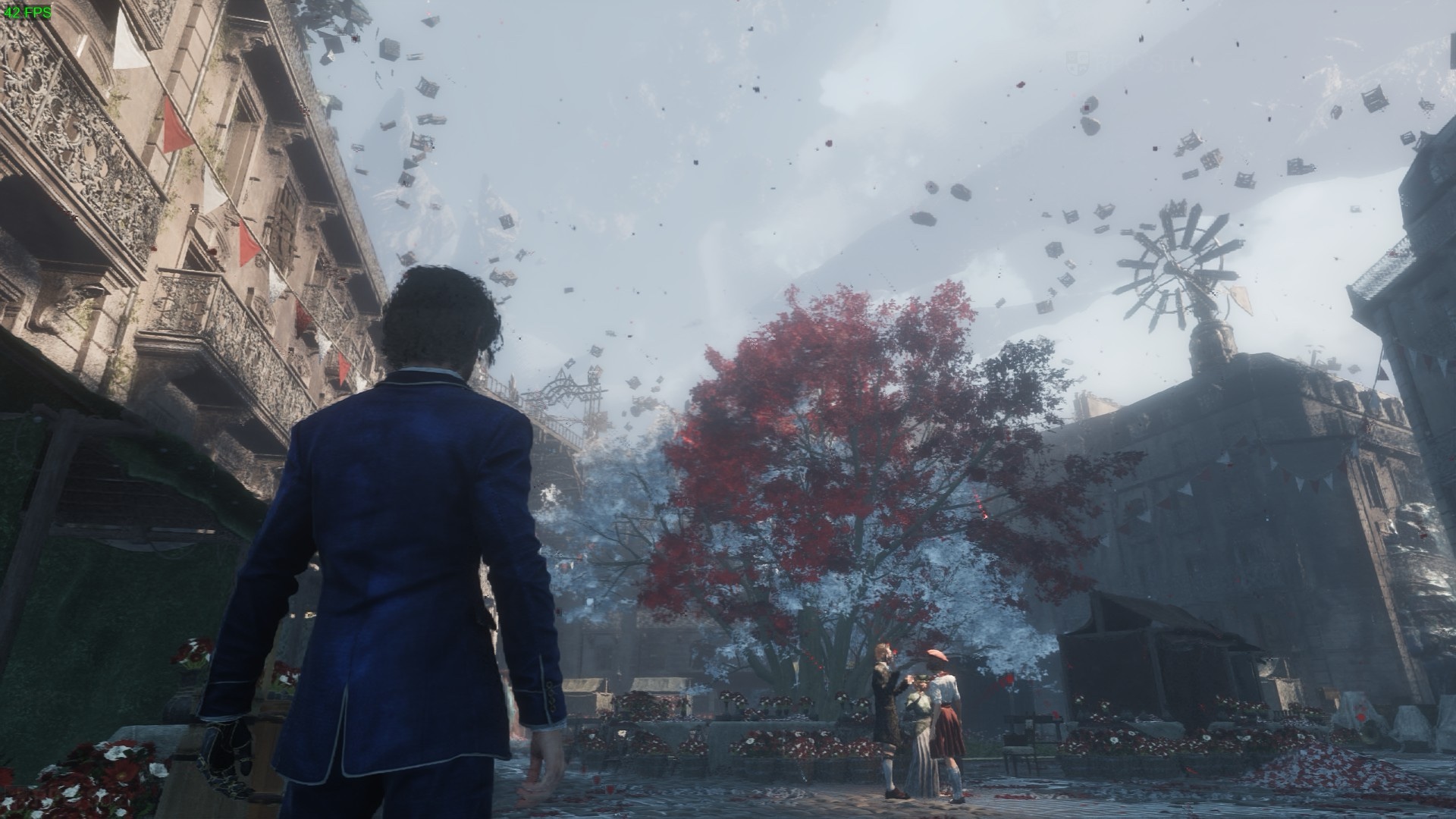
Clair Obscur: Expedition 33 is marked as Steam Deck Unsupported by Valve, but it actually is more playable than many Steam Deck Verified games I've tested recently. Given the gorgeous visuals, you'd think cutting all of that down to deliver an experience on Steam Deck might not be worth it, but I view this just like I did with Dynasty Warriors: Origins. The game can scale up and look fantastic on high-end systems, but it also scales down well and delivers a decent to very good experience on handhelds like the Steam Deck. The screenshots below are from my Steam Deck OLED across different aspect ratios and even when played docked on my 1440p monitor.
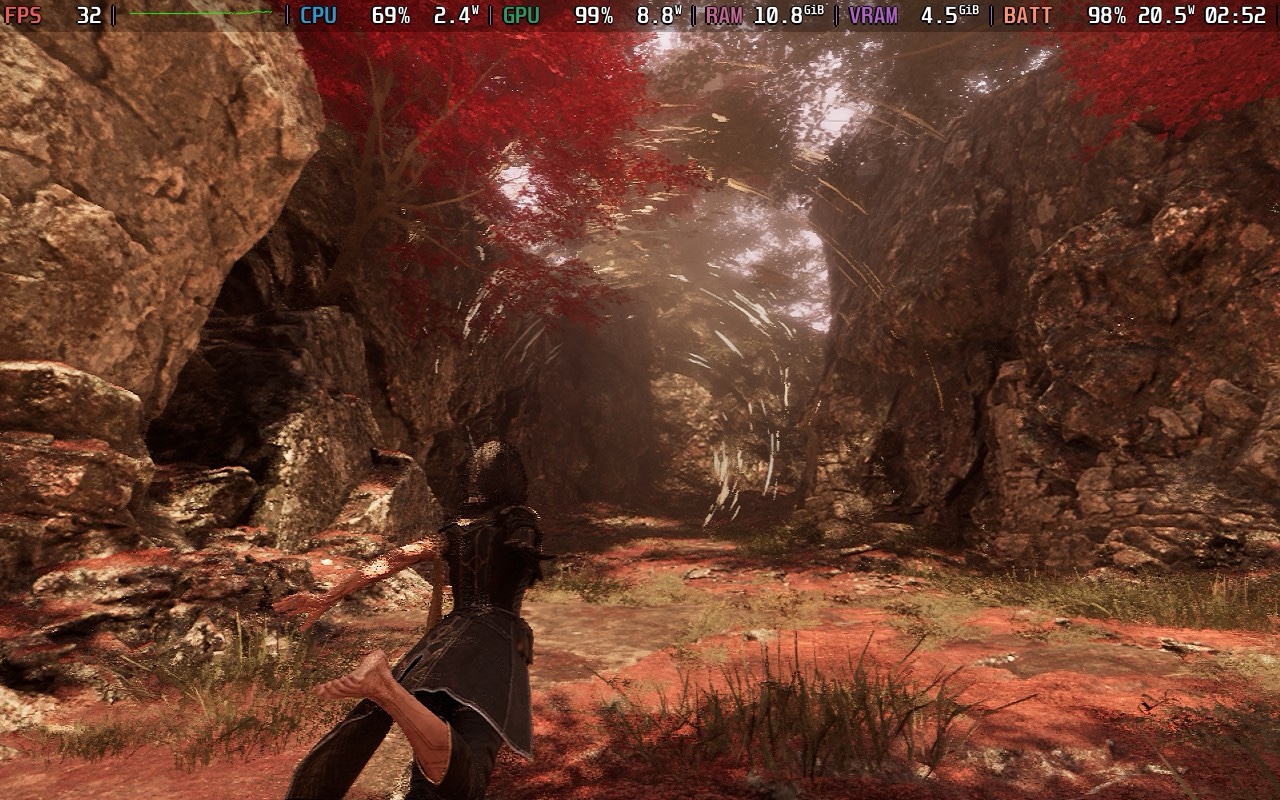
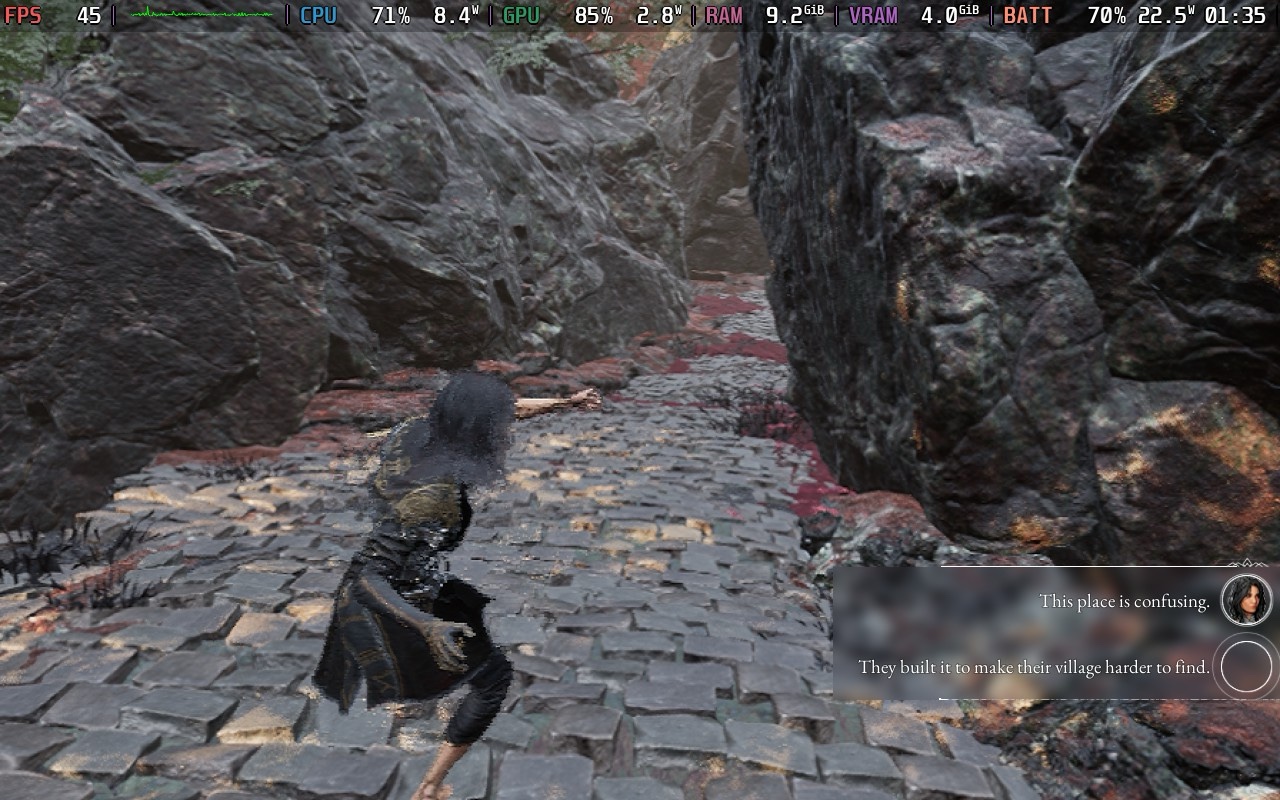
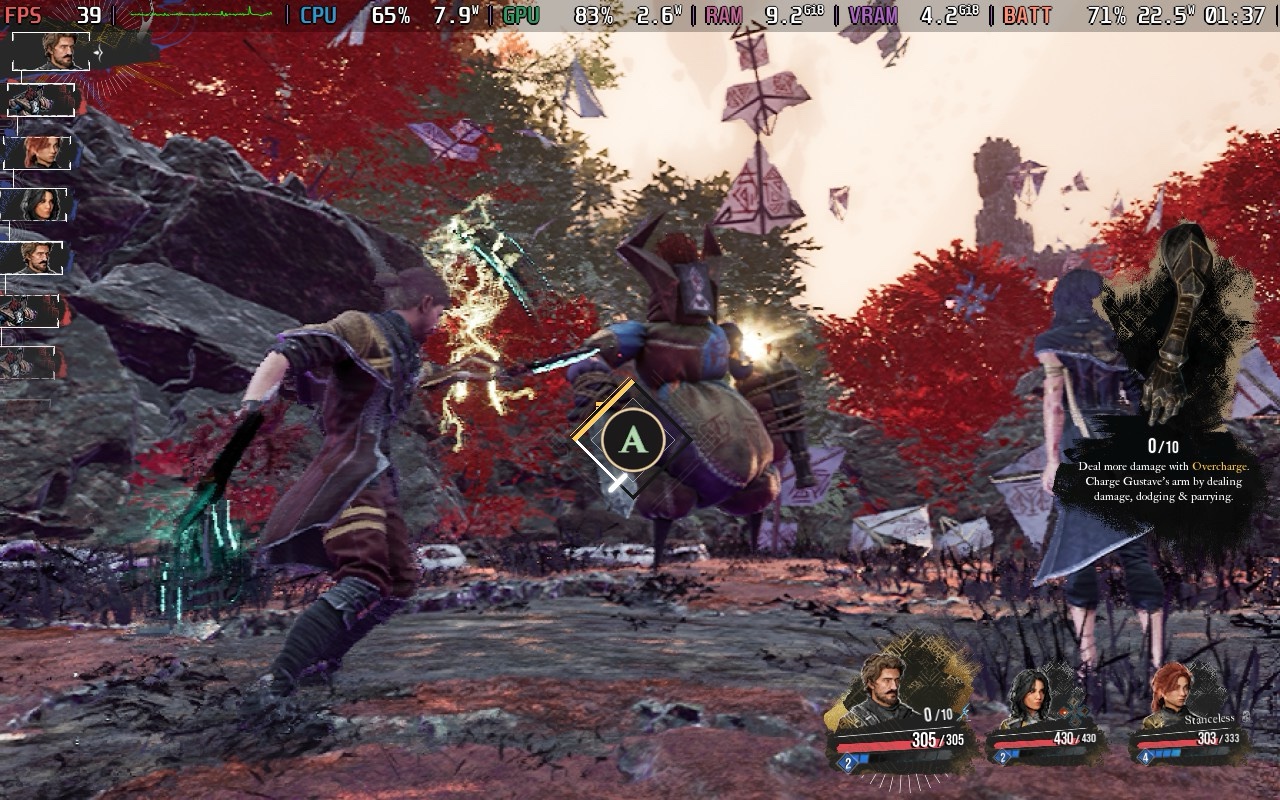
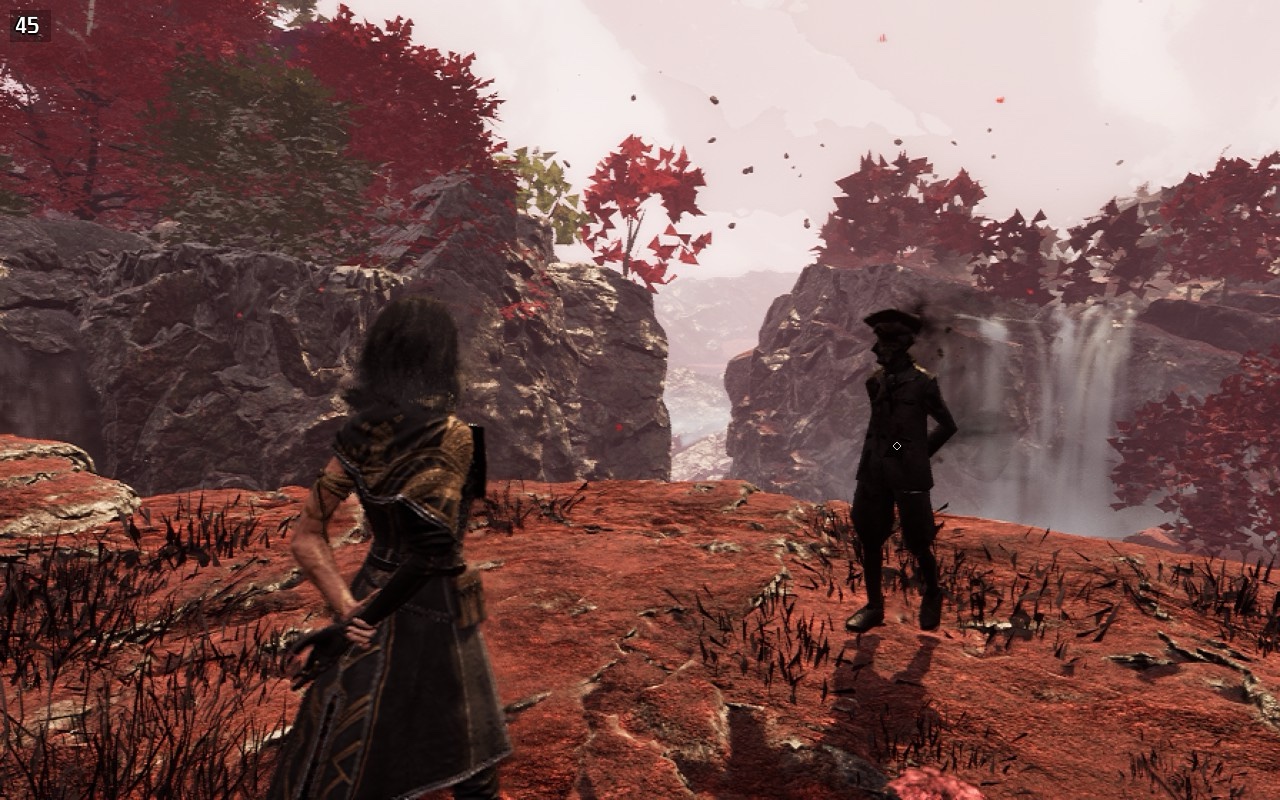
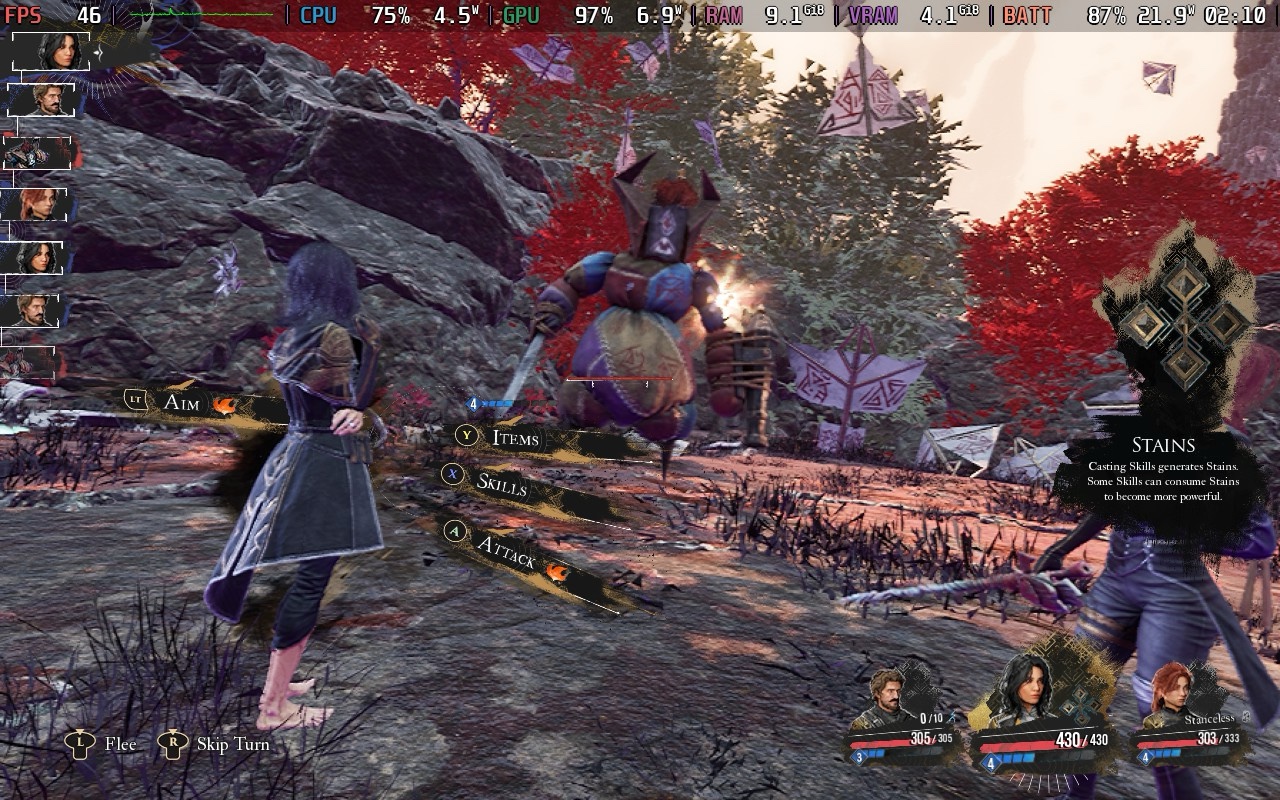
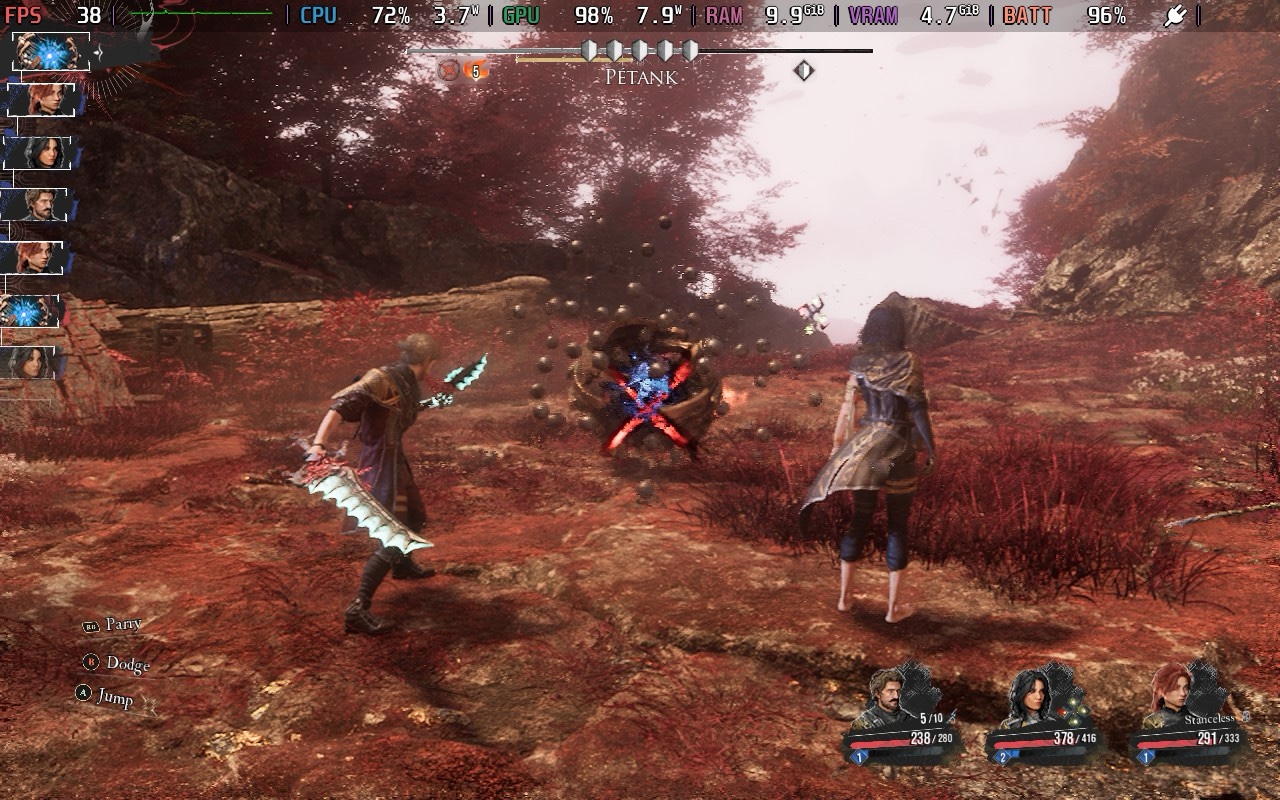
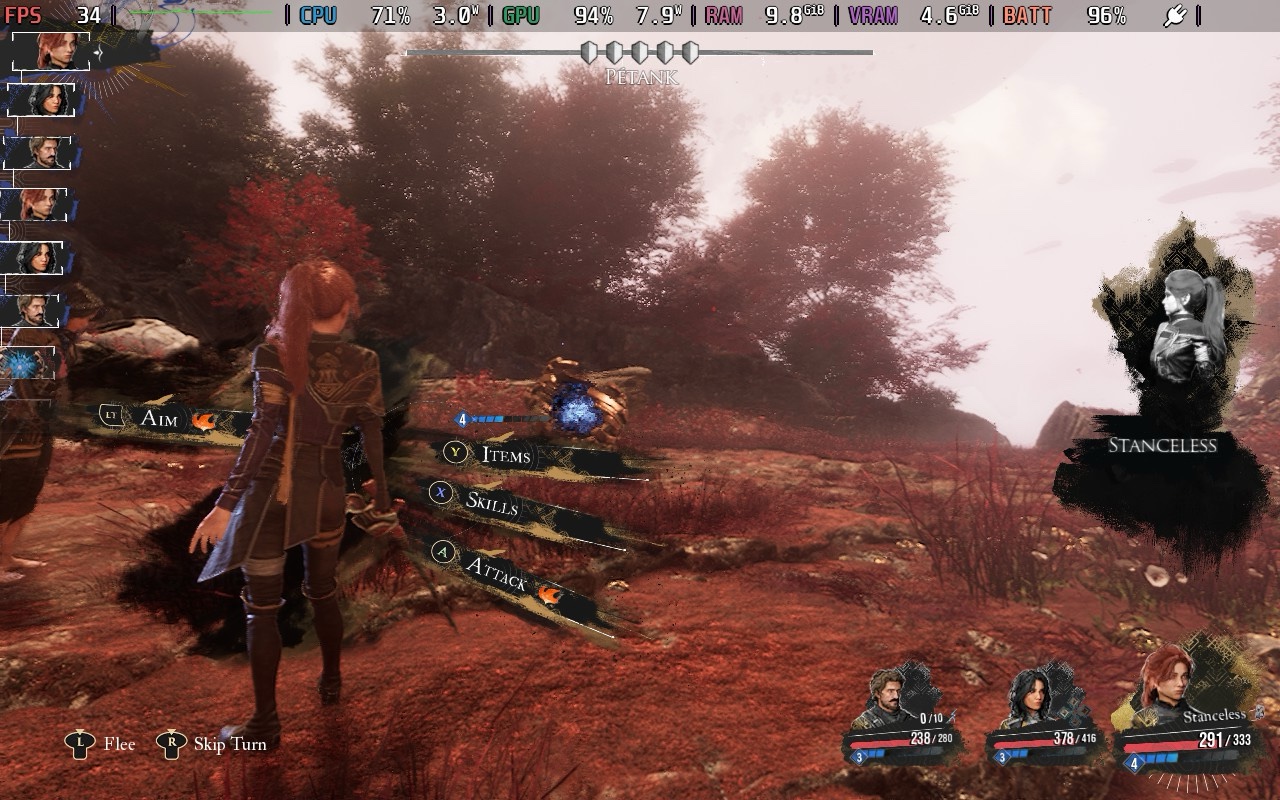
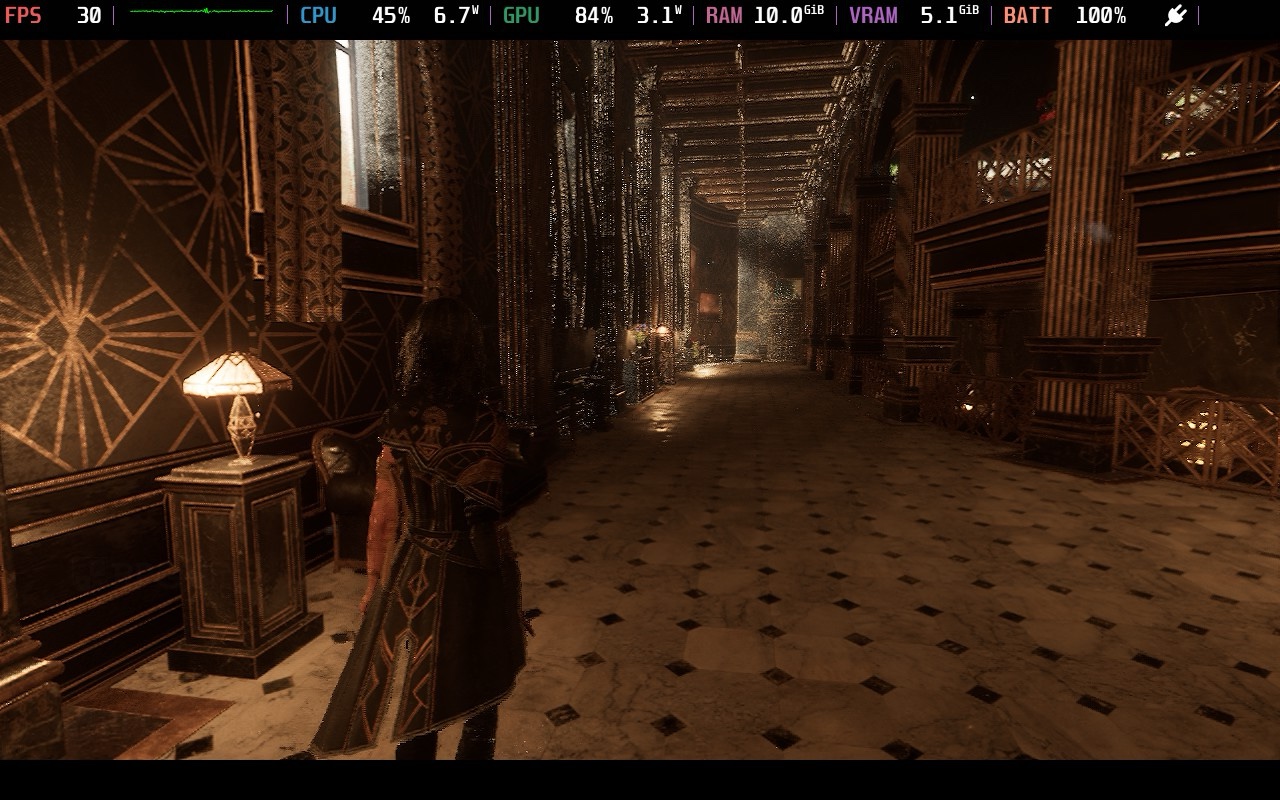
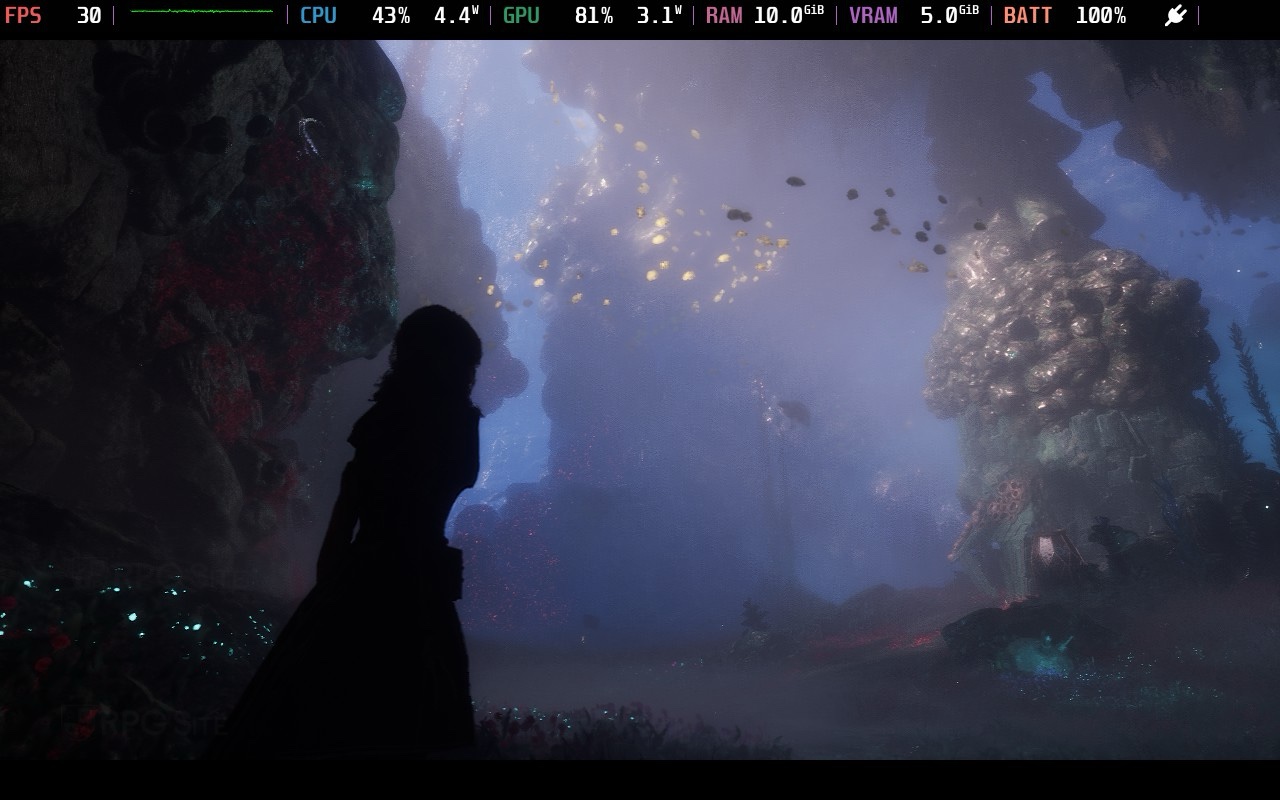
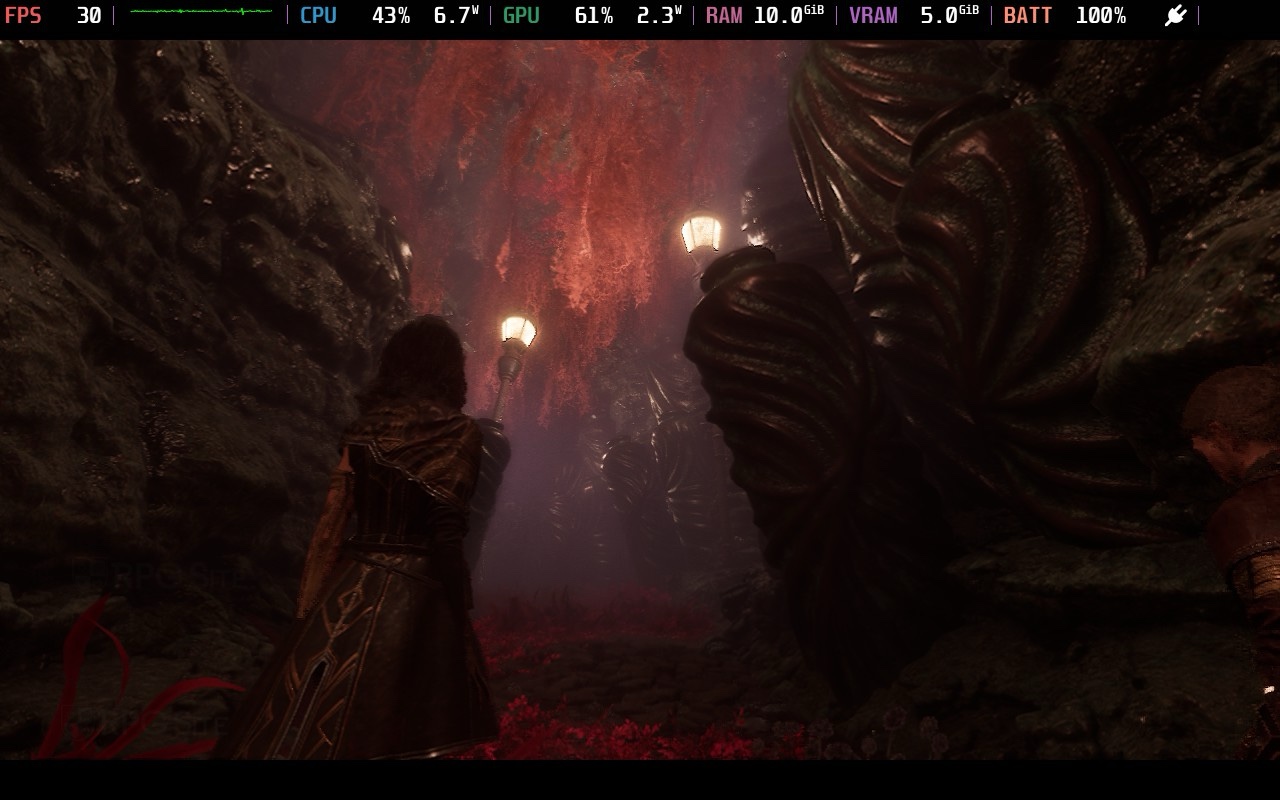
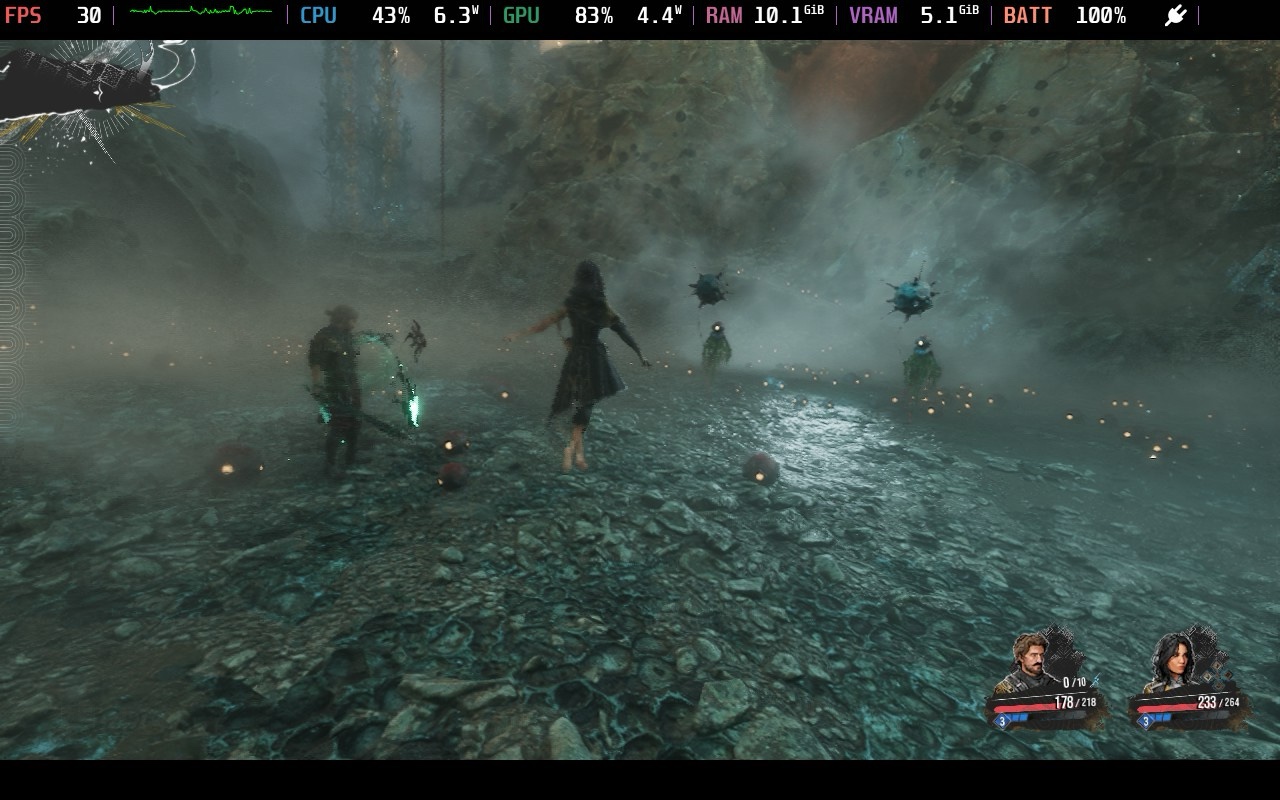
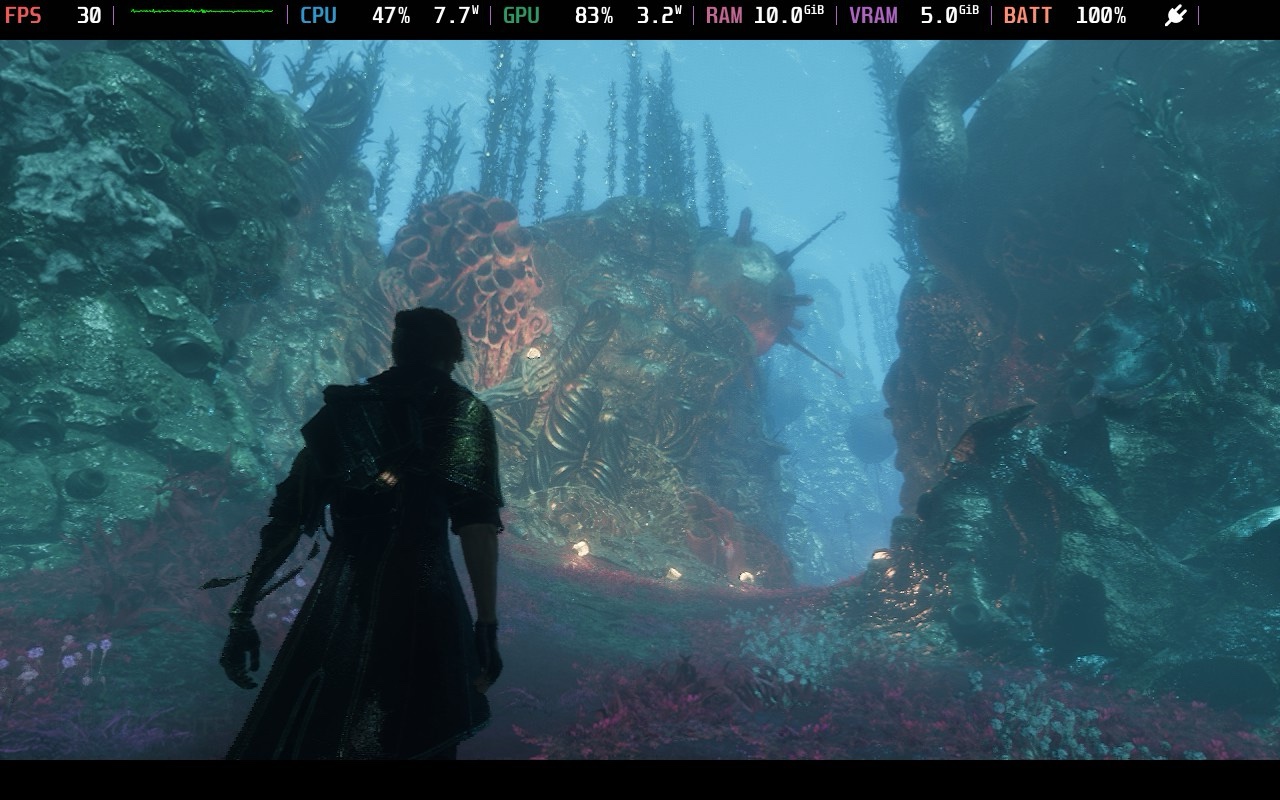
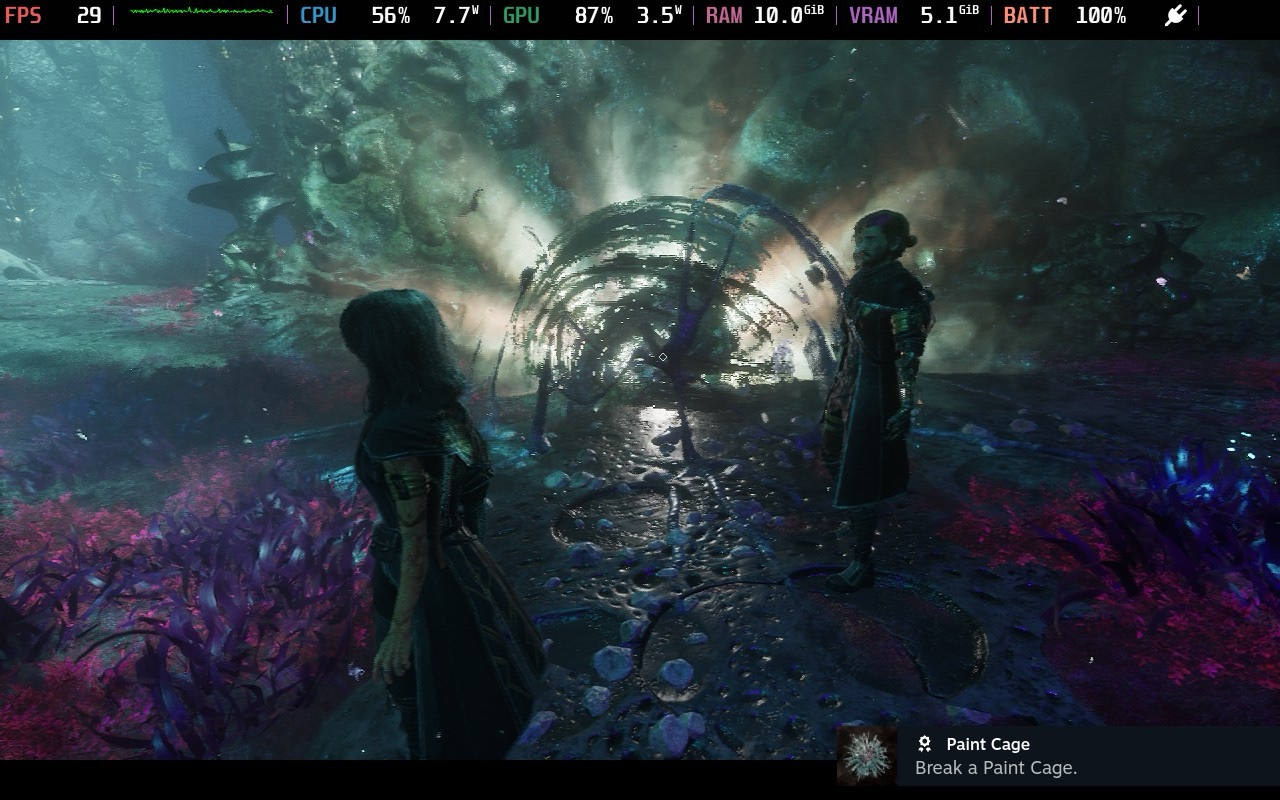
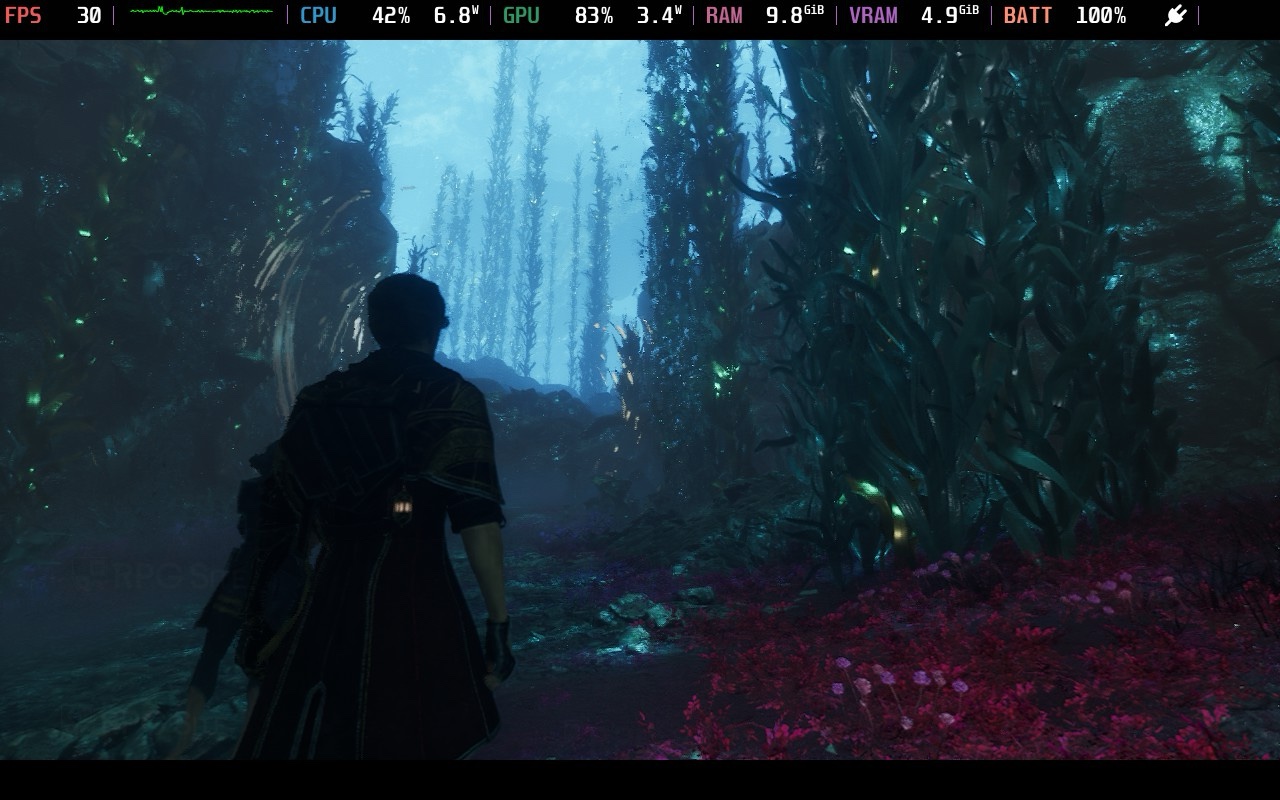
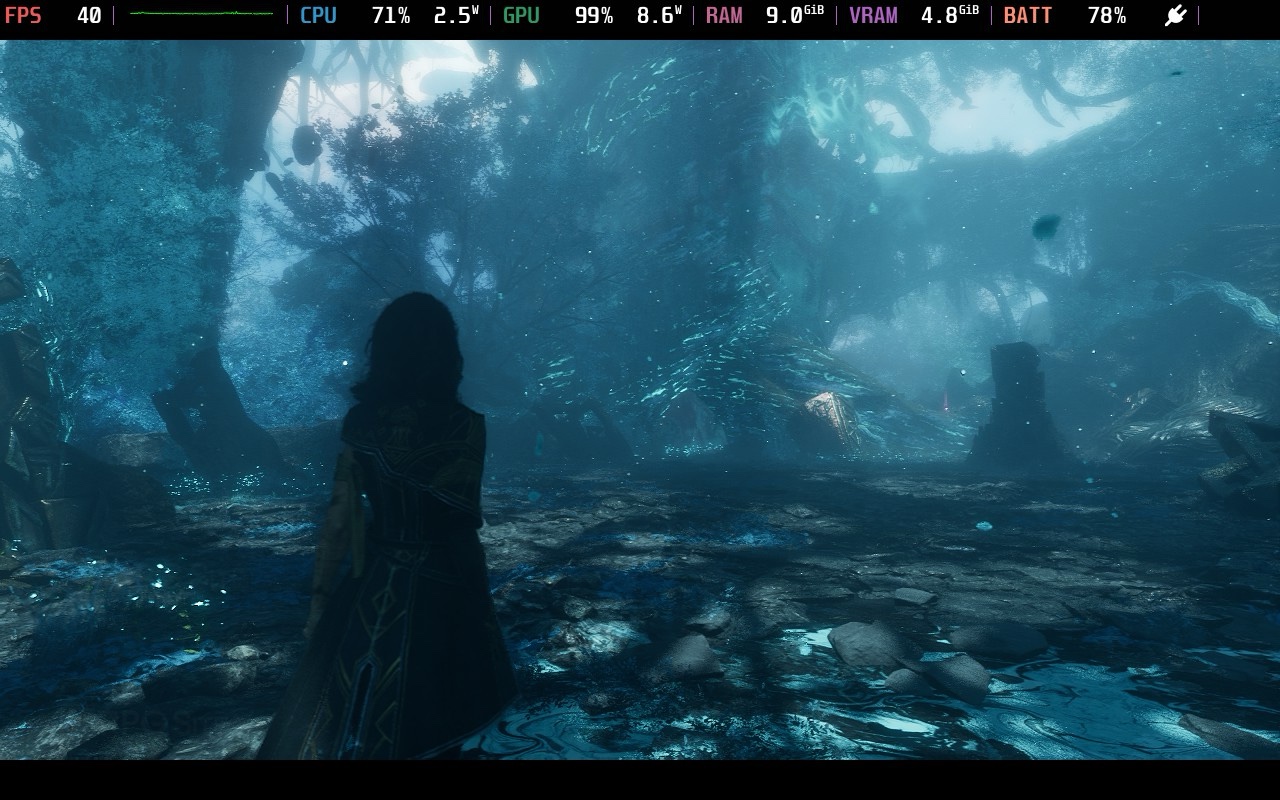
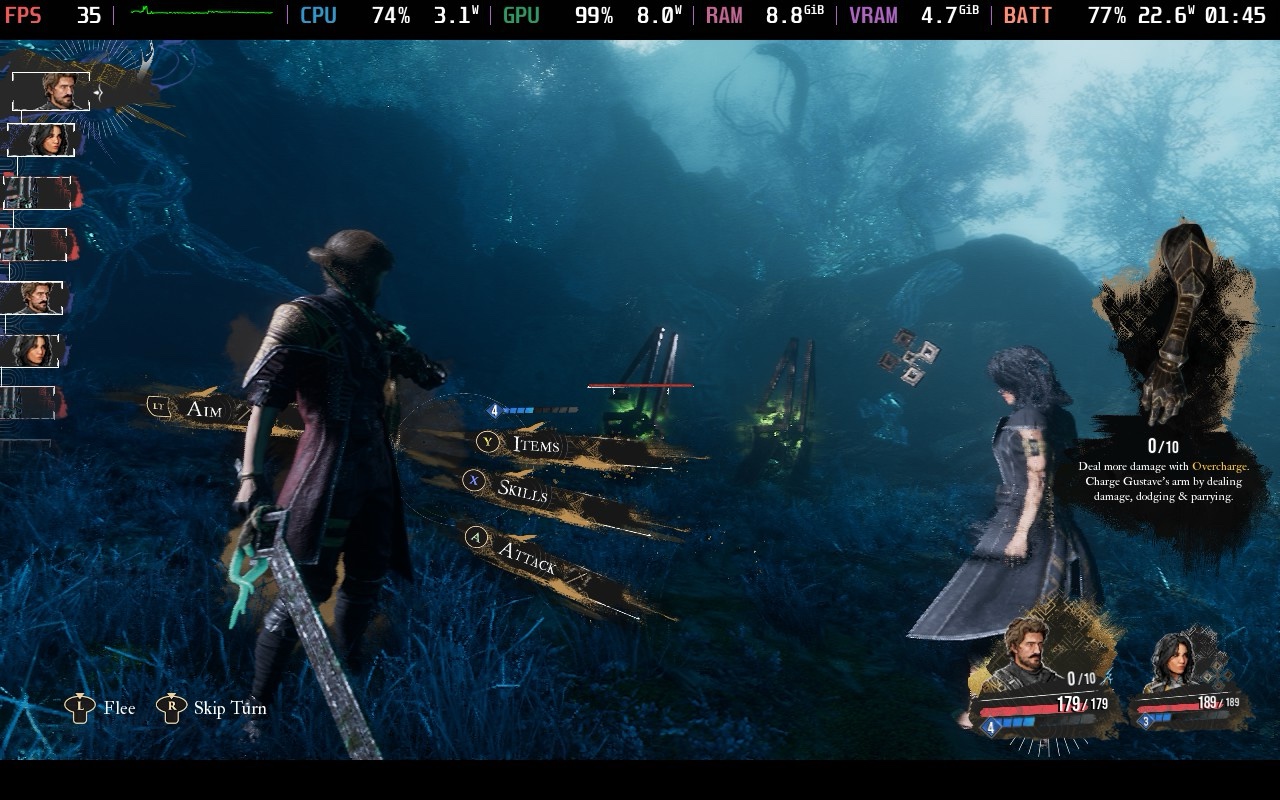
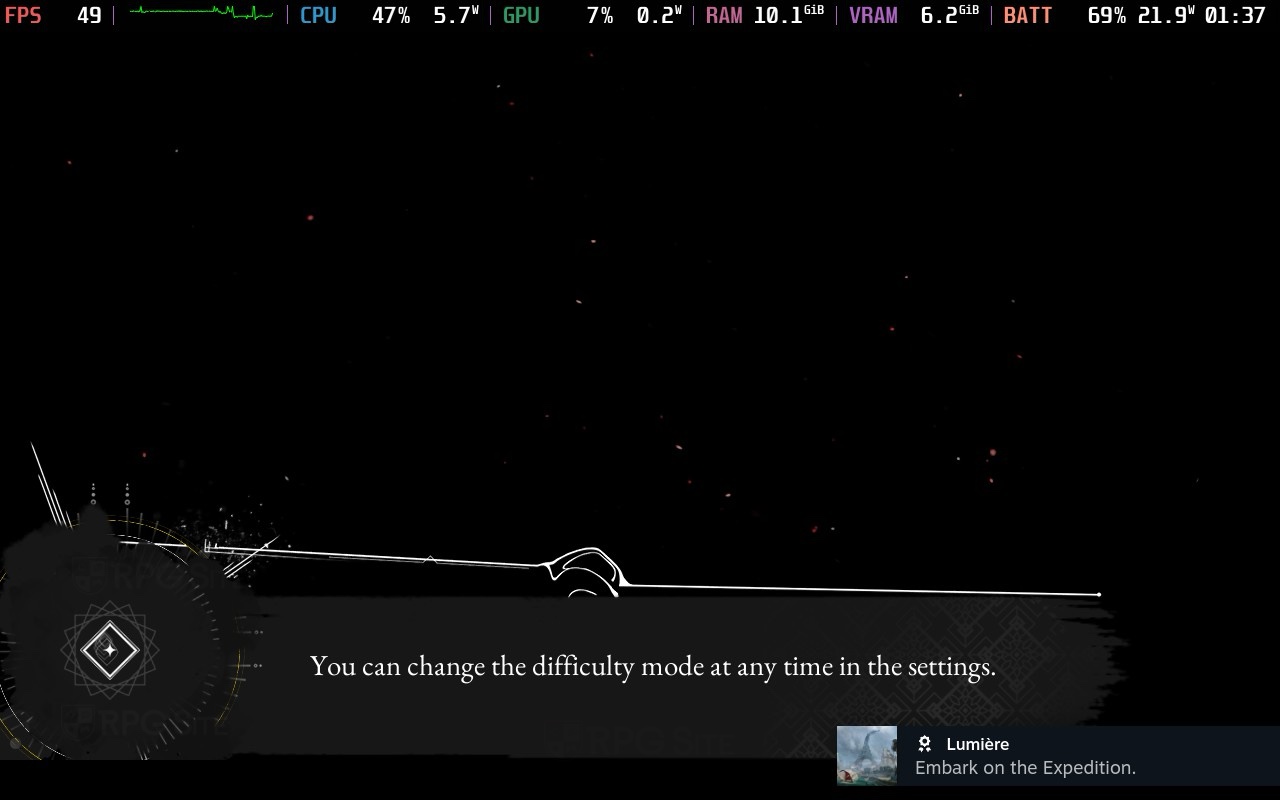
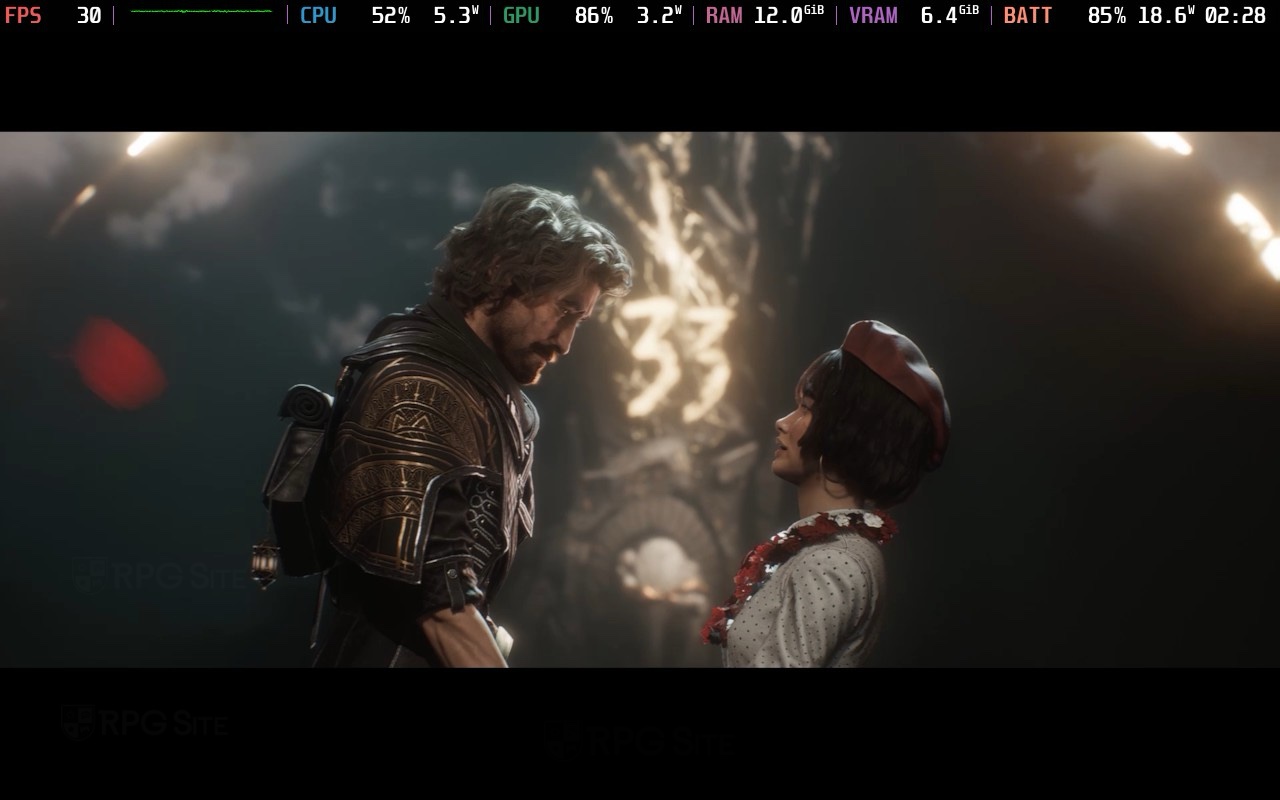
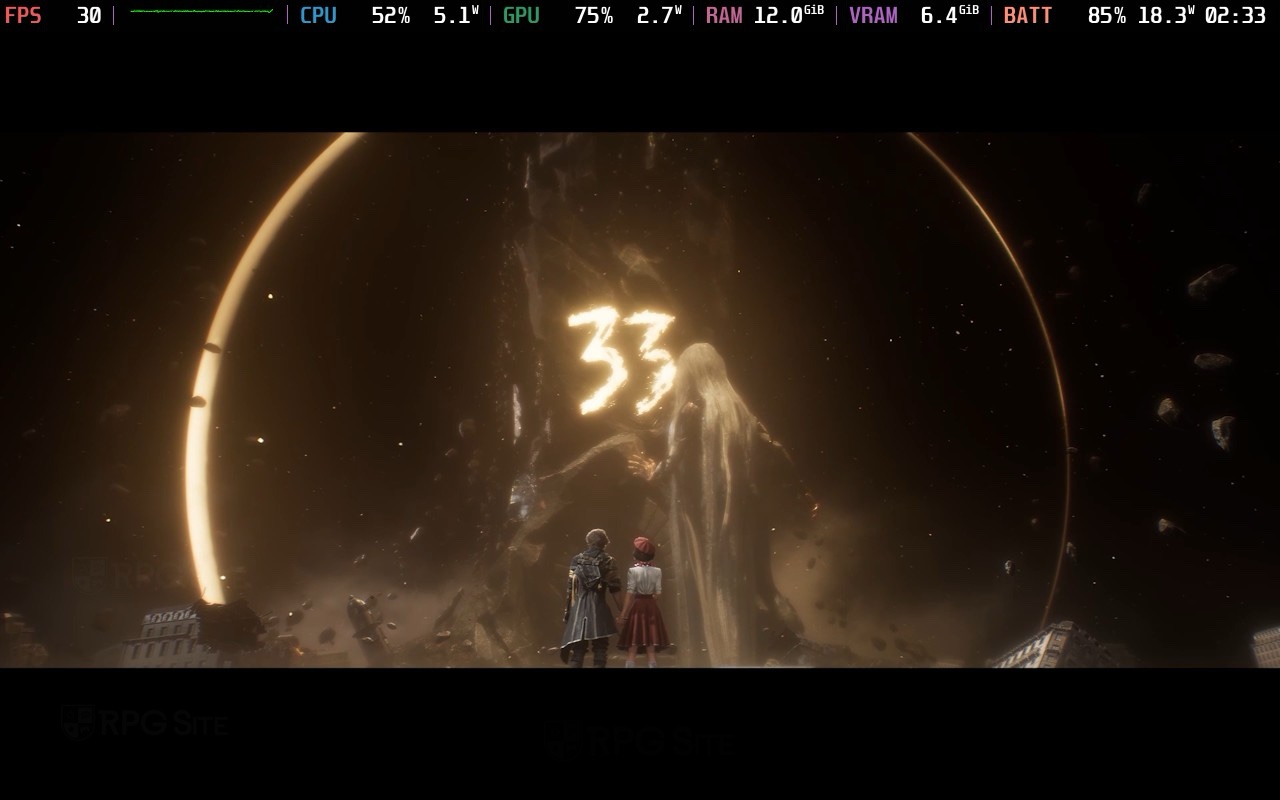
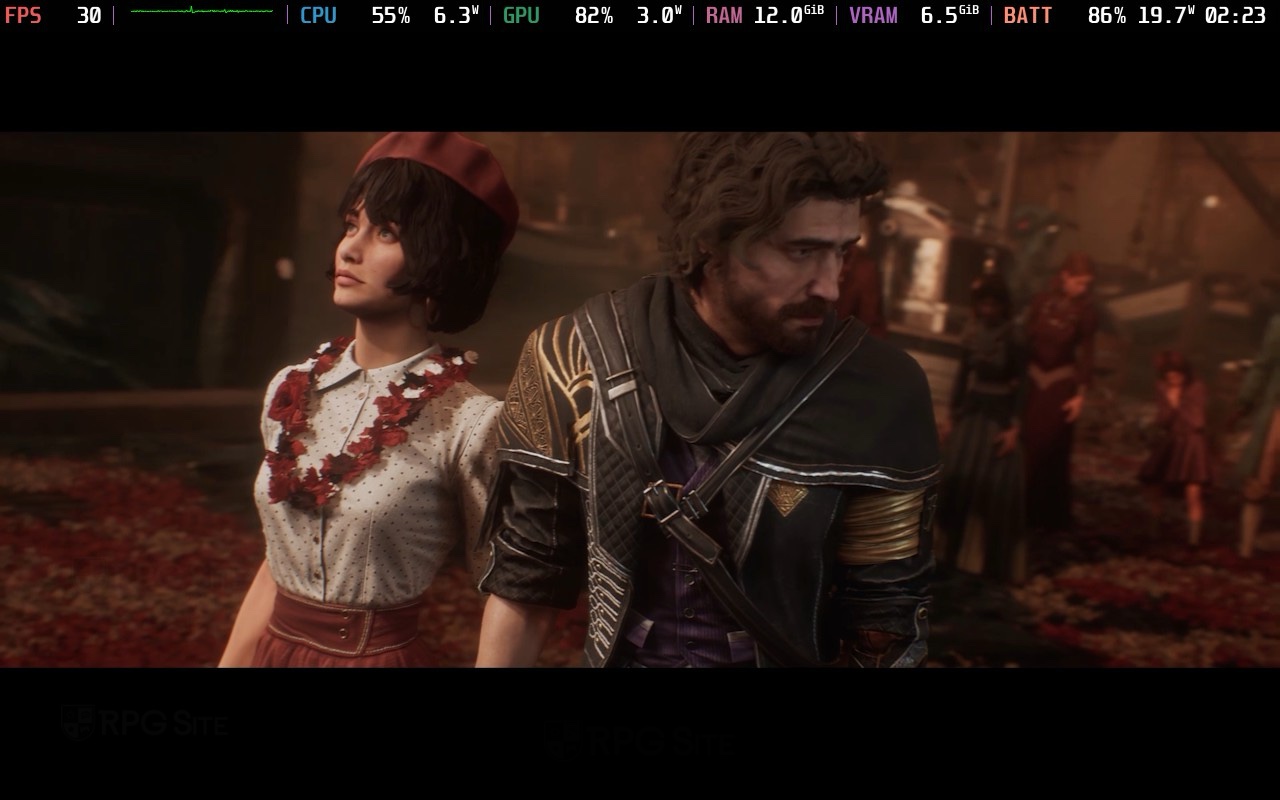
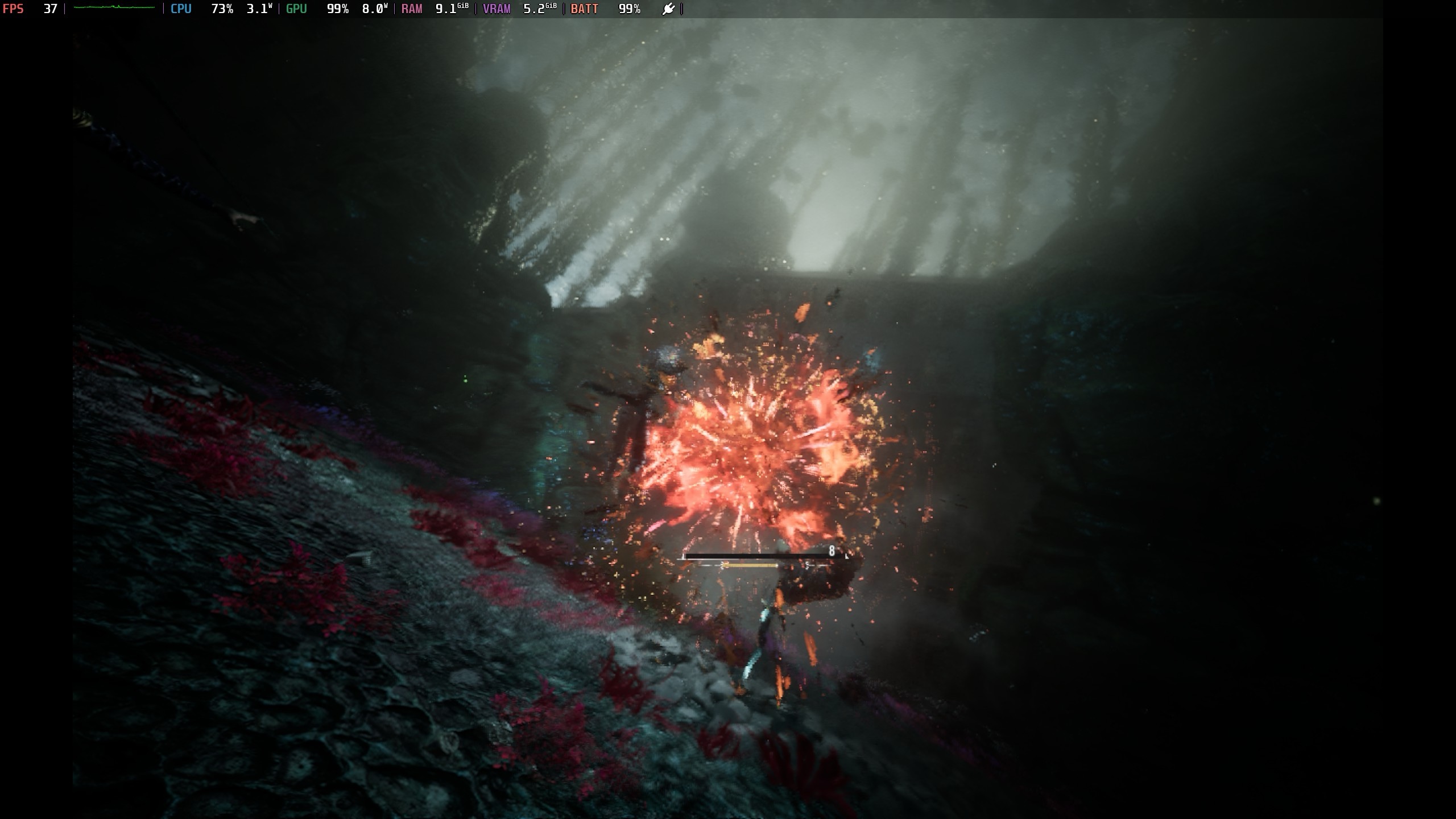
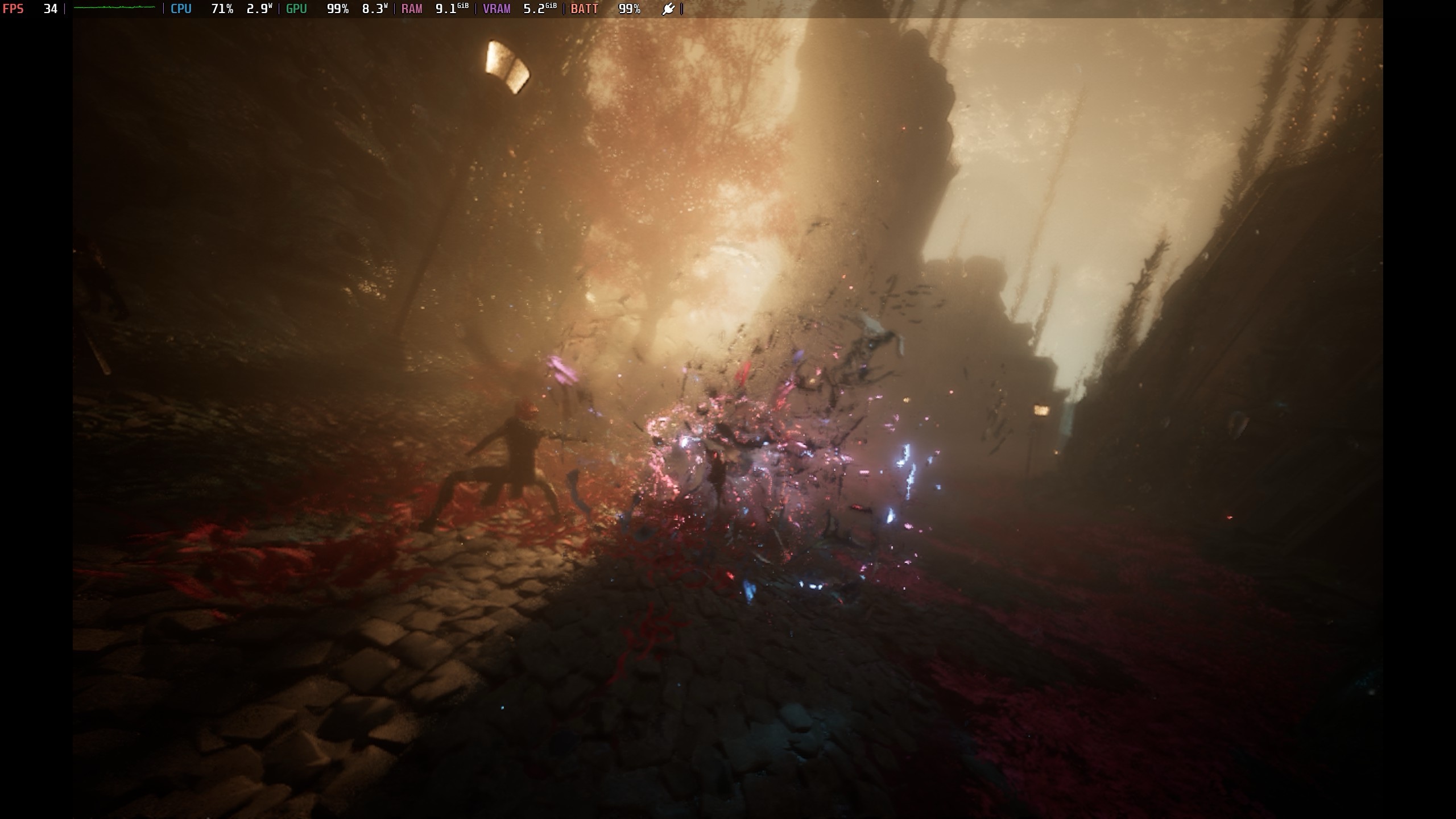
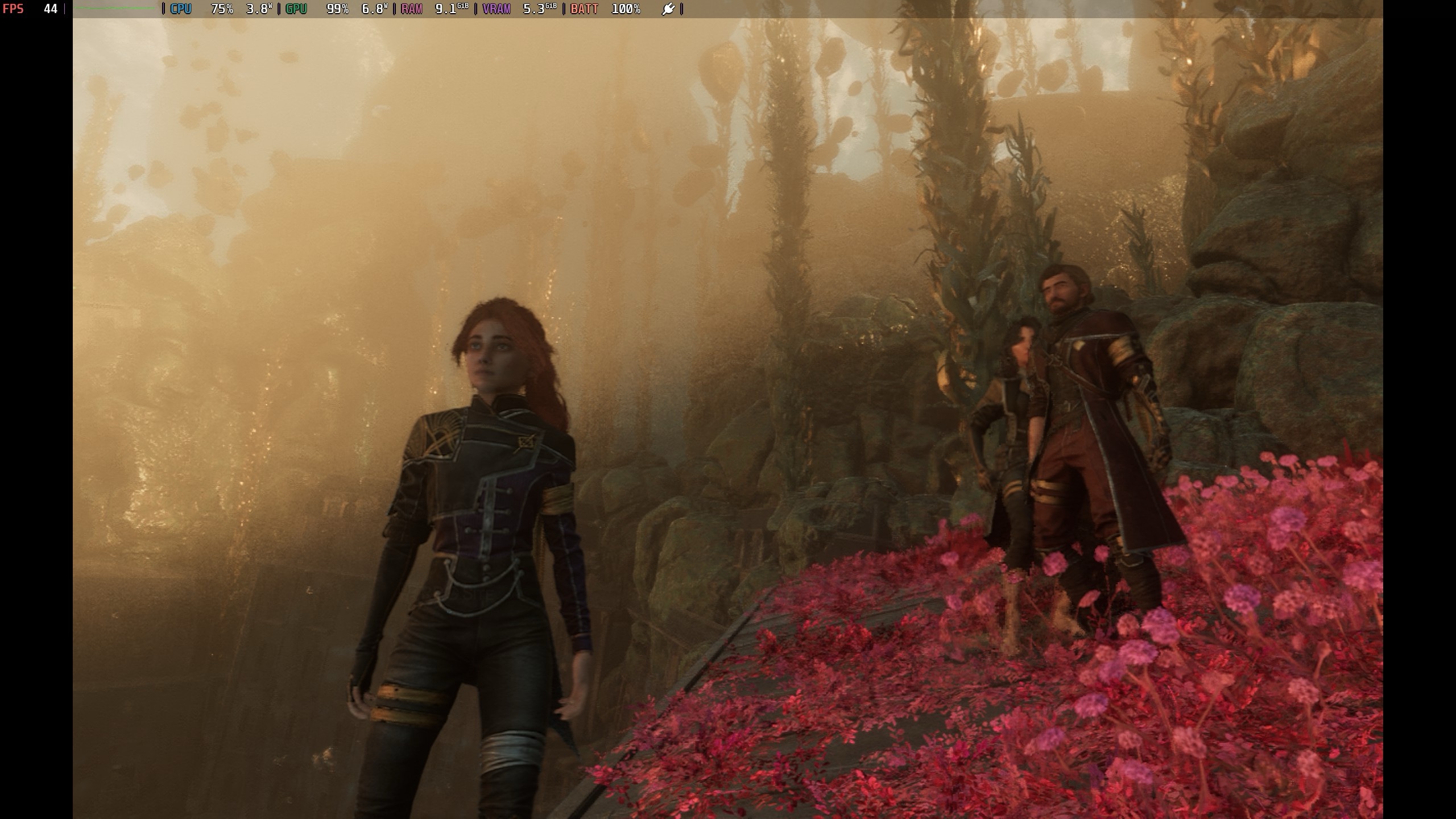
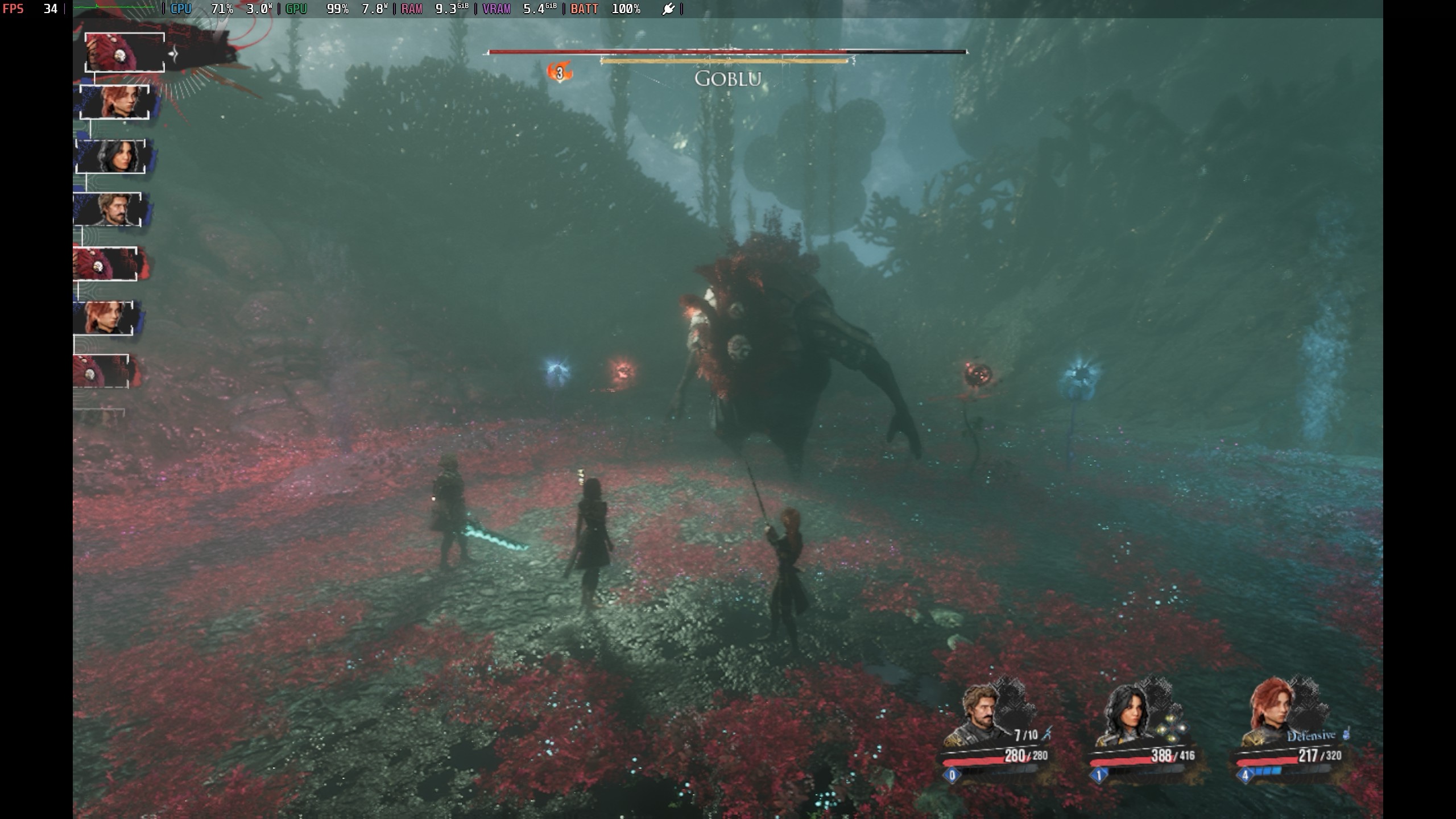
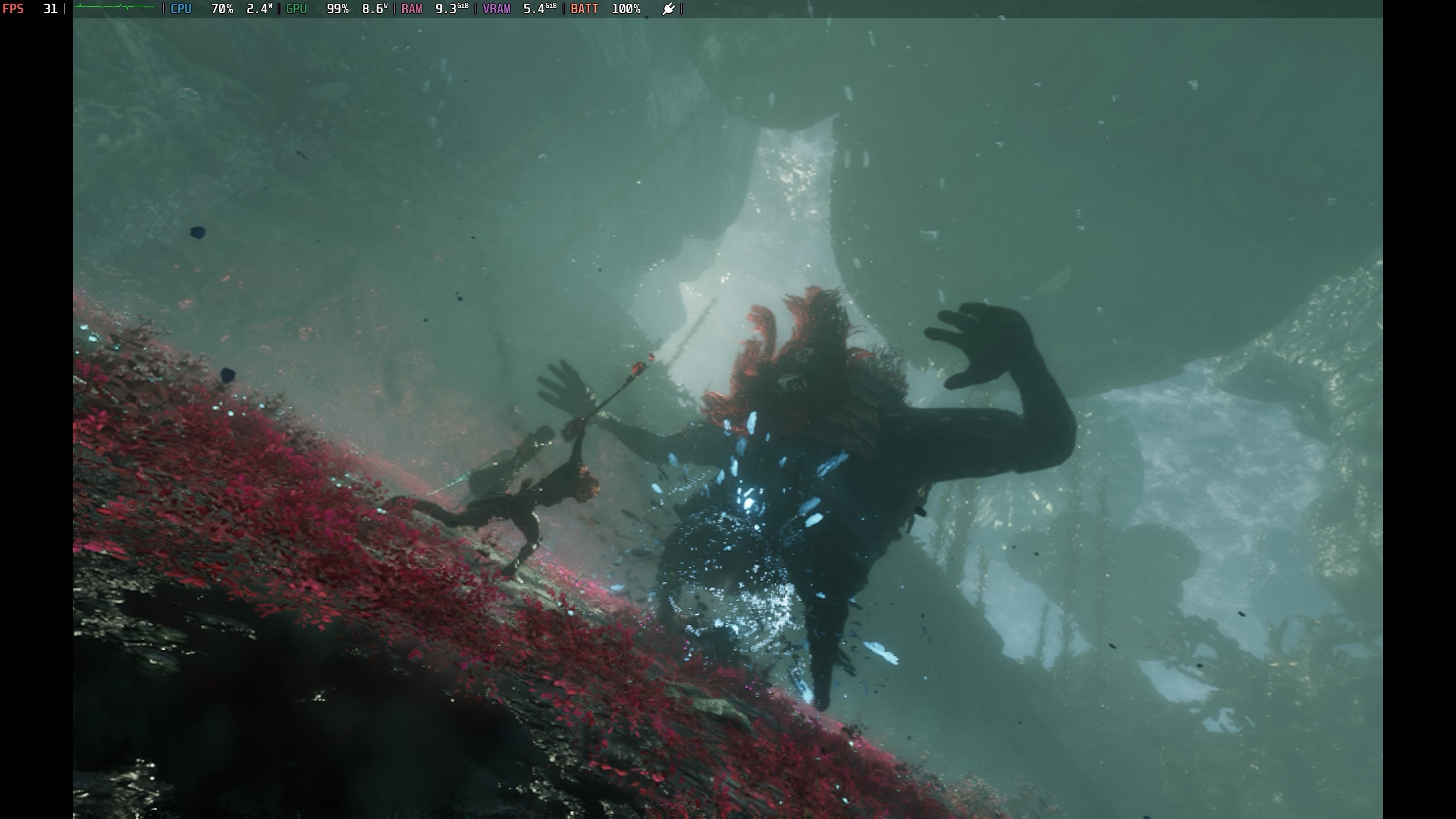
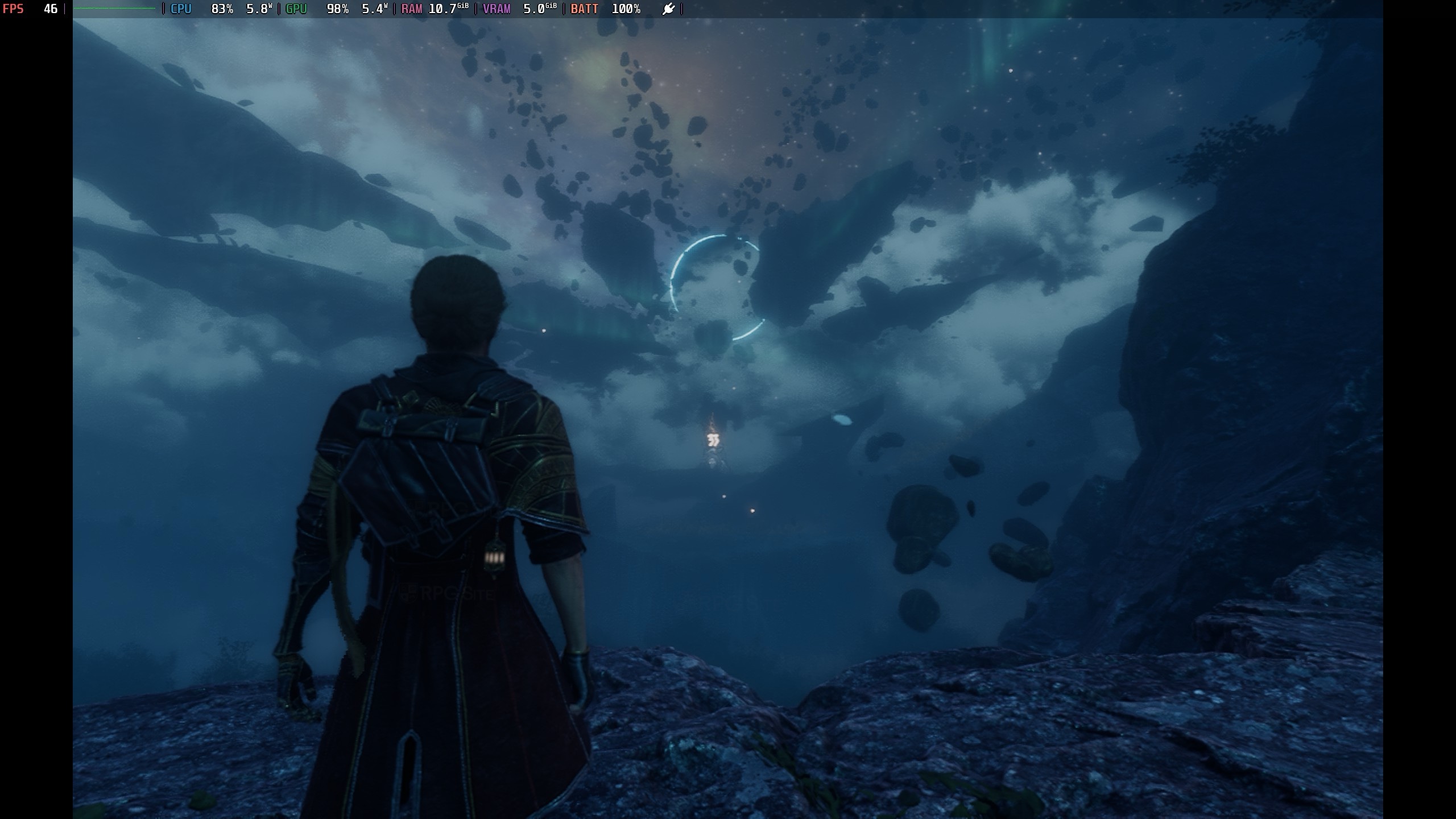
Clair Obscur: Expedition 33 is an Unreal Engine 5 title and those are usually not amazing on Steam Deck. With the day one patch, Clair Obscur: Expedition 33 targets 45fps at 90hz on the Steam Deck OLED and 30fps at 60hz on the Steam Deck LCD. These targets are held rather well, but the visual experience is not great. I think the settings are a bit too conservative, but they deliver a stable out of the box experience with 16:10 support and Steam Cloud included.
Based on the 20 or so hours I've played of Clair Obscur: Expedition 33 on all three handhelds, the main stress area for performance is actually the world map and not the actual combat, dungeon, or zones where you explore.
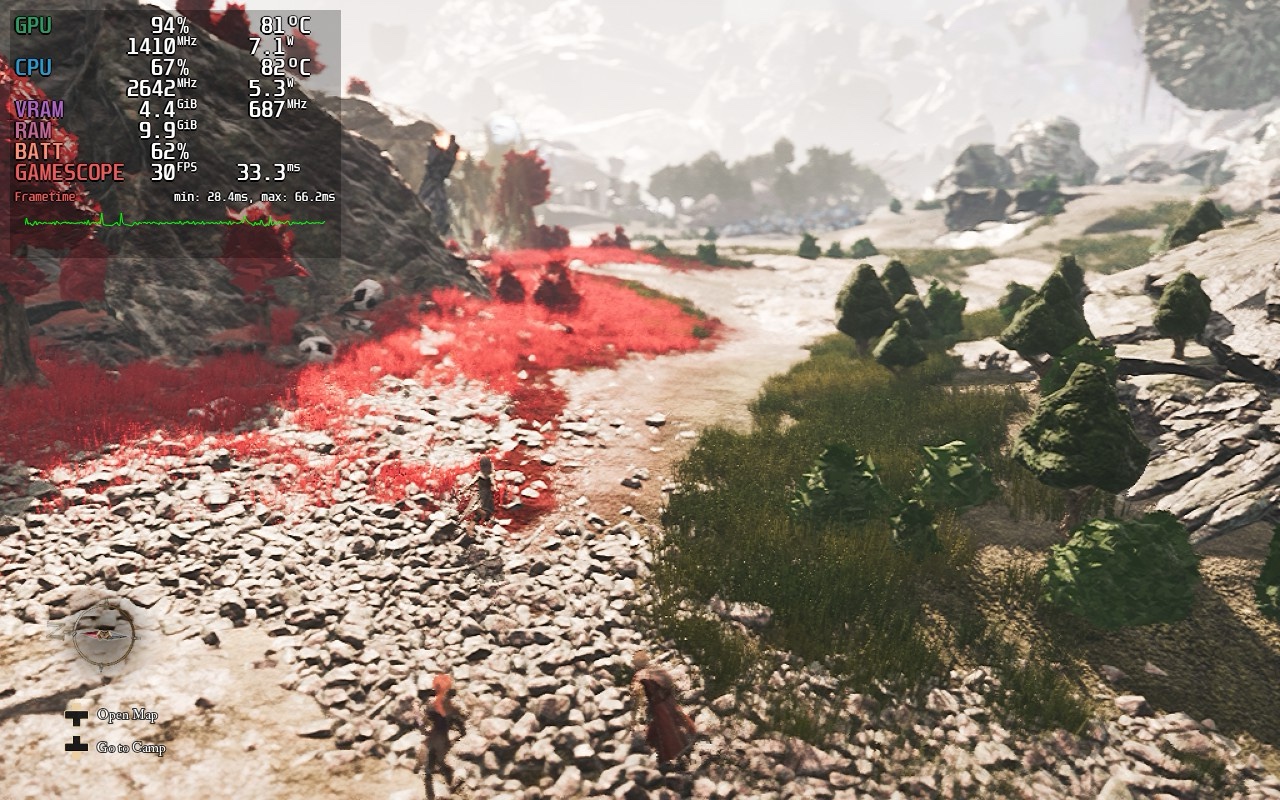
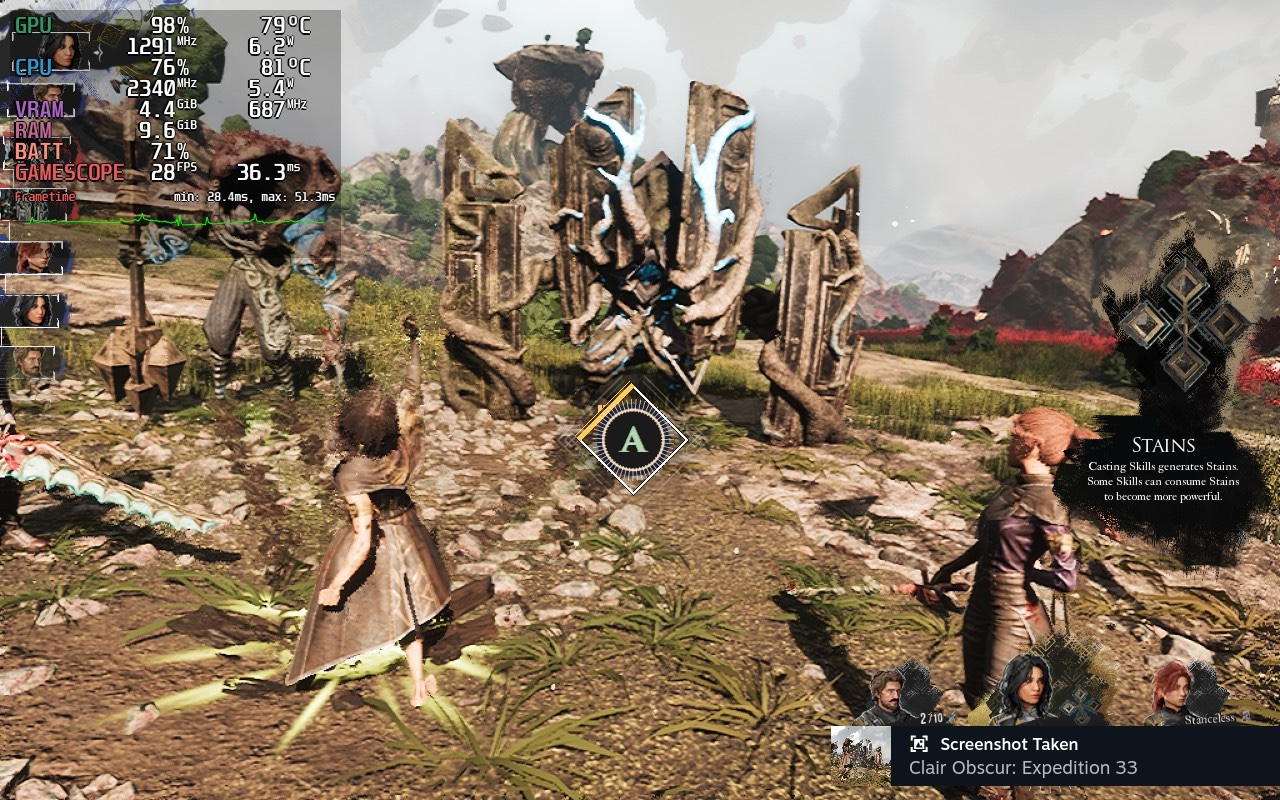
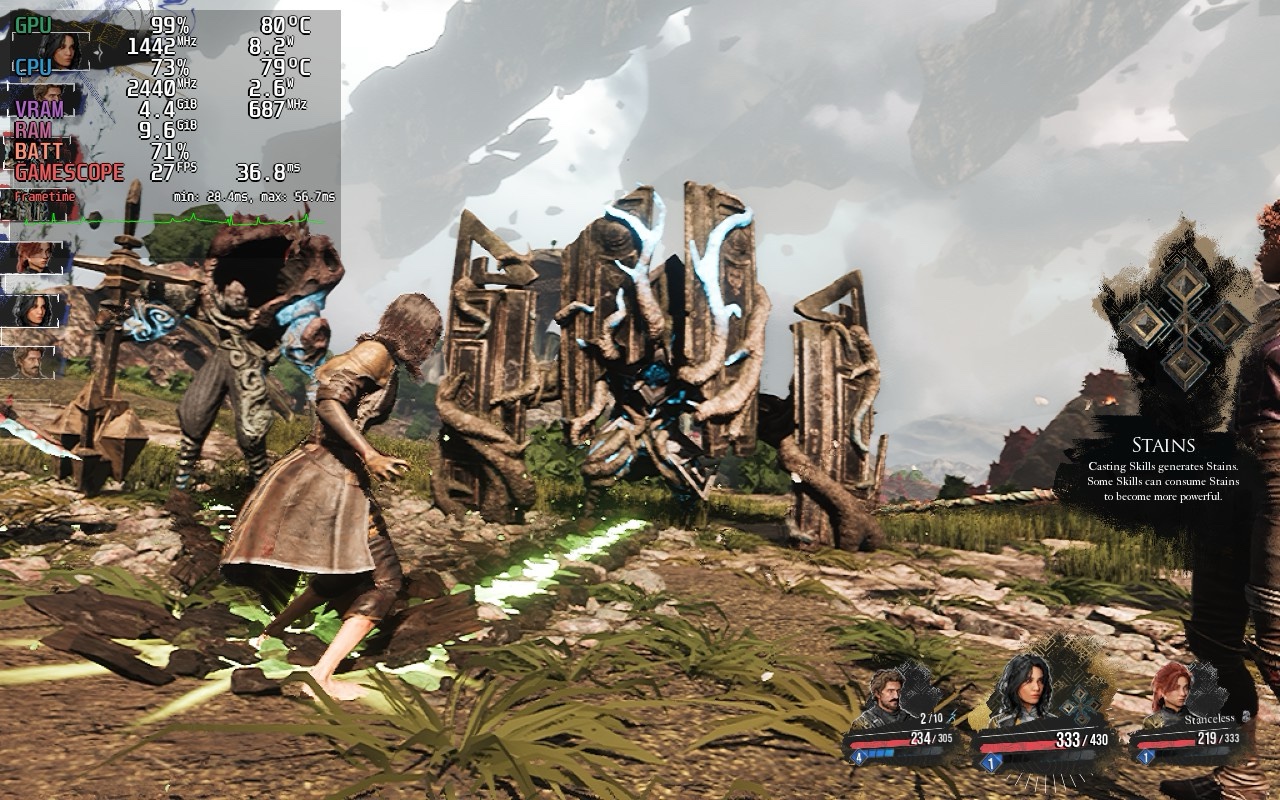
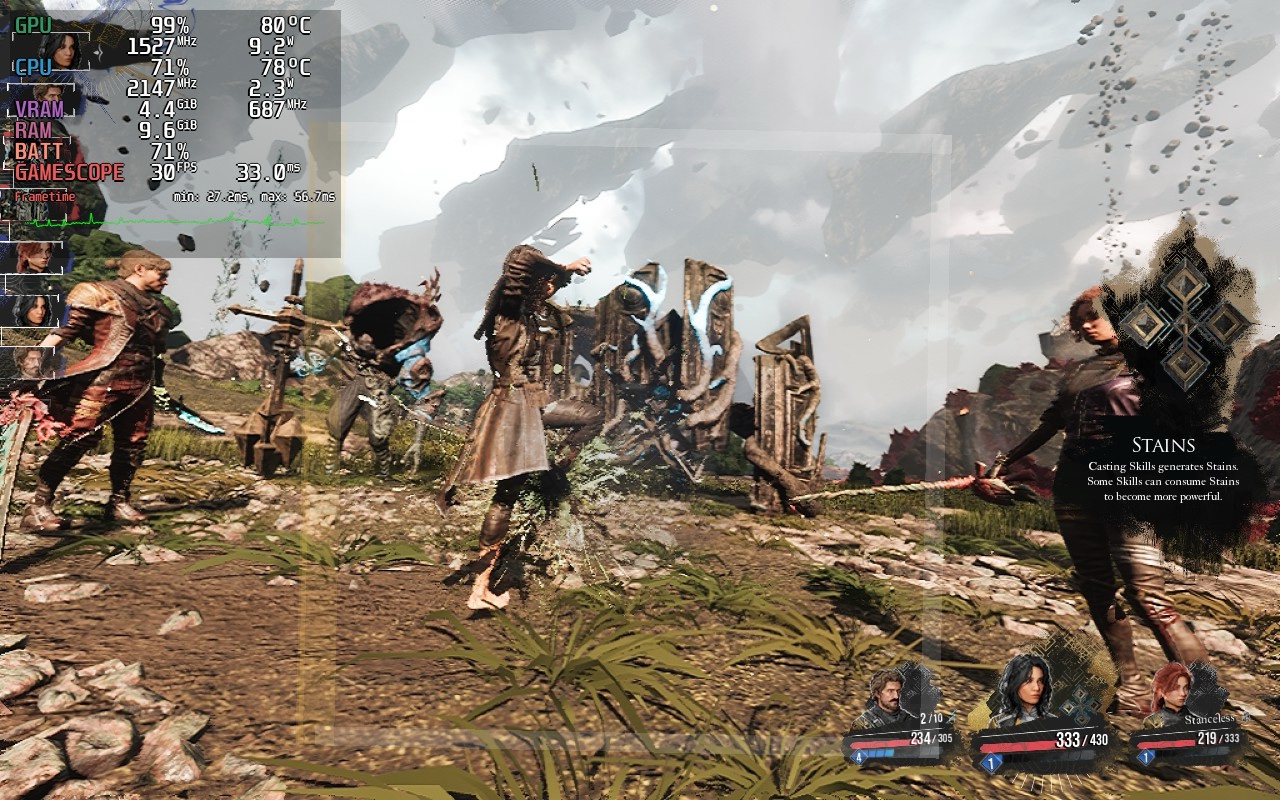
Clair Obscur: Expedition 33 Steam Deck recommended settings for OLED and LCD models
You might be wondering what I'm going to cover here since the game locks out most settings on Steam Deck out of the box. There is a workaround for that, but if you want to do as little tweaking as possible, I will also include some settings to easily improve clarity without changing any launch options.
If you want to play using the developer's preset options where you can't control the rendering outside of upscaling and post-processing (motion blur, film grain, chromatic aberration, and vignette), the defaults will deliver a good 45fps experience on the Steam Deck OLED and a 30fps experience on the Steam Deck LCD. Just note that the overall image quality will really drop on the default preset to hit that stable frame rate.
My Steam Deck recommended settings (for the out of the box experience with no custom launch option) for Clair Obscur: Expedition 33 on the OLED and LCD decks are to just raise the resolution scale for TSR or XeSS (depending on your preference) above the low preset to about 60 or even using the medium preset. Since this is a turn-based RPG, some drops below 45 or 30 (at worst) are not terrible, but they do affect how QTEs will feel during combat. I opted for TSR with between 50 and 75% scaling for my devices in the end. While it has some ghosting, the overall image quality was a lot better than using XeSS. There is no FSR as far as I can tell right now.
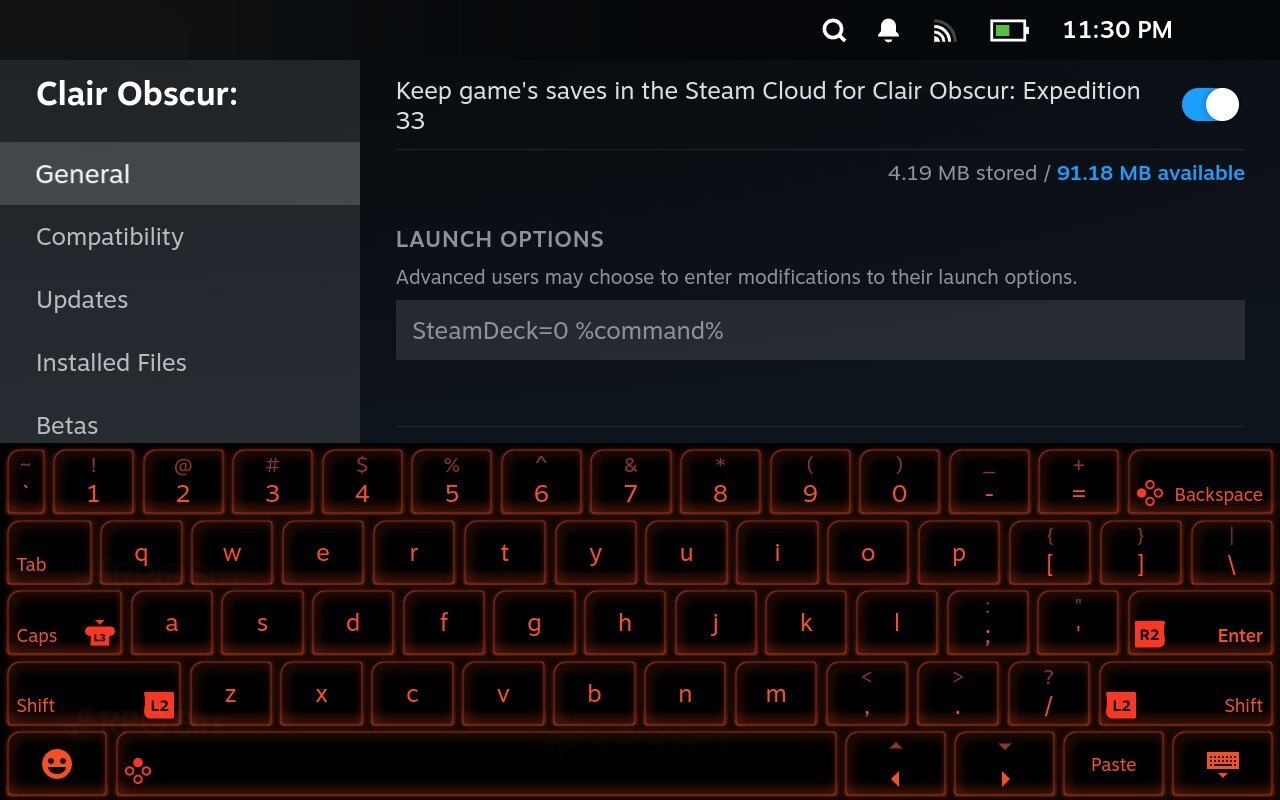
As for improving things with a bit of tweaking, I decided to not use the locked settings and see how the game scales. If you go into the game's properties on Steam Deck and scroll to the bottom of the General tab, there's a text entry box for Launch Options. Typing "SteamDeck=0 %command%" without the quotation marks, you get access to the full suite of options in Clair Obscur: Expedition 33. The advantage here is you can improve the visuals quite a bit with some performance penalty, but PC gaming is all about options isn't it?
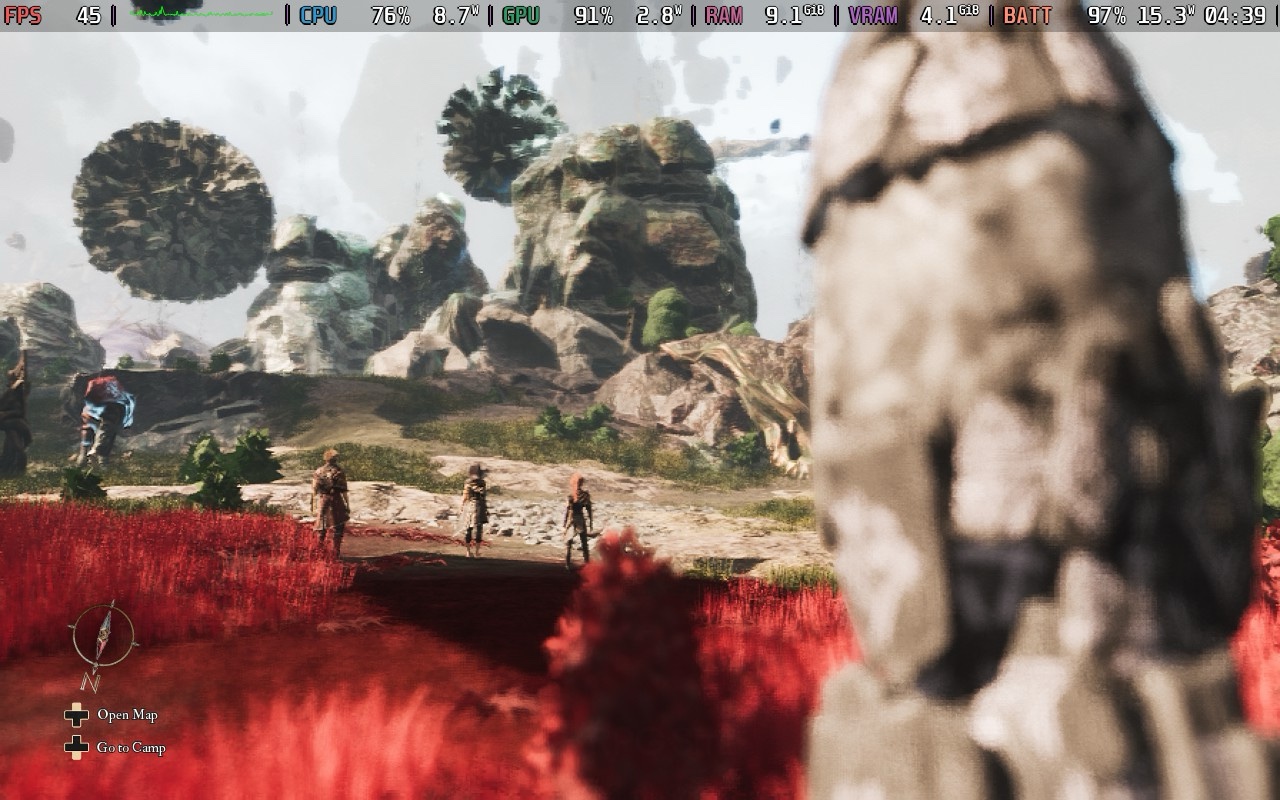
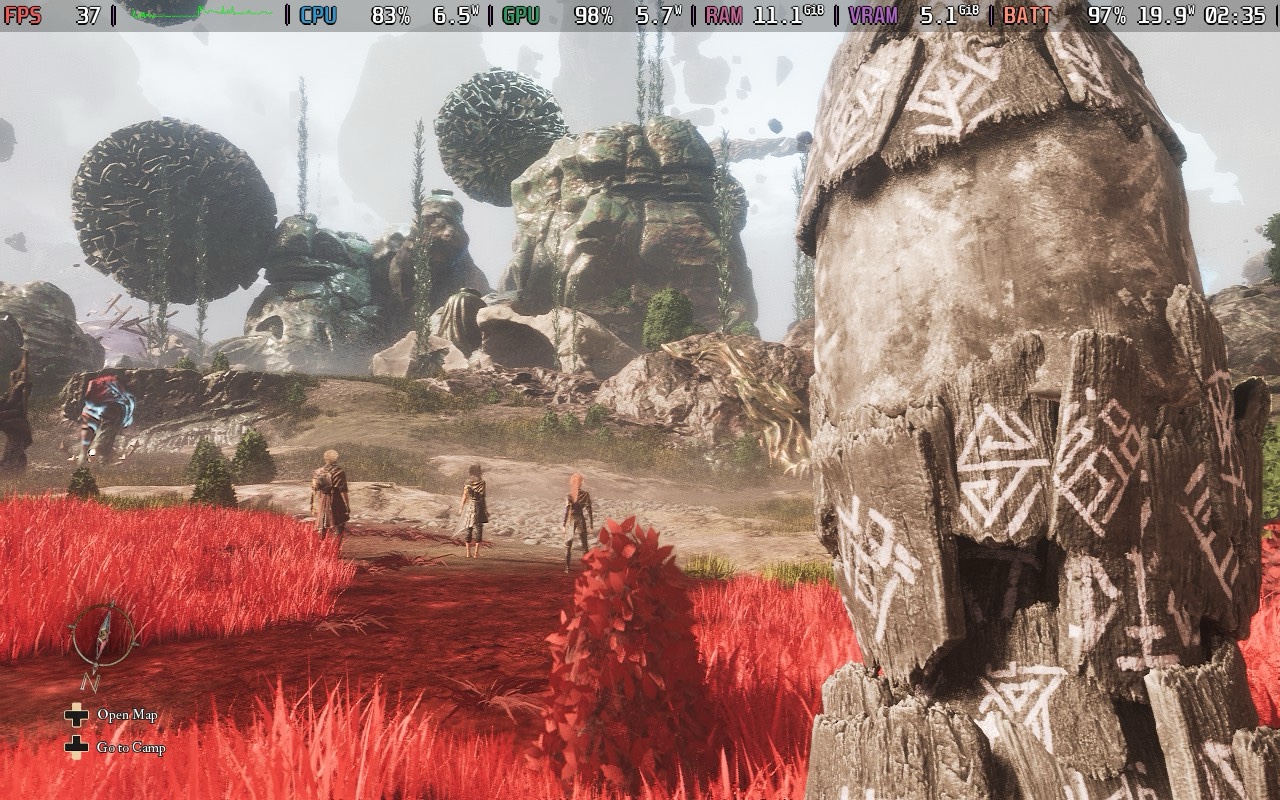
Even if you just input that launch option and boot up the game on Steam Deck, the performance will be lower than with the developer's forced settings, but visuals are better. I assume there are some behind the scenes rendering changes to deliver a great experience on Steam Deck. The early signs are very good from day one and I'm confident in it being a great experience after some updates.
If you're on a Steam Deck OLED, I recommend using the launch option for better visuals and capping the game to 40 or 30fps using the Steam Deck's quick access menu depending on if you want some fluidity or a consistently stable experience. On a Steam Deck LCD, I would suggest playing without the launch option first and seeing how you find the visuals because this delivers a good 30fps experience with visual cutbacks. If you are ok with some drops below 30fps in the open world and during some cut-scenes and transitions, you can opt for the launch option.
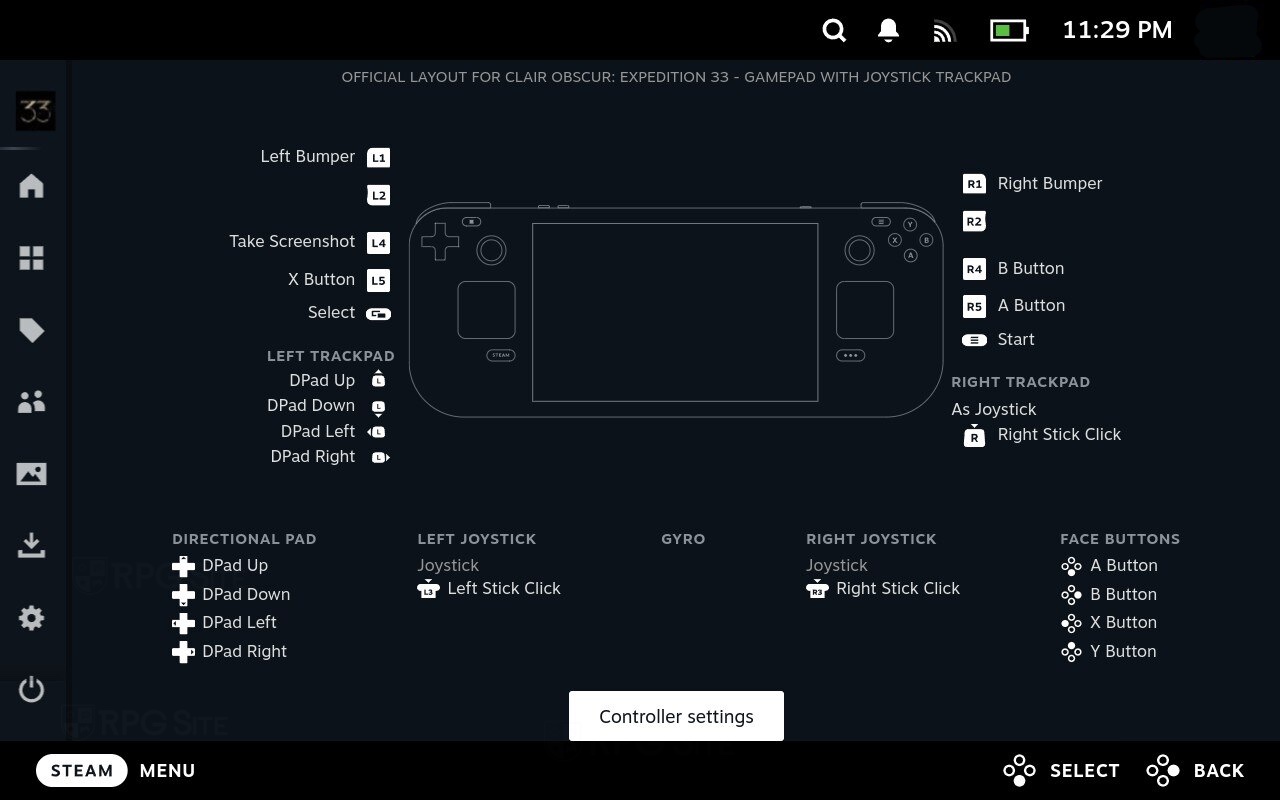
One final recommendation I have isn't for visuals or performance, but for controls. Clair Obscur: Expedition 33 has you aiming with free movement using the right stick to target weak points when firing or evening when looking at points of interest on the field sometimes. This can be dramatically improved if you set the right trackpad on Steam Deck to joystick as shown in the image above. It allows you to get the best of using a controller for everything, but also getting the precision aiming of a trackpad to save yourself time while aiming to shoot. Speaking of the best of both input options, you can also tap the screen to progress dialog.
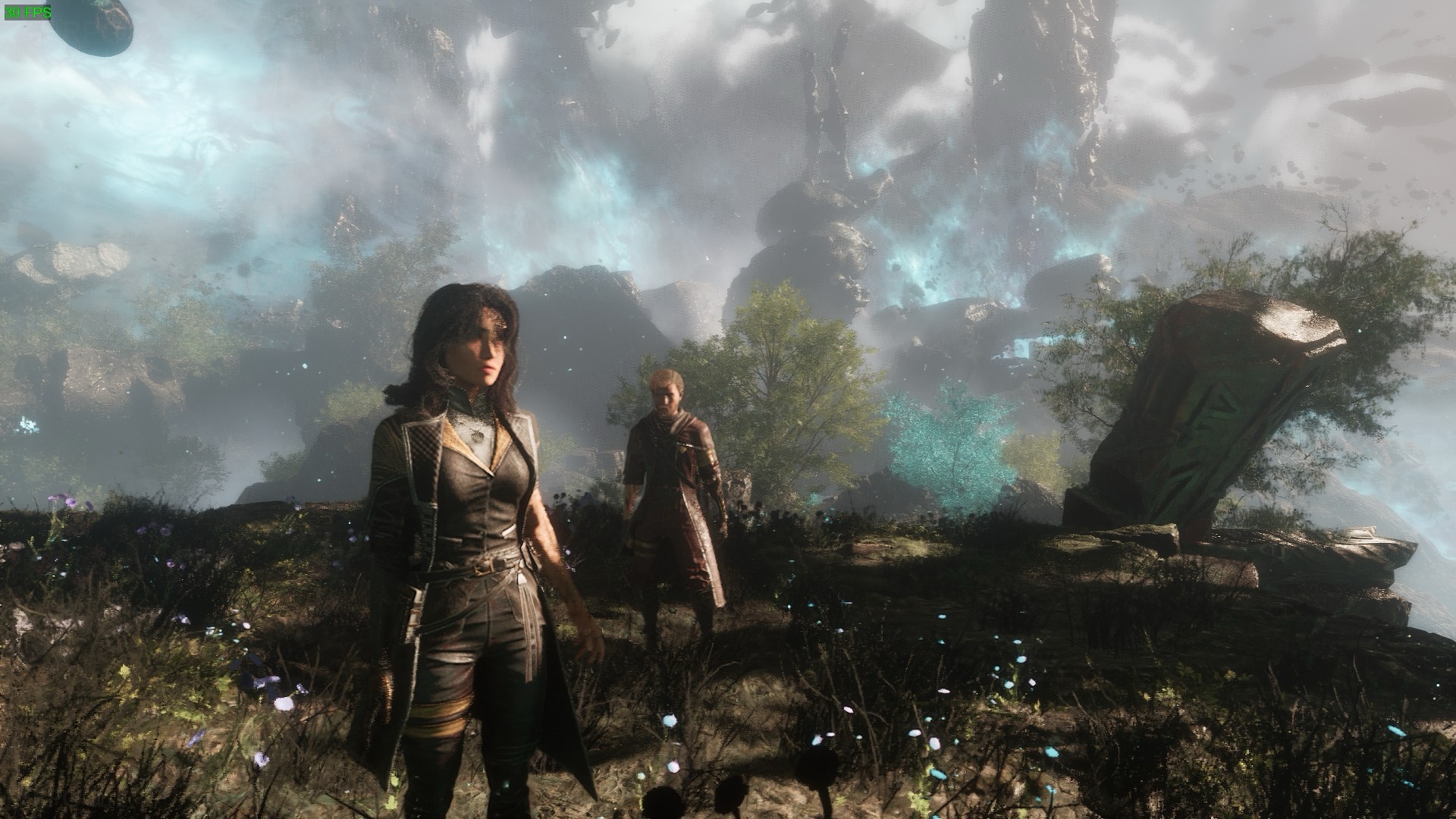
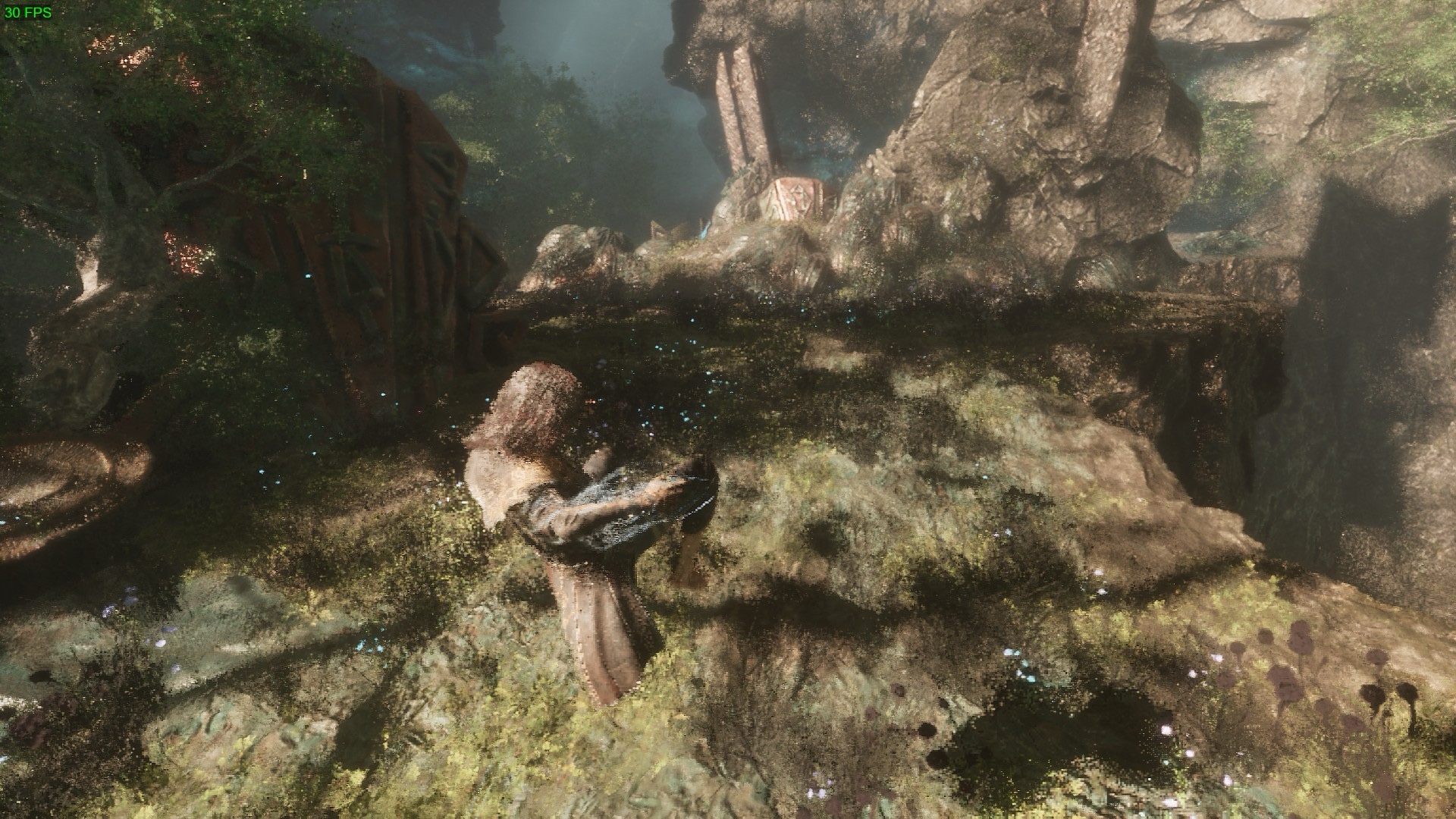
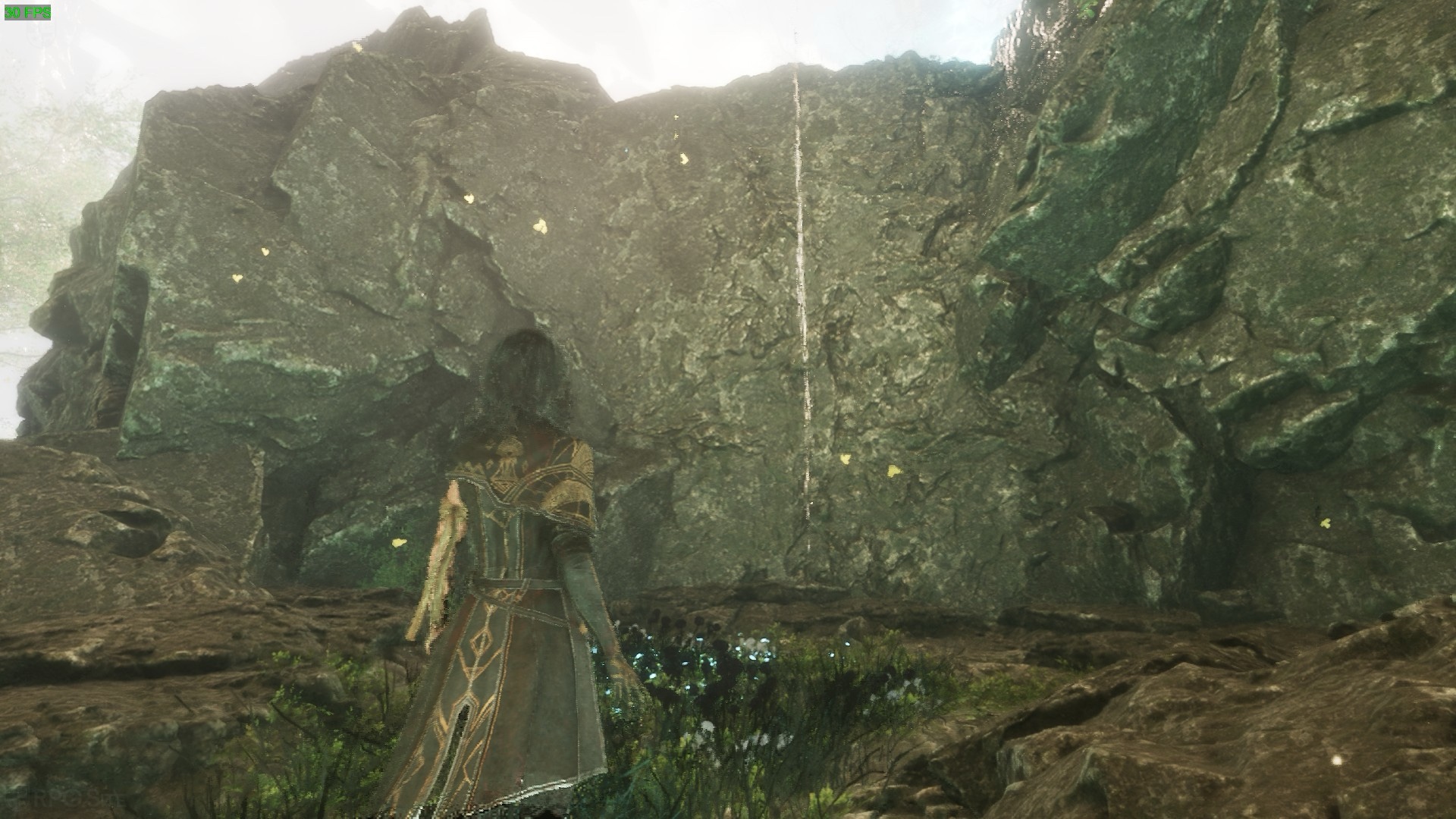
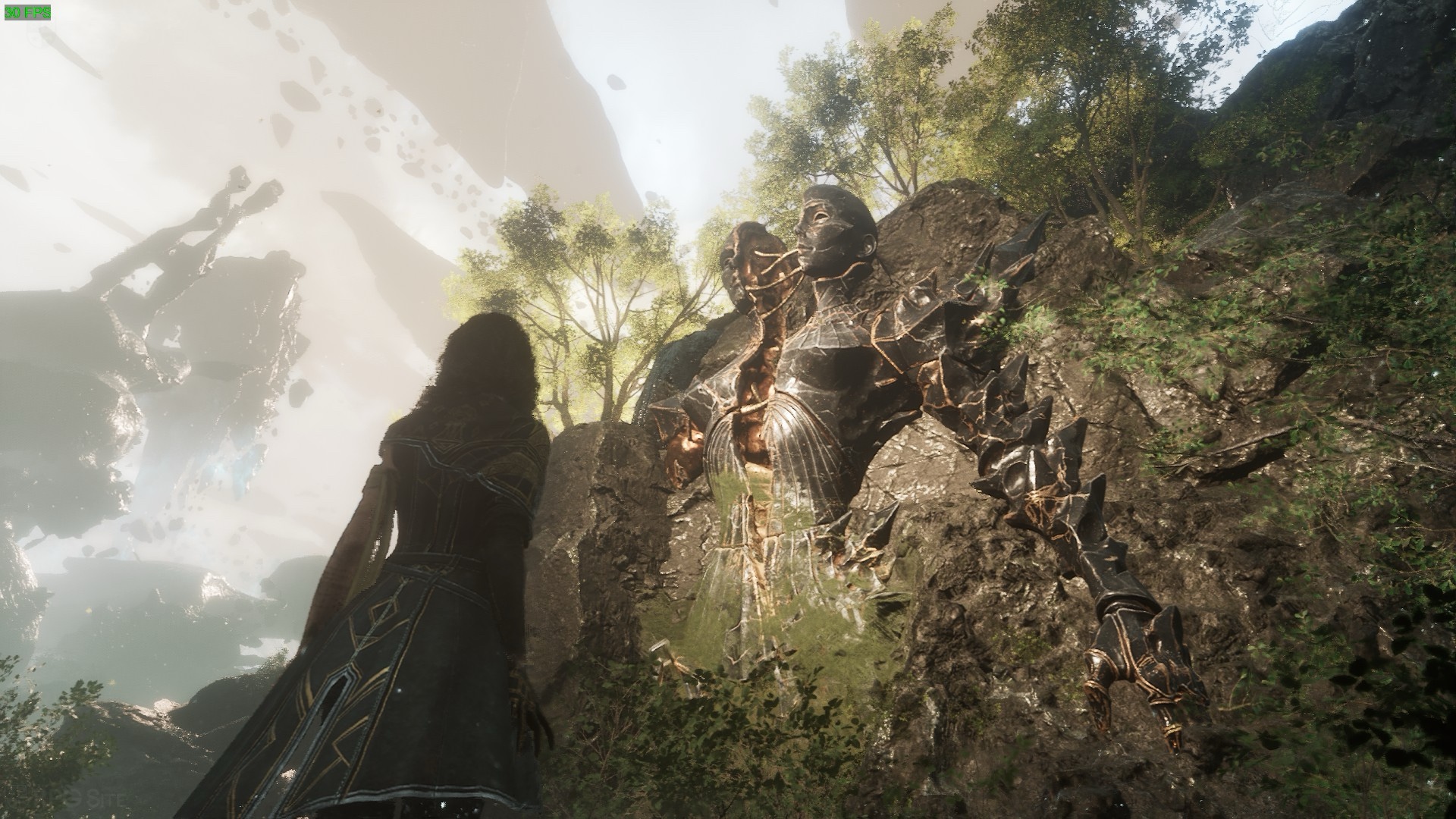
Regardless of the settings I used (when aiming for 30fps or higher), the character hair and ghosting with camera movement in some scenes were the main visual issues in Clair Obscur: Expedition 33 on Steam Deck. If you get used to them and take into account the cutbacks needed, this game is fully playable and I'd recommend it above many of the bigger Steam Deck Verified games that have released lately.
Clair Obscur: Expedition 33 ROG Ally Impressions – better than Deck?
Clair Obscur: Expedition 33 on ROG Ally delivers a better experience than Steam Deck, but I noticed some stuttering and hitching that wasn't present on Steam Deck even at matching settings and using the ROG Ally in 25W turbo mode. I'm not sure if this is shader-related, but it was noticeable. If you want to play at 1080p for the crisp UI, I recommend playing on the low preset and setting TSR to 50%. This will deliver an experience that is always above 30fps and it looks good on the ROG Ally screen.
If you use the same settings above but play at 720p, you will have an experience that usually runs in the 40-50fps range including the world map that is quite demanding visually. Going into the actual zones will see 50-70fps often. When played with the turbo mode, Clair Obscur: Expedition 33 is very much worth your time on ROG Ally thanks to the boost in performance and image quality over Steam Deck.
Clair Obscur: Expedition 33 is a gorgeous game, but it is also a demanding one when it comes to playing on handhelds. If you're ok with the visual cutbacks, it is a good experience after some tweaking with all things considered. If you have the option, I'd recommend playing through the main story on your more powerful hardware to get the most out of the gorgeous world and then using your handheld to complete any side content or even the post game. If you only play on handhelds, I can still recommend Clair Obscur: Expedition 33 on all the three I've tested it on so far.