

Final Fantasy XIV on Steam Deck in 2026 – Recommended Settings, How To Play With a Standalone License, & More
Final Fantasy XIV has always been a great experience on Steam Deck, but it isn't the same game now compared to a few years ago with the graphics upgrade and new content. It has also been a bit complicated to recommend given how the account system is handled for those who own the game on Steam or have a standalone FFXIV license. Functionally, the Windows (henceforth standalone) and Steam clients are treated as separate entities or platforms in the account system and are not compatible with either. This means owning say the base game on standalone means you need to buy expansions the same way. You cannot move between the standalone and Steam licenses.
This feature will cover how to play Final Fantasy XIV on Steam Deck in 2026 with a standalone or Steam license, my FFXIV Steam Deck recommended settings, and more. If you play on console or were hoping to play it on Switch 2 and aren't a fan of the additional subscription cost there, this article might be even more relevant to you.
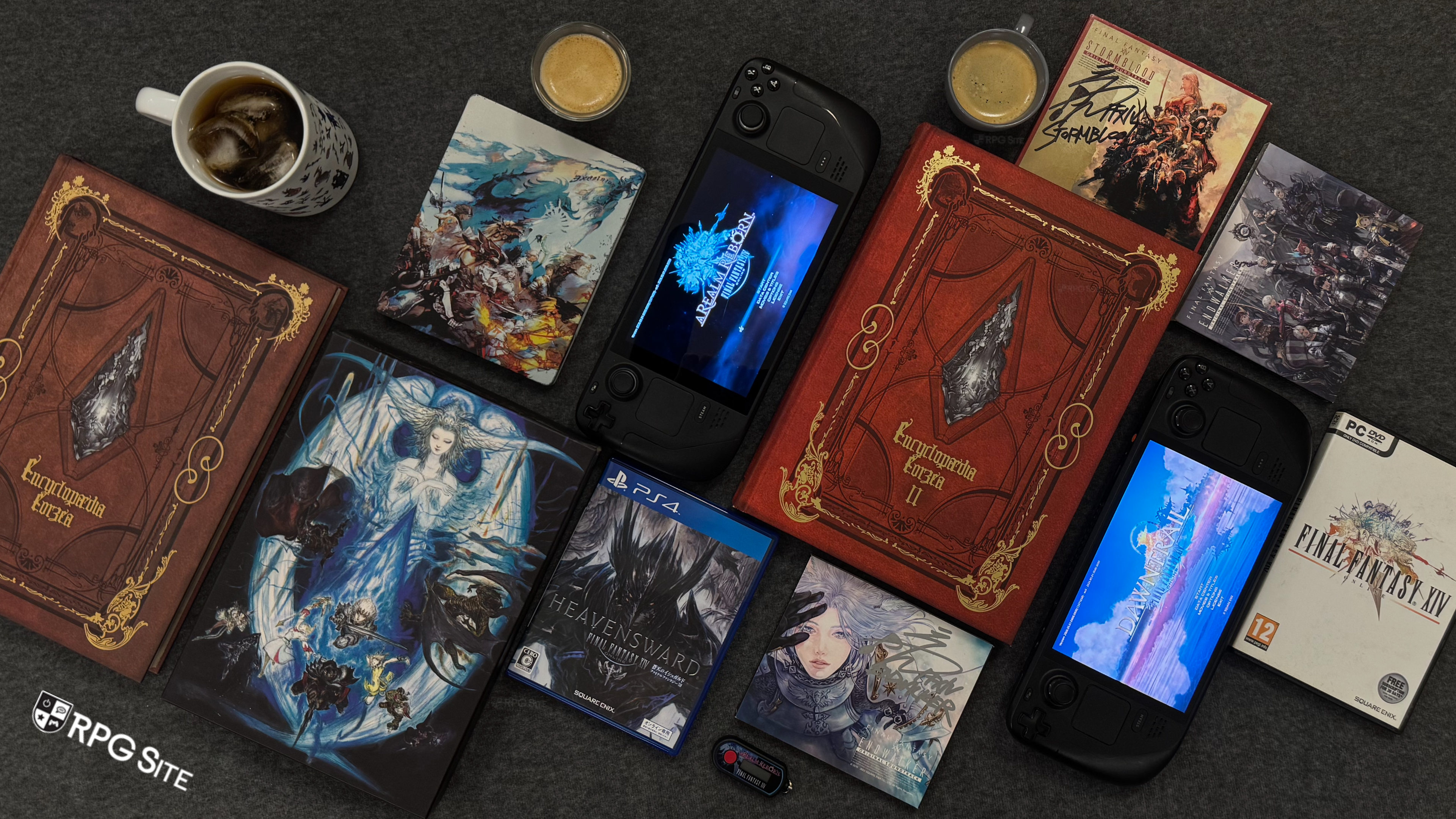
I've been playing Final Fantasy XIV itself since the PS3 days, but I never hide the fact that I'm what you'd consider a casual player. I focus on the main story quests (henceforth MSQ) and post-game patch MSQ content while doing some dungeons with friends whenever new patches hit. I am not a hardcore player doing PvP and the like. My impressions here are based on my time with the game on both Steam Deck LCD and Steam Deck OLED in addition to what I've experienced on PS4, PS3, PS5, and more-recently PS5 Pro.
My aim with this feature is for it to help you get FFXIV working on Steam Deck, improve your experience with the controls, and get the best possible visuals and performance. I will keep updating this with each expansion as well. For now, all my testing has been done with Patch 7.5.
Final Fantasy XIV Steam Deck performance impressions
Final Fantasy XIV on Steam Deck is actually a lot better to play than consoles because you get access to full controller support, the touchscreen, and have two trackpads you can customize for the best possible experience. While the PS4 and PS5 controllers have the touchpad that helps, it can't compete with a full touchscreen and two trackpads for inputs with back buttons that can also be customized. I will cover my recommendations for controls and inputs towards the end of this feature, but you basically have access to more inputs than consoles while getting the benefit of full controller support with FFXIV on Steam Deck.
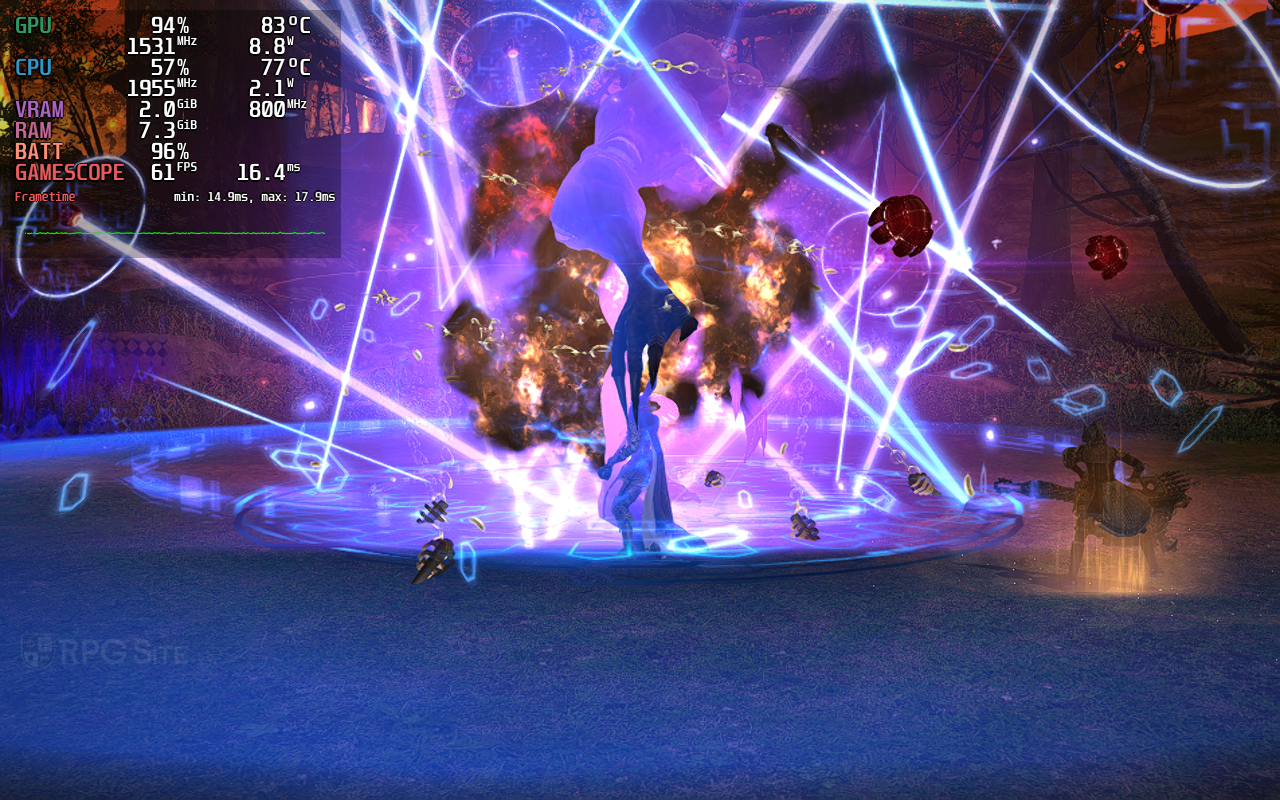
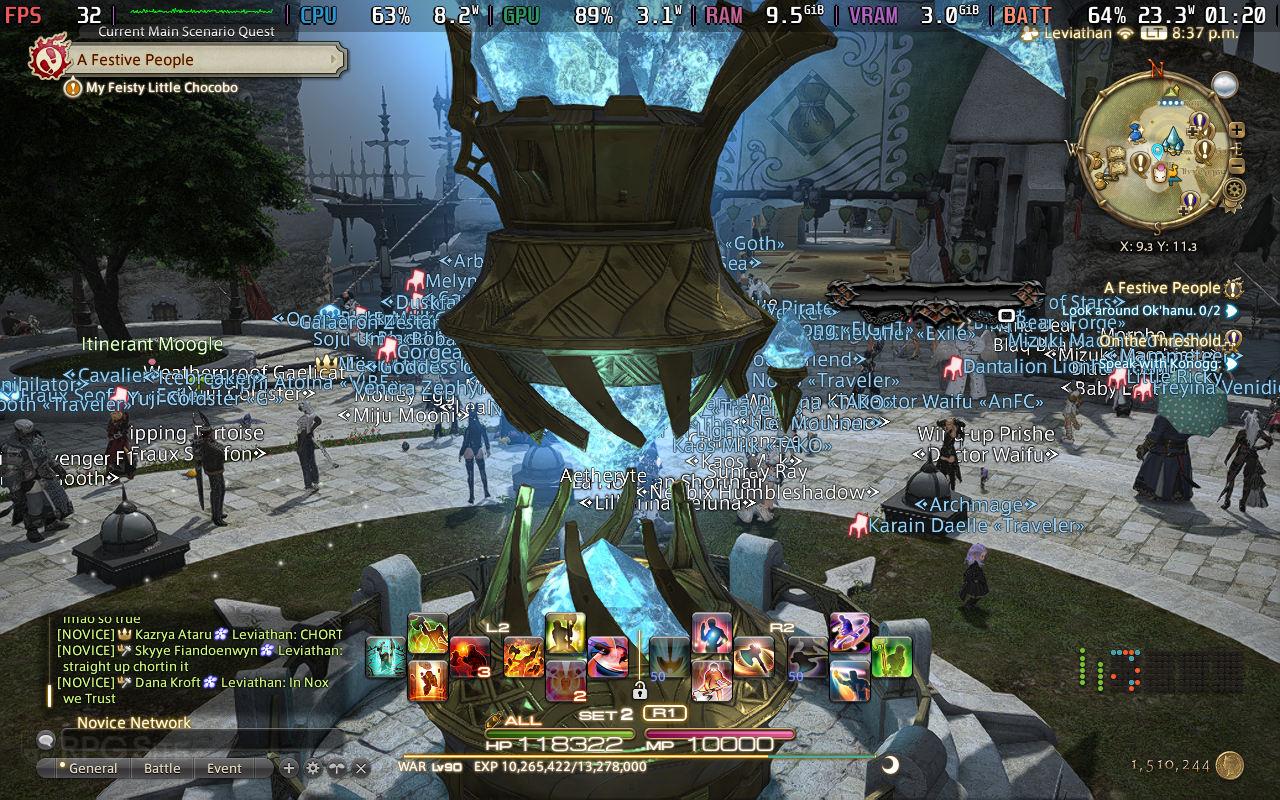
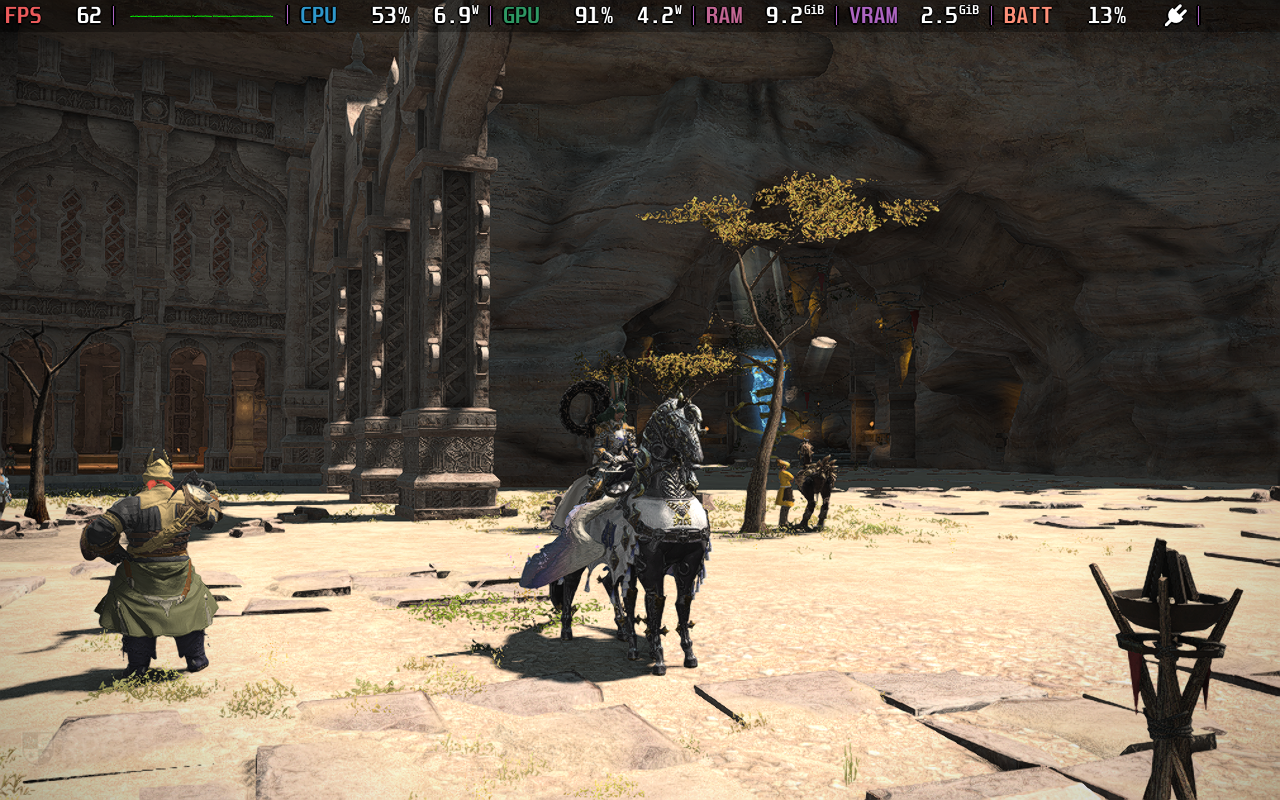
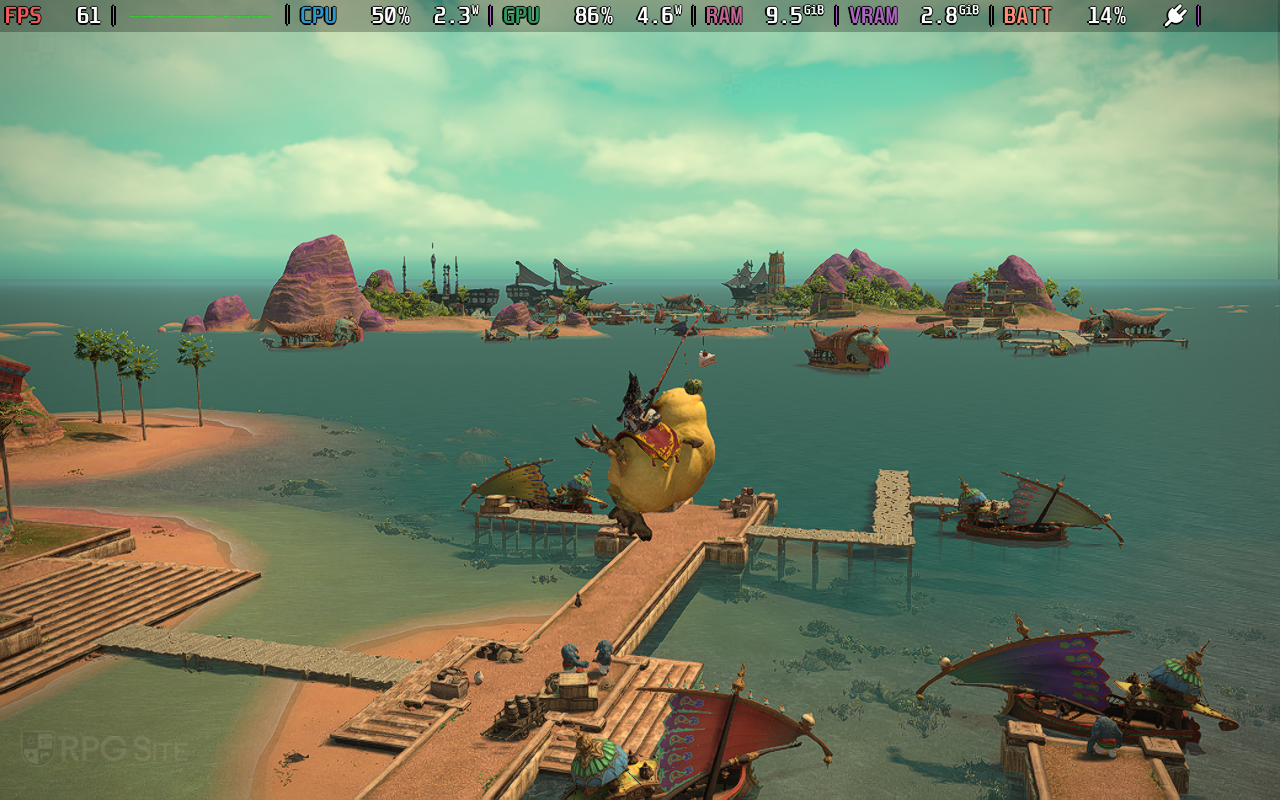
As for performance, Final Fantasy XIV used to run a lot better before the graphics upgrade in 2024. With the new graphics, you should expect a 45fps on Steam Deck OLED and 40fps on Steam Deck LCD target with good visuals. I say target because places like Limsa Lominsa with tons of other players near the Aetheryte will tank performance to the low 30s often. The actual main story quests and demanding dungeons hold up well with my settings delivering even upwards of 60fps, but down to the mid 50s. You can aim for an uncapped experience that hits 60fps in dungeons and closed areas while it runs at 45-60 in the open fields if you'd like, but those hoping for a more stable experience will want to make some tweaks and use the FPS cap options I cover later.
The best part about the Steam Deck in games like this is the ability to customize the experience and tweak the visuals to aim for either the best visuals, opt for a stable frame rate, or even turn everything down to save battery. Before getting to the recommended settings, actually getting FFXIV running on Steam Deck may not be straightforward depending on how you subscribe.
How to play Final Fantasy XIV on Steam Deck with a standalone license
If you own the Steam version of FFXIV, you can just install it normally like any other game. It requires some manual invoking of the keyboard or touchscreen use to get through some of the launcher quirks, but it plays as it should once in-game. The big question is for those who want to play with a standalone FFXIV license since that is how most people I know (and myself as well) play it on PC. Note that you cannot have the Steam game license and the standalone license on the same service account.
This means buying say Dawntrail and the base game on the standalone client will not let you move to the Steam store purchases for future expansions. Yes, I know it is a bit confusing, but this is where I aim to help make things easier for you. It is also why I will be going into as much detail as possible for basic steps here. I also want to note that my guide below assumes you are not using XIVLauncher or any other third-party tool since those interfere with this method and will cause issues. If you already have FFXIV running on Steam Deck, you can skip to the recommended settings.
While there are third-party launchers and options like that, you don't really need them. I spent a lot of time testing out the many great guides people made for XIV on Steam Deck since I had a standalone license, but there is an easy way to do it. You need to own the free trial or starter edition on Steam. If you own the free trial, my guide will result in it showing you as playing the free trial online on your friends list if that matters to you. If you own the starter edition, it will simply show it as Final Fantasy XIV Online.
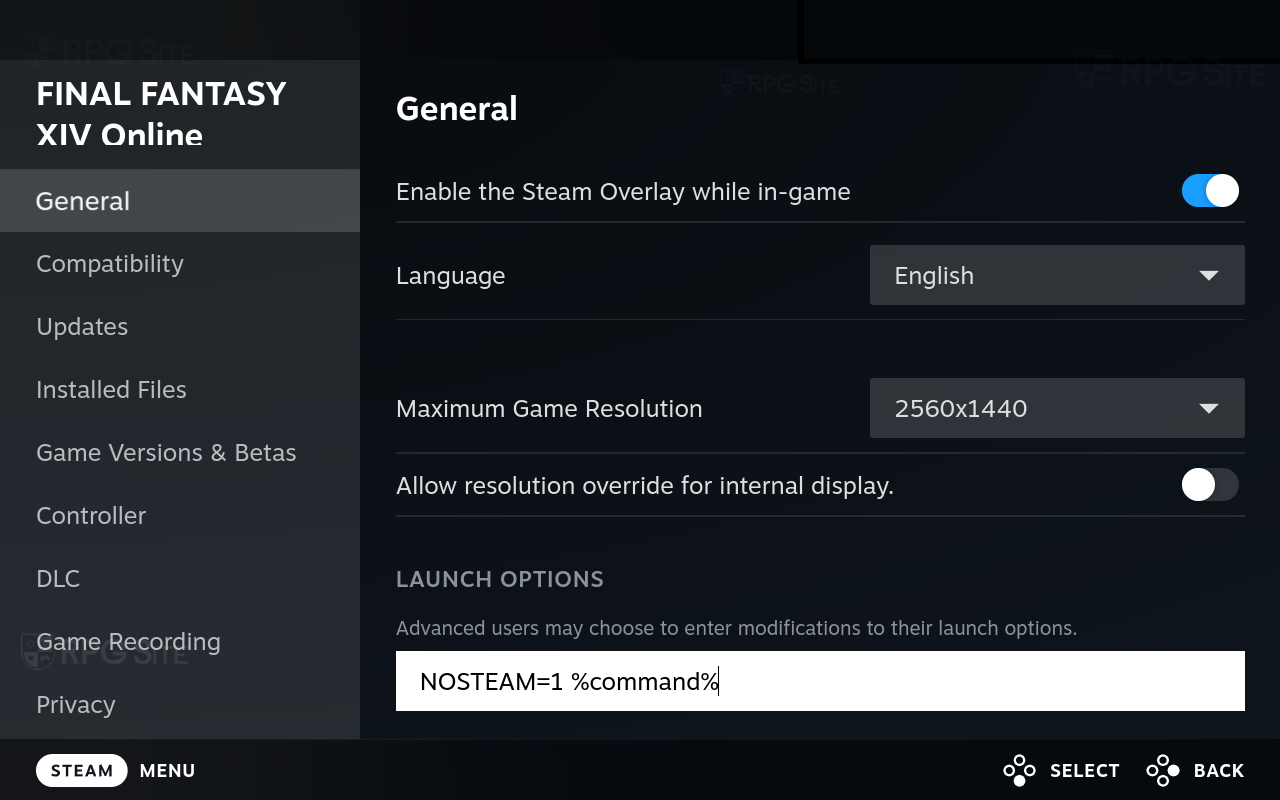
With that out of the way, on either the trial or the starter edition, press the gear (settings) on the game page and select properties. From here, make sure to scroll down on the general tab and you will see a text entry box for LAUNCH OPTIONS. Over there, you need to type the following without quotes: "NOSTEAM=1 %COMMAND%"
Note: There is a space in between the 1 and % in the launch option above if it isn't clear.
This has worked for years and I learned how to do it from this Steam Community guide. This tells the launcher that you want to login with a standalone license despite playing on Steam. Once that is done, you will want to use GE Proton to improve performance. To install GE Proton, you need to go into Desktop mode on Steam Deck. If you aren't sure how to do that and haven't used Desktop mode before, this video from GamingOnLinux is worth watching. It is what I originally used to learn as well.
When you are back in gaming mode or the default Steam Deck mode, go into a game's properties and select the Compatibility menu. From the drop-down, select the version of GE-Proton you just downloaded. GE-Proton improves performance in FFXIV based on my testing. This also applies to the Steam license owners.
Note: If this is your first time installing or playing FFXIV on Steam Deck ever and you aren't returning to it or re-installing it, keep in mind that the initial setup will take a while to download all the files. Make sure you have over 130GB free space to be safe. I also recommend turning off your Steam Deck's sleep mode for this initial download.
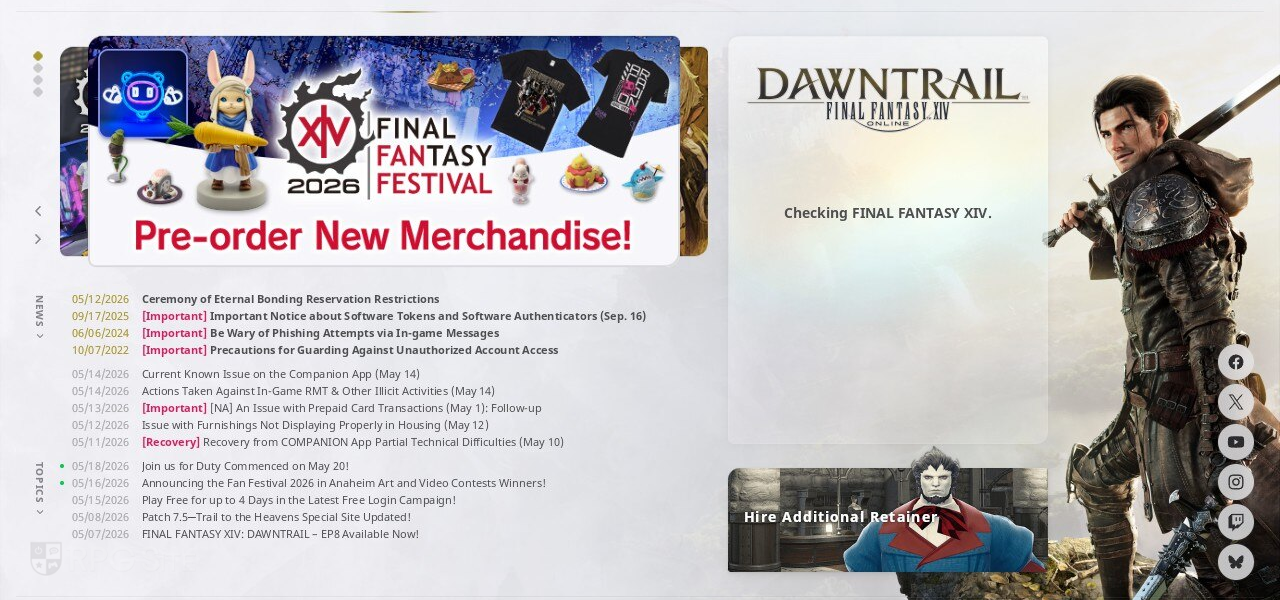
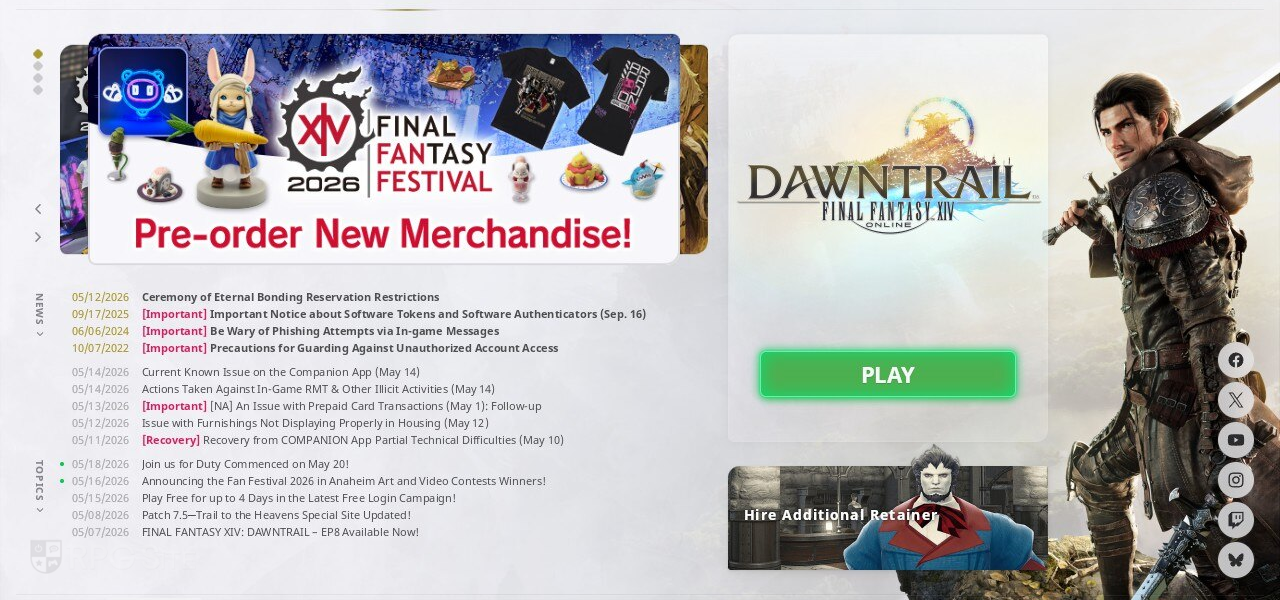
I've used this method for years now and it allows you to play on Steam Deck with no issues barring inputting your main password and one-time password. There is a quirk I noticed here where inputting these details only using the buttons on the Steam Deck might result in some download failure, but doing the following helps:
- Type the password using the on-screen keyboard (buttons or touchscreen).
- Do not press the right bumper to hit enter. Instead, tap the section of the screen for the OTP input text box.
- This will bring up the on-screen keyboard again.
- Type the OTP and then use the bumper (R2) for enter and do not press the keyboard or touchscreen to submit.
- This will submit the password and not cause the launcher to have download or other errors.
- You need to do this to login every single time since the FFXIV client does not save your password, but it does save your username.
I know this sounds weird, but I have literally tested this out multiple times over the years on two different Steam Decks, different service accounts, and had friends verify it for me. I'm not sure what causes the errors when using the touchscreen, but using the R2 button helps here. Once you have logged in and if this is your first time, the client will start downloading all the data.
Final Fantasy XIV Steam Deck recommended settings
With all the data downloaded, if you do play FFXIV on another platform, use this guide from Square Enix to backup your client settings so your controller setup and HUD can be brought over. This helps make things feel seamless between both platforms and you only really need to do it once. If you do change your hotbar or controller layout, you can manually upload and download this again.
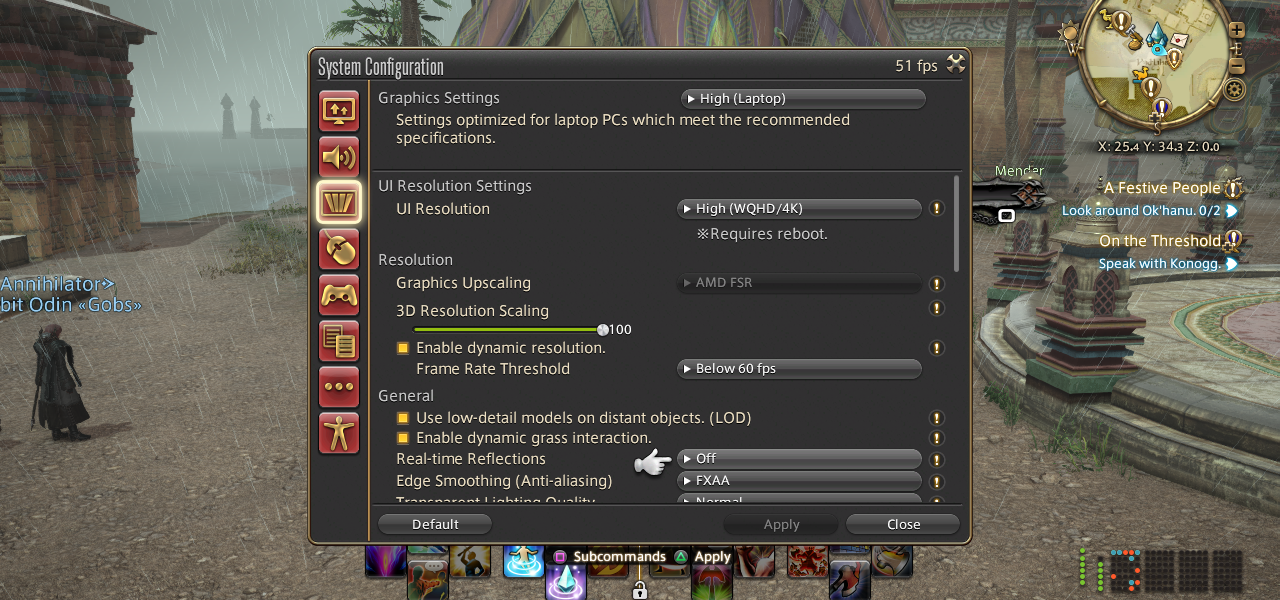
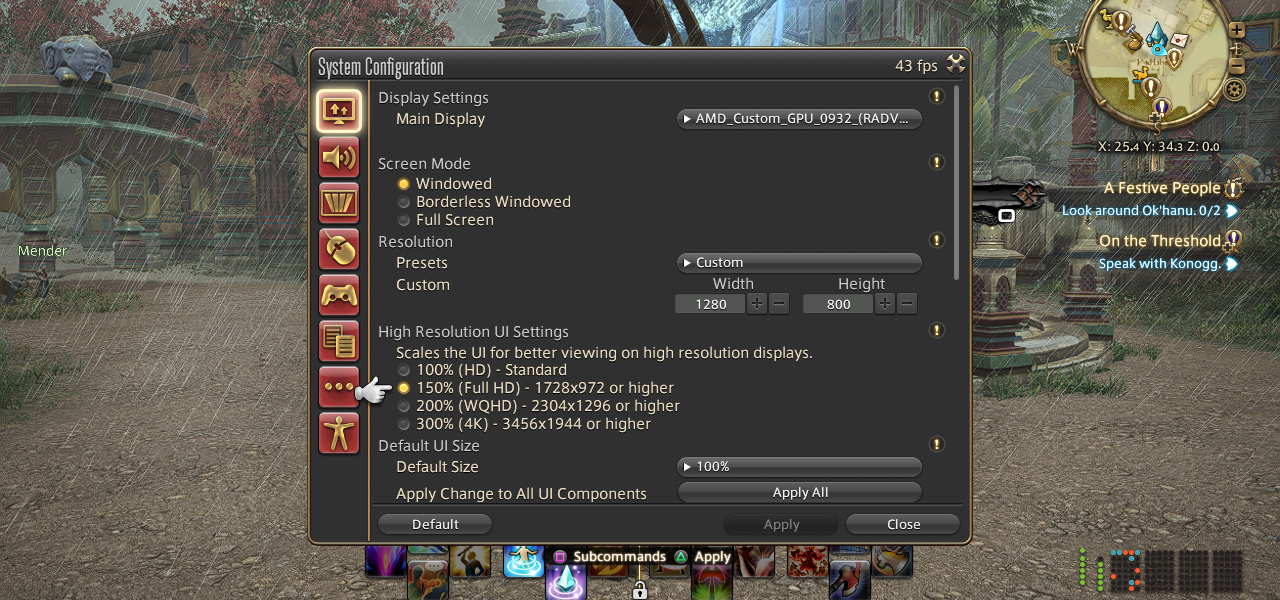
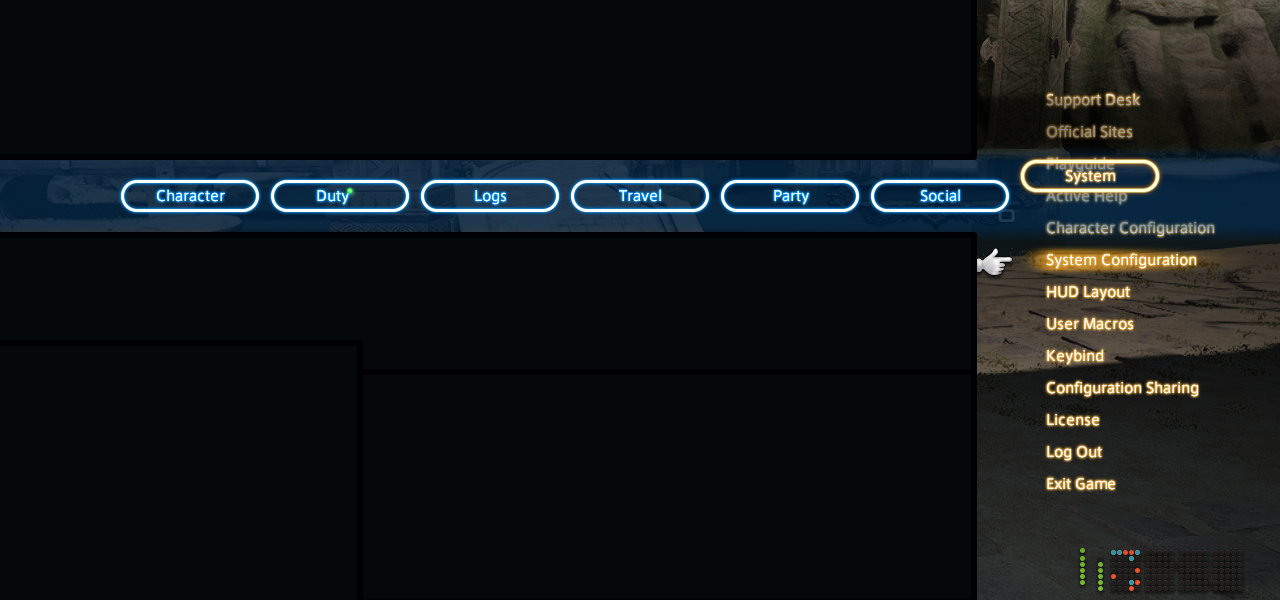
After the big graphics upgrade for Final Fantasy XIV, a locked 60fps experience is not possible with good visuals on Steam Deck. My recommended settings are manually setting FFXIV's resolution in-game to 1280 x 800 using the custom option in Display Settings. If you don't know where the Display Settings option is, it comes under System Configuration in the system menu. If this is not visible for you or the menu is a bit confusing and you only see keyboard and mouse prompts, you need to enable the controller layout. You can do this by following the steps in the images below:
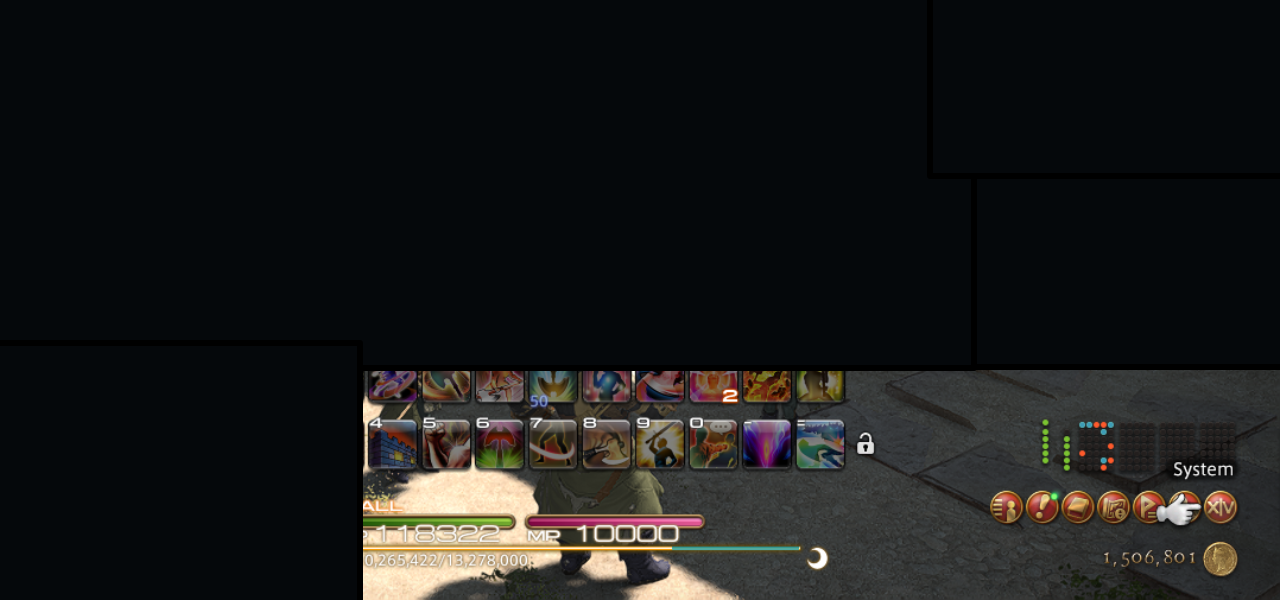
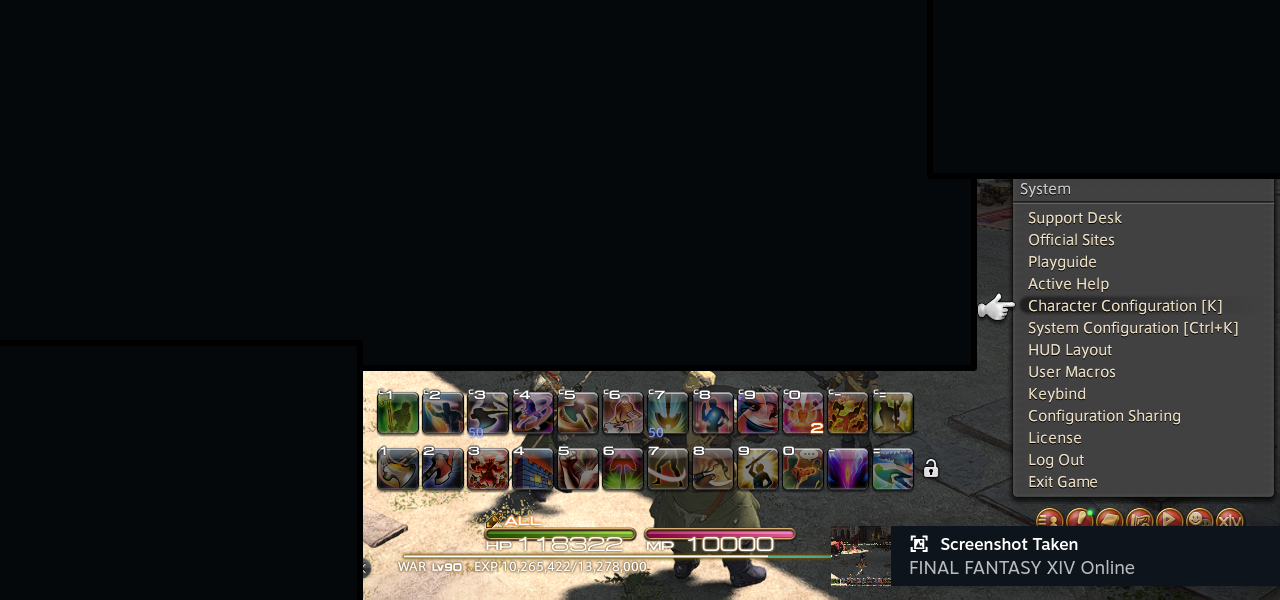
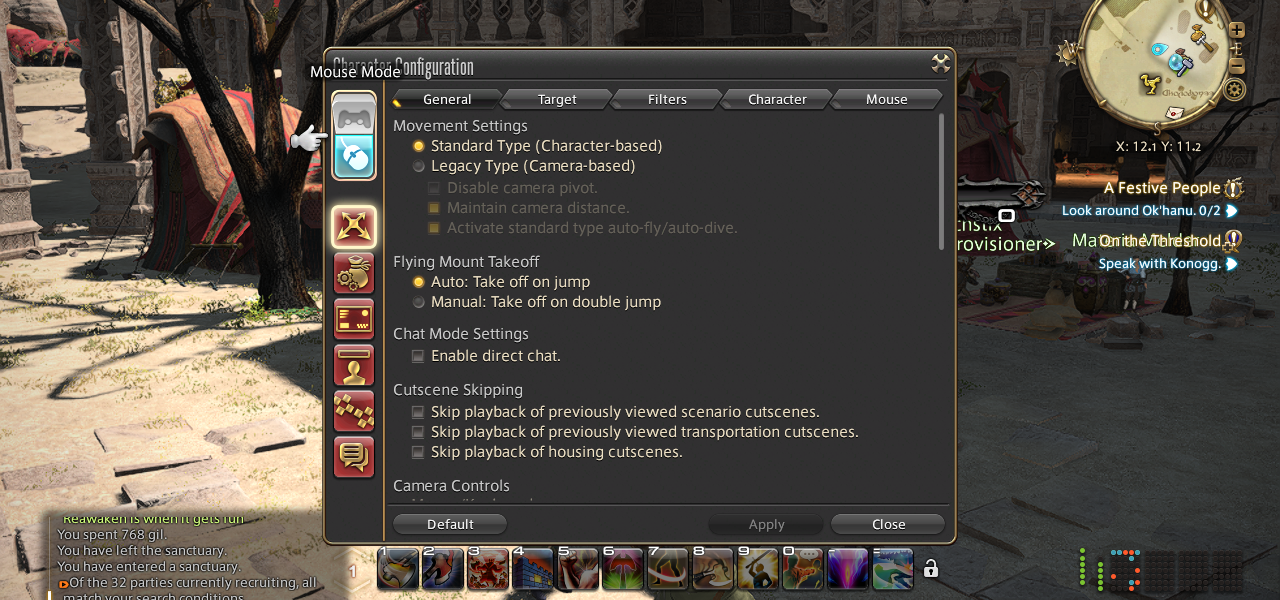
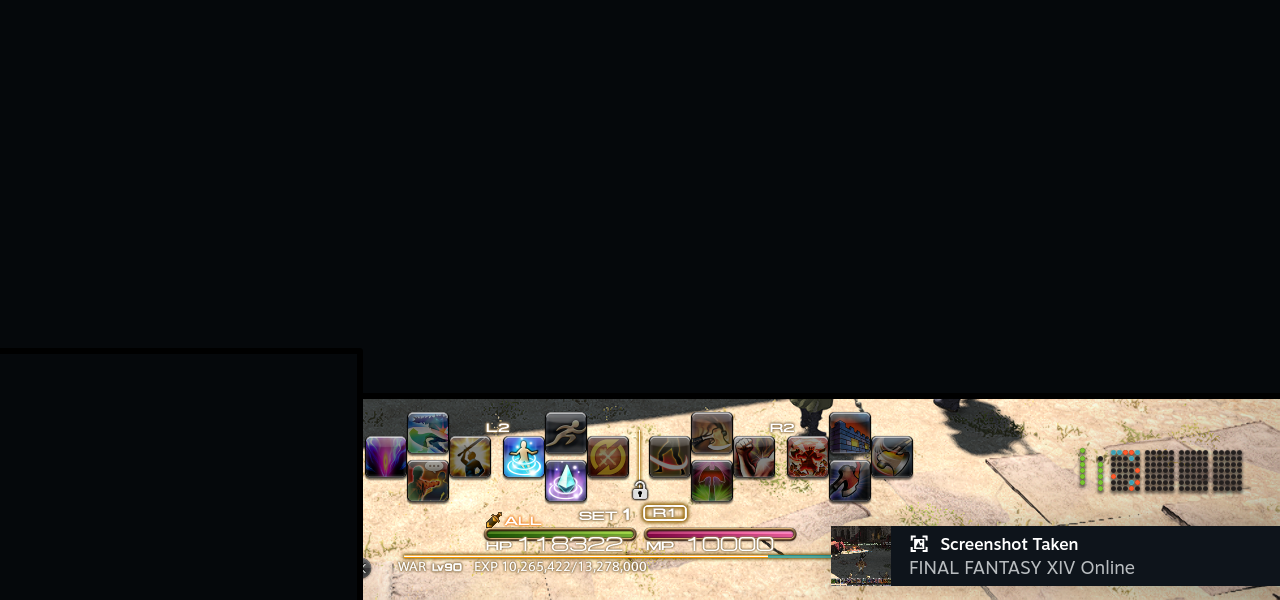
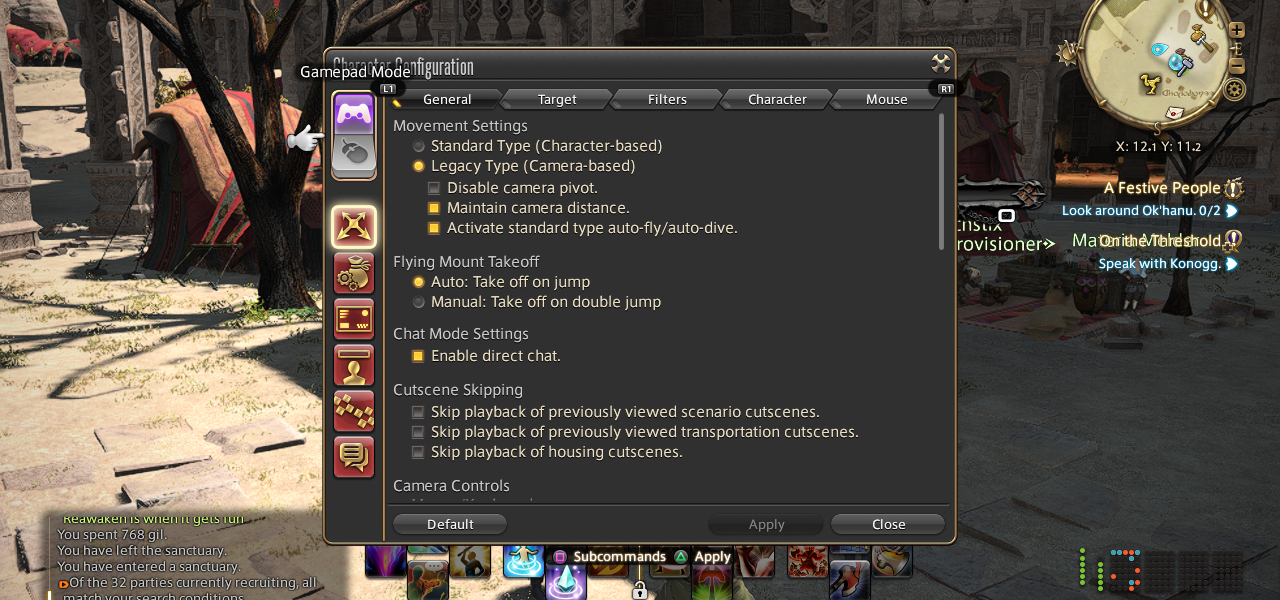
Once you have the controller input enabled, you will want to change the scaling for the interface. You can adjust this as per your liking, but I used 150% scaling since it delivered a good compromise between readability and as little clutter on the screen as possible.
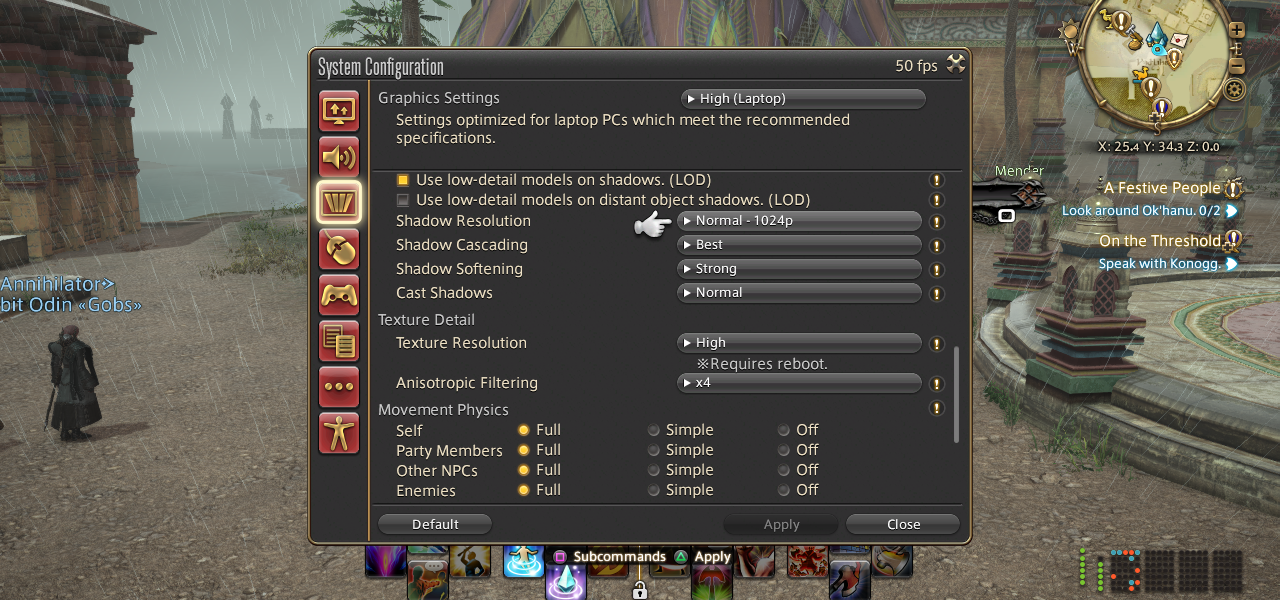
There aren't too many things to change for a solid FFXIV Steam Deck experience. If you want to aim for a 40fps on Steam Deck LCD and 45fps on Steam Deck OLED target, use the following settings:
- Laptop (High) preset.
- 3D resolution scaling to 100
- Enable dynamic frame rate (when below 60fps)
- Anisotropic filtering set to 16x instead of 4x.
This delivers a solid experience without compromised visuals on the handheld screen. Regardless of the settings I used, I was unable to get a locked 60fps experience in the busy cities so I don't recommend aiming for it at all following 2024's graphics update.
FFXIV Steam Deck recommended trackpad and back button bindings
With the graphics and UI settings out of the way, it is time to make some tweaks to the Steam Deck itself when it comes to FFXIV's controls. I recommend mapping L3 (left stick click) and R3 (right stick click) to the back buttons as shown in the image below. If you take a lot of screenshots like I do, I also mapped that action to one of the back buttons.
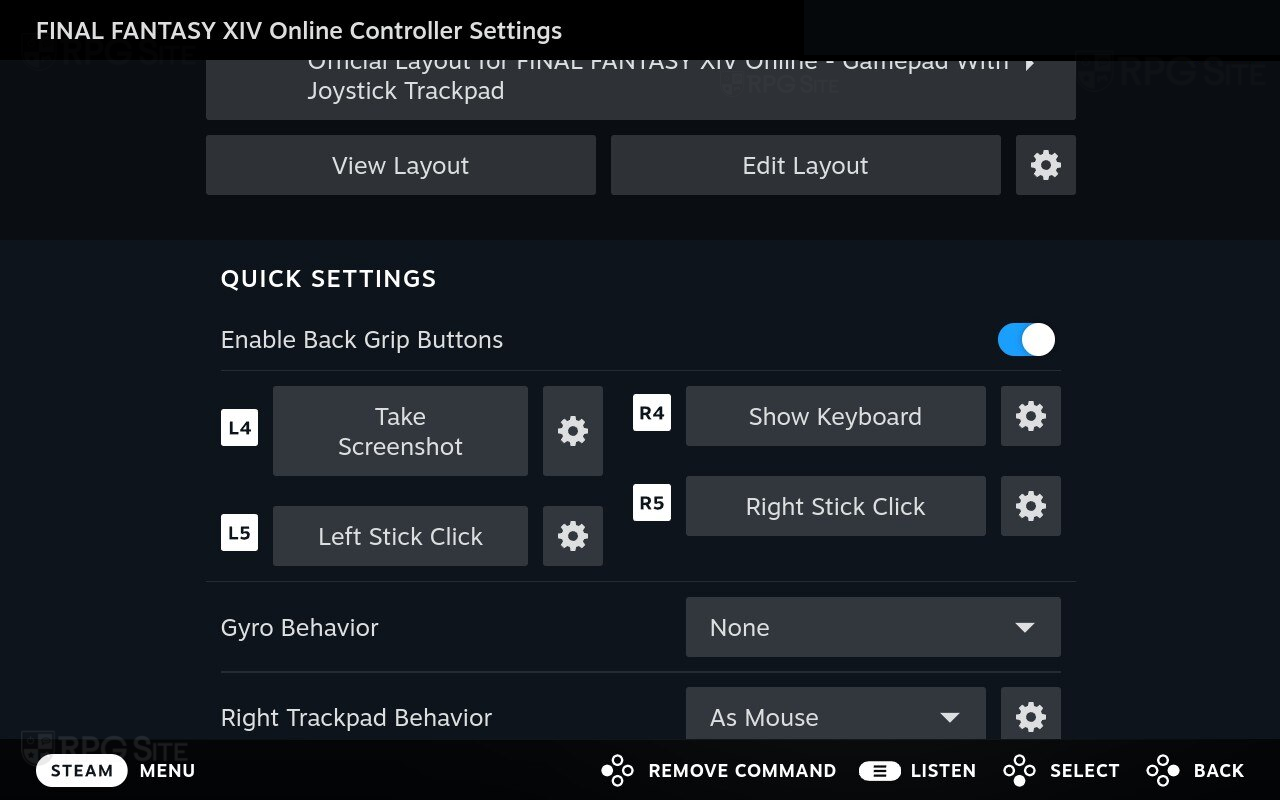
For the trackpad, I set the right trackpad to mouse instead of joystick. This gives me the ability to have full controller support, back buttons, the touchscreen, and a trackpad for mouse to cover all input bases.
With this, you are set to play FFXIV on Steam Deck through Dawntrail with multiple input options, great visuals (all things considered), solid performance, and not worry about third-party tools.
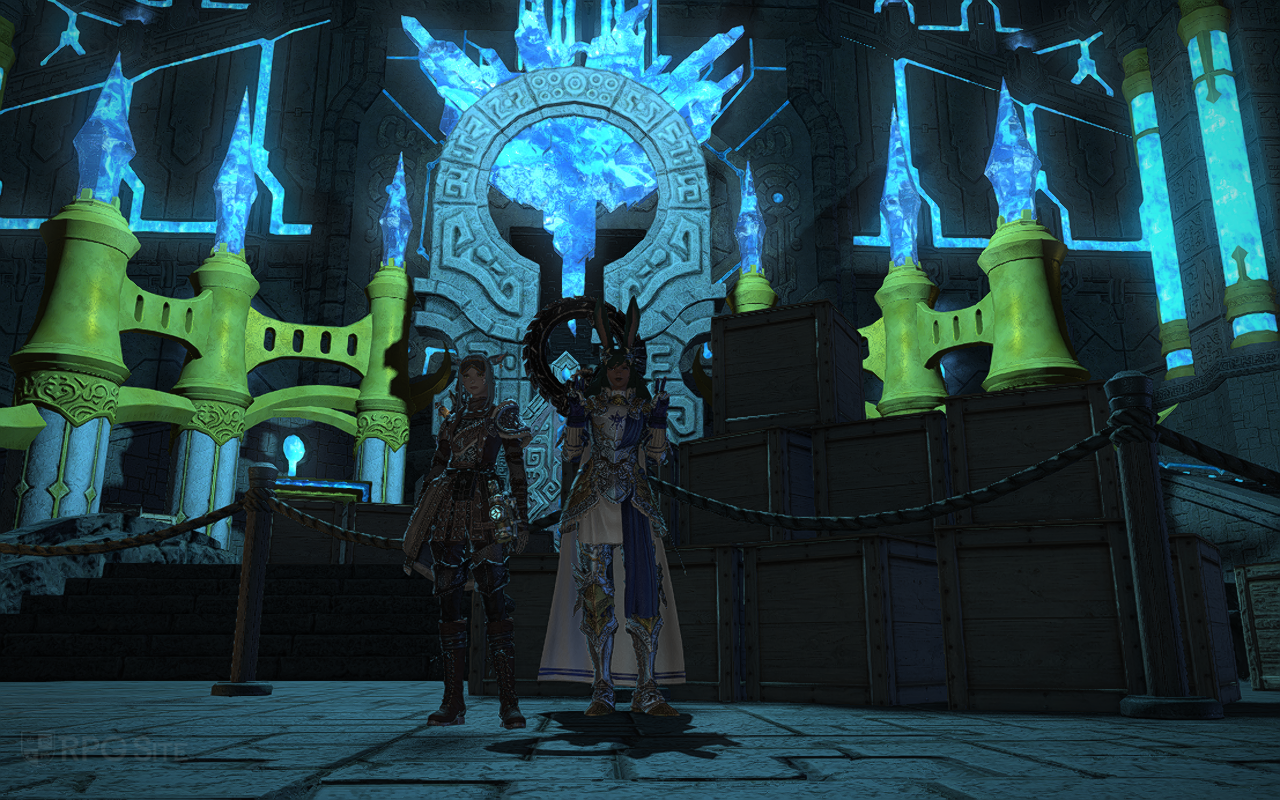
Final Fantasy XIV: Dawntrail is now available on PS5, PS4, Xbox Series X|S, macOS, and PC. It launches this August for Switch 2. Final Fantasy XIV: Evercold, the next expansion, launches January 2027 for PS5, PS4, Xbox Series, Switch 2, and PC platforms.