

The Legend of Heroes: Trails beyond the Horizon for PC is a fantastic port and excellent on Steam Deck
The Legend of Heroes: Trails beyond the Horizon launches next week on PC from NIS America. Just like with NIS America's other Falcom PC releases, PH3 handled the conversion. As with the last few Falcom PC games, I have a dedicated feature covering the PC version of Trails beyond the Horizon to go over the PC-exclusive features, handheld performance, ultrawide impressions, and more. For today's feature, I also have been able to compare the NIS America and Clouded Leopard Entertainment (Asia-focused) PC releases.
Trails beyond the Horizon PC exclusive features — HDR support, quality of life options, soundtrack information, and more
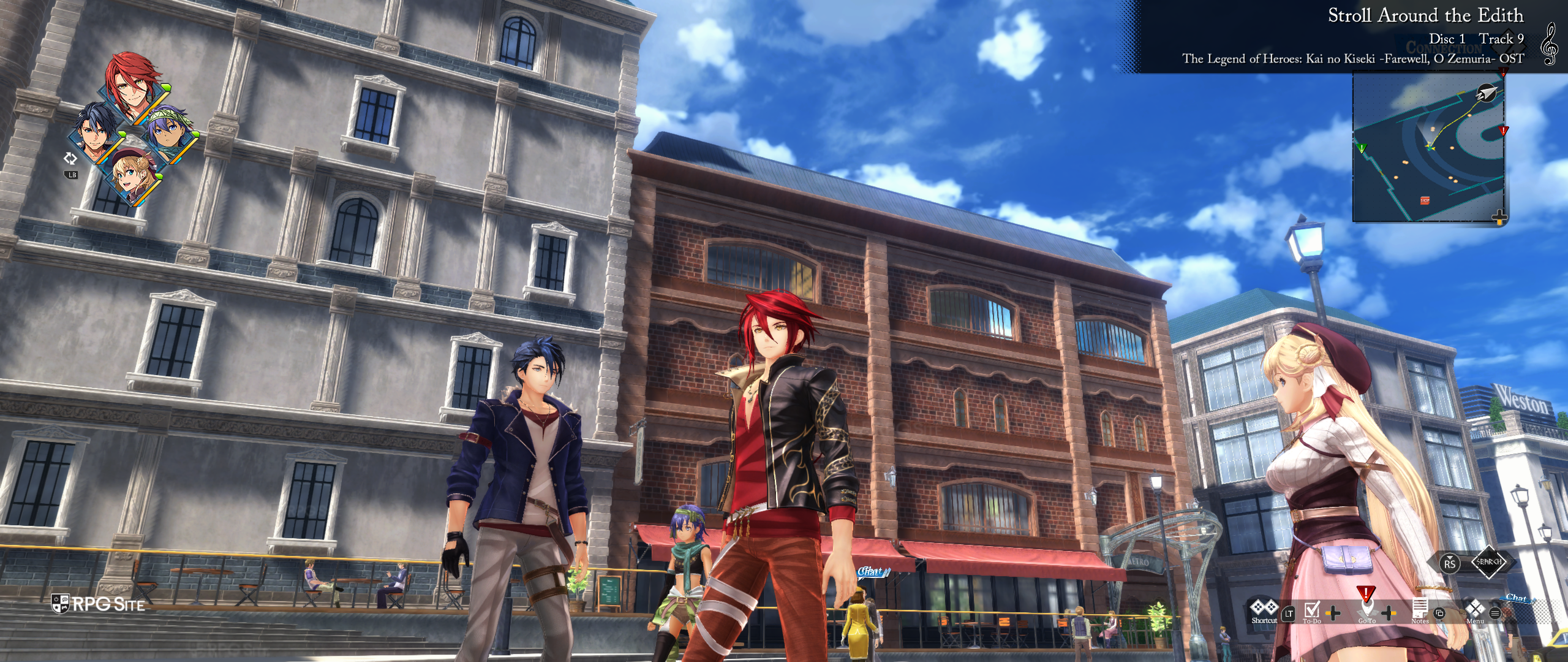
With Trails beyond the Horizon, we see a similar set of PC-exclusive features like with PH3's Trails Through Daybreak II release including HDR support, improved turbo options going above the console versions, the ability to load directly into your save, skip publisher logos to save time when launching the game, many graphics and visual options, the ability to show BGM / soundtrack information, and much more.
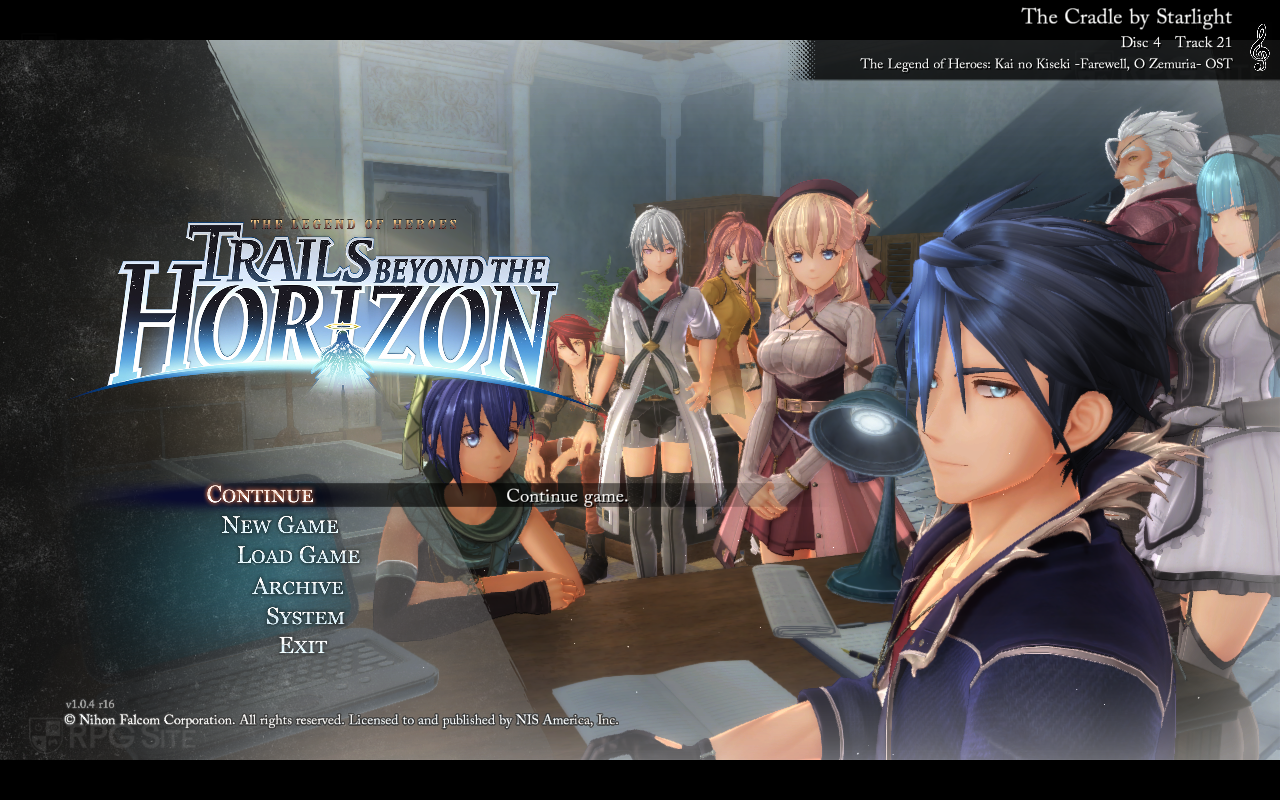
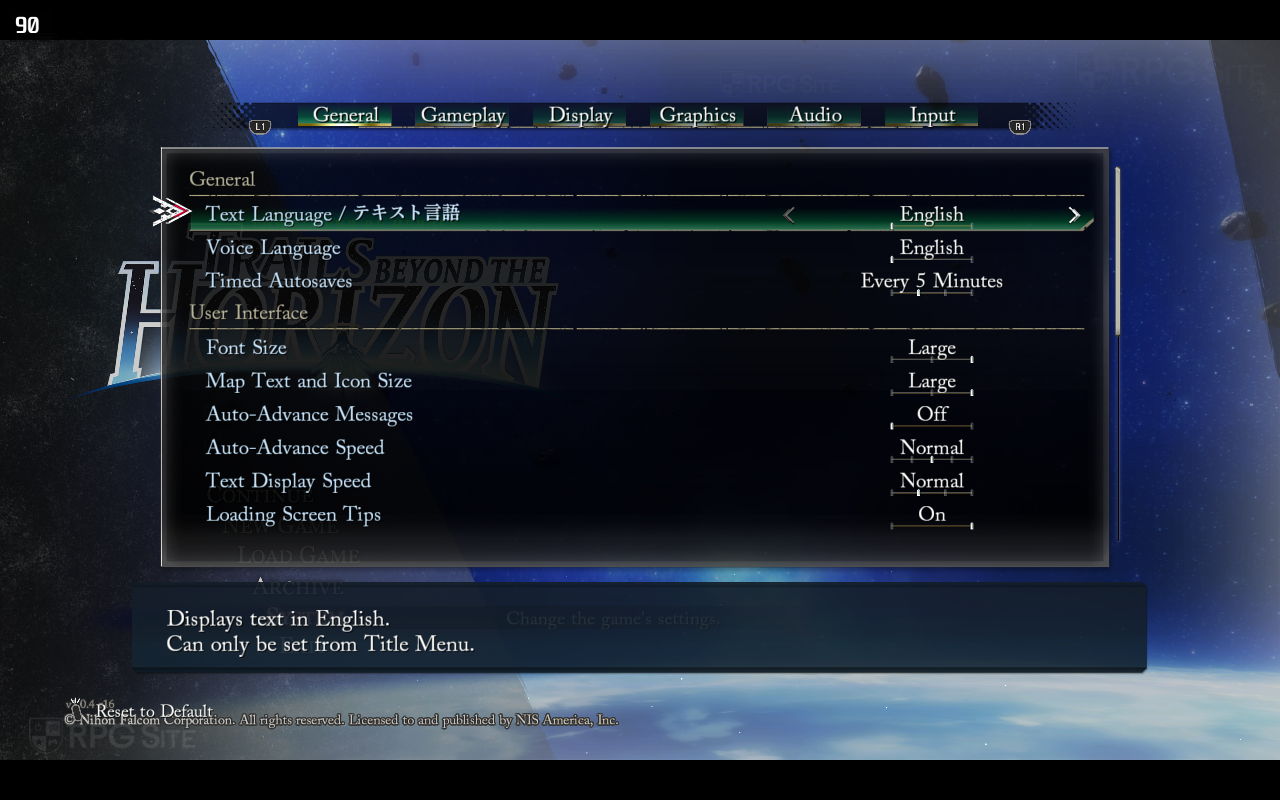
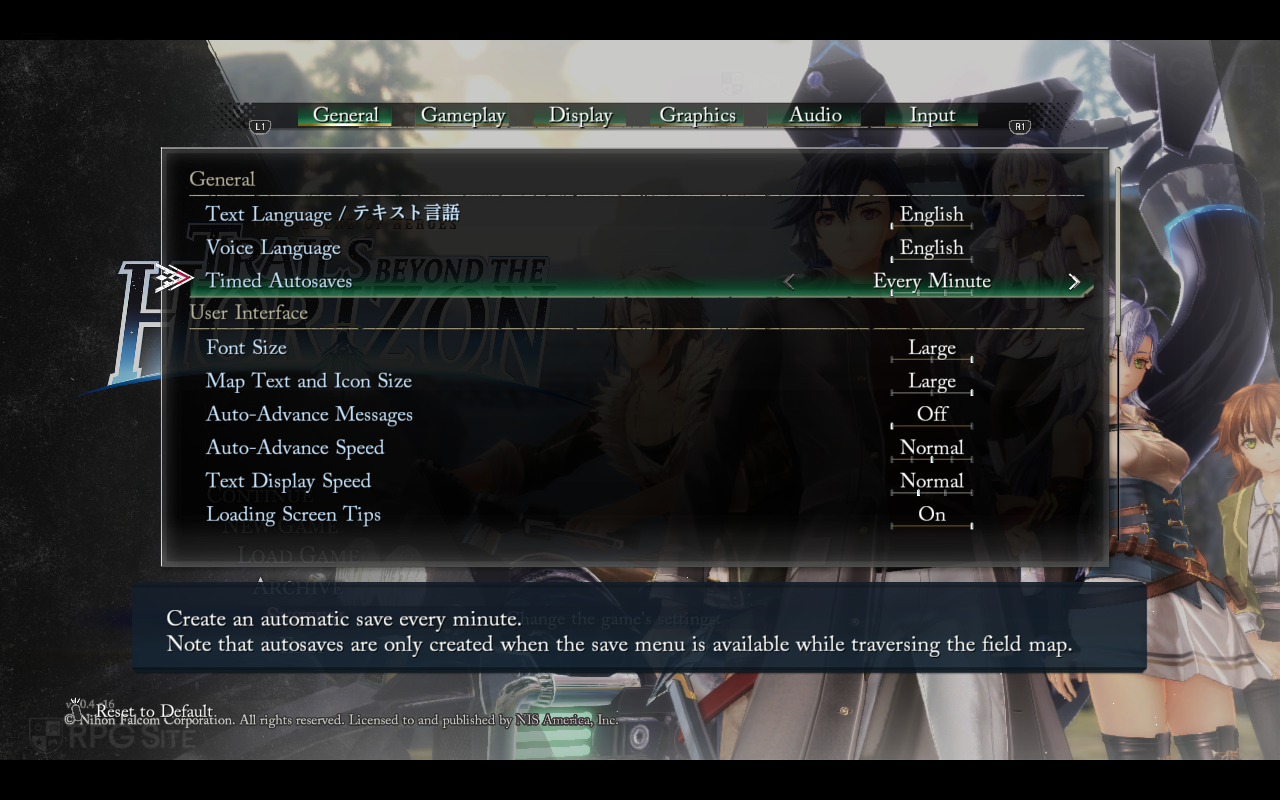
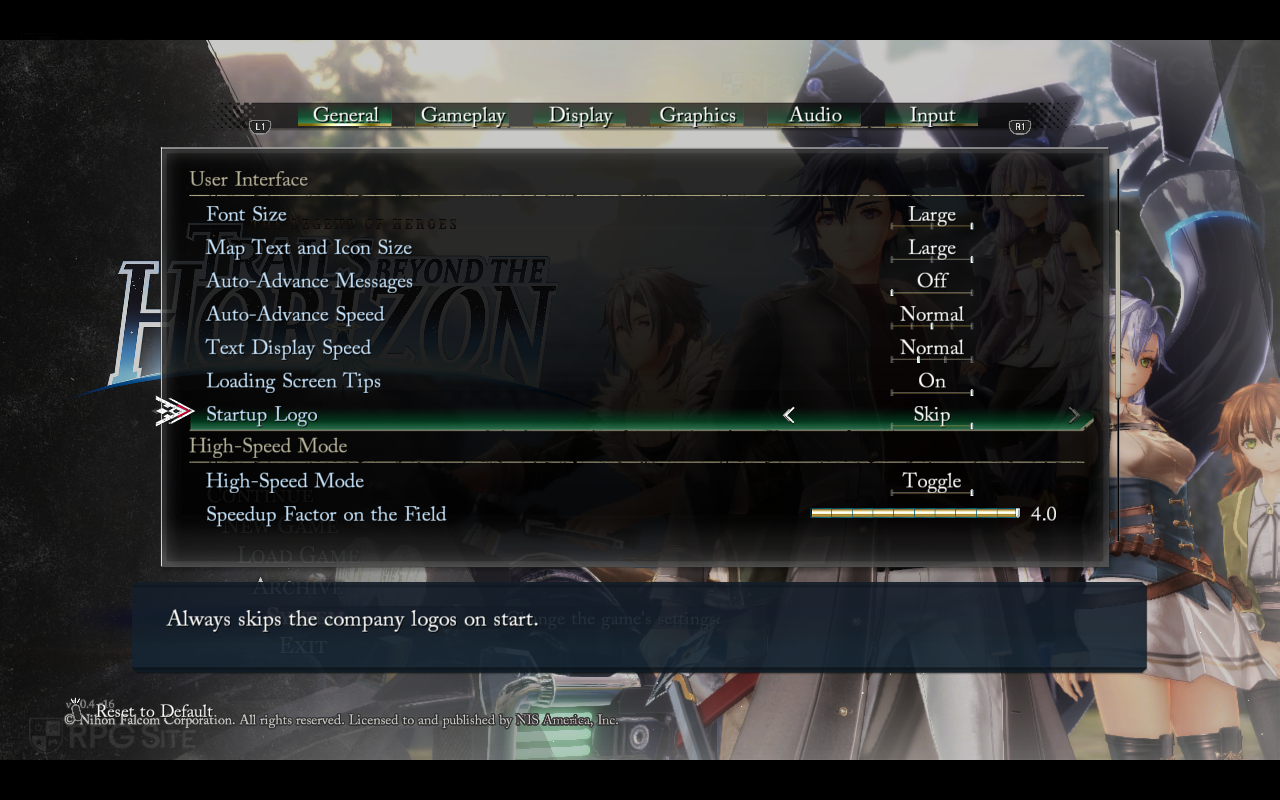
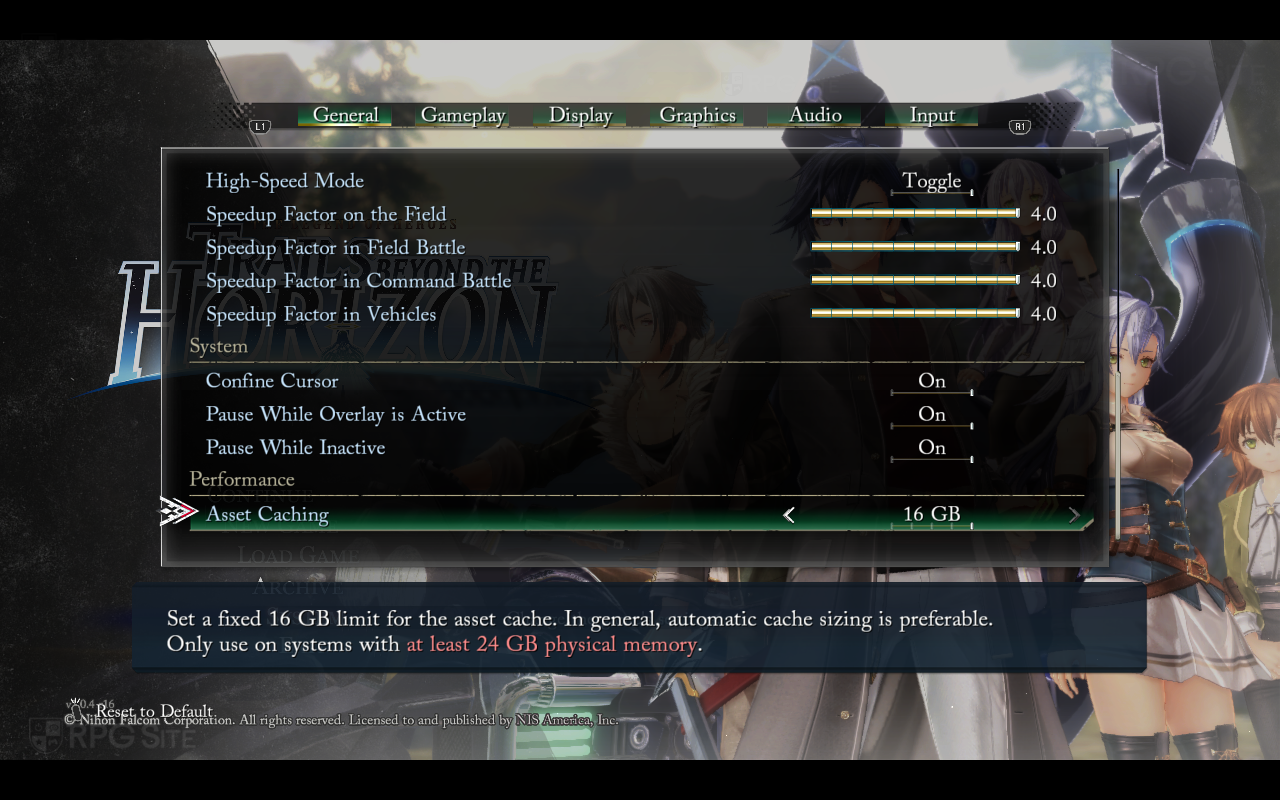
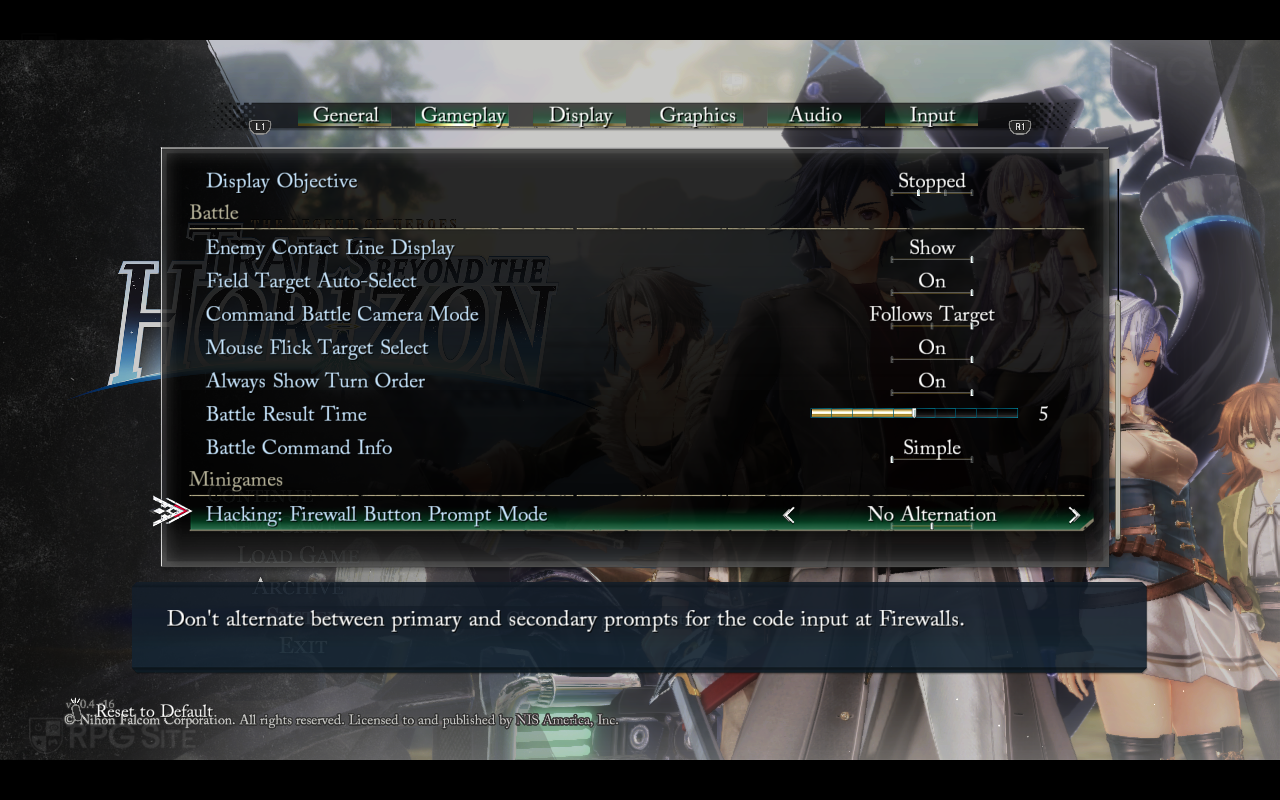
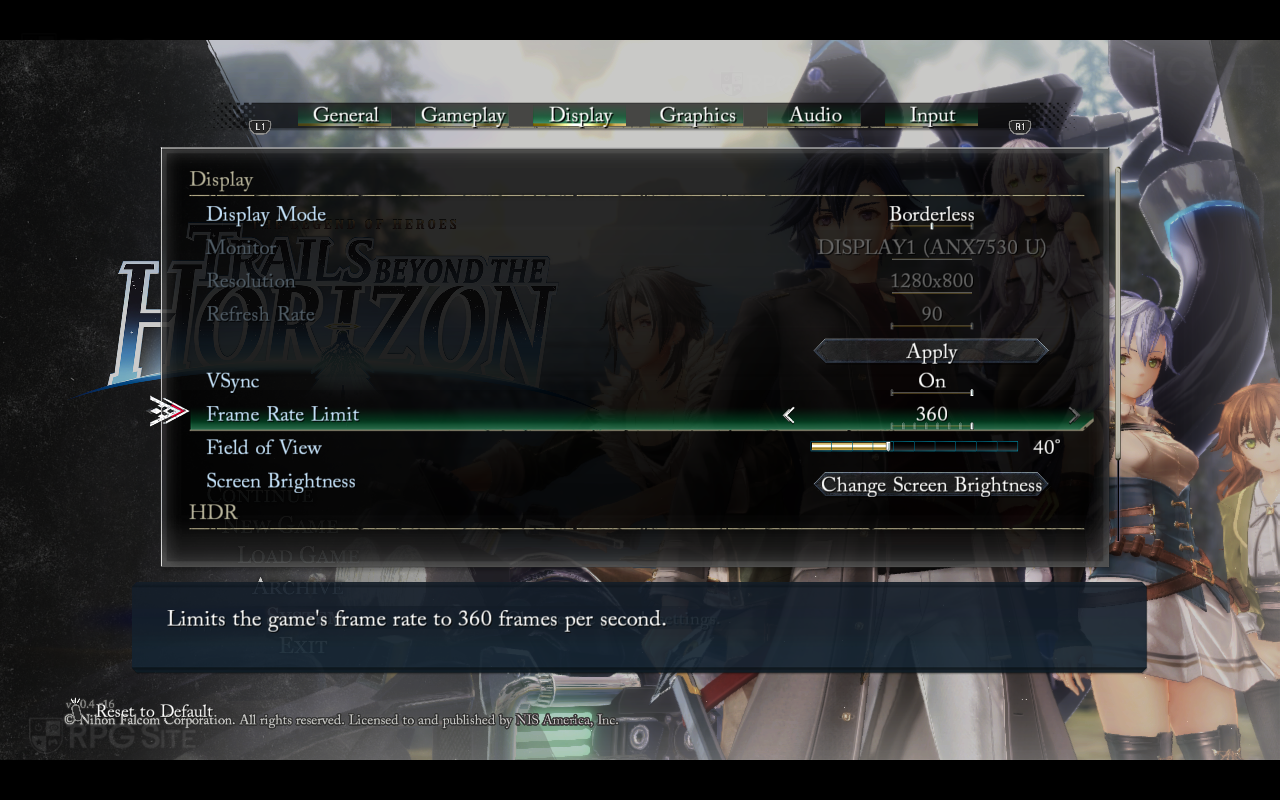
Before getting to the graphics and display options, Trails beyond the Horizon's system menu itself offers a lot more options than the console versions. The PC-only options here include text options, autosave interval time, specific UI text and icon size options, the ability to skip the startup logos, and a specific Asset Caching option. Asset Caching, turned-off by default, lets you choose how much memory Trails beyond the Horizon will use to speed up load times. When it is off, it will result in slightly longer load times, but you can enable it through an automatic setting or bespoke settings for when you have at least 24GB of physical memory.
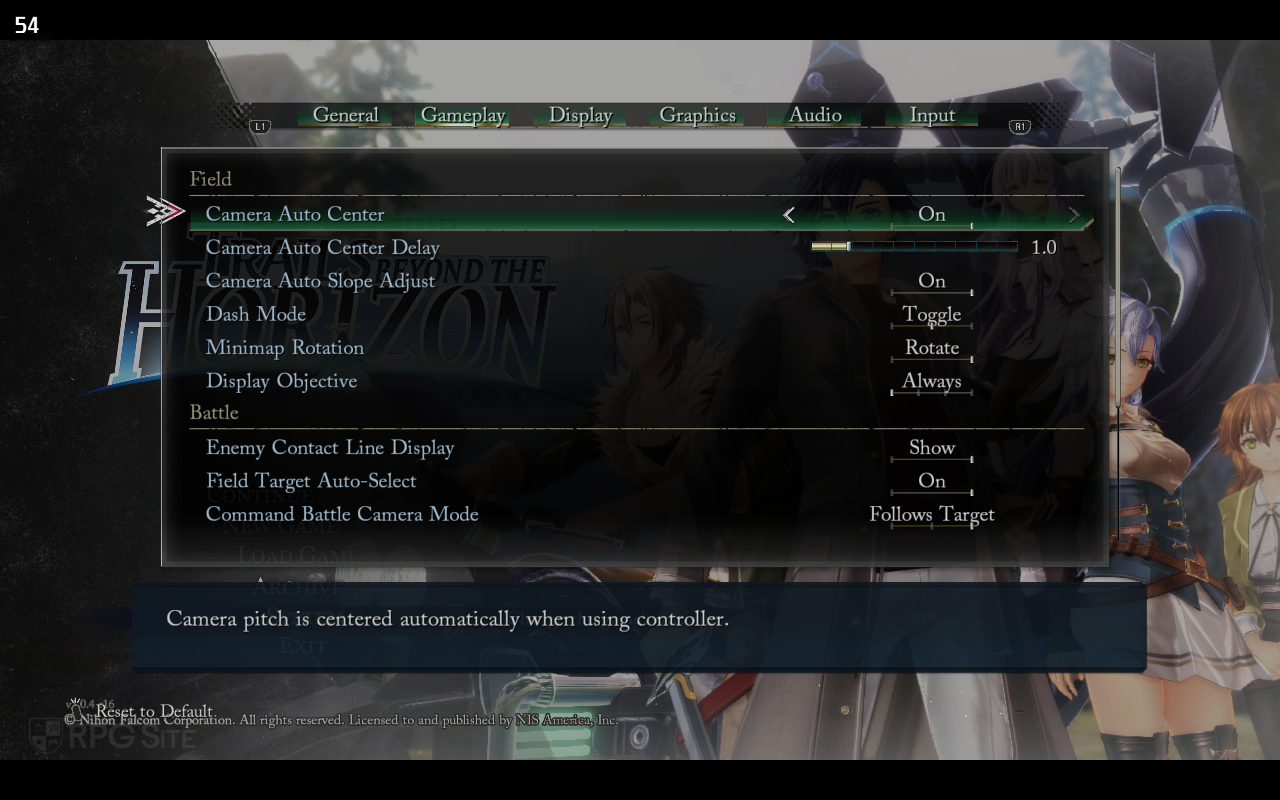
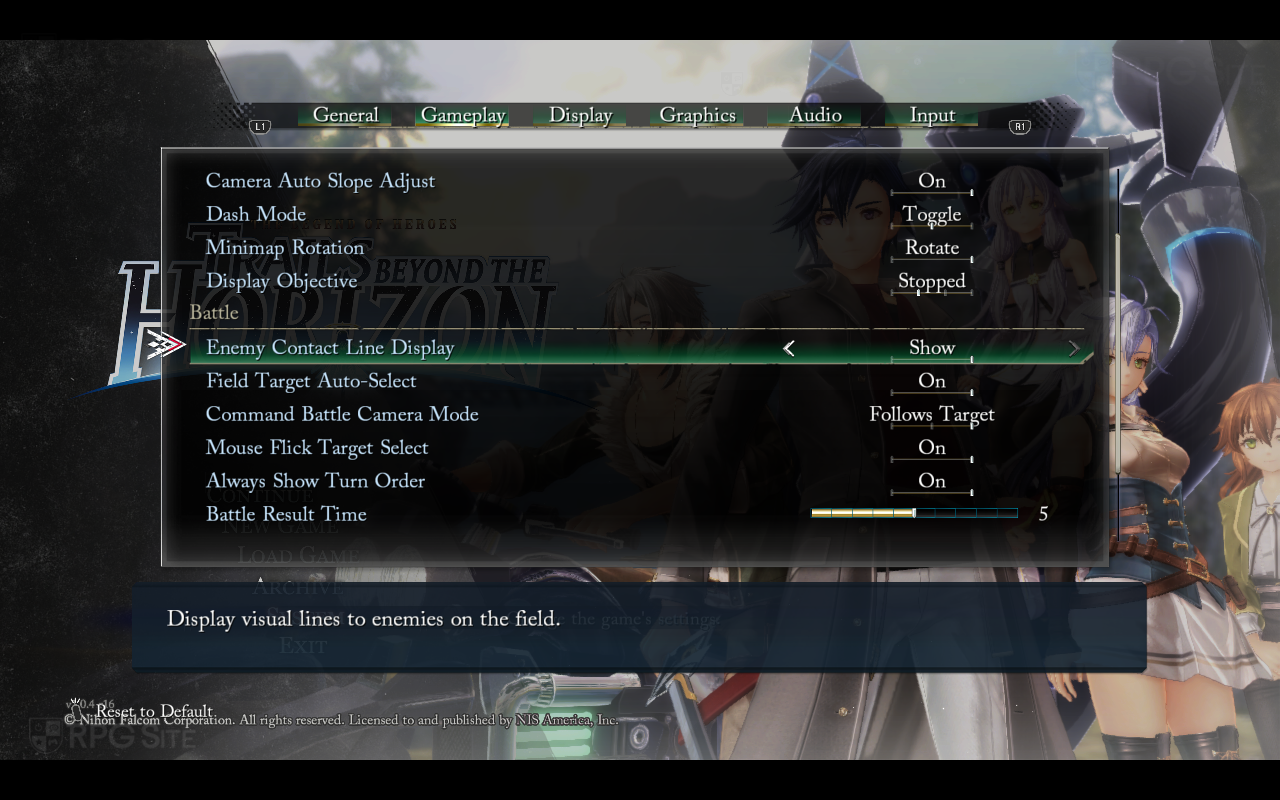
Trails beyond the Horizon also has a dedicated Gameplay system menu that lets you adjust camera auto center, auto center delay, auto slope adjust, dash mode (separate from turbo mode) being toggle/hold, minimap rotation, objective display (when stopped, always, when moving, or never), battle options like auto selection for field target, contact line display, battle camera mode, change target by flicking mouse when locked on, display turn order, and a special mini-game option for Hacking: Firewall.
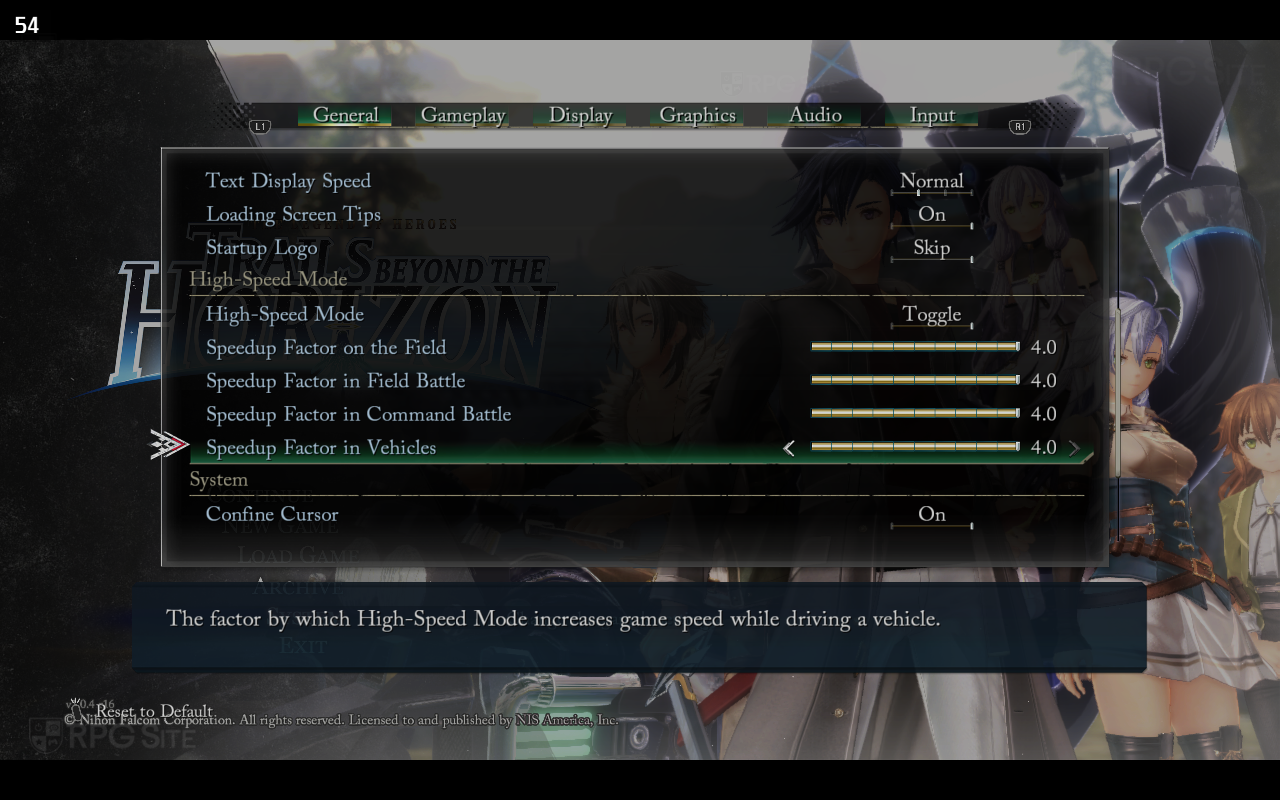
Trails beyond the Horizon PC exclusive turbo mode or High-Speed Mode options
On console, Trails beyond the Horizon lets you adjust the high-speed mode or turbo mode multiplier for field battles and command battles individually with three options. On PC, PH3's Trails beyond the Horizon release lets you enable high speed mode with a toggle or holding a button, and then adjust the speedup factor for exploration on the field, field battles, command battles, and driving a vehicle. These go from 1.0 to 4.0 as shown above.
Trails beyond the Horizon PC display options
Trails beyond the Horizon on PC lets you adjust display mode (windowed, borderless, fullscreen), monitor being used, resolution (320x200 to 4K based on my testing), refresh rate, toggle v-sync, frame rate limit (30fps to 360fps), screen brightness, and the HDR settings.
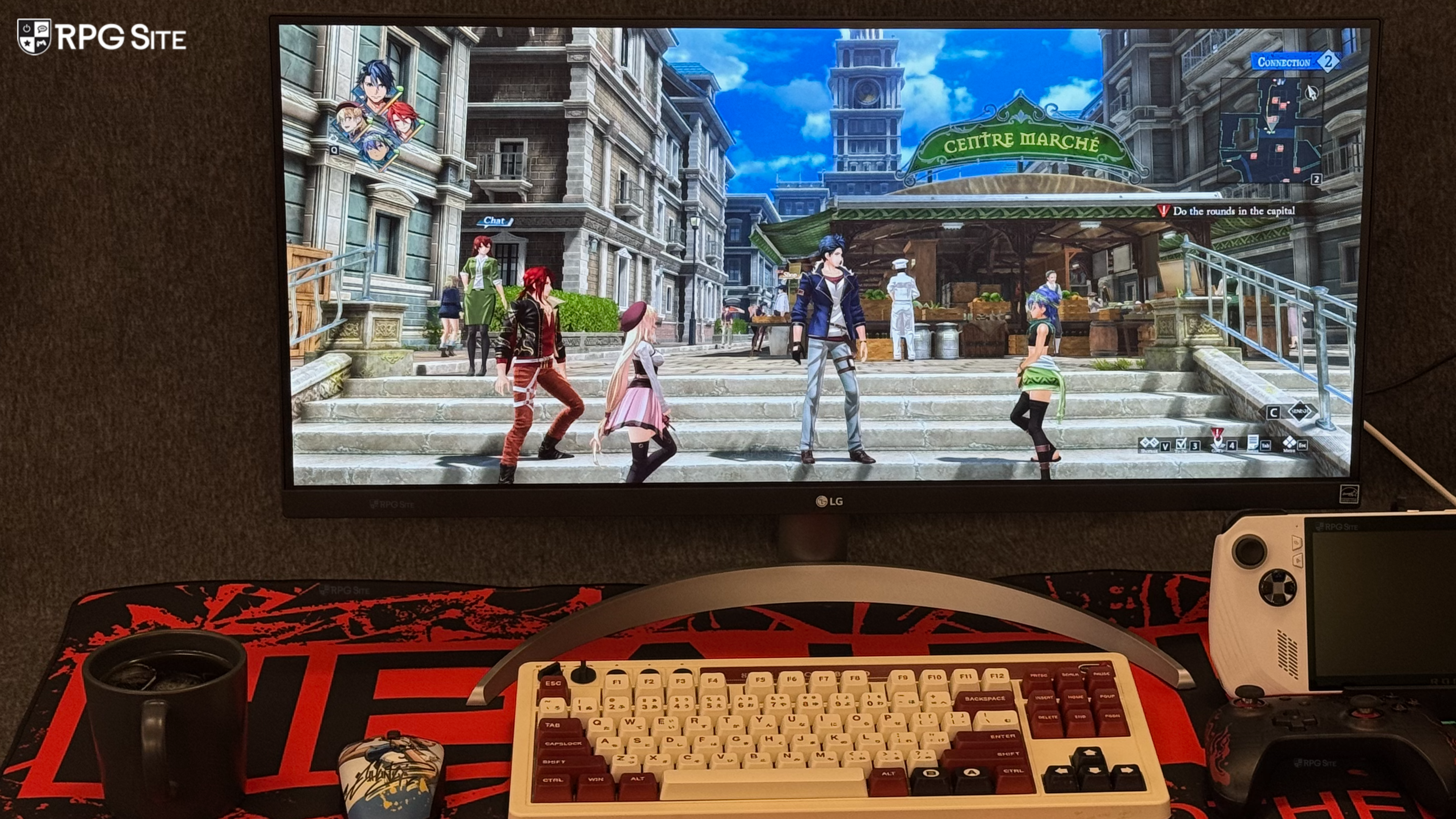
Trails beyond the Horizon PC ultrawide support
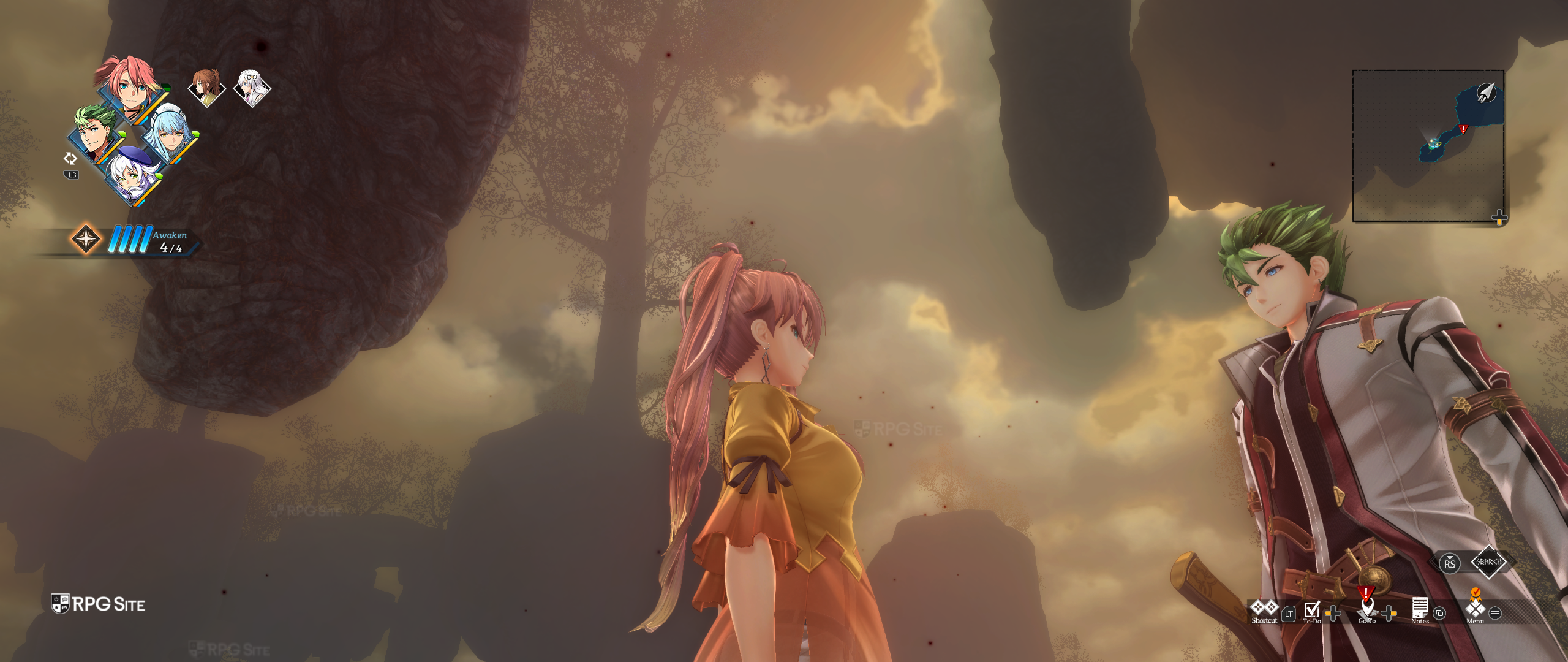
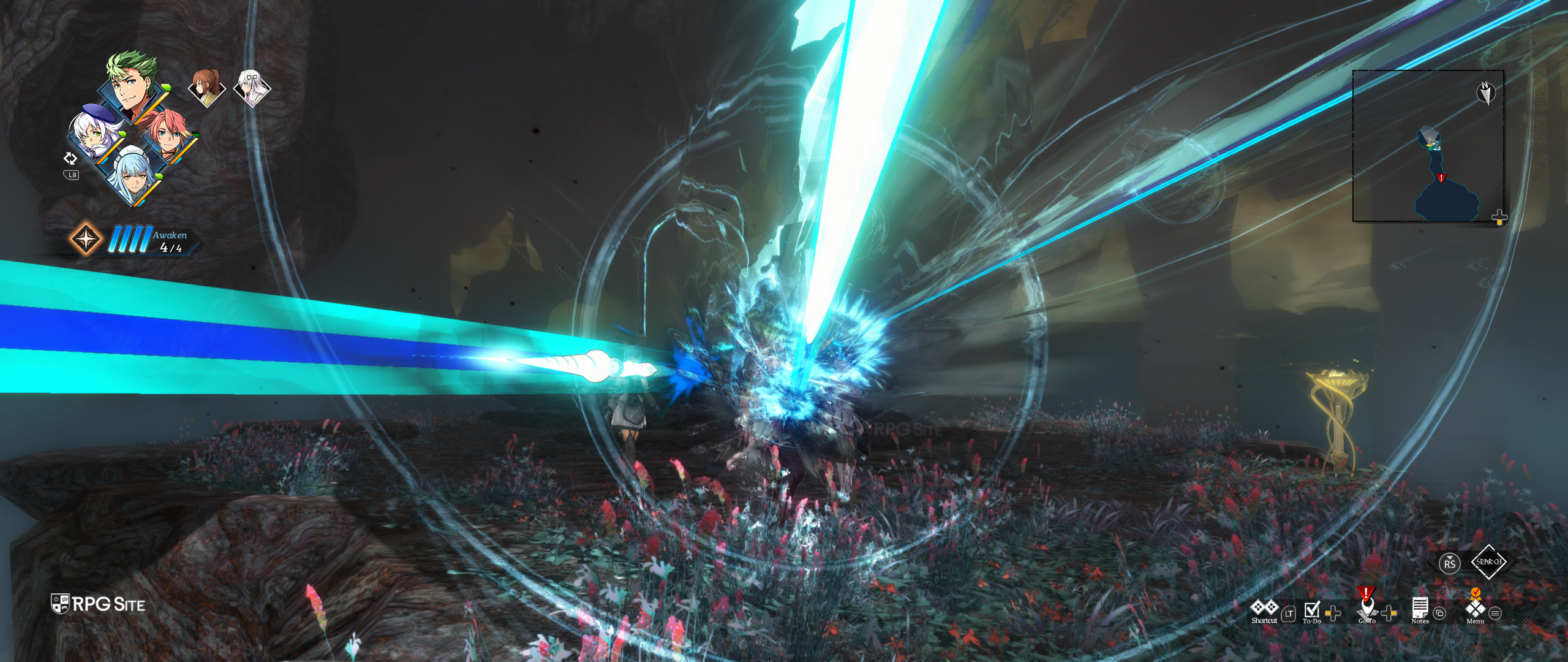
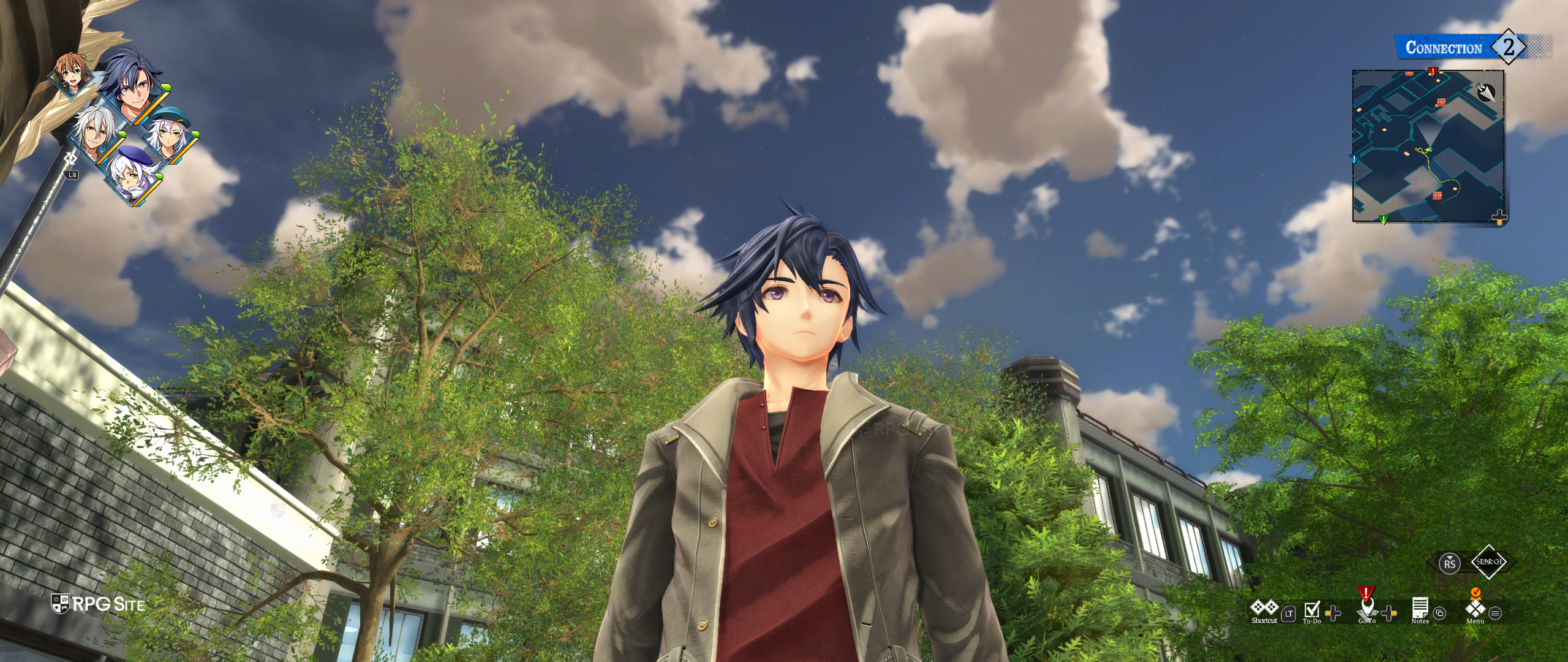
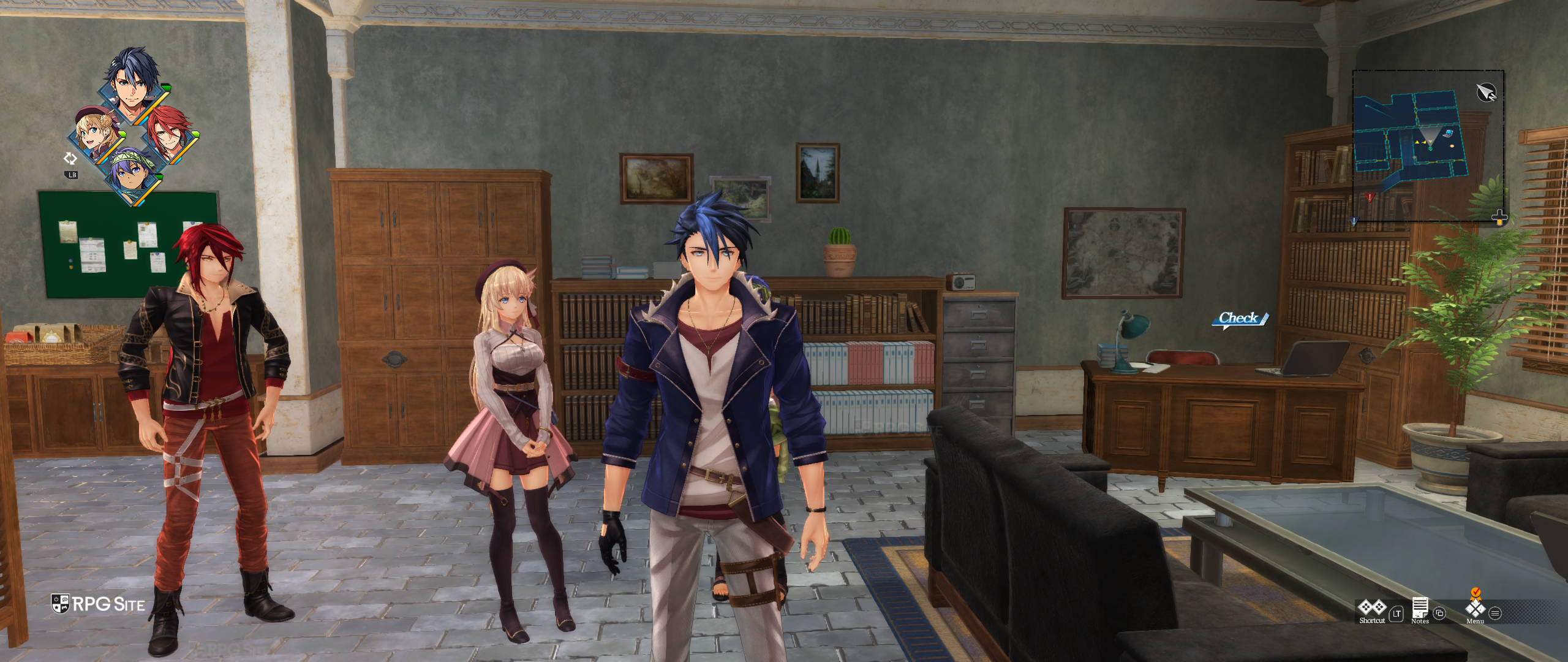
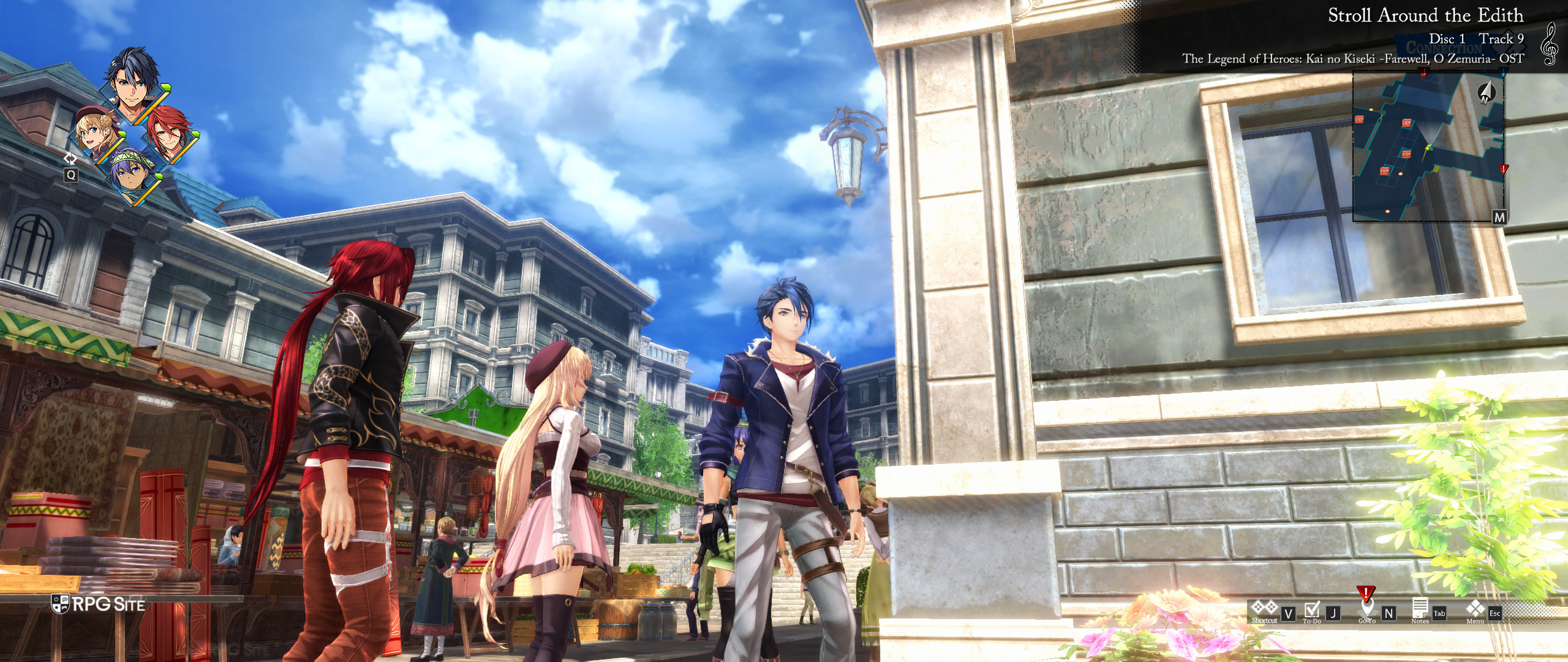
Since I recently bought an ultrawide monitor, I was curious to see how Trails beyond the Horizon feels at 21:9. Unsurprisingly, barring some 16:9 artwork, it is a great experience on my ultrawide display. This applies to not only exploration, but also combat with how the UI adjusts to the wider display.
Trails beyond the Horizon PC-exclusive HDR settings
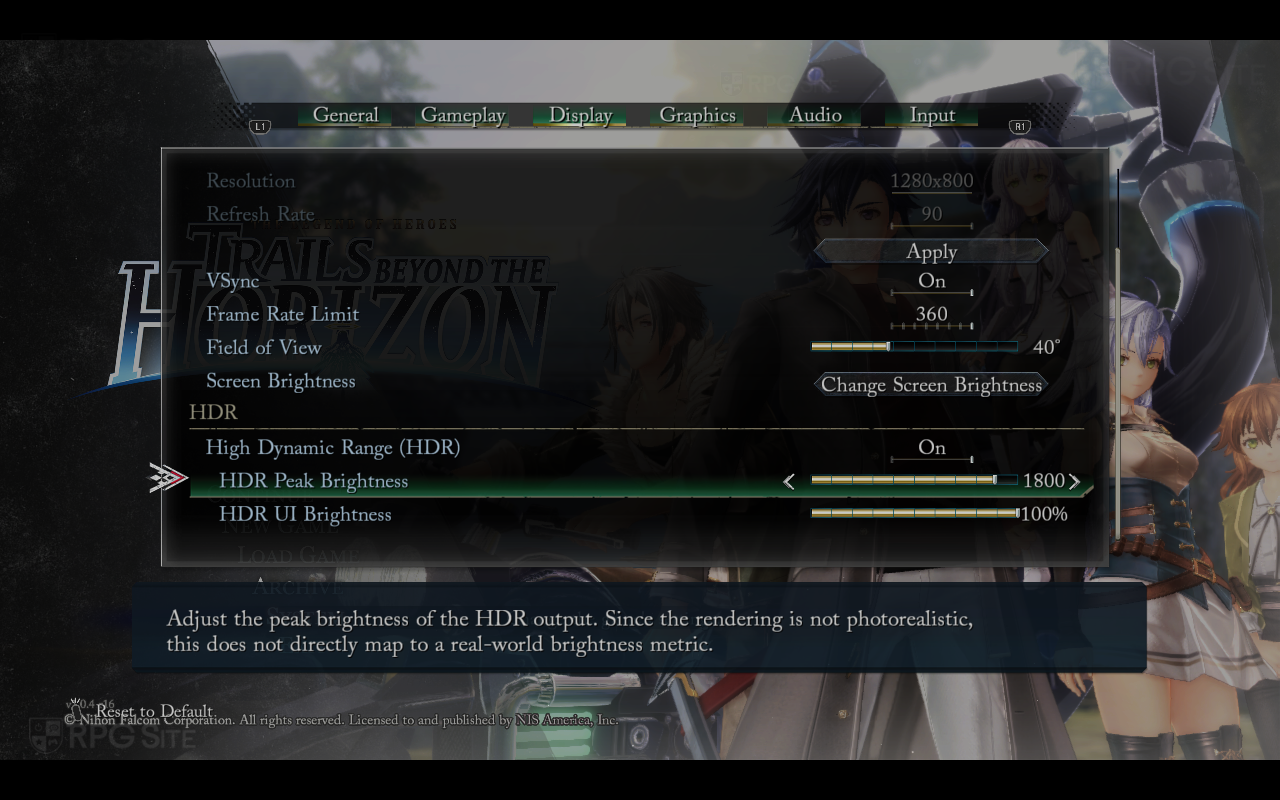
The Trails beyond the Horizon HDR settings, only on PC, are at the bottom of the Display system menu. This lets you enable or disable HDR (even on Steam Deck OLED) with peak brightness and UI brightness sliders.
Trails beyond the Horizon PC graphics presets
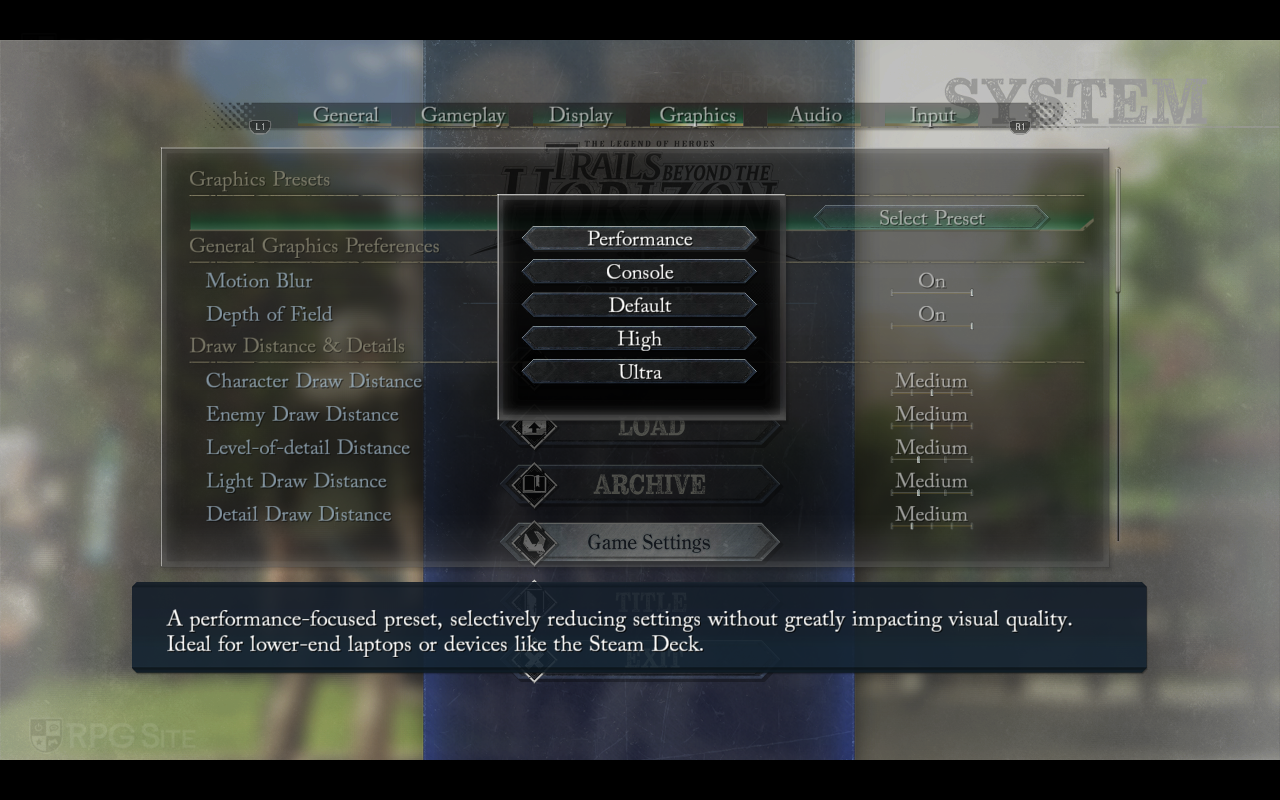
As with past PH3 Falcom games on PC, Trails beyond the Horizon ships with a few graphics presets and detailed graphics options. The presets are as follows:
- Performance: A performance-focused preset, selectively reducing settings without greatly impacting visual quality. Ideal for lower-end laptops or devices like the Steam Deck
- Console: Settings designed to match the console experience (outside of resolution and refresh rate).
- Default: The default settings. This is above console.
- High: Enables several graphics improvements which are not too performance-intensive. A balanced selection for gaming PCs.
- Ultra: Enables all the highest-end settings, except for those with extremely large performance costs for little graphical gain. Only for high-end gaming PCs.
Before getting to the graphics options, Trails beyond the Horizon also has additional audio options like the ability to adjust environmental volume and movie volume in addition to the BGM, sound effects, and voice levels. You can also toggle muting the game when inactive and adjust the BGM information display setting here to notify for a new track, always notify, or disable the BGM information. I set it to always display of course.
Trails beyond the Horizon PC graphics options
Trails beyond the Horizon's Graphics menu lets you choose a preset or customize many individual options. These are split up into the following categories: General Graphics Preferences, Draw Distance & Details, Shadows, Rendering Quality, and Graphical Effects. The General Preferences section lets you toggle motion blur and depth of field. The Draw Distance & Details section lets you adjust the draw distance level for characters, enemies, level-of-detail, light, and details. You can also adjust the number of fog particles emitted over time.
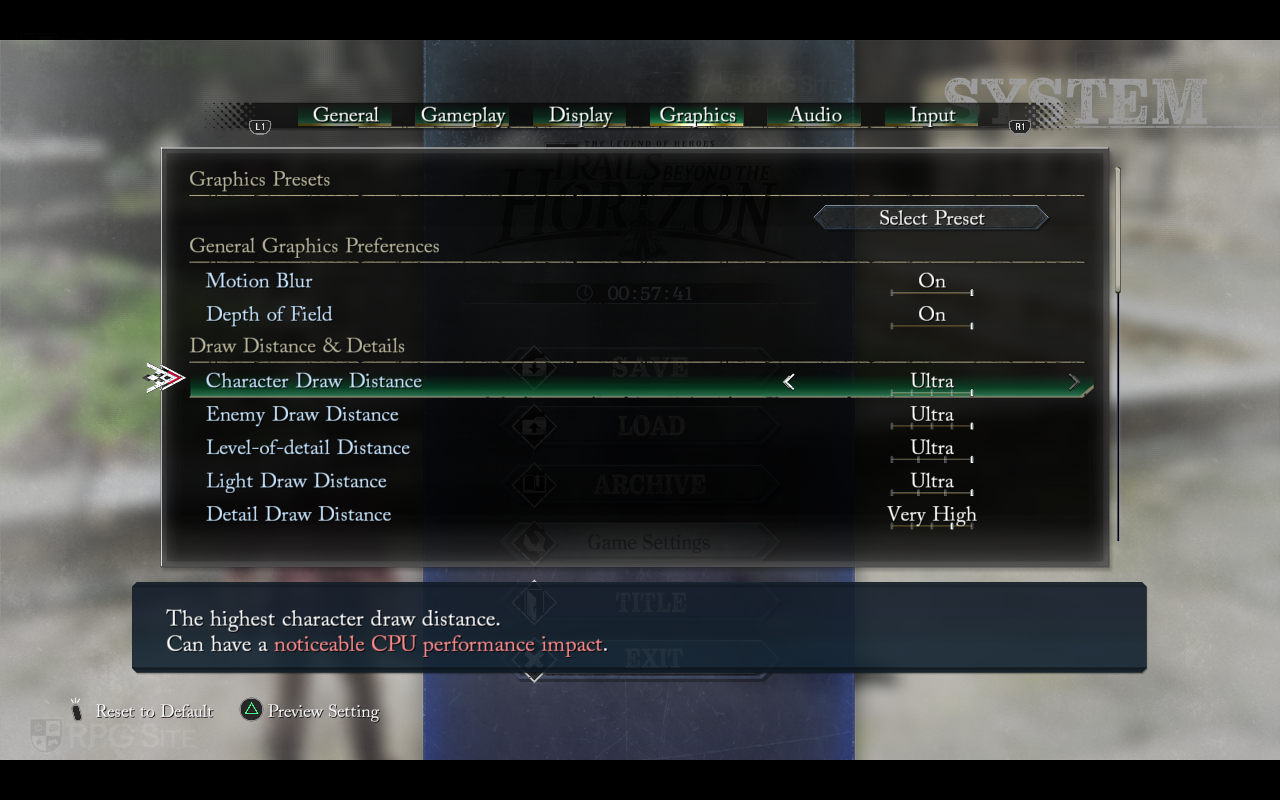
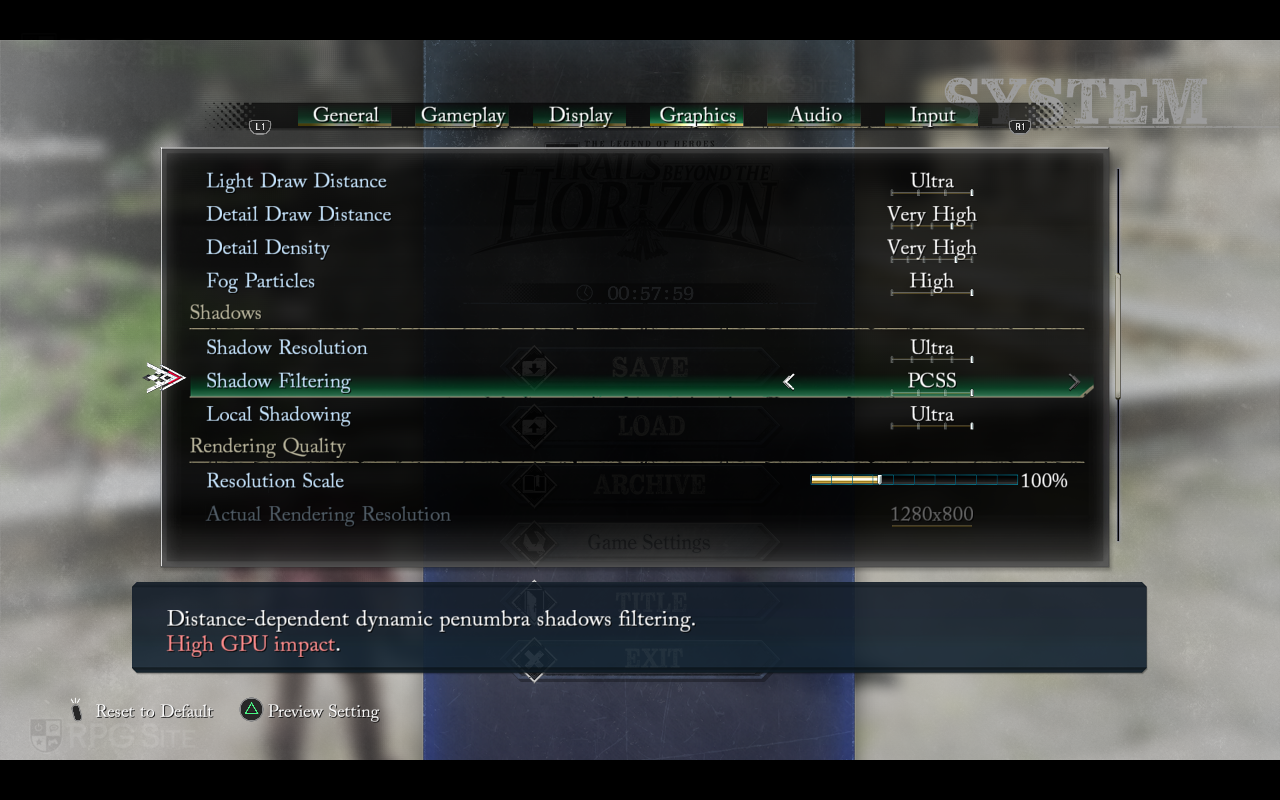
The Shadows section lets you adjust shadow resolution, shadow filtering (basic, default, soft, and distance-dependent dynamic penumbra with a high GPU cost). You can also adjust the local shadowing here to use ray-marched character shadows with HBAO+ environment occlusion at full resolution with a high GPU cost.

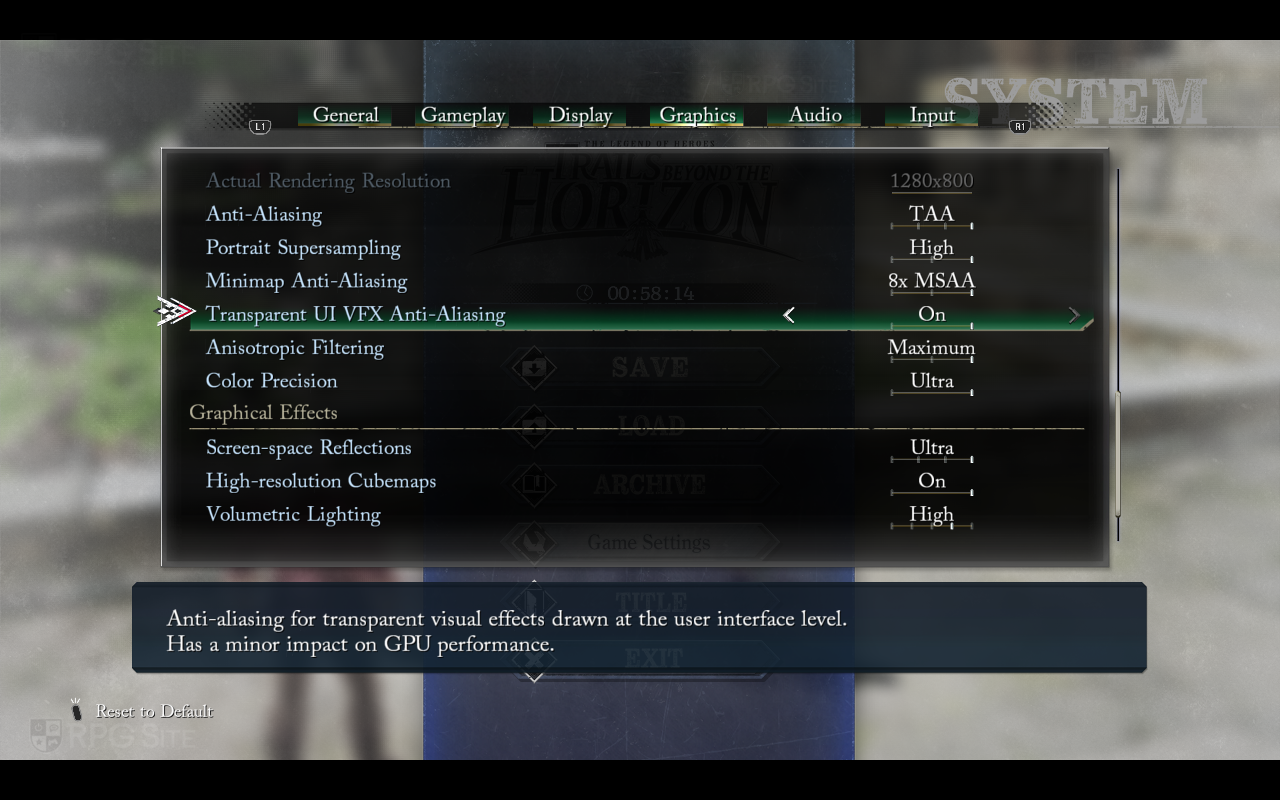
The Rendering Quality section lets you adjust resolution scale with an indication of the actual rendering resolution from 50% to 200%. This can be done in real time without reloading a save. You get to see the performance cost or penalty with each adjustment here. This section also lets you adjust anti-aliasing (off, basic, high, TAA), and then enable some of my favorite PC-exclusive visual options that only PH3 includes: portrait supersampling and minimap anti-aliasing.
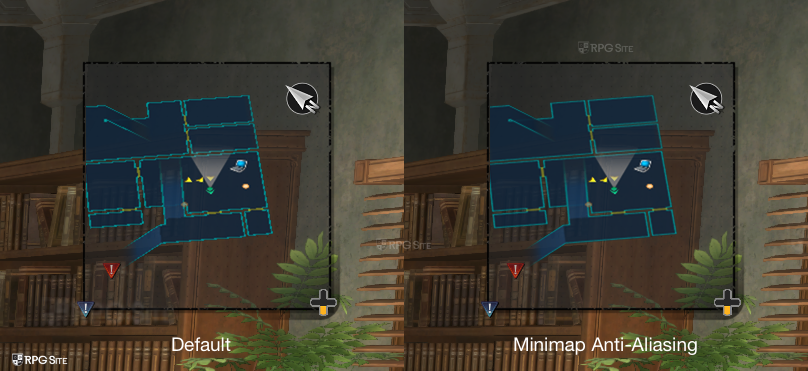
If you aren't familiar with those, think of games that have high resolution menus and gameplay, but falter with blurry rendering for certain elements in specific menus. PH3 goes the extra mile here and lets you make sure even the minimap is rendered at a higher resolution or supersample portraits in menus so they look crisp on your display.
The other options here are transparent UI VFX anti-aliasing which lets you enable anti-aliasing for visual effects on the UI elements. The last two settings in this section are Anisotropic Filtering and Color Precision. The former has three levels for texture filtering while the latter has an Ultra option to reduce banding artifacts with high precision color processing.
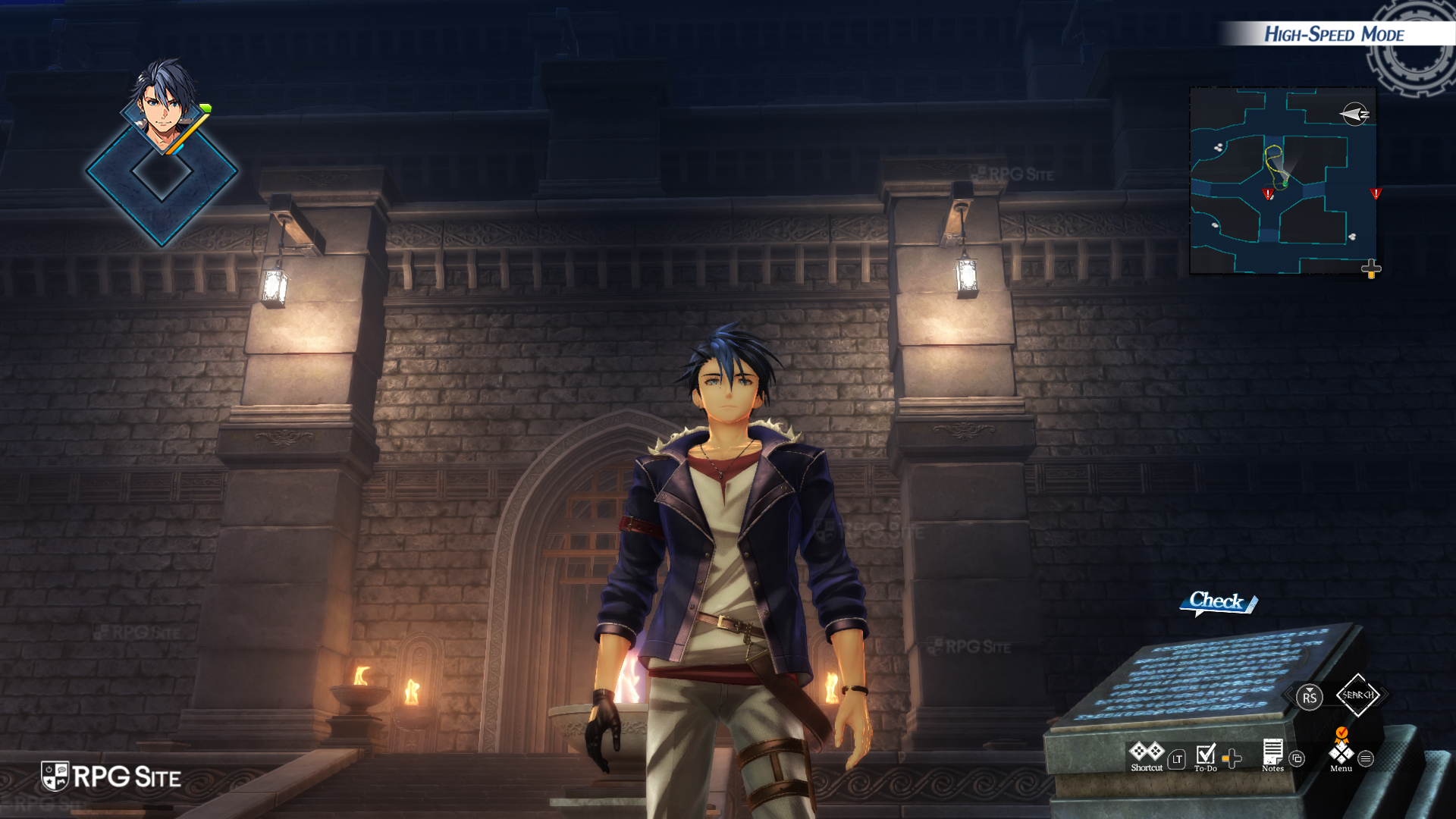
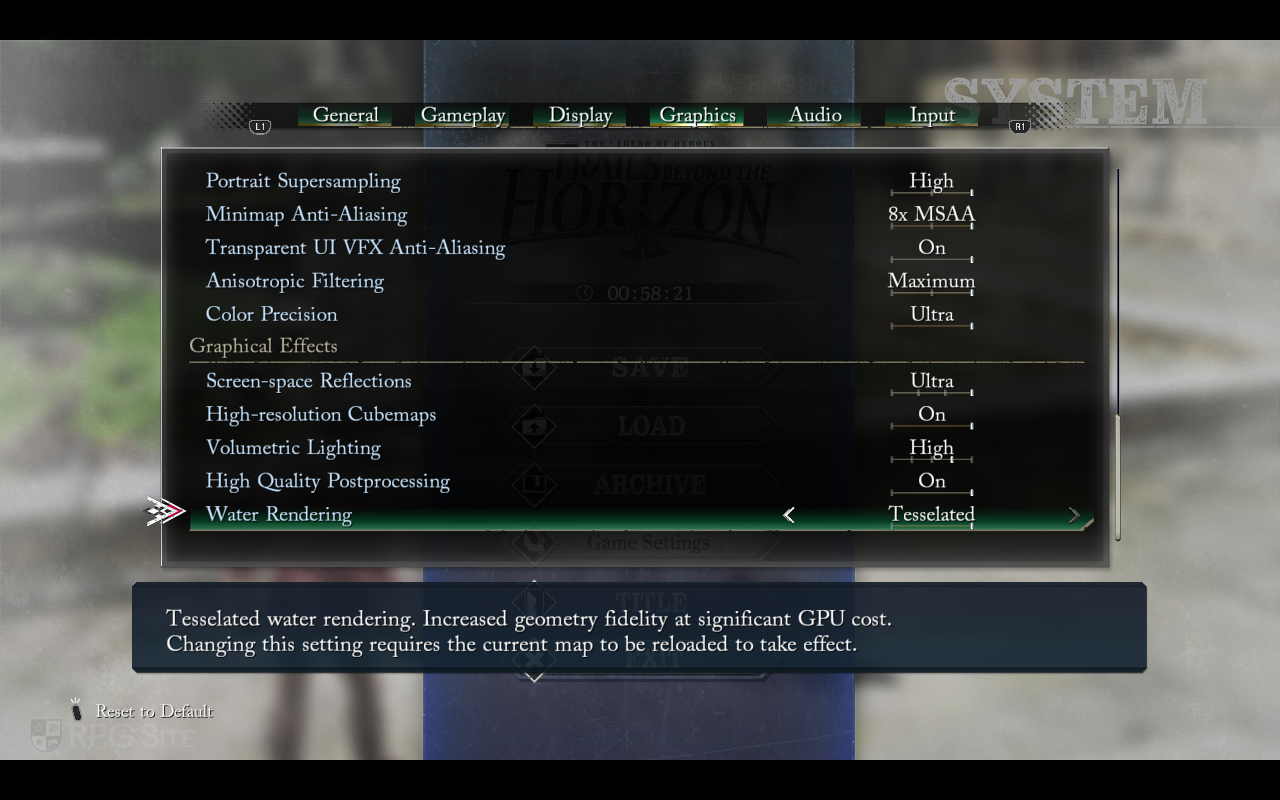
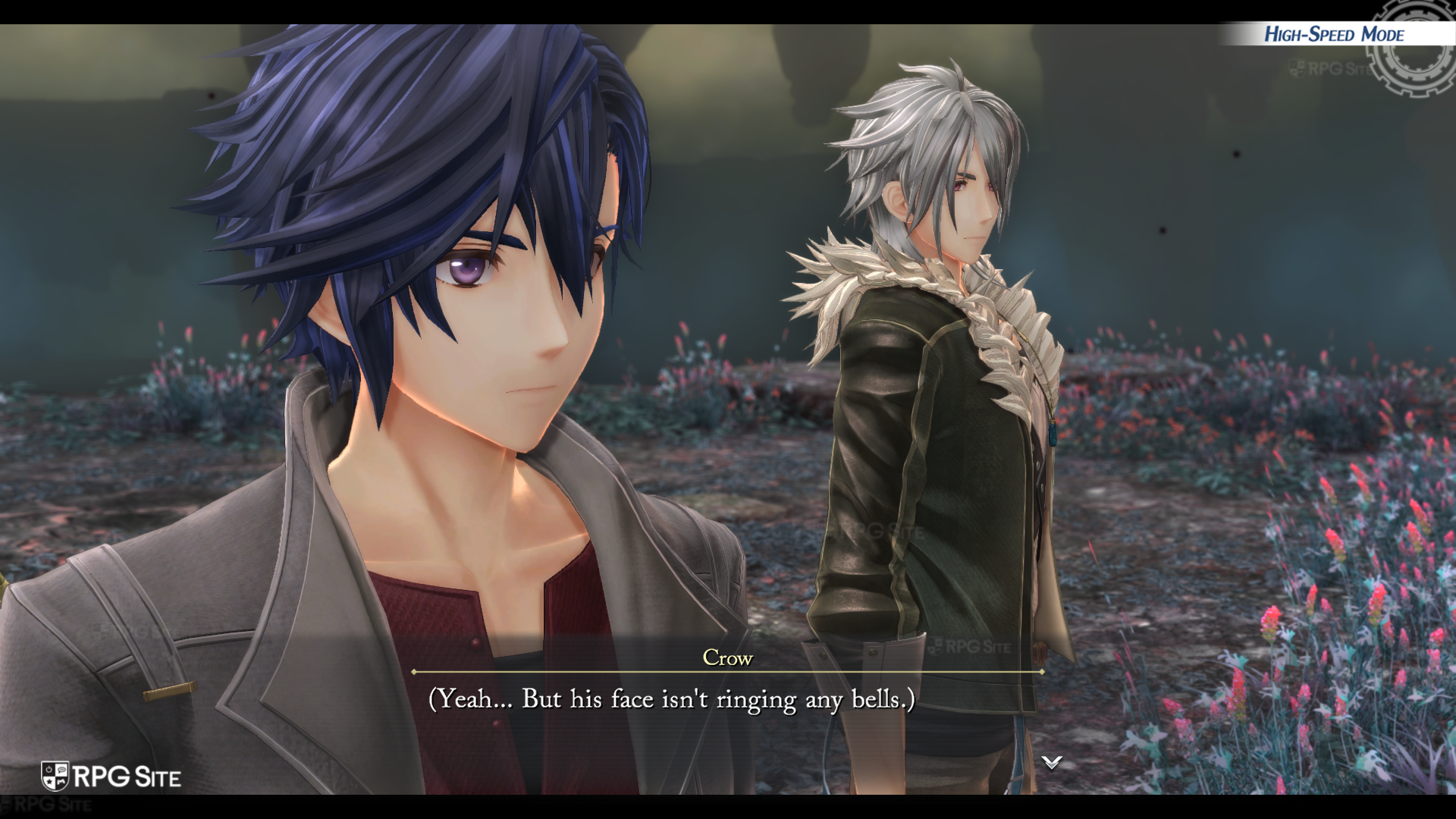
When it comes to the Graphical Effects, the final section in this detailed Graphics menu, you can adjust screen-space reflections, high-resolution cubemaps, volumetric lighting, high-quality post-processing, and then use the traditional or tessellated water rendering.
I also want to note that almost all the above options that affect performance will have a note about how much impact a setting will have on GPU performance as well.
PH3's Peter "Durante" Thoman tells me that DLSS and XeSS are available in Trails beyond the Horizon on PC, but only visible on supported hardware which means Nvidia GPUs or XeSS only on Intel Hardware since this is DX11.
Trails beyond the Horizon PC control options
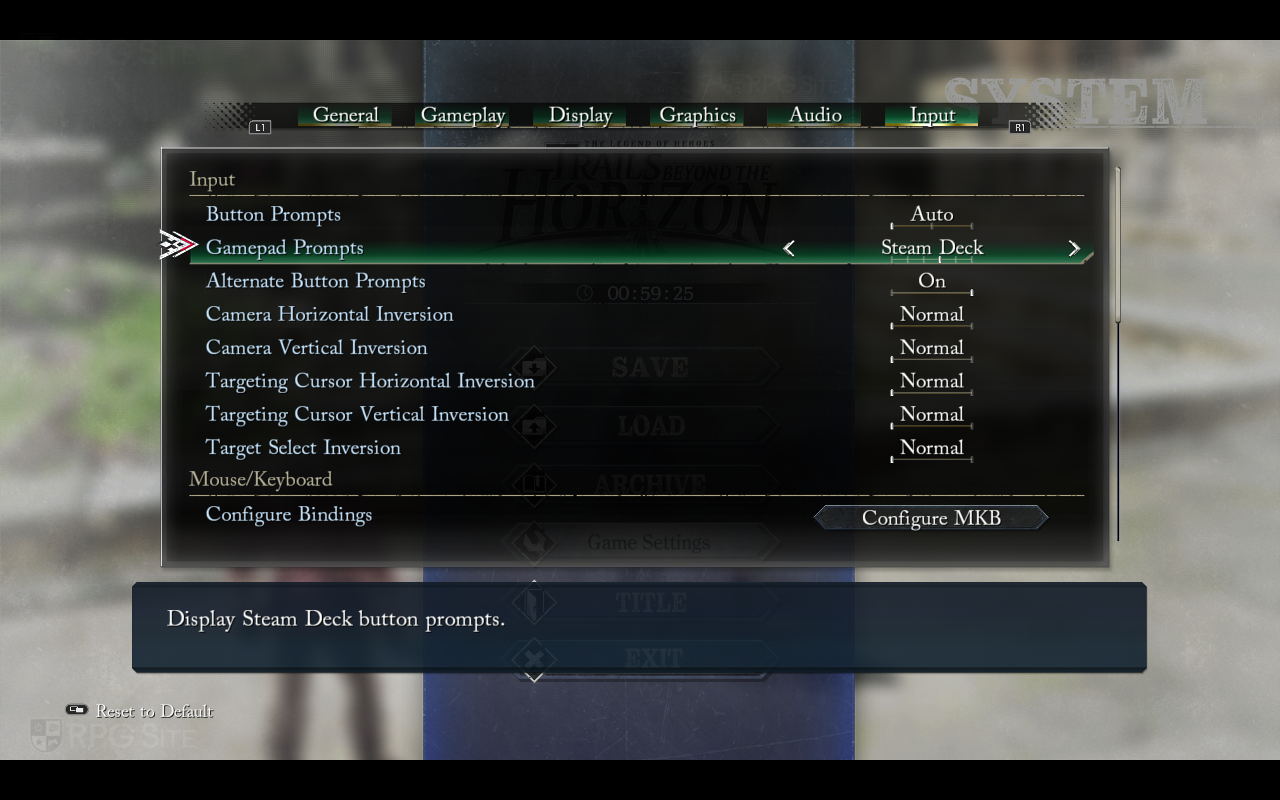
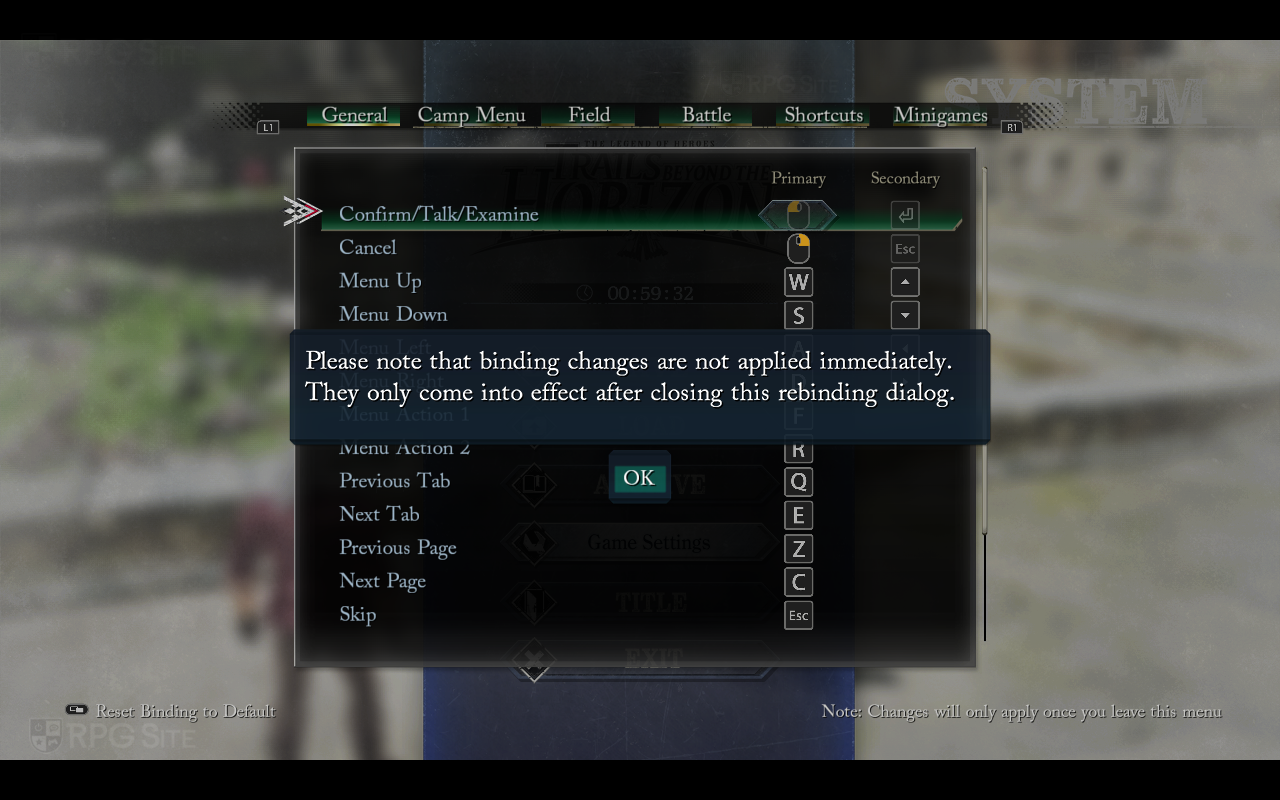
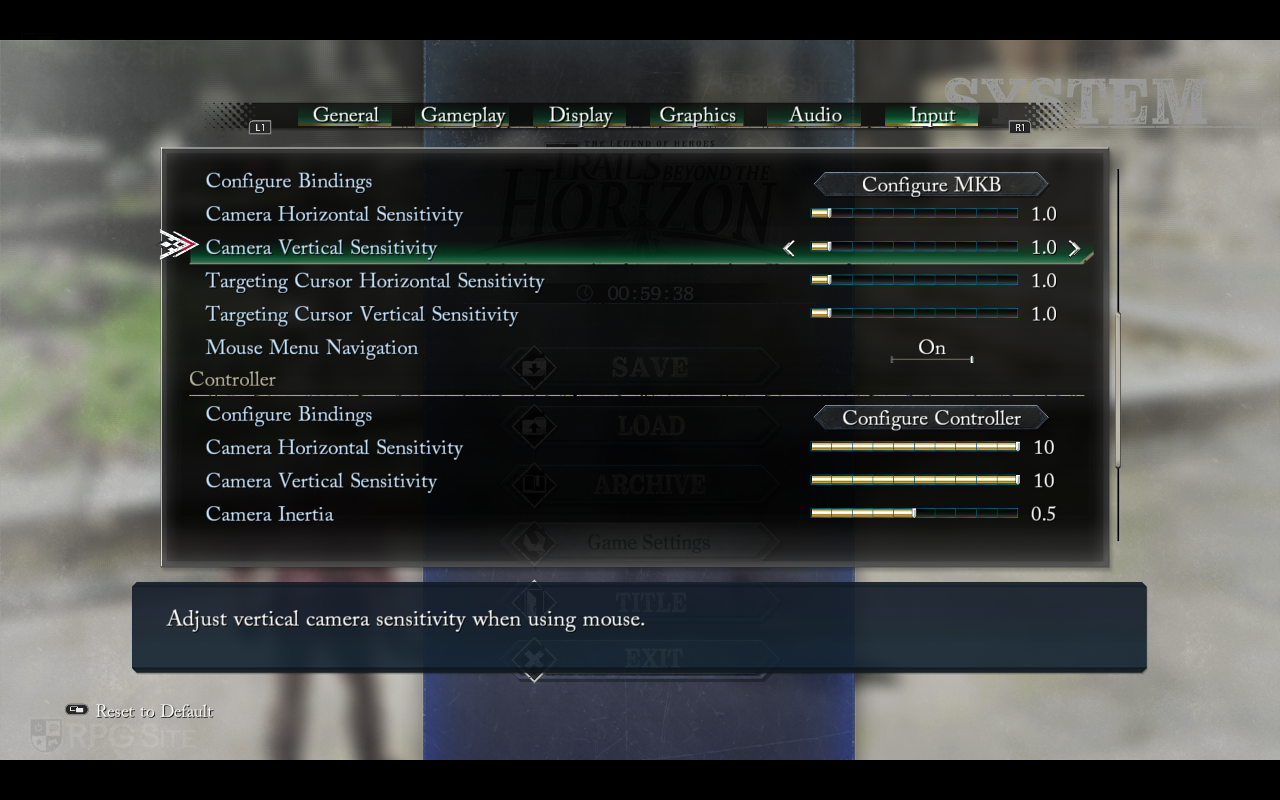
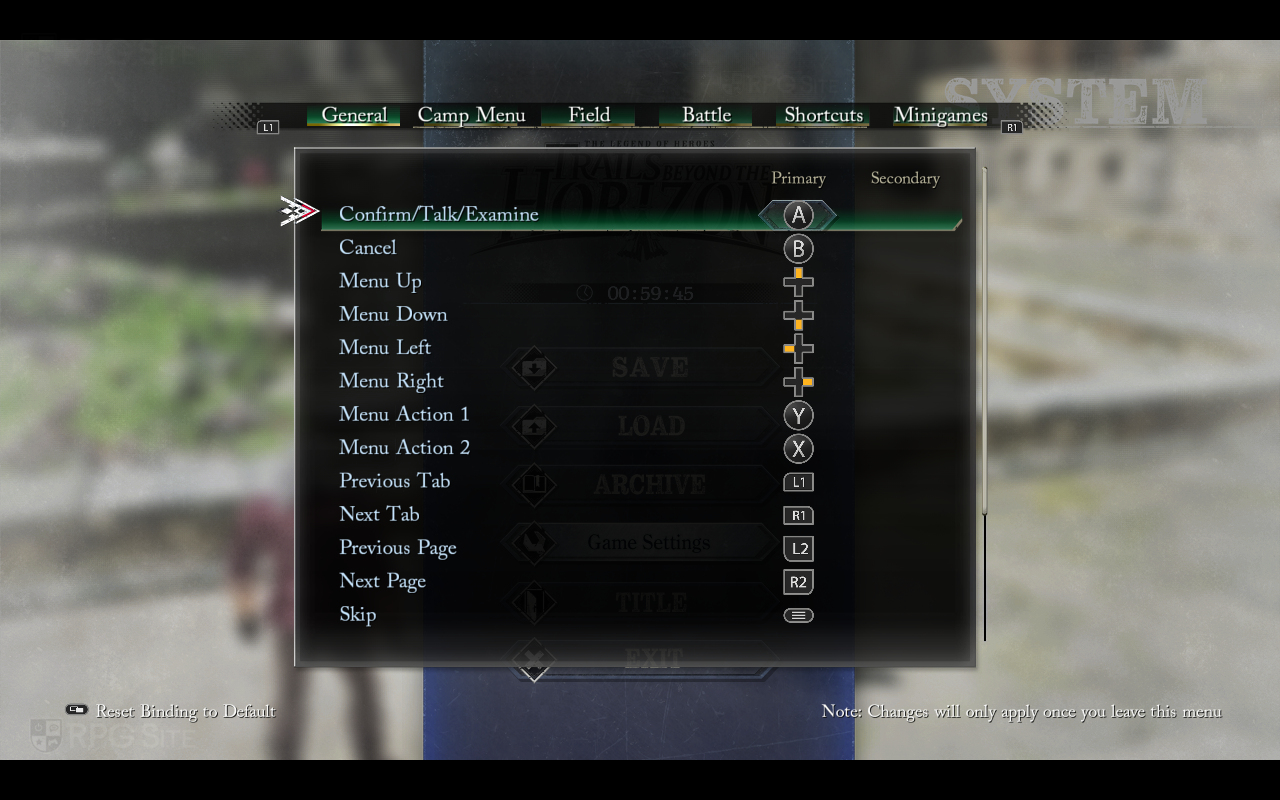
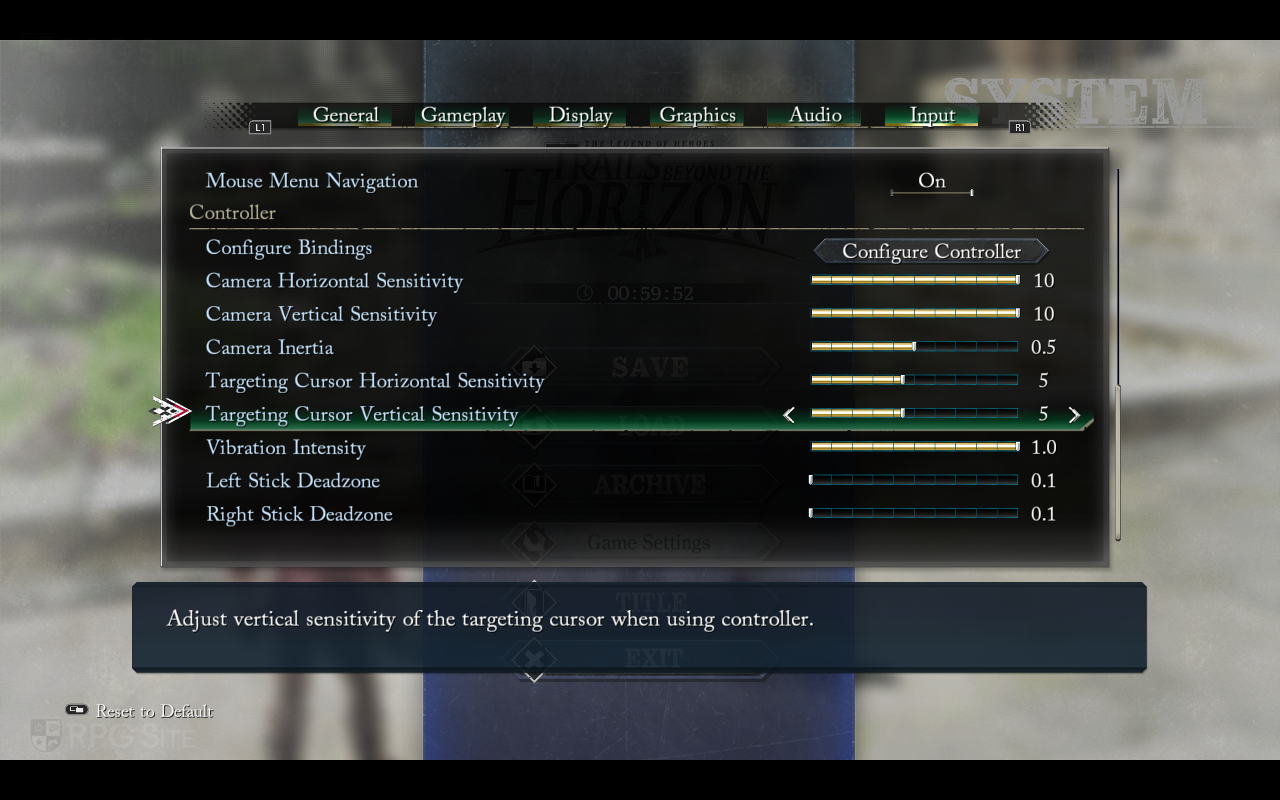
Trails beyond the Horizon lets you adjust what button prompts to display (auto, Xbox, PlayStation, Switch, Steam Deck, Stadia), force specific button prompts, show primary and secondary bindings for actions, adjust invert options for targeting and exploration, and then adjust sensitivity per input with mouse-specific options, controller options, deadzone options, vibration options, and more. Trails beyond the Horizon is a very feature-packed PC release even for control options.
Trails beyond the Horizon recommended settings for Steam Deck OLED and LCD
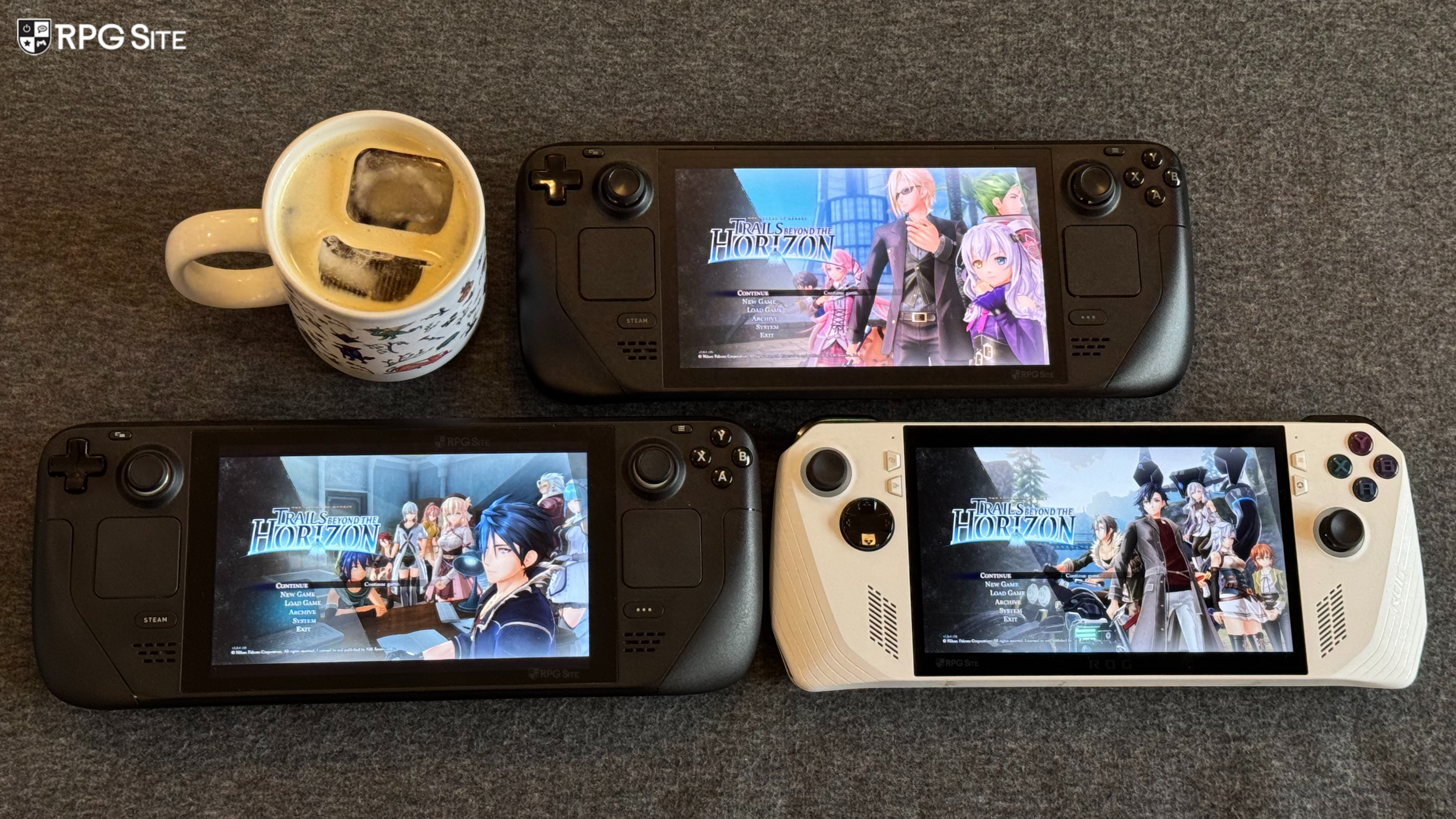
For Trails beyond the Horizon on Steam Deck LCD and OLED, I have two sets of settings. The first is for a 40fps on Steam Deck LCD and a 45fps on Steam Deck OLED target. For this, use the game's performance graphics preset and play at native resolution with no issues maintaining that performance target. This gives you a crisp image and solid performance throughout. I didn't have any notable issues in the 20 hours I've played on Steam Deck.
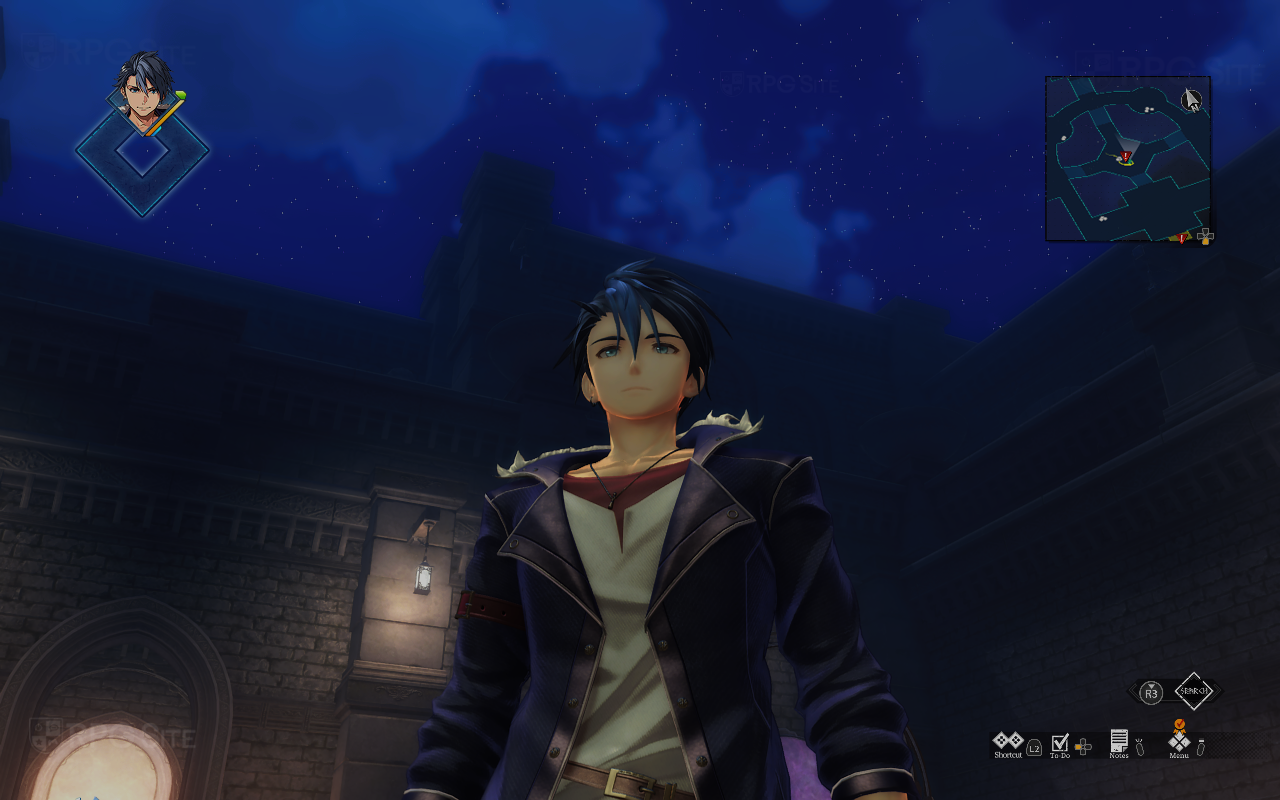
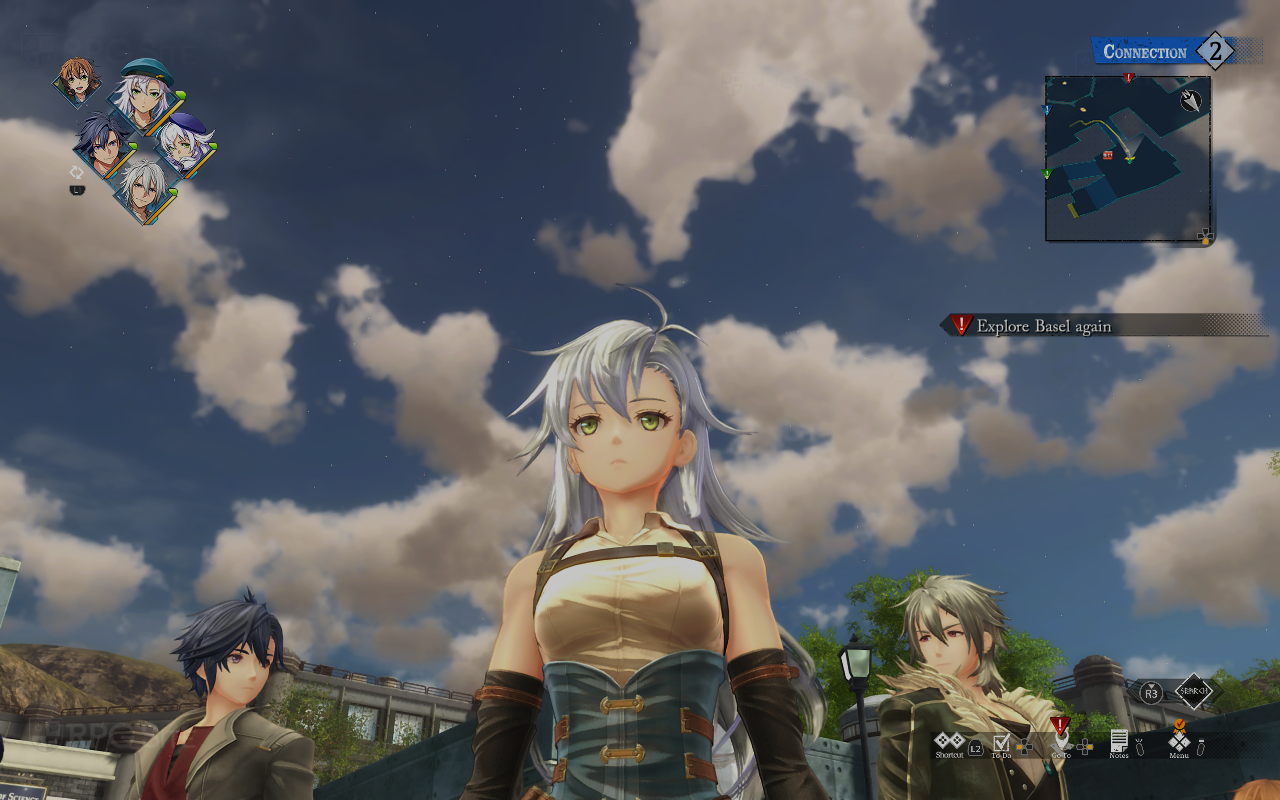
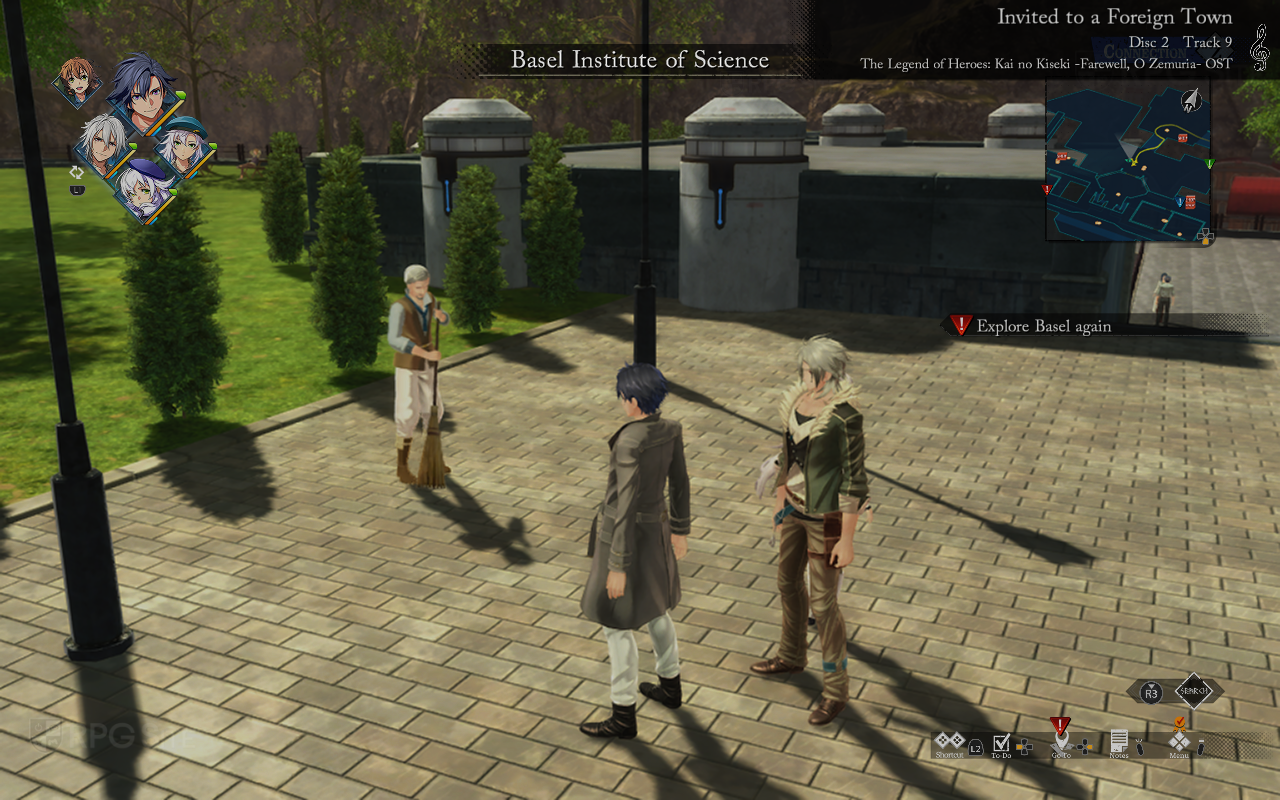
For a 60fps target, things get a bit interesting. Using the performance graphics preset, TAA anti-aliasing, and 80% render scale, I found it holds 60fps rather well. There are dips in particle-heavy animations, but using this with the Steam Deck OLED screen set to 60hz provided a good 60fps experience with not a lot of visual compromise.
Trails beyond the Horizon ROG Ally impressions
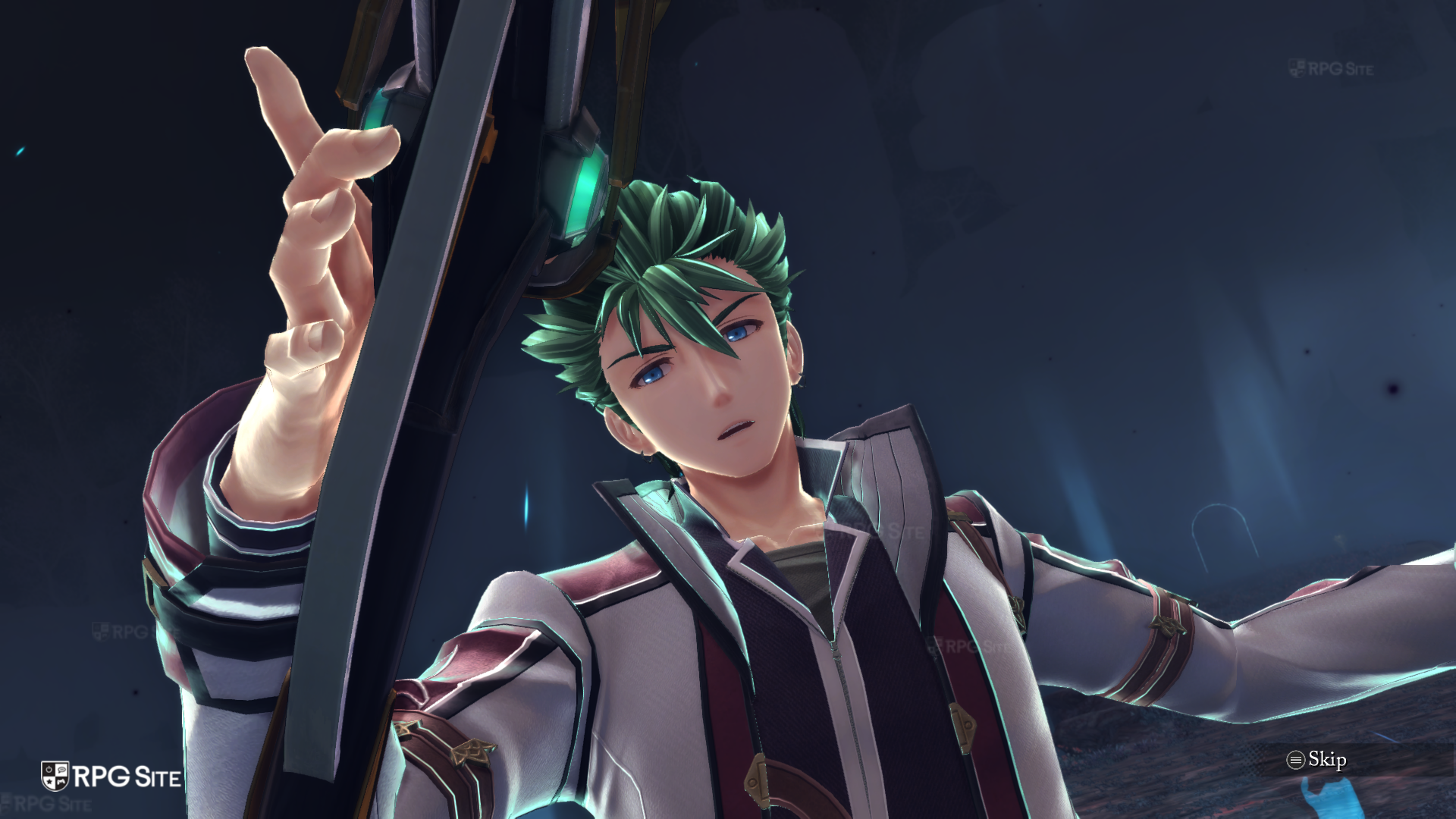
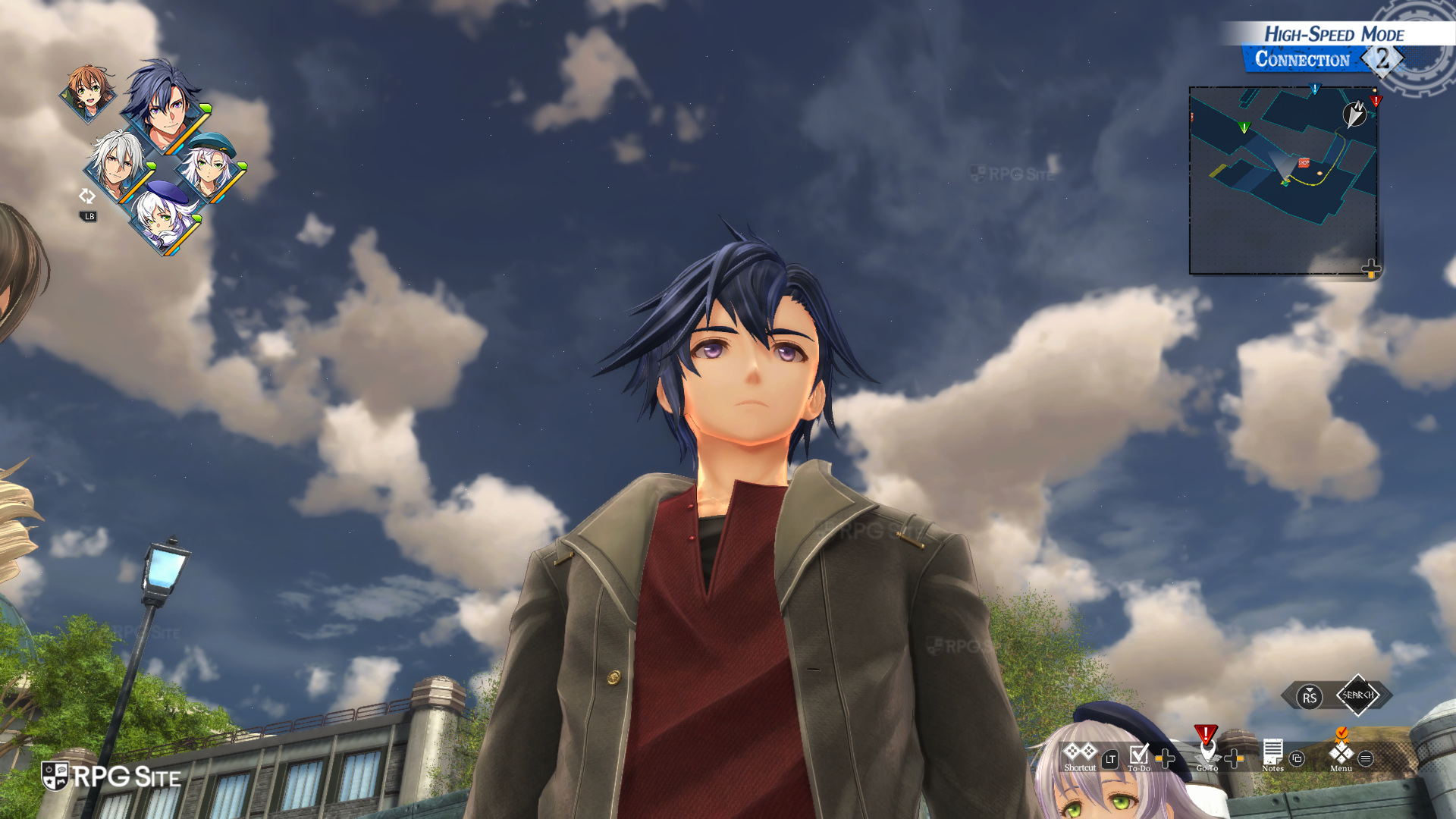
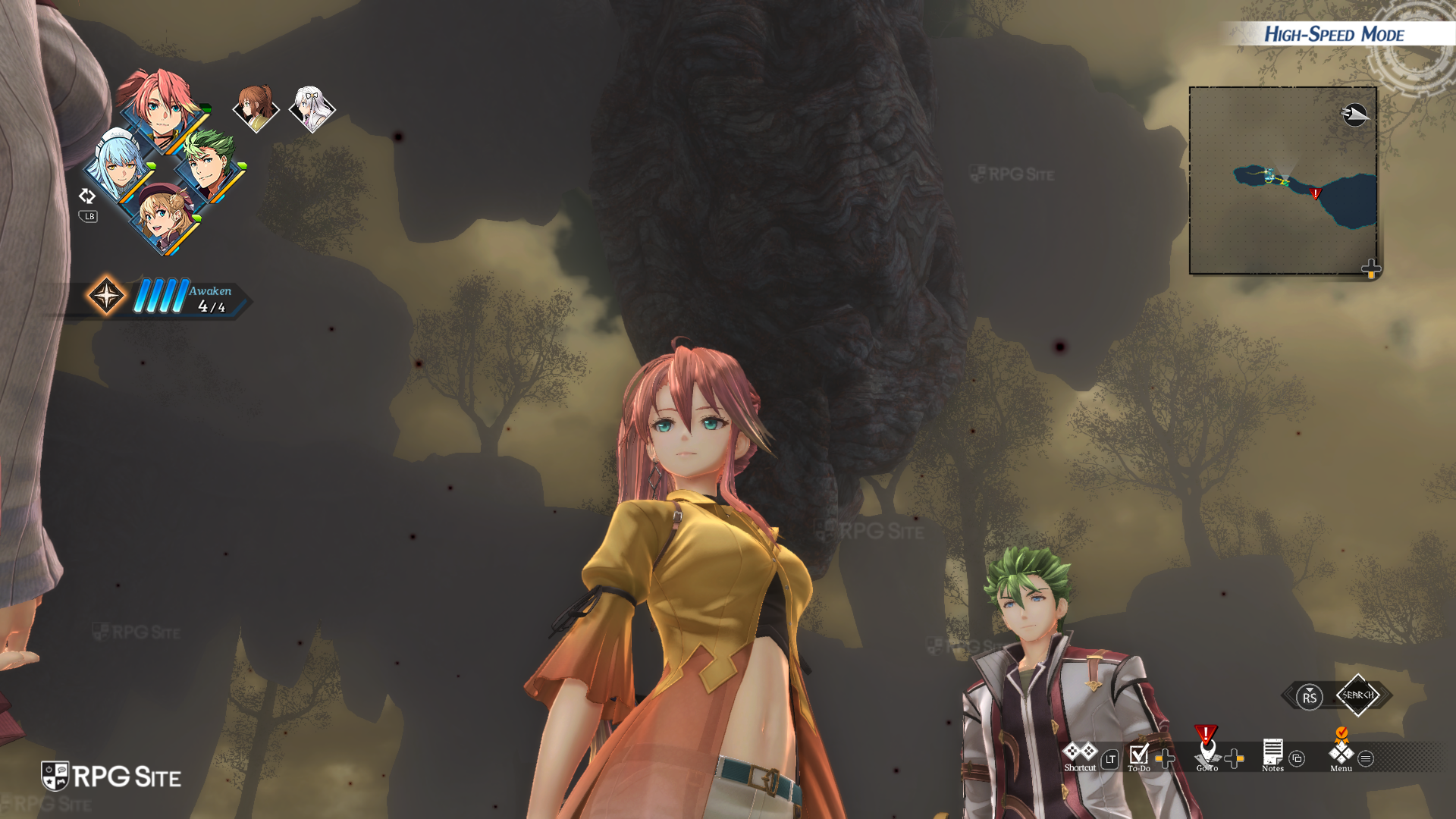
Trails beyond the Horizon on ROG Ally can scale above Steam Deck as you'd expect in its 25W mode. You will need to drop the render scale below 100% to get a 60fps experience even using the performance preset though. If you're ok with around 50fps, you can play at 1080p with it only really struggling in busier locations with lots of NPCs. I also tested the ROG Ally on ultrawide connected to my monitor and it worked great aside from some Windows 11-related issues with Steam screenshots.
If you played prior Trails games on ROG Ally, Trails beyond the Horizon delivers another polished and feature-packed PC release.
Trails beyond the Horizon NIS America vs Clouded Leopard Entertainment PC ports
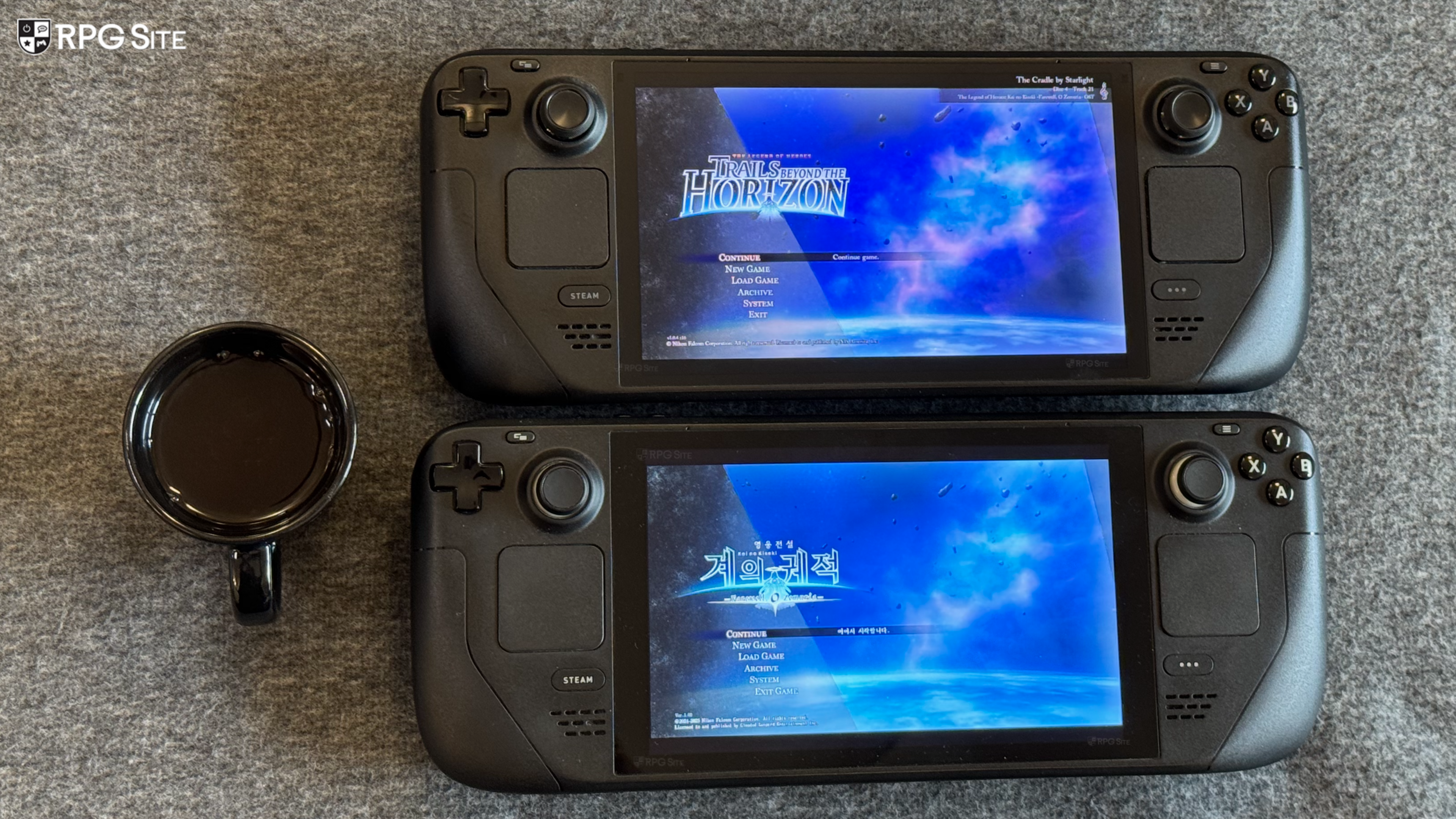
So far, the only feature missing in PH3's Trails beyond the Horizon release is upscaling options like FSR and XeSS specifically for AMD hardware. If your PC has an Nvidia GPU or Intel GPU, this isn't a problem as it supports DLSS and XeSS. (Updated on January 10: The CLE port's DLSS doesn't work as of now and the FSR appears to not be using FSR and it uses TAA instead. I am investigating the FSR side, but DLSS is confirmed to not be working right now). The CLE port does have XeSS on Steam Deck though, and while that is a welcome addition for handheld play, it does lack the quality of life and other PC-exclusive features in PH3's release that I covered earlier in this article.
As you can tell, The Legend of Heroes: Trails beyond the Horizon is a very robust PC release with PH3 continuing to go above and beyond with features and quality. Trails Through Daybreak II was 2024's best PC port and Trails beyond the Horizon is likely going to be the best if not one of the best PC ports of 2026. I'm looking forward to seeing how Ys X: Proud Nordics ends up on PC and also if Falcom's upcoming Trails in the Sky 2nd Chapter release sees improvements when it comes to PC-specific features beyond just resolution and frame rate. Playing PH3's Trails beyond the Horizon on PC has only reminded me how much I missed so many notable PC-exclusive features when playing Falcom's Trails in the Sky 1st Chapter.
The Legend of Heroes: Trails beyond the Horizon launches on January 15, 2026 for PlayStation 4, PlayStation 5, Nintendo Switch, Nintendo Switch 2 and PC (Steam).